Vitaly Friedman loves beautiful content and doesn’t like to give in easily. When he is not writing, he’s most probably running front-end & UX …More about
Vitaly ↬
The concept of floats is probably one of the most unintuitive concepts in CSS. Floats are often misunderstood and blamed for floating all the context around it, causing readability and usability problems. However, the reason for these problems isn’t the theory itself, but the way the theory is interpreted - by developers and browsers. Still, if you take a closer look at the float theory, you’ll find out out that it isn’t that complex as it appears to be. Most related problems are caused by the older versions of (take a guess) Internet Explorer. If you know the bugs, you can control the way information is presented in a more sophisticated, profound way.
The concept of floats is probably one of the most unintuitive concepts in CSS. Floats are often misunderstood and blamed for floating all the context around it, causing readability and usability problems. However, the reason for these problems isn’t the theory itself, but the way the theory is interpreted - by developers and browsers.
Still, if you take a closer look at the float theory, you’ll find out out that it isn’t that complex as it appears to be. Most related problems are caused by the older versions of (take a guess) Internet Explorer. If you know the bugs, you can control the way information is presented in a more sophisticated, profound way.
Let’s try to tackle the issue and clarify some usual misunderstandings, which always appear once floats are being used. We’ve browsed through dozens of related articles and selected the most important things you should keep in mind developing css-based layouts with floats.
You might be interested in the following related posts:
"The practice of flowing text around an image goes back a long, long time. That's why the ability was added to the Web starting with Netscape 1.1, and why CSS makes it possible using the property float. The term "float" refers to the way in which an element floats to one side and down, as described in the original "Additions to HTML 2.0" document that accompanied the release of Netscape 1.1."Containing Floats
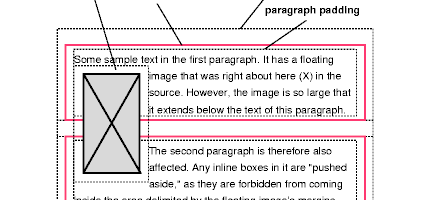
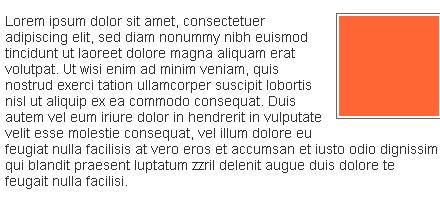
"A floated box is positioned within the normal flow, then taken out of the flow and shifted to the left or right as far as possible. Content may flow along the side of a float. [...] When a box is taken out of normal flow, all content that is still within normal flow will ignore it completely and not make space for it." [Float Positioning]
"When you float an element it becomes a block box. This box can then be shifted to the left or right on the current line. The markup options are float: left, float: right or float: none." [Floatutorial: Float Basics]
"You should always set a width on floated items (except if applied directly to an image - which has implicit width). If no width is set, the results can be unpredictable." [Floatutorial: Float Basics]
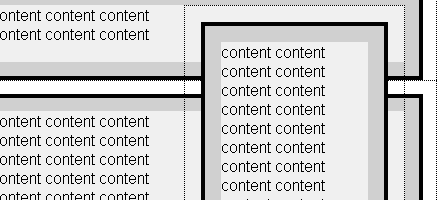
"For one, the box being floated should have a width defined for it, either explicitly or implicitly. Otherwise, it will fill its containing block horizontally, just like non-floated content, leaving no room for other content to flow around it. Second, unlike boxes in the normal flow, the vertical margins of a floated box are not collapsed with the margins of boxes either above or below it. Finally, a floated box can overlap block-level boxes adjacent to it in the normal flow."CSS Positioning: Floats
"The first thing we need to remember is that a floating element is shifted either to the left or to the right. It is not possible to make an element float in the centre, something that often is frustrating for beginners. The basic rule is that a floating element is only shifted sideways." [Float Layouts]
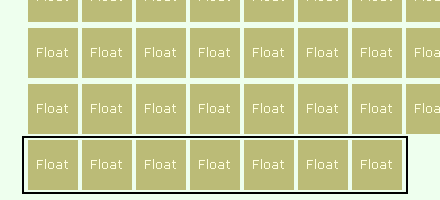
"When we float an element it is shifted to the right or to the left until it reaches the edge of the containing block. If we then float another element nearby in the same direction, it will be shifted until its edge reaches the edge of the first floating element. [...] If we float more elements in the same direction they will stack up, but sooner or later we'll run out of space [...] when there is insufficient space on the line, they are shifted downward until they fit." [Float Layouts]
Containing blocks or containing boxes: "A containing block is a box or block that contains other elements (descendant boxes). An element's containing block means "the containing block in which the element lives". [Floatutorial]
"Floated boxes will move to the left or right until their outer edge touches the containing block edge or the outer edge of another float." [Floatutorial: Float Basics]
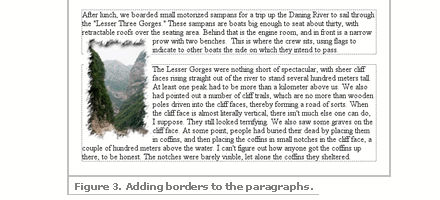
"When specified, the box is positioned vertically as it would be within the normal flow, its top aligned with the top of the current line box. But horizontally, it is shifted as far to the right or left of its containing block as possible, within that block's padding (just like other content). Surrounding inline content is then allowed to flow around the opposite side." [CSS Positioning: Floats]
"Since a float is not in the flow, non-positioned block boxes created before and after the float box flow vertically as if the float didn't exist. However, line boxes created next to the float are shortened to make room for the floated box. Any content in the current line before a floated box is reflowed in the first available line on the other side of the float."W3C Visual Formatting Model
"If there isn't enough horizontal room on the current line for the floated box, it will move downward, line by line, until a line has room for it." [Floatutorial: Float Basics]
"A floating box can never end up above the upper edge of the line where it's created. [...] The upper edge of a floating box is aligned with the upper edge of the current line box (or with the bottom edge of the previous block box, if there is no line box)." [Float Layouts]
"In order to really understand float theory you have to understand what a line box means in CSS. Unfortunately, that in turn requires you to understand what is meant by an inline box. [...] An inline box is generated by those elements that aren't block-level, such as EM. [...] A line box is an imaginary rectangle that contains all the inline boxes that make up a line in the containing block-level element. It is (at least) as tall as its tallest line box." [Float Layouts]
"If we enclose each column in a DIV element with float: left they will appear side by side, just as we expect columns to do. If we then want a full-width footer to be shown at the bottom, no matter which column happens to be longest, we only need to set clear: both on it." [Float Layouts]
"The potential drawback to using floats to contain floats is that you rely on browsers to consistently interpret the layout of multiple nested floated elements. The situation becomes more fragile if these floats are part of a more complicated layout, one possibly using floats, positioning, or tables." [Containing Floats]
Clearing the floats
“Elements following a floated element will wrap around the floated element. If you do not want this to occur, you can apply the “clear” property to these following elements. The four options are clear: left, clear: right, clear: both or clear: none.” [Floats and “clear”]
How to clear CSS floats without extra markup - different techniques explained. There are three major approaches: a) Floating the containing element as well, b) Using overflow: hidden on the container, c) Generating content using the :after CSS pseudo-class. A test-page for techniques. [How to clear CSS floats without extra markup]
“The standard method of making an outer container appear to “enclose” a nested float is to place a complete “cleared” element last in the container, which has the effect of ‘dragging’ the lower edge of the containing box lower than the float.”
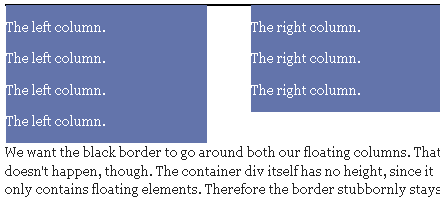
"A common problem with float-based layouts is that the floats' container doesn't want to stretch up to accomodate the floats. If you want to add, say, a border around all floats (ie. a border around the container) you'll have to command the browsers somehow to stretch up the container all the way. You can clear the floats using overflow method."Clearing floats
Using :after: imagine that we use :after to insert a simple character like a 'period', and then give that generated element {clear: both;}. That's all you really need to do the job, but no one wants a line space messing up the end of their clean container box, so we also use {height: 0;} and {visibility: hidden;} to keep our period from showing.
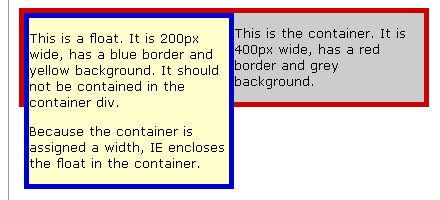
Clearfix: “When a float is contained within a container box that has a visible border or background, that float does not automatically force the container’s bottom edge down as the float is made taller. Instead the float is ignored by the container and will hang down out of the container bottom like a flag. […] IE/Win does enclose a float within a container ‘automatically’, but only if the container element has a stated dimension.” [Easyclearing: How To Clear Floats Without Structural Markup]
CSS Float Bugs
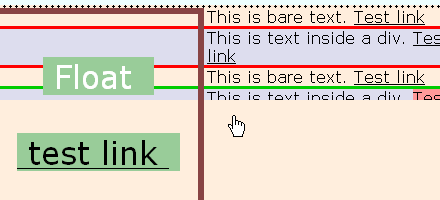
When [...] container element has links inside, following the float. When this happens and certain links are hovered, the auto-enclosing behavior is toggled or "switched off", causing the lower edge of the container box to suddenly jump up to the bottom of the non-floated content. Hovering other links restores the behavior. This interesting effect is of course called the IE/Win Guillotine Bug. The toggling only occurs when a:hover is used to change the link background or many other styling changes, such as padding, margin, or any font styling on the link. Strangely, having the text color change on hover does not toggle the bug.[How To Clear Floats Without Structural Markup]
The IE Escaping Floats Bug: "If you use a div box with margins, borders and a number of left floated divs, you'll get two display errors in IE Win. One, the container is only containing the last line of floats , and the floats are also running off to the right, all the way to the right screen edge. also causes a horizontal scrollbar at many screen sizes. [...] Solution: a height can be given to IE/win and not affect the displayed height of the container. This is possible because IE has another non-standard behavior concerning boxes and dimensions." Holly Hack: assigning a height to the element, i.e. height: 1%;.
The Win/IE6 Peekaboo bug: "A liquid box has a float inside, and content that appears along side that float. In IE6 the content disappears. When you scroll down, or perhaps switch to another window, upon returning back there it all is (this long standing bug has been suppressed in IE7).
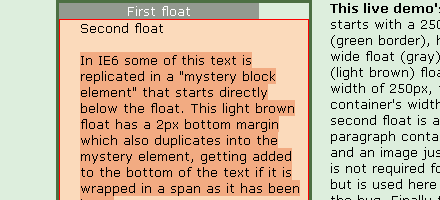
IE Duplicate Character Bug: "Internet Explorer 6 has a puzzling bug involving multiple floated elements; text characters from the last of the floated elements are sometimes duplicated below the last float. The direct cause is nothing more than ordinary HTML comments, such as, ``, sandwiched between floats that come in sequence. Bugfix.[IE Duplicate Character Bug]
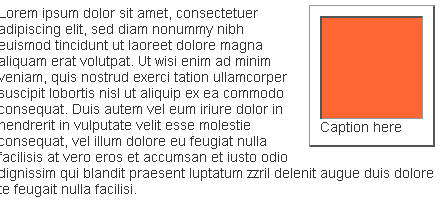
"One of the most common tasks when laying out the content of a web page is floating images to the right or left so that text flows around them. The addition of the clear to the floated image ensures that each one will always sit below the previous one. However, placing the float and clear properties on the same element can cause large gaps to appear in Internet Explorer (IE) — gaps that take more complicated CSS to fix than what we've used so far. Bugfix." [Close Gaps Next to Floated Images in Internet Explorer]
"You place a left float into a container box, and use a left margin on the float to push it away from the left side of the container. In Internet Explorer the left float margin has been doubled in length!" [The IE Doubled Float-Margin Bug]
"The bug demonstrated here causes in-line elements (images, text) adjacent to a floated div to appear to be indented from their expected location. The indentation is caused by IE/Win's weird handling of margins on floated elements." [Floats, Margins and IE]
"There is a simple solution that fixes many of the IE float bugs. All floats become a block box; the standard says that the display property is to be ignored for floats, unless it's specified as none. If we set display:inline for a floating element, some of the IE/Win bugs disappears as if by magic. IE/Win doesn't make the element into an inline box, but many of the bugs are fixed." [Float Layouts]
"Using a combination of float and negative margins on an element makes any links in the element unclickable in Safari 1.3 and Safari 2.0. Text also becomes very difficult to select, and if you tab through the links they disappear when they lose focus. A workaround is to add position:relative to the CSS declaration for any floated elements with negative margins." [Float + negative margin problems in Safari]
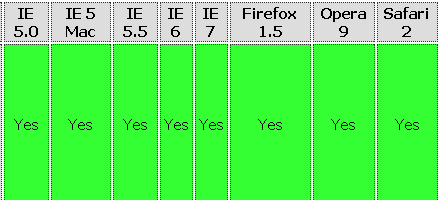
"MSIE 7 now correctly implements the W3C specification by collapsing containers that include floated children. However, as it has not implemented generated content, the so called easy clearing method is not an option for clearing floats in MSIE 7. The overflow method is an appropriate solution for all versions of Internet Explorer:
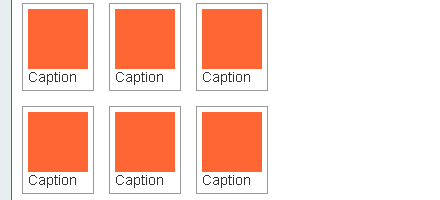
A floated page layout
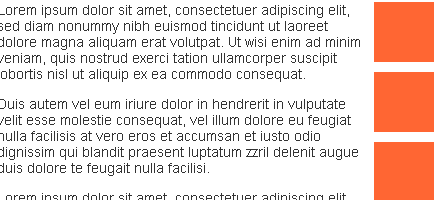
This tutorial shows you how to create a page layout like this, using web standards and CSS. Such a layout could have any number of uses, of which a photo gallery is only the most obvious. The page I've linked to there clearly isn't finished, I've just tried to keep it simple so we can focus on the layout of the images and the text.
Build a better Web site by understanding floated elements in CSS
This article provides a brief introduction to these floated elements, explaining the CSS float and clear directives and providing some examples of how you can use them to better position HTML elements on a Web page.
Create Columns with Floats
In general, there are currently two ways to create a multi-column layout in CSS: absolute positioning or floating. The vast majority of the time, floating will be your method of choice in laying out your web pages with CSS. In this tutorial, you'll learn how to create the look of columns using the float, width and margin properties.
Safe Lists Next to Left-Floated Elements
There are lots of different methods to format nice html lists. But are those methods reliable in all contexts and in all browsers? In this article, we'll have a look at a simple context: a list with some left-floated element next to it.
Creating Liquid Layouts with Negative Margins [and Floats]
I took opportunity to demonstrate an under-used aspect of CSS: negative margins. Negative margins allow us to push the content area away from the sides of the browser, leaving room for the sidebar.
Image floats, without the text wrap! How many times do you have an image floated left in a block of content, but want to keep that content from wrapping around your image?
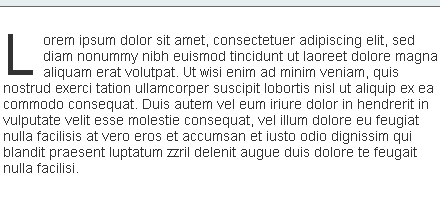
Floating a scaleable drop cap Float a scaleable drop cap to the left, resize it and adjust line-heights to suit your needs.
Liquid two column layout
Float a left nav to achieve a two column layout with header and footer.
Liquid three column layout
Float left and right columns to achieve a three column layout with header and footer.
CSS Float Html Tutorial
It's time to think outside the box, or maybe, more accurately, floating alongside of it. Where did we lose our collective CSS coding creativity? CSS allows so much freedom from traditional table based layouts that we sometimes do not consider page and layout design alternatives. What a pity. Time to think outside the box!


 Celebrating 10 million developers