Smashing Magazine - we smash you with the information that will make your life easier. really.

Screencasting: How To Start, Tools and Guidelines

Advertisement

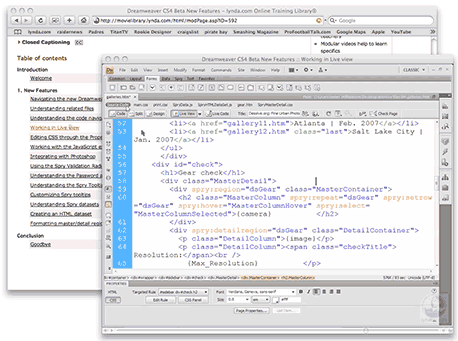
Some companies have made a living creating a sort of “virtual classroom,” allowing members to learn at their own pace when they have the time using video tutorials. The advantages of the classroom setting stem from a one on one experience and the ability of the instructor to show the ideas and theories rather than simply explain them.
Lynda in Screencasting: How To Start, Tools and Guidelines

Screencasting, or sharing your virtual desktop via video presentation, has exploded in popularity with the advent of podcasting, and gives you the ability to bring the classroom feel to a media presentation that can be delivered over the Internet. The medium of screencasting is readily available to everyone and with a few tools of the trade you can be ready to produce your own.

Why Should You Screencast?

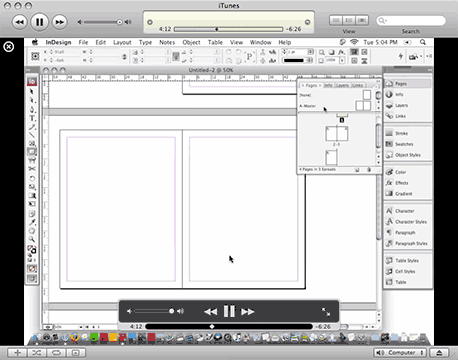
There are several advantages to screencasting both from the user’s side as well as from the creator’s. From the point of view of the audience, the screencast allows them to learn by example, seeing every step in great detail. Learning by watching the host move through the steps enables them to take note of where everything is in the application or presentation. In most cases the ability to pause or rewind also gives the viewer the power to move at their own pace… something a classroom cannot always offer.

For the creator, screencasting offers the capability to explain in detail what may be more confusing when delivered in audio or the written word. Video allows the screencast producer to complete the flow of thoughts or processes without being forced to chop steps into static images, as in a book or slide show. With the combination of video and audio, the creator can mimic the one on one experience of the classroom and deliver clear, complete instruction.
Pause in Screencasting: How To Start, Tools and Guidelines

Althought the advantages may seem plentiful, screencasts do have their downside as well. Watching a video requires a commitment of time, and some potential audience members may not have the time to give. While iPods and other portable media players have made video content more portable, a large portion of the population may still rely on books and the printed word for training on-the-go. Screencasting, although not a new technology is still relatively obscure. Individuals that a screencaster is trying to reach may simply not know that the information is available to them.

The technical difficulties of screen capture and exporting can be numerous, and a poorly constructed offering will almost absolutely result in a reduction in audience and exposure. While video and audio quality may not be as important as content, it can make or break the success of a screencast.

Who Can Make a Screencast?

Anyone with something to teach or present can produce a screencast. Required are a good idea, some screen recording software, a microphone, a site for distribution, and a willingness to share your ideas with the world. In seven easy steps you can begin to produce a screencast and deliver it to the world.

Seven Steps to Screencasting

  1. Content is king.
    If you don’t have something to present, you don’t have a screencast! In most cases, a screencast is produced to teach a process or technique, or get a set of ideas across to an audience. If you cannot keep the attention of the audience, the screencast may be rendered useless. When choosing a topic, start with areas that are within your knowledge base, and can be covered in the time allotted to complete the series.
  2. Planning.
    A script may or may not be utilized in preparation, but it is good practice to complete a dry run of the presentation before actually hitting the record button. Practice makes perfect, and the more familiar you are with your content, the more polished the final recording will be.
  3. Push the red button.
    It’s time to shine, and if your preparation went well, this step should be relatively easy. Remember to move at a pace that is comfortable for your audience and speak clearly so as to avoid any confusion. Audio can be added in post production instead of being recorded during the presentation, but this will require an extra editing step and can break the flow of the delivery if not done correctly.
  4. Review the video.
    Be sure that no steps were left out and that the flow of the presentation makes sense and will be easy to follow for your intended audience. If imperfections are found, you may choose to edit or re-record the video altogether.
  5. Editing.
    If necessary, edit the video according to your standards. Include any transitions, intros, outros, or other post production items.
  6. Produce.
    Export your video with the settings that best fit your intended output, whether that will be streaming from a webpage, downloadable media or delivery on a disc.
  7. Distribute the videos.
    There are several options from hosting your own weblog site and leveraging an RSS feed, to using a service such as screencast.com, YouTube or revver.com.

Capturing Your Screen

As is often the case with software, the options are plentiful for capturing video of your computer screen. The feature sets of these software packages for the most part are comparable, but advanced tools and pricing set a few of them apart from the pack. Below are five screen capture software applications that can be used to create a screencast.

Snapz Pro X (Mac)
Snapz in Screencasting: How To Start, Tools and Guidelines

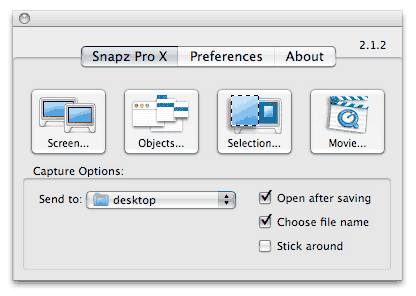
Snapz Pro X is a robust offering of settings and compressions for screen captures of all sizes. It is fairly easy to use and captures great quality of video and sound. Video from this application is exported in Quicktime (.mov) format only and Snapz Pro X does not allow for video editing. This is a feature-rich application for a reasonable price of about $70.

iShowU (Mac – Tiger or Leopard)

Ishowu in Screencasting: How To Start, Tools and Guidelines

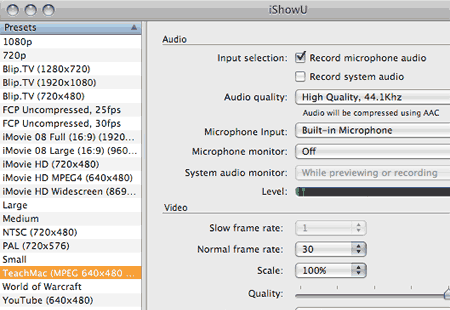
iShowU offers polished recording quality and plenty of settings and export presets for anything from YouTube formatting to 1080p. Like Snapz Pro X, iShowU lacks ability to encode video to different formats. Videos are saved in Quicktime (.mov) format only and editing is not a feature supported by this application. This is a productive little application and priced for the novice at about $20.

Screenflow (Mac)
Flow in Screencasting: How To Start, Tools and Guidelines

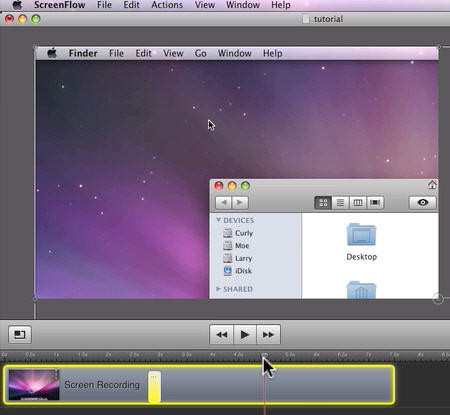
Compared to other applications, Screenflow has advanced algorithms that only encode areas of change on your screen. It can simultaneously record from iSight or DV camera at the same time as your screen (and your microphone and computer’s audio). You can also capture games and DVD-videos. With ScreenFlow editor you can add zoom and pan effects, trim clips, add drop shadow and reflection, adjust audio levels etc. You can also combine existing media into your screencast. Powerful and very user-friendly, price: $99.99.

Camtasia Studio 5 (Windows)
Camtasia in Screencasting: How To Start, Tools and Guidelines

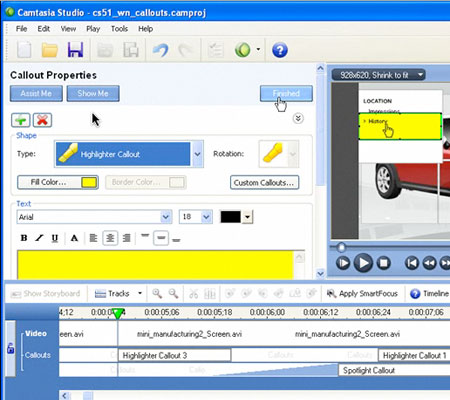
If you are looking for an all-in-one screen capture and video editing software package, and you’re using Windows, this is the one for you! Camtasia Studio 5 lets you record the screen, format and compress for multiple outputs, edit and enhance the audio and video, and save in several different formats. A host of other features including themes, transitions, and captions make this product stand out among the pack, but at a price of about $299.

CamStudio (Windows)
Camstudio in Screencasting: How To Start, Tools and Guidelines

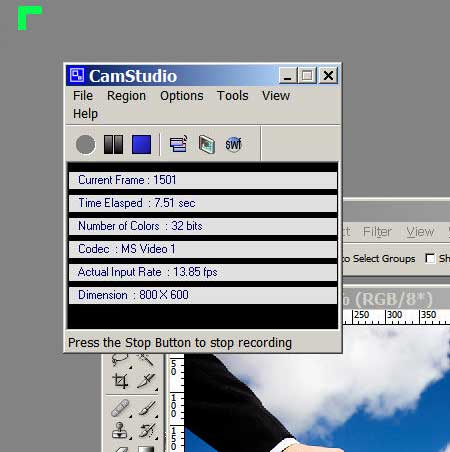
CamStudio is a quick and lightweight screen capture application that allows for recording of video and sound to either an .avi or Flash based swf file. It features the ability to place banners/text boxes with supporting text. This application records only and does not allow for editing, but is a very functional screen capture option and is free for anyone to use, provided you are using the Windows operating system.

Adobe Captivate 3 (Win)
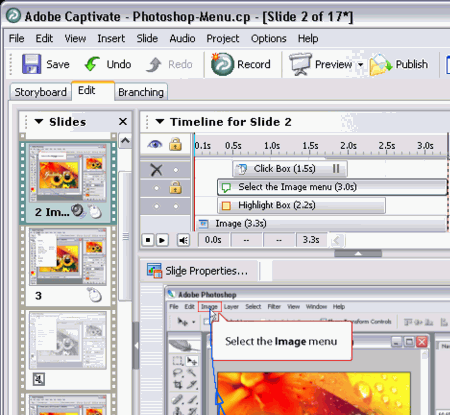
Capt in Screencasting: How To Start, Tools and Guidelines

Adobe Captivate builds and edits interactive software demonstrations, simulations, podcasts, screencasts, games, program demos and lessons. For software demos, it can either record in real time or use a smart event-based screen capture that snaps a sequence of still images and then builds mouse movement simulations to create the appearance of a running program.

You can edit Captivate presentations to add captions, clickable hotspots, text entry boxes, rollovers, videos, etc. It is also possible to edit the content (including mouse pointer path, position, image) and change the timing for each item to appear and disappear. The hotspots can branch to other slides in the presentation, or to outside webpages.

Captivate supports the import of still images, PowerPoint, video, .FLV, and audio tracks onto any Captivate slide. Price: $699.

Wink (Windows)

Wink in Screencasting: How To Start, Tools and Guidelines

Wink works a bit differently than the other applications being showcased in this article. Instead of recording a single video file of the motions you perform on the screen, it takes a series of screen image captures and strings them together into a Flash movie file (.swf) upon exporting. This application allows for editing of the screen captures and the audio, whether it is recorded with the presentation, recorded in the editing phase, or imported from an external audio file.

The recording and output settings for audio and video are limited and the quality of audio recorded in Wink is subpar when compared to the other applications reviewed in this article. The final output, however, was suprisingly good given the method for constructing the video from static screen captures, and the price is right (free) for those wanting to try their hand at screencasting!

Screencast.com (Jing) (Mac, Windows)

Jing in Screencasting: How To Start, Tools and Guidelines

Screencast.com offers a great way to record screencasts and host them all in one package. They offer a free screen capture application called the Jing project. Jing is easy to use and gives you high quality screen captures that can be saved in the Flash (swf) format.

Downloading Jing requires a sign up with screencast.com who also offers hosting plans from about $7 to $25 per month depending on the amount of space you need, with a free trial account to test the features of the service. All movies exported from Jing can be uploaded to either your screencast.com account, an ftp which you set up, or can be saved to your computer’s hard drive. This application does not allow for editing video.

Tricks of the trade

Screencasting, like many other forms of media can be customized as the producer sees fit. Trial and error may be your best ally in figuring out what formula works best. Here are some tips from current screencast producers that may fit into your template of success.

  1. Expensive equipment is not always the best equipment. While some studio grade microphones will give you excellent audio quality, a decent headset will give you adequate sound and the freedom to work on the computer as you normally would while performing the presentation.
  2. Taking the time to find the suitable settings for your output can be the key to returning your audience. Poor video or audio quality can have a negative effect on the screencast viewing experience.
  3. Editing may be an option, but sometimes its better to simply start over and have a nice flow to the production rather than piecing together snippets of good video.
  4. Think long-term. Are you still going to have content to share via screencast two months from now? How about two years from now? Once you build an audience, their thirst for your content may not fade.
  5. Consider leaving the mistakes in the presentation. Problems may occur in the viewers’ workflow, and watching you solve a similar problem may help in their learning process.

Speak to the World

Once your screencast is ready for an audience, a suitable distribution system is needed to get the content to the people. Using a weblog software such as WordPress allows you to quickly add posts, or customized web pages, and attach your screencast.

Taking things one step further, the weblog automatically produces an RSS feed, which users can subscribe to in a news reader or aggregator such as iTunes, and receive the screencasts each time you add a new one to the weblog. WordPress works in conjunction with a plugin called podPress, which makes it simple to attach your screencast movie to a weblog post.

Wordpress in Screencasting: How To Start, Tools and Guidelines

Alternatively, you may choose to use a service such as YouTube or Revver.com. These websites both allow you to set up a free account, post your video content to their free-of-charge servers and share it with other users who visit the website. These services can be a cost-effective solution as you are not charged for the storage or transfer of your screencasts, and at times have an opportunity to even make money with your videos.
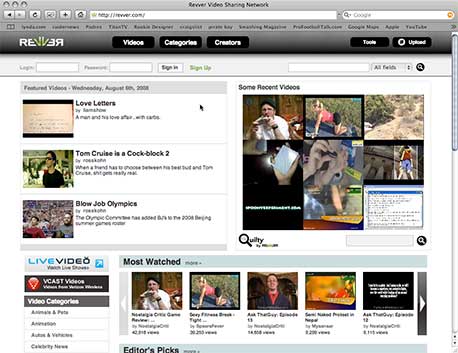
Revver in Screencasting: How To Start, Tools and Guidelines

Making Sense Of It All

Screencasting is a media experience that is available to just about anyone, whether there is an interest in viewing them or hosting and producing them. It is an effective way to educate and inform using some simple tools to share what is happening on your computer screen.

It holds many advantages over the traditional methods of teaching and learning, and in many cases is offered free of charge. See the list below for some high quality screencasts that may teach you a thing or two about design and design applications.

Post Rating
1 Star2 Stars3 Stars4 Stars5 Stars (1 votes, average: 5.00 out of 5)
Loading ... Loading ...

Tags: ,

Advertising
  1. 1
    Scott
    August 19th, 2008 2:58 pm

    I have always found Camtasia Studio to work well, nice write up.

  2. 2
    Josiah J.
    August 19th, 2008 3:02 pm

    Great post! I had just been wondering what a good screencast program would be.

  3. 3
    Andrea Pelizzardi
    August 19th, 2008 3:10 pm

    There another cool and NEW application: Silverback by Clearleft LTD.+
    You must try it ;)

  4. 4
    Ahmed Abu-Nadar
    August 19th, 2008 3:17 pm

    I like Camtasia Studio, I guess they are the best in the market. Great post! ;)

  5. 5
    Janis Lanka
    August 19th, 2008 3:20 pm

    Was working with both CamStudio and Camtasia Studio. We tried to record webinars and tried CamStudio first. But went to Camtasia Studio b/c it has better features and is more flexible. Yes, you will have to pay, but it will be worth it. Otherwise in some cases you’ll need to have a hassle to find special converters for special files.

  6. 6
    Jorge Camoes
    August 19th, 2008 3:29 pm

    Adobe’s Captivate has some nice features that are missing in Camtasia. For example, it stops recording when there is no action on the screen. This makes the editing process much simpler.

  7. 7
    Leroy Campbell
    August 19th, 2008 3:44 pm

    ScreenFlow is the screencasting tool for Mac OS X Leopard. I find it hard to believe it isn’t listed in the article. I consider it a streamlined version of Camtasia for Mac (it captures, edits, and encodes).

  8. 8
    AJ Morris
    August 19th, 2008 4:13 pm

    I agree with Leroy for the Mac program (at least until Camtasia for Mac comes out). ScreenFlow IS the screencasting tool of choice for Mac, however, I will say that it’s Leopard only, so I can see why you didn’t add it on the list. I would however, have not put Snapz Pro X as the start of the article.

    On the Windows side of things, Camtasia Studio (all versions) is perfect for the job. CS5.1 is definitely something worth playing with. I am really looking forward to what comes with CS6.0. Those people at TechSmith really know what it takes to Screencast.

  9. 9
    Andrew Dotson
    August 19th, 2008 4:42 pm

    Where is SCREENFLOW? It is by far the best screen recording application for the mac!

  10. 10
    Grant Friedman
    August 19th, 2008 4:52 pm

    Great post guys! I tried Camtasia Studio and love it!

  11. 11
    Damien Wilson
    August 19th, 2008 5:06 pm

    Another vote here for ScreenFlow. Excellant software, and you can use it free so long as you don’t mind a little watermark on the corner of your videos.

  12. 12
    Jon Henshaw
    August 19th, 2008 8:46 pm

    Screenflow is the most amazing screencasting program I’ve ever used, ever! I too can’t believe it wasn’t included. It blows away all of the ones listed in this article.

    I use it for any screencast I make. It’s like the Final Cut of screencasting software. Here’s an example of something I recently made with it: InstantAmber Screencast

  13. 13
    Kevin Burns
    August 19th, 2008 9:00 pm

    Same here for Screenflow :) big shout out for this too.
    Thanks for the link on Silverback @Andrea
    thanks
    Kb

  14. 14
    Andy F.
    August 19th, 2008 9:27 pm

    Agreed. Screenflow absolutely should have been mentioned in this article. It is the best screencasting tool for the mac.

    Another quick tip that I didn’t see mentioned…

    On the mac it is very easy to create an extra user. I’ve created a user just for screencasting. It gives you a nice clean user to start with; clean desktop, etc. It also forces you to not skip over any defaults settings you may have changed.

  15. 15
    Joop Vos
    August 19th, 2008 10:38 pm

    Screenflick for the Mac! It’s not as robust as Screenflow, but it’s realy good and … low priced ($29) … so very cheap here in Europe … :)

  16. 16
    Falk
    August 19th, 2008 10:56 pm

    Thanks for the great article!

    Another high quality screencast is done by Ryan Bates at Railscast which tought me a lot already.

  17. 17
    Jackson Hyde
    August 19th, 2008 11:28 pm

    Never used any screencasting programme, but I’ve got a thing for Silverback ever since the cool-as-focaccia paralax layers they had on the holding page.

  18. 18
    roka
    August 19th, 2008 11:36 pm

    I would add vimeo.com for uploading as you can upload HD-Videos, too.

    Nice summary!

  19. 19
    Oliver Chesler
    August 19th, 2008 11:45 pm

    Yep add Screenflow. Here’s some examples of videos I created with Screenflow. It’s a joy to use:
    http://www.vimeo.com/974866
    http://www.vimeo.com/1256214

  20. 20
    marc thiele
    August 20th, 2008 12:09 am

    Hi,

    nice article. You missed out SCREENFLOW (http://www.varasoftware.com/products/screenflow/) for the Mac. In my eyes it is the best application on Mac right now. Very comfortable to use and really cool editing functions.

    Cheers,
    marc

  21. 21
    marc thiele
    August 20th, 2008 12:10 am

    Sorry… did not see others already mentioned Screenflow. Take it as agreeing to the others ;)

  22. 22
    pax
    August 20th, 2008 12:43 am

    not having Captivate on your list makes it a really poor one. talk about CamStudio or Wink and not about Captivate? gotta be kidding, man!

  23. 23
    Vitaly Friedman & Sven Lennartz
    August 20th, 2008 2:30 am

    @all: the article was updated, thank you.

  24. 24
    AJ
    August 20th, 2008 3:31 am

    Another tip – keep it really short. Better to have a big number of tiny Learning Objects than a small number of big ones. That way users can dip in and out.

  25. 25
    Binny V A
    August 20th, 2008 3:51 am

    For linux users, recordMyDesktop is the software I use.

  26. 26
    internetanddesign.com
    August 20th, 2008 4:10 am

    My fave is Jing from screencast.
    Simple in use!

  27. 27
    Eoin
    August 20th, 2008 4:35 am

    For those of you using Linux try

    recordMyDesktop

    It outputs as .ogg but you can very easily convert it to any video format (including .flv) using ffmpeg

  28. 28
    Karl
    August 20th, 2008 4:50 am

    You forgot to include Linux screencasting tools.

  29. 29
    seemsArtless
    August 20th, 2008 5:34 am

    A good introduction, but I’d like to hear more about what people do to translate their screencasts into other languages.

  30. 30
    Jason
    August 20th, 2008 7:51 am

    I’ll throw our offering into the mix:
    FreeScreencast.com.

    Free software to produce .FLV encoded casts, and free one button uploading and hosting of the resulting cast that you can then embed on your site.

    And no limits to time or size of the resulting casts.

  31. 31
    Torley Lives
    August 20th, 2008 8:42 am

    Looks like my earlier, epic comment got eaten — please check and free it? Thanks graciously. :)

  32. 32
    Scott Whigham
    August 20th, 2008 9:32 am

    I’ve done over 1,500 screencasts/video tutorials and I’ve tried lots of tools (Windows only though). Camtasia works best for us even though it is extremely buggy.

    LearnItFirst.com

  33. 33
    buttah
    August 20th, 2008 9:46 am

    I use Screenflick ( http://www.araelium.com/screenflick/ )

  34. 34
    Thierry
    August 20th, 2008 10:14 am

    I agree with Buttah: Screenflick is really interesting as it can record the keyboard shortcuts you are using. I don’t know if it’s the best one but it’s a nice, efficient, very stable and cheap application.

  35. 35
    Mark
    August 20th, 2008 1:28 pm

    Another tool (ot tols) for consdier are ViewletBuilder and ViewletCam from Qarbon (www.quarbon.com) for Windows and Mac (ViewletBuilder only). ViewletCam is similar in features to Captivate, i.e. FMV with captioning. ViewletBuilder takes a stop-motion approach, you grab screens but cursor movement is captured. This makes rich captioning and post-editing easier without having to talk real fast or put in padding frames. ViewletBuilder also allows simple questions/tests and branching paths. both Qarbon product output to Flash and are Java app. The Mac version lags the Windows version but the company do plan a v6 on Mac – I believe.

  36. 36
    Ian Ozsvald
    August 20th, 2008 2:22 pm

    Another screencasting tool is Screencast-o-matic – java, web based, free for short videos.
    For examples of how-to-screencast ShowMeDo (note – I’m a co-founder) hosts over 700 tutorial screencasts including tips of making screencasts and 16 video examples for Win, Mac and Linux. The site is open-source focused, many authors use linux to record their tutorials, the Google Groups are friendly if you want advice.
    I screencast professionally as ProCasts – I use CamTasia 5 (well worth the money) and pro-audio equipment. A low-cost external mic is fine for starting but plosives (’p’s and ‘b’s), sibilants (’esses’) and noise (background hum) tend to come through.
    CamStudio (free on Windows) is fine if you’re starting out but CamTasia’s extra features make recording *and editing* a breeze – as I say, well worth the money.
    Ian

  37. 37
    Brand
    August 20th, 2008 7:38 pm

    There is another windows screen recorder called DemoCreator. It is an amazing screencasting tool to make software tutorial. Maybe it is not that famous,but it is really helpful and easy to use.

  38. 38
    ynk
    August 21st, 2008 12:06 am

    you an add http://www.gotoandlearn.com which has great flash CS3 / AS3 screencasts !

  39. 39
    payxander
    August 21st, 2008 7:25 am

    Anyone Heard of Making Money Online?
    makewealthonline.net
    Please someone review this site before i can sign up with them. Thanks

  40. 40
    Dalin
    August 21st, 2008 7:50 am

    I started with Camtasia, but honestly CamStudio did exactly the same thing for free. For screen capturing, thats great, but if I want interactivity, hands down, Adobe Captivate blows the field away.

  41. 41
    MaFiAMaX
    August 21st, 2008 8:25 am

    Hi, this is a best way to teach something to somebody. That’s why i have started to share videos which explain Blogger hacks. I’m using BB Flashback 2 (30 days full trial version). It’s a good choice for beginning.

    Thanks for such a nice and handy post.

  42. 42
    Gavin Steele
    August 23rd, 2008 5:34 am

    I use screenflick and try and do things in one take. Editing not only takes time, but can def mess with the flow.

    Tips: Take your time, speak clearly and as if you are speaking to a friend.


  43. 43
    Torley Lives
    August 24th, 2008 7:24 pm

    To quickly capture games, I suggest http://www.wegame.com — they have their own community and client for recording!

    I use Camtasia for recording my video tutorials of Second Life and others and it mostly works a treat. Sony Vegas is a wonderful editor and the snap-to-grid makes it easy to be precise and neat.

    Something very much underrated is audio mastering: after all, sound is 50% of what you see, so it’s been said. ;) Editors that support VST plugins have a big strength here, and you can get some plugins to reduce noise, boost your volume, and sound pro-broadcast at a fraction of the cost. Something I manage to do with my US$30 mic!

    Tremendous article, and I really appreciate it. I advocate screencasting/video tutorial-making.

  44. 44
    Matt French
    September 12th, 2008 2:14 am

    I recently picked up Screenflow on Mac, and for the price it is definitely the top of the pile. However, as far as I know, it doesn’t seem to use any amazing algorithms to record only moving parts of the screen. I haven’t found much difference in the file sizes between Screenflow and other apps and at the end of the day the export options are exactly the same as Quicktime Pro.

    This is where I think the Techsmith codecs have the advantage and it seems like a Mac version is coming out later this year.

  45. 45
    Dhane Diesil
    September 15th, 2008 10:28 am

    This is so great! I have been searching for a good screencast program. Thanks for all the tips and advice.

  46. 46
    jholth
    September 17th, 2008 12:36 pm

    Just adding our product to the list. http://www.ignitecast.com.

  47. 47
    Double
    September 27th, 2008 7:48 pm

    DemoCreator is quite similar to Adobe Captive, both are slides based,but the price is much lower. It is a cost-effective screen recorder with wonderful function. screen recorder

  48. 48
    Lon Naylor
    October 10th, 2008 4:51 pm

    Great article! I’m a Camtasia fan but find it’s necessary to also use a full NLE video editor like Sony Vegas for best, most professional results. I’ve put together lots of excellent Camtasia tips and tricks at http://screencastprofits.com including a module on how to “Ace the Audio”…a very overlooked aspect.

  49. 49
    Stefan
    December 17th, 2008 8:35 am

    Thanks for the great arcticle!
    I recommend to go to http://www.skoffer.com and to grab a Skoffer plugin for the website software you use (WordPress etc.) and record the screencasts directly from inside the blog`s (or wiki, or …) backend.

  50. 50
    Seshu
    January 1st, 2009 7:28 am

    Awesome, timely post! Wasn’t it just yesterday that I asked about this on Twitter?

    Seshu
    Twitter: @SeshuThePhotog

  51. 51
    Norm Gregory
    January 29th, 2009 12:24 pm

    I have found screencast-o-matic to be easy to use. No need to buy/install an application. Will work on any computer. You can link to, embed anywhere or download your creations. And it’s all free.

  52. 52
    daniel
    March 24th, 2009 7:49 pm

    I noticed this app was not added for Mac http://www.decimus.net/ScreenMimic.php – however, after reading about ScreenFlow maybe it’s redundant (although smaller price tag)

  53. 53
    Chon
    May 6th, 2009 6:20 am

    Are there any free good video editing software out there to create sponsor intros or any good tutorials on how to do this?

  54. 54
    Owen
    July 16th, 2009 4:57 am

    I use SnapsXPro and Quicktime Pro because the company I developed screencasts for demanded it and paid for them and even trained me. BUT they used a converter to make the .mov files flash files.

    Now that I am working for myself again most of my clients were happy with .mov files but many are now asking for flash files.

    Would it be better to invest in a good quality file converter or to buy Camtasia when it comes out for Macs? I’m kind of torn. I have Snapz X Pro and Quicktime Pro, I know how to use them, and I didn’t have to pay for them, but it seems Camtasia is much more robust.

    Looking for the best combination of features and reasonable price.

    Maybe Screenflow and a good file converter to export flash files would be just as good as Camtasia and probably cheaper.

    Why didn’t Screenflow build in flash exports?

    My clients are telling me their less experienced users are sometimes puzzled when the get asked to install a Quciktime plug in in their browser so they’d rather have flash files as it is seen as more of the standard.

    What do you think?

  55. 55
    Nate
    October 29th, 2009 6:00 pm

    I think screentoaster should be on this list. It’s free, online, and compatible with all OSs. The only thing wrong with it is that it isn’t compatible with Safari (as far as I can tell).

  1. 00

    There are no trackbacks at this time. If you are interested in leaving a trackback, please use this URL.

Leave a Comment

Make sure you enter the * required information where indicated. Please also rate the article as it will help us decide future content and posts. Comments are moderated – and rel="nofollow" is in use. Please no link dropping, no keywords or domains as names; do not spam, and do not advertise!


Advertisement Advertise with us!
Join in Smashing Forum
  • Re: Correct way to learn PHP

    Start off by reading all the 15 parts of PHP 101 on Devzone.

  • Re: Using Tutorials?

    I say you're okay. I wouldn't straight up jack someone else's design and present it as my own, even if it was a tutorial, but it's certainly acceptable to learn some…

  • Correct way to learn PHP

    So, I'm a designer but I wanna expand my abilities and learn PHP, to be more exact I wanna learn CI - Codeigniter!

  • I wanna make comics!

    Hello,I'm designer but I've never involved in vector painting so I need your help

  • Re: Twitter

    @gatorwebdesignShould tweet something really...

Post your job