Smashing Magazine ~ we smash you with the information that will make your life easier. really.
Smashing Magazine we smash you with the information that will make your life easier. really.

10 Useful Techniques To Improve Your User Interface Designs

By Dmitry Fadeyev, December 15th, 2008 in How-To | 288 Comments | Forum

Advertisement

By Dmitry Fadeyev

Web design consists, for the most part, of interface design. There are many techniques involved in crafting beautiful and functional interfaces. Here’s my collection of 10 that I think you’ll find useful in your work. They’re not related to any particular theme, but are rather a collection of techniques I use in my own projects. Without further ado, let’s get started.

1. Padded block links

Links (or anchors) are inline elements by default, which means that their clickable area spans only the height and width of the text. This clickable area, or the space where you can click to go to that link’s destination, can be increased for greater usability. We can do this by adding padding and, in some cases, also converting the link into a block element. Here’s an example of inline and padded links, with their clickable areas highlighted to show the difference:
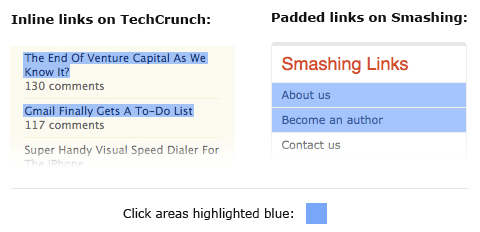
Inline and padded links

Obviously, the larger the clickable area is, the easier it is to click on the link because there is less of a chance of missing it. Converting links into block elements makes the text area span the whole width of the container, unless the width is specified otherwise. This makes it ideal for links located in sidebars. We can do it with the following code:

a {
	display: block;
	padding: 6px;
}

Make sure to also add a healthy dose of padding to the links, because converting a link into a block only affects its behavior and width; adding padding ensures that the link is high enough and has some room to breathe.

2. Typesetting buttons

Attention to every detail is what separates a great product from a mediocre one. Interface elements such as buttons and tabs are clicked on many times a day by your users, so it pays to typeset them properly; and by typesetting I mean positioning the label. Here’s a couple of examples of the kind of misplaced labels I sometimes notice:

Badly typeset button labels

At first glance they look okay, but notice that the text is placed too high because the lowercase letters have been used as a guide to align the text vertically in the center, like so:
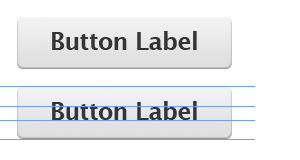
Badly typeset button labels

However, if we use uppercase letters as well as lowercase letters with ascenders (”t,” “d,” “f,” “h,” “k” and “l”), the balance shifts upwards, making the label appear too high on the button. In such cases, we should set the type using the uppercase height as a guide — or set it a little bit higher if most of the letters are lowercase. Here’s what I mean:
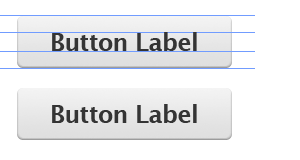
Badly typeset button labels

This gives the whole button a more balanced look and feel. Little touches like this go a long way towards making your interface more polished and satisfying to use.

3. Using contrast to manage focus

Similarly, you can also manage the focus of your visitors’ attention with contrast between elements. Here’s an example of a post headline and some meta information underneath regarding who posted the article and its date:

A typical blog post headline

All the text is set in black. Let’s decrease the contrast between the meta information (the date and author’s name) and the background by putting the text in a light shade of gray:

Headline with adjusted contrast

The highest contrast element here is the headline, so it literally pops out at us. The other elements fade into the background. Here, I’ve chosen the author as the second-most important element, and the date as the least. The font also differs in size and style, but the contrast level can be very powerful. Let’s reverse the order of importance to date, author and headline:

Another headline with adjusted contrast

You can see how effective it is in shifting focus: the date now pops out at you, while the headline fades away. This technique comes in very handy for information-heavy websites, such as blogs, forums and social networks, in which you want to make a lot of information easily scannable while still showing a lot of additional things, like dates. Fading the extras allows visitors to easily focus their attention on the most important pieces of text.

4. Using color to manage attention

Color can also be used to effectively focus your visitors’ attention on important or actionable elements. For example, during the US presidential election, pretty much all of the candidates’ websites had the donation button colored red. Red is a very bright and powerful color so it attracts attention, and it stands out even more when the rest of the website is blue or another colder color.

Warmer tones like red, yellow and orange are naturally bright and so tend to attract the eye. They also “expand” when set against colder colors like blue and green. This means that an orange button on a blue background looks like it’s flowing outwards and taking the front seat. Conversely, a blue button on an orange background contracts inward, wishing to stay in the background. Here’s a picture to illustrate:

Comparing warm and cold colors

Here’s a couple of examples of websites that use color effectively to direct users’ attention to the important elements:
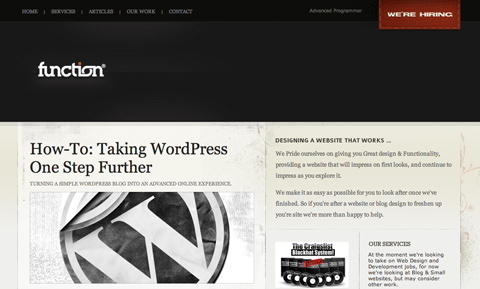
Function website
Function features a “We’re Hiring” link on its jobs page. To ensure the link is not missed, the designers set it against a red background that pops out from the dark background header, effectively grabbing attention.
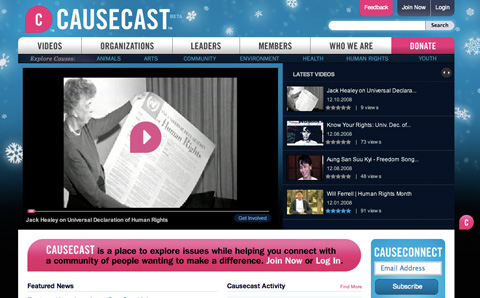
Causecast website
Causecast use color effectively. Four bright pink elements pop out at you: the logo, the feedback link, the donate link and the website description message.

Want the “About” blurb on your website to grab the visitor’s focus? Make the background yellow. Want to make the “Join” button stand out? Color it orange. Make sure not to highlight too many elements, though; if you do, they may get lost in each other’s company.

5. White space indicates relationships

One of the most crucial elements in an interface is the white space between elements. If you’re not familiar with the term white space, it means just that: space between one interface element and another, be it a button, a navigation bar, article text, a headline and so on. By manipulating white space, we can indicate relationships between certain elements or groups of elements.

So, for example, by putting the headline near the article text we indicate that it is related to that text. The text is then placed farther away from other elements to separate it and make it more readable. Here’s an example in which white space could be improved:
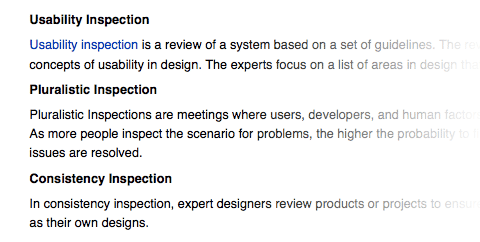
Whitespace usage here can be improved

The text looks all right and is certainly readable, but because the spaces above and below each heading are equal, they don’t separate each piece of text clearly. We can improve this by increasing the white space between each section and also by slightly tightening the line height of the paragraphs:
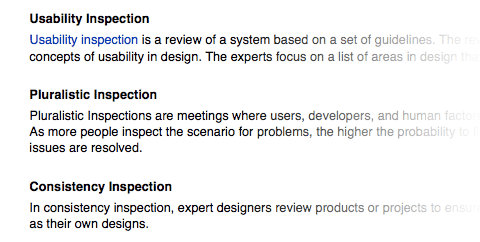
Improved whitespace

This results in more clearly defined blocks; we can easily tell which headings go with which pieces of text and can see the separate sections clearly. Good designers often squint or glance at their work from a distance, which lets them see the blocks of elements separated by white space as they merge together. If you cannot see these groups clearly then you may need to tweak your white space.

6. Letter spacing

Web design is pretty limiting for typographers. But while there are only a few safe Web fonts and not a great many things you can do to style them, it’s worth remembering that we do still have some level of control. “Tracking” is a term used in the field of typography to describe the adjustment of spacing between letters in words. We’ve got the ability to do this with CSS using the “letter-spacing” property.

If used with restraint and taste, this property can be effective in improving the look of your headlines. I wouldn’t recommend using letter spacing on the body text because the default spacing generally provides the best readability for smaller font sizes.

Here’s an example of letter spacing in use:
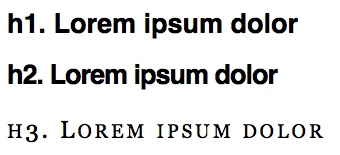
Letter spacin examples

And here’s the CSS code used for the above examples:

h1 {
	font-family: Helvetica;
	font-size: 27px;
}

h2 {
	font-family: Helvetica;
	font-size: 27px;
	letter-spacing: -1px;
}

h3 {
	font-family: Georgia;
	font-size: 24px;
	letter-spacing: 3px;
	font-variant: small-caps;
	font-weight: normal;
}

The effect can be useful when you want to craft a more aesthetically pleasing or more original heading. Here, I’ve used only a couple pixels for letter spacing, but already it makes a big difference to the style of the font.

7. Auto-focus on input

Many Web applications and websites feature forms. These may be search forms or input forms inviting you to submit something. If this form is the core feature of your application or website, you may want to consider automatically focusing the user’s cursor on the input field when the website loads. This will speed things up because users can start typing right away without having to click on it. A good example of this is Google and Wikipedia’s websites.

Wikipedia auto focus
Upon arriving at Wikipedia.org, the search box is already highlighted, ready to accept text.

To automatically focus on input fields, you’ll need a little bit of JavaScript. There are various solutions, and the one you should use depends on the functionality you want to achieve. The simplest way to do it would be to add the following to your body tag:

<body onLoad="document.forms.form_name.form_field.focus()">

Your form code should look something like:

<form method="get" name="form_name" action="#">
	<input type="text" name="form_field" size="20" />
	<input type="submit" value="Go" />
</form>

Now, every time the page loads, the text field called “form_field” will be automatically selected, ready for input.

The only problem with this is that if your users want to return to the previous page using the Backspace key, they will be out of luck because they’ll just be deleting characters in the input field. Thankfully, Harmen Janssen has another simple JavaScript solution you can find here. Harmen’s script allows the Backspace key to go to the previous page when there are no characters left in the input field to delete.

8. Custom input focus

While the default look of form elements suffices for most functions, sometimes we want something a little prettier or a little more standardized across various browsers and systems. We can style input fields by simply targeting it with an “id,” “class” or plain old “input,” like so:

input {
	border: 2px solid #888;
	padding: 4px;
	font-size: 1em;
	background-color: #F8F8F8;
}
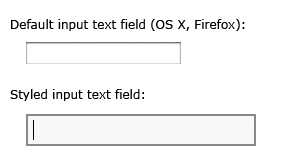
Default and styled input fields

What’s more interesting is also being able to style the input field when it’s in focus; that is, the state it’s in when it has been clicked. To do this, we need to attach a “:focus” after the “input” property:

input:focus {
	border-color: #000;
	background-color: #FFFE9D;
}

Input field in focus

If you’re using custom backgrounds to style your input field, they may clash with some browsers and operating systems’ default focus styles. For example, here’s a screenshot of a custom-styled form clashing with the default blue OS X glow effect:

OS X input glow

In such cases, you could also use the “input:focus” property to remove the default styling. The default blue glow in the screenshot above can be removed by disabling the “outline” property:

input:focus {
	outline: none;
}

The blue glow effect will now be gone:

OS X input glow removed

Obviously you would only want to remove the outline if you’re replacing it with your own styling, so that you don’t negatively affect the accessibility and usability of your forms.

9. Hover controls

Some Web applications have extra utility controls, such as edit and delete buttons, that don’t necessarily have to be shown beside every item at all times. They can be hidden to simplify the interface and focus visitors’ attention on the main controls and content. For example, these hover controls are used in Twitter when you hover over messages:
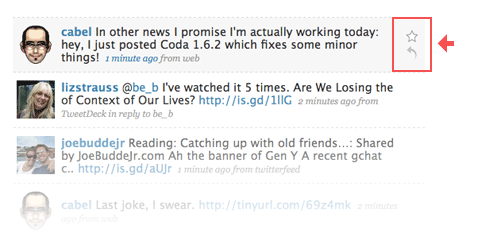
Twitter's hover controls

These hover controls can be achieved with some simple CSS code, without any JavaScript. Simply style the <div> with the controls when its parent <div> is in a hover state. Here’s the code to hide and show the controls (using a <div> with the class “controls” inside a <div> with the class “message”):

.message .controls { display: none; }
.message:hover .controls { display: block; }

When you hover over the “message” <div>, the “controls” <div> inside it will appear, along with all of its content, giving you the same functionality as shown in the Twitter screenshot above.

There may be an issue with accessibility because screen readers may not be able to read the hidden <div>. There are plenty of other ways to hide the inner <div>, such as offsetting it with a negative margin that takes it off the page (e.g. “left-margin: -9999px”), coloring its text the same color as the background or simply placing another <div> on top of it.

This technique should of course be used with restraint because you don’t want to hide your important controls; but if used correctly, it can be useful for cleaning up your interface by removing those extra utility links that you don’t want to show up at all times.

Note that this doesn’t work in IE6, so you’ll need to override the hiding property in your IE6-specific style sheet or, if you don’t have one, simply use the following IE6-specific code inside the <head> section of your code:

<!--[if lt IE 7]>
  <style type="text/css" media="screen">
    .message .controls { display: block; }
  </style>
<![endif]-->

10. Verbs in labels

You can make options dialogs much more usable by thinking through the labels you use on buttons and links. If an error or message pops up and the options are “Yes,” “No” and “Cancel,” you have to read the whole message to be able to answer. Seems normal, right?

But we can actually speed things up by using verbs in the labels. So, if instead of “Yes,” “No” and “Cancel,” we have “Save,” “Don’t Save” and “Cancel” buttons, you wouldn’t even need to read the message to understand what the options are and which action to perform. All the information is contained in the button labels.
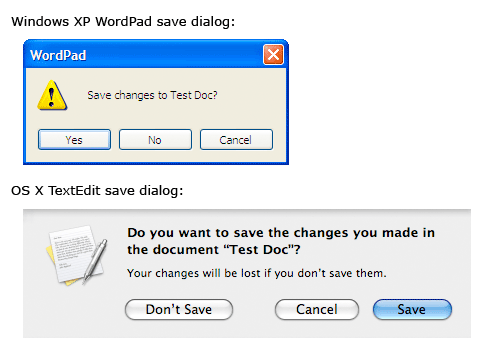
WordPad and OS X save dialogs

Using verbs in labels on buttons and links makes the options dialogs more usable because the labels contain all of the information the user needs to be able to make a decision.

To Conclude

Hopefully, you’ve found a few new techniques that will be useful in your work. As always, using them effectively comes down to restraint and thoughtful implementation. For example, controls that appear on hover may clean up your interface, but they will also increase the learning curve because people may not notice these controls at first. But showing all controls at all times may not be the best strategy either because users would need to scan more things to find what they’re looking for.

Striking the right balance between what you show and what you hide is a delicate art and is completely in your hands as the designer. Don’t use a technique just because it exists: use it if it makes sense in your context.

About the author

Dmitry Fadeyev is the founder of the Usability Post blog, where you can read his thoughts on good design and usability.

(al)

Delicious button Stumbleupon Spread the word on Twitter!

Advertisement
  1. 1.

    Miraclemart (December 15th, 2008, 2:12 pm)

    Very useful article! thanks.

  2. 2.

    Paul (December 15th, 2008, 2:20 pm)

    Nice, thanks!

  3. 3.

    tmaslowski (December 15th, 2008, 2:22 pm)

    really helpful! Thanks

  4. 4.

    Tobias (December 15th, 2008, 2:30 pm)

    Now this is what I call a useful article! Thank you! I was beginning to get fed up with all those “Just list / Don’t evaluate” posts here on Smashingmagazine…

  5. 5.

    Adrian (December 15th, 2008, 2:33 pm)

    Simple guidelines but nice and effective

  6. 6.

    Aleso (December 15th, 2008, 2:38 pm)

    this is realy a useful article, thanks for sharing

  7. 7.

    Sacha (December 15th, 2008, 2:41 pm)

    Very good article ! It’s much better than the usual posts that appear here lately.

  8. 8.

    Mikey (December 15th, 2008, 3:02 pm)

    Great article. You take a lot of this stuff as a given when designing - but reading it in black and white is great; and reassuring! I’ll be pointing my team at this in the morning. Thanks Smashers.

  9. 9.

    Damien (December 15th, 2008, 3:06 pm)

    I’d have used relative (ems or %) sizes rather than pixels for the letter-spacing example but thats nit-picking for a very informative and useful piece. Nice article Dmitry.

  10. 10.

    StartBreakingFree.com (December 15th, 2008, 3:08 pm)

    Best article I’ve read here in a while Dmitry! I’ve subscribed to your blog. Thanks!
    Brian

    P.S. This post (and your blog) should be required reading for every Microsoft employee.

  11. 11.

    mikemike (December 15th, 2008, 3:10 pm)

    Wrong - Wikipedia.org does not have auto-focus on their home page search box. Google.com, however, does.

  12. 12.

    Jakob Løkke Madsen (December 15th, 2008, 3:15 pm)

    Nice one. Thanks!

  13. 13.

    ddsign (December 15th, 2008, 3:16 pm)

    Nice!

  14. 14.

    Steve Mullen (December 15th, 2008, 3:16 pm)

    All important tips! I can’t stand search boxes or other form fields that are pre-populated with text but do not clear the text on focus.
    Link [www.stevemullencreative.com] [ Steve Mullen ]

  15. 15.

    Vitaly Friedman & Sven Lennartz (December 15th, 2008, 3:24 pm)

    @mikemike (#11): just checked it: Wikipedia.org does have auto-focus on their home page search box.

  16. 16.

    Steve Wanless (December 15th, 2008, 3:26 pm)

    Great article. Thanks.

  17. 17.

    Ian Wilson (December 15th, 2008, 3:26 pm)

    It really is simple things like the spacing of labels and other elements on the page that can make the biggest difference in a site’s over all feel to the viewer. Spacing that is thought out and deliberate is one of the things that won’t jump out at the average viewer, but the impact on their perception on the site is huge. It’s one of those things that is easy to overlook because “no one will notice”, but it’s such a huge part of the overall polish of a design…

    Nice article, lightweight but good food for thought, especially the letter spacing and verbs in labels.

  18. 18.

    Dmitry (December 15th, 2008, 3:47 pm)

    Thanks for the positive comments everyone — I’m really glad you find this useful.

    mikemike: They do have auto focus, but only on the front page. Same thing with Google. It’s actually a good point because on something like Google you wouldn’t want the box highlighted on the other pages because you’ll often use the backspace key to go back (although even that won’t be an issue if you use the script I linked to)

    Damien: Ems would of course work fine too, good point.

  19. 19.

    Simon Vallee (December 15th, 2008, 3:52 pm)

    This is one the best roundup of UI tips I have seen. If everyone would follow these, the web would be a better place.

  20. 20.

    Davi Ferreira (December 15th, 2008, 4:03 pm)

    Awesome post, I hope some of my co-workers read this :P

  21. 21.

    Lenymo (December 15th, 2008, 4:13 pm)

    I like the concept of hover controls, but in my experience :hover isn’t very widely supported (doesn’t seem to work in IE 6/7 FF 2/3, but does work in Opera / Safari).

    Am I doing something wrong, or is javascript a better option here…?

  22. 22.

    Allen Han (December 15th, 2008, 4:26 pm)

    Very Good post…..reallu useful

  23. 23.

    Dmitry (December 15th, 2008, 4:31 pm)

    Lenymo: Strange. You shouldn’t really have a problem using :hover on modern browsers, it’s really only IE6 that doesn’t support it (it only supports it for anchors)

  24. 24.

    Lenymo (December 15th, 2008, 4:39 pm)

    Ok, I’ll do some more investigating.

    Great article by the way!

  25. 25.

    R Correia (December 15th, 2008, 5:21 pm)

    Great Post, very usefull tips on it.

  26. 26.

    John Faulds (December 15th, 2008, 5:27 pm)

    What’s with the dropping of off-topic links to sites in some of these replies. I know all the links are nofollowed, but doesn’t it still classify as spam?

  27. 27.

    Michael (December 15th, 2008, 5:54 pm)

    Sorry, but tip number 7 is VERY annoying, especially if you have a page which requires scrolling. If I want to scroll down using the keyboard - either up/down, home/end, page up/page down then it does not work as the input field has focus, meaning I must click off the box to get control back of the page!

    Just DO NOT do it!!! I’m not even someone with any accessibility problems, I just use these keyboard shortcuts on both desktop and laptop, to save time, and then this input box ruins it!

  28. 28.

    Joshua (December 15th, 2008, 6:08 pm)

    Excellent article. A lot of really useful examples. Couldn’t agree more about verbs in labels. Thanks for that.

  29. 29.

    BoltClock (December 15th, 2008, 6:40 pm)

    This is a great article! Thanks for sharing these guidelines with us, I’ll be sure to take note in my future designs.

    I’d have to agree with Michael, though: I understand the purpose of auto-focus but it seriously degrades usability for keyboard power users like him and myself.

    That said, I’m not actually condemning the use of auto-focus; for the curious, here it is in jQuery:

    $(document.ready(function()
    {
        $('input[name=field_name]').focus();
    });
    

    Also, custom input focus doesn’t work on IE6 (7?) either. But I do know that it isn’t as bad as its lack of support for :hover on anything but anchors.

  30. 30.

    8 (December 15th, 2008, 6:58 pm)

    Nice article ;)

    BTW So, if instead of “…

  31. 31.

    Annya A. Uslonseva (December 15th, 2008, 7:23 pm)

    Hi, I have been a subscriber for a few month now. But I have never wanted to place a comment. But after this one I do. I am a graphic designer, not a coder at all :) But I am redesigning my website now, i.e. working with a coder. So I draw and he codes. I asked him last week about letter spacing and was told that it does not exist in web. But after reading your article I was able to apply letter spacing to my headlines and I love it! Thank you so much for great info! The info presented in a way ever a print
    designer like me can get it :) If you want to see the results visit my website. Link [www.auadesign.com]

  32. 32.

    Neill Horsman (December 15th, 2008, 8:28 pm)

    Some great UI tips there. very useful for project im working on now, thanks smashing!

  33. 33.

    Nate (December 15th, 2008, 8:34 pm)

    Another problem with auto-focus is that the next field you tab to will not always be the next field it would tab to if the user clicked into the field themself. I think this problem only effects IE, and it might only occur inside of frames, but I remember running into it.

  34. 34.

    Mithun (December 15th, 2008, 8:41 pm)

    Excellent Article!

  35. 35.

    gaurav (December 15th, 2008, 8:54 pm)

    hand picked ..so nice

  36. 36.

    Dan (December 15th, 2008, 8:57 pm)

    First! Ah, dammit.

    Seriously - great article. Words to live by - if only clients were as aware of these reasons behind our choices, that they aren’t just arbitrary.

  37. 37.

    Jeremie Kletzkine (December 15th, 2008, 10:03 pm)

    Lovely… amazing post as usual.
    /bookmark

    Still - 10 techniques, that’s just an appetizer! We want more! :)

  38. 38.

    Maggie Wolfe Riley (December 15th, 2008, 10:21 pm)

    Almost all great tips, but I really hate autofocus used in form fields. I am a keyboard user and it breaks functionality for me. It is so easy to tab into a form field, I really don’t get how autofocus is a big advantage, and it is a serious annoyance to me because I have to click outside the form field to go back if I didn’t mean to go to that page. Yes, I realize there is a javascript “solution” to the problem you created, but it only works if you use the backspace/delete button to go back, and not keyboard commands.

    Also, please don’t make the focus automatically jump to the next field! It takes me twice as long to fill out these “helpful” forms because I end up tabbing to the field following the one I try to tab to. It’s automatic to hit tab after completing a form field, and difficult to “unlearn” for a single form that uses this technique.

    Other than that, though, great article!

  39. 39.

    Fredrik Karlsson (December 15th, 2008, 10:24 pm)

    Nice post!

    I’d however like to point out that the use of document.form... in javascript is deprecated, and that you should be using document.getElementById() instead (or the jQuery-method mentioned by BoltClock above!).

  40. 40.

    christopher Jack (December 15th, 2008, 10:35 pm)

    Useful article!

  41. 41.

    Max (December 15th, 2008, 10:37 pm)

    Great article. But I wish Smashing Magazine used 5th technique from this article when providing description (or source) to the photos, images, etc. For example in this Link [www.smashingmagazine.com]. The description is placed right in the middle between photos and it is not clear which photo it is related to.
    It is just my personal observation. Any way, Smashing Magazine is a great blog.

  42. 42.

    Zain (December 15th, 2008, 10:38 pm)

    Excellent!! specially the 10th note.. Thank you

  43. 43.

    rahul (December 15th, 2008, 10:52 pm)

    great article

  44. 44.

    uyung (December 15th, 2008, 10:52 pm)

    the best that i ever read !!!

  45. 45.

    Mihai (December 15th, 2008, 11:06 pm)

    Thanks mate :)

  46. 46.

    aarti (December 15th, 2008, 11:15 pm)

    beautiful tips.

  47. 47.

    shweta (December 15th, 2008, 11:29 pm)

    very smart writeup. thanks!

  48. 48.

    Friedbeef (December 15th, 2008, 11:59 pm)

    Awesome piece…. as usual :)

  49. 49.

    Shuuun (December 16th, 2008, 12:04 am)

    luuuuuv it!
    Specaly the last one is an important thing!

  50. 50.

    illu (December 16th, 2008, 12:06 am)

    Nice article…Thanks SM!

  51. 51.

    roughy (December 16th, 2008, 12:08 am)

    very effective, concise, neat and to the point article. Thanks

  52. 52.

    Karl (December 16th, 2008, 12:09 am)

    This highlights a lot of the things that most people cant always put a finger on, but makes the difference between a good design, and a great design. Alot of these are fundamentals taught and engrained in design school and institutions, which sadly seem to somehow often get lost on the web. (actually often lost in print as well :) Take note budding designers, its these little things that can make or break a design so spend the time to do it right! - Good article smashing. Keep it up.

  53. 53.

    James (December 16th, 2008, 12:09 am)

    2,3,4,5,6, and 8 are graphic design, not interface design.

  54. 54.

    Quakeulf (December 16th, 2008, 12:11 am)

    After some rather so-so articles here this article really helped boost my attention on this site again. :3

    Post moar!

  55. 55.

    Jonny Haynes (December 16th, 2008, 12:23 am)

    Very informative article, some nice pointers in there. Possibly one of the best information wise for a long time.

  56. 56.

    Mohammad Alshaikh (December 16th, 2008, 12:40 am)

    very useful techniques..
    but tip number 9 talks about Hover controls.. smashing magazine put Twitter as example..
    but the controls don’t appear in IE6 despite there is a workaround…

  57. 57.

    Multiductus (December 16th, 2008, 12:56 am)

    Really good article. Thanks for writing css example, too: I think that showing real examples is very useful.

  58. 58.

    Cameron (December 16th, 2008, 12:58 am)

    Very informative article. Some great points and nuances that are all too often glossed over. It’s the little things that make a great website stand out from the rest, and these 10 pointers have reminded me of the little things to consider - many of which I intrinsically know, but seem to forget when working on a site.

    Thanks again!

    Cam

  59. 59.

    sven jens (December 16th, 2008, 1:02 am)

    Great article
    Very usefull

  60. 60.

    LC (December 16th, 2008, 1:14 am)

    Cool, i didn’t really know “outilne”.

  61. 61.

    Peter Bremer (December 16th, 2008, 1:15 am)

    I have to agree on the autofocus complaints. If you look closely at Google and Wikipedia, you can see this should only be used on very specific pages.

    ONLY use autofocus inputs on page that don’t require scrolling. There are a number of usage problems with autofocus in scrolling pages:

    - A keyboard user won’t be able to scroll the page when the input element is focused. The autocomplete list will show up instead when the Down cursor key is pressed, and nothing at all happens on pressing Page Down.

    - You won’t be able to use Backspace to return to a previous page.

    - When you *return back* to a page with an autofocused input, the page section with the input element will be shown, not the section of the page that you were last reading.

    The only situation where you could use input focussing on a long (scrolling) page, is when the whole page is just a very long fill-out form.

    There are probably also lots of problems for blind people when autofocussing input elements, throwing their reading cursor to somewhere in the middle of the page. Though this is just a guess, I haven’t tested this.

  62. 62.

    caracho (December 16th, 2008, 1:21 am)

    Tip number 9, can be made IE6- comaptible. IE6- supports hover only on a elements and you have to combine it with visibility css property, in order to make it work properly. E.G.:

    a.message .controls { visibility:none; }
    a.message:hover .controls { visibility:visible; }

  63. 63.

    Gordon (December 16th, 2008, 1:28 am)

    You are aware that form name=”…” is depreciated and fails the w3c validatior, right? You should be using id instead. Also, onload is depreciated, and also extremely ugly. What if your Web 2.0 guy wants to attach other functionality to a form field, such as client side validation or autocomplete? (S)he is probably using a framework to manage the attachment of events on load, such as jQuery’s $(document).ready (). Using the old onload inline JavaScript technique can break some of these frameworks or cause events that have already been attached using some other technique to fail to fire. It’s also breaking the seperation of concerns. Your html should define your content and structure, your .css files the presentation, and the .js files the behaviour. Putting inline JavaScript in a HTML tag is putting behaviour in the structure/content layer.

  64. 64.

    Dave Bowers (December 16th, 2008, 1:35 am)

    Interesting read - I’m a big fan of polished, detailed design and I believe it does have functional benefit as well as cosmetic.

    My only query is with point 2; surely this principle only applies when there are no descenders in the text? If so, do we end up with inconsistent placement of text across a range of buttons (some with descenders, some without)?

  65. 65.

    Zenimot (December 16th, 2008, 1:41 am)

    I’m gonna use a lot of these techniques! Great article.

  66. 66.

    Martijn (December 16th, 2008, 1:42 am)

    Great article!

  67. 67.

    Gareth (December 16th, 2008, 1:44 am)

    Good article. The use of verbs for labels is definitely a tip that should be more widely adopted.

  68. 68.

    klkl (December 16th, 2008, 1:44 am)

    Noooooooooo! Don’t focus on load!!! If you must, put it in script immediately below the input.

    onload is delayed much by other page elements and may fire long after I’ve started using keyboard for something else.

  69. 69.

    gene (December 16th, 2008, 2:08 am)

    good article! thanks!

  70. 70.

    jason (December 16th, 2008, 2:09 am)

    DIV hover using CSS doesn’t work in browsers like IE7…therefore hover controls like the last one are rendered useless. I’d say javascript is still a better choice for that option.

  71. 71.

    Andrew (December 16th, 2008, 2:22 am)

    There’s a lot of common sense UI design basics here; but it’s seldom written about so it’s great to read an article like this. How about following this up with another 10 next month Dmitry?

  72. 72.

    dr john (December 16th, 2008, 2:35 am)

    for james, reply #53, who complains that most examples are graphic design, not interface design, I personally look at interfaces with my eyes and altering just graphic features can improve the interface or make it worse. On the two courses on interface design I took for my computing degree, there was some emphasis on the graphic nature of interfaces. The white space point mentioned, for example, comes from the gestalt laws of visual organisation, and is part of most interface designs. But points 2 and 6 are, I must admit, a bit more graphic than interface related.

    As an example of graphic design gone wrong, I often visit a site with a blue background, white body text and the links within the body text are a shade of grey, not underlined and had, for three years, no colour change on hover. The appearance has been improved now, but that was a good example of graphic design giving a poor interface. I’m sure we’ve all visited sites that are very much a work of graphic art and subtle shades of colour, and then wondered where on earth the links are.

  73. 73.

    DKumar M. (December 16th, 2008, 3:04 am)

    Good article. Collection of some good thoughts !!

    Dkumar M.
    Link [www.instantshift.com]

  74. 74.

    PrabhakaranG (December 16th, 2008, 3:11 am)

    OSM, i Luv it

  75. 75.

    Marianna (December 16th, 2008, 3:27 am)

    Nice article. Thank you for this post. Especially technique 2. Typesetting buttons is something I have not came across before. Also I found all the comments for 7. Auto-focus on input valuable and I am a bit confused on whether to use it or not. I will do some further research about it, but thanks for mention it.

  76. 76.

    Nasip (December 16th, 2008, 3:27 am)

    Very useful… thanx Smashing, Dmitry.

  77. 77.

    coda (December 16th, 2008, 3:34 am)

    Tip 7: best to keep the behaviour separate from the markup, so adding that JavaScript to the element isn’t a very clean or practical solution. It could be more versatile if you used some jQuery (or whichever JS you prefer) to attach the onload event when the DOM is ready.

    Tip 8: I prefer to do this with some JavaScript for browsers that don’t support the :hover selector.

  78. 78.

    Aaron Furious (December 16th, 2008, 3:46 am)

    Good stuff, thanks for your work.

  79. 79.

    Russell Bishop (December 16th, 2008, 3:52 am)

    You mentioned using outline:none, but that’s really bad for screen readers!

  80. 80.

    Roger (December 16th, 2008, 3:54 am)

    a great example for user friendly autofocus is found at Link [dict.leo.org] an translation service. Whenever you type word the focus is set to the input field giving you the most convinience in searching a translation. I like this very much!

  81. 81.

    WebUnicorn (December 16th, 2008, 3:57 am)

    great and helpfull
    thank you

  82. 82.

    Paul Annett (December 16th, 2008, 4:10 am)

    All good points! One thing I’d add to the ‘yes/no/cancel’ point, is to have negative actions like ‘don’t save’ to the left (going back), and affirmative actions like ’save’ to the right (moving forwards).

  83. 83.

    Riccardo (December 16th, 2008, 4:13 am)

    Some nice points to keep in mind. Thanks!

  84. 84.

    John Davis (December 16th, 2008, 4:27 am)

    Oh wow! Excellent tutorial. Thanks for sharing

  85. 85.

    Jason (December 16th, 2008, 4:38 am)

    Re: 7. Auto-focus on input, please do use some caution when implementing. Users may start interacting with your form fields prior to the page being loaded. If you set the focus after the user has already interacted with the form, it can cause user frustration. In the case of a password field, it can also cause “shoulder surfing” security issues by causing characters of the user’s password, say, appearing in the username field.

    Also, using multiple fields to format a number or sequence and jumping to the next field looks great, but it doesn’t work well if the users needs to correct their input and it prevents cut-n-paste. Personally, if I’m entering a 25-character serial number, for example, I’d prefer to cut-n-paste it rather than cut-n-paste 5 x 5-character blocks.

  86. 86.

    pica-ae (December 16th, 2008, 4:40 am)

    some real useful basic tips

  87. 87.

    Matt (December 16th, 2008, 4:51 am)

    Great tips, Thanks.

  88. 88.

    kL (December 16th, 2008, 5:06 am)

    Don’t change standard focus outlines, please!

    Especially if you automatically focus the field - users will have no clue what’s happening.

  89. 89.

    ViolenceClery (December 16th, 2008, 5:10 am)

    Very Good, Thanks!

  90. 90.

    Dmitry (December 16th, 2008, 5:14 am)

    Thanks for the comments everyone.

    Regarding auto-focus: as I’ve mentioned in my conclusion, it all comes down to context. Using this on your site just because it has a search box will attract all the problems you mentioned. Using it on a site where that search box is the primary function (i.e. a search engine, a dictionary site, a directory, etc.) may work provided the front page is pretty much just the search box.

    Also, people have made a great point about auto-focus on pages with multiple input fields (e.g. a login page), so if the page hasn’t fully loaded and you started filling out your password already, it might jump back to the username field and you’re left typing out half your password in clear sight. So I wouldn’t recommend using this on login pages :)

  91. 91.

    Elke (December 16th, 2008, 5:30 am)

    Awesome tips…just wanted to note that input:focus will not work in IE browsers.

  92. 92.

    Tara Kelly, Passpack (December 16th, 2008, 5:36 am)

    Using contrast to manage focus, combined with whitespace, really helps things stay organized.

    Another great tip: consistent color on all links.

  93. 93.

    AdrianMG (December 16th, 2008, 5:39 am)

    Here you have tuts about jQuery and web interfaces :P

    Link [yensdesign.com]

  94. 94.

    Brook (December 16th, 2008, 6:36 am)

    Other people have pointed out some of the problems with auto focus, but another one is how confusing it can be to screen reading software. There is no excuse for anyone involved in UI design not to have an evaluation copy of Link [www.freedomscientific.com] to at least occasionally experience how bad their designs are for the vision-impaired. (If your excuse is that you don’t have a Windows testing environment, then you have bigger issues.)

  95. 95.

    Himanshu (December 16th, 2008, 6:38 am)

    That’s so sweet and simple tips. Excellent Thank you!

  96. 96.

    Andrew Maier (December 16th, 2008, 7:03 am)

    Great Post. I think that good UI design is all about the subtleties, so list posts like this can help people to double-check their work. This list also illustrates how closely related Graphic Design and UI Design really are.

    I’m a big fan of the Usability Post, so it’s great to see you guys sharing the love :)

  97. 97.

    Benjamin (December 16th, 2008, 7:16 am)

    Yeah thanks a lot it was very useful.

  98. 98.

    Anjhero (December 16th, 2008, 7:36 am)

    very useful ..

  99. 99.

    Designer (December 16th, 2008, 7:46 am)

    Wow…….. amazing tips….. these a small but very very useful tips.

  100. 100.

    Digital Overcast (December 16th, 2008, 7:47 am)

    Great ID post with excellent examples.

  101. 101.

    Prasad (December 16th, 2008, 7:51 am)

    Good List, but nothing new.

  102. 102.

    Surfer (December 16th, 2008, 8:42 am)

    You know, instead of saying that these are 10 generic tips, you should indicate that these tips all have to do with Font appearance and have nothing to do with UI designs at all - only with readability. And we all know that readability only deals with text and that’s less than half of what the internet is all about.

    In other words, your points may be correct but you’re full of shit…this isn’t about UI.

  103. 103.

    Inder (December 16th, 2008, 9:27 am)

    Good tips for beginners.

  104. 104.

    Tony (December 16th, 2008, 9:28 am)

    In 4. Using color to manage attention, my eyes were drawn to the large, black and white ‘W’. I didn’t see the red button until I read that it was there.

  105. 105.

    Harald Schipper (December 16th, 2008, 10:05 am)

    Thanks! Very useful stuff as always.

  106. 106.

    gr8pixel (December 16th, 2008, 10:14 am)

    Very useful indeed.. Some of these techniques were there for a long time now even though we didn’t TALK about them. Anyway it’s good to refer. Thanks for sharing!

  107. 107.

    Mo (December 16th, 2008, 11:06 am)

    Are there ever any bad articles here? I can put the auto-focus to work right away.

  108. 108.

    M. David Green (December 16th, 2008, 11:09 am)

    This was a good read, but it is not the sort of article I have come to expect from Smashing Magazine. I like the way this site usually provides updated aggregates of visually compelling links highlighting new trends in design and presentation. It keeps me coming back. I read other sites for articles like this one, and they usually get the job done. There’s value in doing one thing well. Still, a good read.

  109. 109.

    Graphixmdp (December 16th, 2008, 11:10 am)

    Great Article! Exceptionally well written for a how-to.

  110. 110.

    Brah (December 16th, 2008, 11:18 am)

    Very nice job! Concise and very useful

  111. 111.

    fraki (December 16th, 2008, 11:45 am)

    Verbs in labels is bullshit. If you see the MS dialog, there’s much less text in that, which has a more concentrated and clear information than the OSX version. I’m actually always confused when seeing non-standard labels on buttons. Speaking about both english and localized cases. Have you tried it in a test, with a control group, which dialog people understand easier?

    So instead that bullshit the real theory is that use as much standardized and short messages and labels as you can.

  112. 112.

    scotchegg (December 16th, 2008, 11:49 am)

    I some good points, however I am not sure about your orange and blue box idea. I just think its a bad choice of colours ! CSS line spacing is something that could be used alot more.

  113. 113.

    Adrian (December 16th, 2008, 11:54 am)

    Great article.
    No. 10 was quite interesting, something i’v never thought about before.

  114. 114.

    cnc137 (December 16th, 2008, 12:15 pm)

    Great information and I will keep these ideas in mind while designing. I have read about and used some of these things in the past, but it is always good to have a refresher course to bring them back to the top of my mind.

  115. 115.

    Stu Strib (December 16th, 2008, 12:30 pm)

    @fraki

    Using verbs in labels is definitely a best practice, and is exactly the level of detail that puts OSX dialogs far ahead of the Windows variants. Interestingly you cry for “standardized” labels, which are far and few in the Windows environment and frequently used as examples for bad UI.

    Perhaps there is “less text” in the Windows version, but you have to read it all to be able to answer the dialog. In the OSX version, it is clear what the button choices do without reading the entire dialog. And yes, we have tested this in our lab, using control groups and test procedures and productivity is up in the OSX style dialogs. People spend less time reading (and more importantly, less time pondering) and more time clicking the correct dialog button.

  116. 116.

    Mark Praschan (December 16th, 2008, 12:30 pm)

    “The highest contrast element here is the headline, so it literally pops out at us.”

    No, the headline does not LITERALLY pop out at you. That would mean it actually protrudes from the screen and moves toward you. If something happens literally, it is actually happening exactly as described as is not at all being described in a figurative way. I’m literally typing this message… I am not literally scolding you for the blatant misuse of a word. I am figuratively doing so.

  117. 117.

    Matt Cheney (December 16th, 2008, 12:40 pm)

    Wow, excellent as always. This might be the best and most useful post I’ve seen in a couple months.

  118. 118.

    Dmitry (December 16th, 2008, 1:36 pm)

    Mark Praschan: You’ve got me there. I’m guilty as charged :) Nothing more to say.

  119. 119.

    Amr Tamimi (December 16th, 2008, 1:45 pm)

    nice work…
    but for tip #9 its not good to use hover for elements, cuz its not supported by IE6…
    so its better to use javascript with it! ~~ jQuery example

    function showActions(id){
    $("#actions_for_"+id).show();
    }
    function hideActions(id){
    $("#actions_for_"+id).hide();
    }


    onmouseout="hideActions(SOME_ID);" onmouseover="showActions(SOME_ID);"

    Amr

  120. 120.

    Luke (December 16th, 2008, 2:16 pm)

    Excellent. Many of these I think of automatically but reading this article has inspired me to refresh and review some designs.

  121. 121.

    Andreas (December 16th, 2008, 2:50 pm)

    Nice writeup, but I must oppose tip #2 “Typesetting buttons”. You do sometimes need to tweak the balance, but to me the blue button is perfectly aligned. The “All items”-dropdown doesn’t align the x-height vertically because the height of the dropdown is not balanced. On the second “Button Label”, the text seems to be slipping off the button.

  122. 122.

    Norm (December 16th, 2008, 4:16 pm)

    Nice ‘The devil is in the details’ kind of article.. We need more of these.

  123. 123.

    Jarryd (December 16th, 2008, 4:29 pm)

    Some really great tips there.

  124. 124.

    Eneza (December 16th, 2008, 4:49 pm)

    Wow Just Great, I neglected some…. but I appreciate it more and more!

  125. 125.

    Zhanping (December 16th, 2008, 4:55 pm)

    nice,very useful

  126. 126.

    Cowicide (December 16th, 2008, 5:05 pm)

    I love the last sample that shows the difference between the Mac and Windows dialogs. I’m glad someone has finally caught on to that… there’s hundreds (if not thousands overall, really) little differences between the two operating systems that really adds up to a more productive experience overall where you aren’t constantly “doing combat” with your computer. This is why I use Macs and why Macs are simply a computer that I can be far more productive with. So many don’t “get it” and continue to struggle and fight with their business tools.

    But, anyway… Mac’s suck! Don’t use them! Especially if you are my business competition. Hahahaha…

  127. 127.

    Gillion (December 16th, 2008, 5:20 pm)

    Beautiful,Thank you!

  128. 128.

    cssyeah (December 16th, 2008, 5:35 pm)

    Thanks,
    Very useful.

  129. 129.

    tokneneng (December 16th, 2008, 6:38 pm)

    cool

  130. 130.

    BlackTalon (December 16th, 2008, 7:04 pm)

    Good article. Hits the nail on the head precisely.

  131. 131.

    Ripper (December 16th, 2008, 8:09 pm)

    Nice article, some very good and useful tips. Loved the ‘Verbs in Labels’ one coz I always do ‘Yes’, ‘No’ and ‘Cancel’… ha…. Thanks!

  132. 132.

    rajaganesh87 (December 16th, 2008, 8:14 pm)

    Great Stuff !!, Thanks

  133. 133.

    fraki (December 16th, 2008, 8:26 pm)

    @Stu Strib

    Test convinces me.

    However I cannot imagine how it works. The reasoning is simply not plausible for me. For me, “Yes” and “No” are far more stronger keywords than “Save” and “Don’t save”. The former ones form a deciding question, which is semantically more straightforward and needs less interpretation. Actually seeing the options I immediately know what to decide, no need to read the text, but I still can easily spot the keyword in question (”Save”) as the first word of the short message.

    On the other side, “Save” and “Don’t save” are answers for an open-ended question (What would you do?). That’s another story, that the actual dialog text is still a deciding question (Do you want to save…), so the dialog text and the button texts duplicates information. By pushing one button you don’t answer the question, but you take an action, regarding to the question. Redundant information and the long dialog text and long button text disturbs me, and needs more interpretation effort. I think, this situation with the action verbs as options always needs more attention.

    Again, at least for me. Maybe it’s just a matter of habit. I would be curious about the details of your tests, for example, which system users were accustomed to prior to the test.

  134. 134.

    Dan (December 16th, 2008, 9:08 pm)

    For tip #9: The solution as shown will cause the element to grow when hovered, and shrink when left, which can cause flickering or otherwise be distracting. To prevent this, instead of display: none; or display: block;, use visibility: hidden; and visibility: visible;. visibility: hidden; hides the element but still allows it to take up space, so elements will not change in size.

  135. 135.

    Anish (December 16th, 2008, 9:18 pm)

    Thanks! Nice article!
    Anish…

  136. 136.

    Gaurav Srivastava (December 16th, 2008, 9:22 pm)

    Nice article , I am loking for it since long.

  137. 137.

    Bobbi Jo Woods (December 16th, 2008, 9:46 pm)

    Terrific post, Dmitry!

    I especially liked the focus on the font spacing and centering horizontally.

    I had no idea that labels were ugly for that reason! Always focused on the contrast of the text vs. the background, and vertically centering them, instead.

    PS - all this stuff I’ve seen recently about Macs just makes me want one more!

  138. 138.

    zakaria (December 16th, 2008, 9:48 pm)

    Nice & infomative tips.
    Hope same to so

  139. 139.

    Sagar Desai (December 16th, 2008, 9:51 pm)

    Nice article, some very good and useful tips.
    I like very much .

  140. 140.

    Ashwin (December 16th, 2008, 9:57 pm)

    Good One..

  141. 141.

    Arindam Das (December 16th, 2008, 10:32 pm)

    Good one and definitely it will help me a lot to design a page.

  142. 142.

    Mahesh (December 16th, 2008, 11:58 pm)

    Good Article….

  143. 143.

    Ravanan (December 17th, 2008, 12:04 am)

    Good

  144. 144.

    saji (December 17th, 2008, 12:30 am)

    Nice!

  145. 145.

    Arnaud LEMERCIER (December 17th, 2008, 3:16 am)

    If you are interesting to Best Practice of usability.
    You can read : Link [arnolem.developpez.com]

  146. 146.

    Bono (December 17th, 2008, 3:37 am)

    Nice article, however… tip 7 (auto-focus); code stated won’t work in Firefox for example, you would have to use something like:

    onload=”document.getElementById(”ElementName”).focus();”

    but, I wouldn’t use this tecnique as stated before, onload is depricated. Attaching an event listener would be the prefered method…

  147. 147.

    Rakesh.S (December 17th, 2008, 4:54 am)

    Really nice article, I am gonna use these techniques in my next project

  148. 148.

    Apurva Sukant (December 17th, 2008, 5:03 am)

    Superior quality information, i believe, as is coming from your own experience.
    Thank you very much for sharing.

  149. 149.

    altamaster (December 17th, 2008, 5:07 am)

    tnx

  150. 150.

    Rich (December 17th, 2008, 5:19 am)

    I’ve been designing sites for 7 years now and while I’ve picked up on most of those tips over the years this is a nice little reminder and a very useful list for people new to this game. Good work!

  151. 151.

    Pavel (December 17th, 2008, 5:32 am)

    Good article, good comments. I really enjoy the discussion after your posts, where more solutions are shared.

  152. 152.

    Eric (December 17th, 2008, 5:46 am)

    Nice article with some nifty tips, but like others have noted.. #7 Auto-focus on input.. Just don’t do it, and here’s why:
    1: If there is any latency what so ever from the second the form field is visible, to the focus event triggers, there is a chance the user has already interacted with something else on the page/in the browser, i.e. clicking the adress field to write another web adress.

    2: 99% of users will never ever notice or use the feature, because they are accustomed to clicking/tabbing to the form fields they want to use.

    3: Because of point 2, the feature is likely to annoy more users than it will benefit, even on pages like wikipedia or google. (I know it annoys me.)

    So please, think of the kittens, don’t auto focus on inputs…

  153. 153.

    bibox (December 17th, 2008, 6:02 am)

    Very nice tips, as usual !

  154. 154.

    Kieron Hughes (December 17th, 2008, 6:48 am)

    Very useful, thanks :)

  155. 155.

    Hedzer (December 17th, 2008, 7:41 am)

    A LOT of people need to start following these suggestions, not just for web apps/pages but also for normal desktop software.

  156. 156.

    Brandon (December 17th, 2008, 9:31 am)

    I think this will prove to be one of my favorites here, great article!

  157. 157.

    bob (December 17th, 2008, 10:12 am)

    Great information. I’m glad it wasnt the usual crap I’ve read elsewhere, its nice to see some great NEW tips.

  158. 158.

    Mirek (December 17th, 2008, 1:08 pm)

    Excellent tips, thank you

  159. 159.

    Liam (December 17th, 2008, 1:10 pm)

    I love that the word “restraint” has been used in the article at least three times.

    Great article!

  160. 160.

    CoreyMade (December 17th, 2008, 6:51 pm)

    Very nice article as always. Love the advice!!

  161. 161.

    Naresh Kumar (December 17th, 2008, 6:52 pm)

    Great article.

  162. 162.

    kudit (December 17th, 2008, 7:47 pm)

    wow, thats all very usefull for me to design for web…,this great!

  163. 163.

    Steve (December 17th, 2008, 9:30 pm)

    to #152:

    What about reoccurring visitors? I think I’d learn over time that the box is highlighted and auto focused for me. I’d start expecting it on load and it becomes a convenient thing for such users.

    I understand your concern about the load time - but if they’re on to bigger things before it loads, they’ve already clicked a link and are on their way. If they are changing the address in this instance, they must have happened on the page by accident and had planned on immediately leaving, so who cares? If anything they’re forced into looking at the page a little longer.

    I would instead suggest using this feature on the main search page only. I suppose it would be annoying if it auto fucused on each internal load.

  164. 164.

    Ashad (December 18th, 2008, 2:52 am)

    yes very useful for me.
    Link [www.ashad.info]

  165. 165.

    Abdulsalam Alasaadi (December 18th, 2008, 2:56 am)

    great article. more like this please.
    thank you

  166. 166.

    Vsquare (December 18th, 2008, 7:55 am)

    Very good article. It’s useful guideline for everyone.

    Thanks!

  167. 167.

    Neat (December 18th, 2008, 2:18 pm)

    This is a great article, but I disagree with the point about aligning text on buttons using the cap height. I believe the text should be aligned using the lower case elements, and the overall visual effect should be that there is slightly more space at the bottom than at the top. Same goes for situations like framing a picture, to achieve a visual balance there should be slightly more space below the image.

  168. 168.

    jade (December 18th, 2008, 11:04 pm)

    It’s useful, Thanks!

  169. 169.

    Alekper (December 19th, 2008, 2:02 am)

    Very useful, Thanks a lot

  170. 170.

    George Leithead (December 19th, 2008, 7:25 am)

    I HATE auto-focus Web sites, as detailed in #7. There is nothing worse or more annoying than when click on a hyperlink, go to another application and start typing, only to have your focus forced back to the Web site!

    Get rid of #7 and Auto-focus

  171. 171.

    Dan (December 20th, 2008, 1:09 am)

    Best article on web design I’ve seen in a while.

    Normally I hate “10 XX to do YY”-articles but this is really useful.

  172. 172.

    Malcolm Almeida (December 20th, 2008, 8:22 am)

    This is truly inspirational. Thank you very much :)

  173. 173.

    joris_lucius (December 20th, 2008, 10:48 am)

    nice techniques, thanx for the information!

  174. 174.

    benlikespizza (December 21st, 2008, 9:34 pm)

    this is a great article, thanks!

  175. 175.

    Christ on a bike (December 22nd, 2008, 6:03 am)

    You forgot “Don’t leave bucket loads of space after your final content so that users don’t keep scrolling down thinking there is more to come.”

  176. 176.

    Aleksandar Grbic (December 22nd, 2008, 1:14 pm)

    Very nice and useful ! Gonna print this ! Thanks

  177. 177.

    Dinu (December 23rd, 2008, 3:13 am)

    Great article…Thanks..//

    Link [www.99designz.com]

  178. 178.

    anton (December 23rd, 2008, 1:26 pm)

    it’s critical resources!

  179. 179.

    Shoaib Ata (December 23rd, 2008, 6:04 pm)

    Very informative article. I will definately apply some of these in my projects

  180. 180.

    Eric Martin (December 24th, 2008, 10:40 am)

    nice tips - thanks for sharing!

    Merry Christmas!

  181. 181.

    Bruce GAO (December 25th, 2008, 10:51 am)

    Thanks for this article and merry christmas!

  182. 182.

    Om (December 26th, 2008, 1:13 am)

    Very useful article, indeed. Keep it up, Dmitry!

  183. 183.

    Rizwan (December 26th, 2008, 1:19 am)

    heyy….many things I wanted to know about…thank you

  184. 184.

    vafa (December 26th, 2008, 9:18 am)

    i know

  185. 185.

    chron (December 26th, 2008, 11:27 am)

    If you tend to use #7, the autofocus tip, it may be a good idea to do the autofocus in the load of the text field itself. If you do it in body, sometimes focus will tend to shift later than necessary, like after other things have loaded and the user has already begun to interact with the page. If you do it in the text field load, the user has had no chance to interact yet, and so won’t get their focus stolen when your script runs.

  186. 186.

    Dave Aronson (December 30th, 2008, 6:06 am)

    klkl, Jason, and Eric have pointed out a major problem with auto-focus, which is otherwise a great time-saver. One bad example has been annoying me greatly lately:

    Go to eBay. Search for something. Get a long page of results. Scroll down a few screens’ worth, scanning for exactly the right item. Soon, you get yanked back up to the search bar at the top, one of the LEAST likely places you wanted to go! (At least, once you’ve got your search terms right.) Bleagh!

    If you can’t put the focus somewhere practically guaranteed to be the place where the user wants to go immediately, DON’T SET FOCUS!

    Other than that, great article. I’ve long been a stickler about whitespace proportions, even offline.

    Argh. Just discovered a booboo on YOUR page! Tabbing from the comment entry box SHOULD take me to the Submit Comment button. But nooooo, it apparently goes to the top of the page. So I have to take my hand off the keyboard, over to the mouse, move it around, and click. Feh. Avoiding that, is a well-known UI principle from, well, shortly after the invention of the mouse.

  187. 187.

    Kevin Dahlhausen (December 31st, 2008, 6:12 am)

    Great article, thanks very much for posting. I’m adding these to my site’s ‘todo’ list.

  188. 188.

    Sanjay Raval (January 6th, 2009, 1:03 am)

    Good collection of tips, I love it Dmitry.

    Thanks for sharing these.

  189. 189.

    Julio César (January 8th, 2009, 11:47 am)

    muy útil artículo

  190. 190.

    john (January 9th, 2009, 11:38 am)

    Kevin is dumb as crap

  191. 191.

    jesus (January 9th, 2009, 11:41 am)

    Abel Sucks

  192. 192.

    Henke (January 13th, 2009, 4:27 am)

    I found that :hover works better cross-browser if a change/update is made to the parenting css-selector. In the example above: make some change in “.message:hover” and “.message:hover .controls” will also trigger. Like this:

    .message:hover { /* change something discrete here */ }
    .message:hover .controls { display: block; } // now this will trigger

  193. 193.

    Scott (January 21st, 2009, 8:34 am)

    The contrast concept is a great tip, but be careful — many laptop displays will display contrast differently depending on the angle of the screen (the tilt of the lid). If the color is too close to the background color, it may be difficult to read (or even invisible) if the viewer is looking at it from certain angles.

  194. 194.

    Harnish (January 22nd, 2009, 3:06 pm)

    As a usability professional myself, I love the post and I completely agree with all of the items mentioned. Thanks for sharing this.

  195. 195.

    Saravanakumar P (January 29th, 2009, 2:50 am)

    Really it help me alot. Thanks! for good article

  196. 196.

    splitcolors (February 9th, 2009, 4:00 am)

    Good post, Thanks for Nice article.

  197. 197.

    Jack Zarnett (February 23rd, 2009, 11:23 am)

    This is a great article, but I disagree with the point about aligning text on buttons using the cap height. I believe the text should be aligned using the lower case elements, and the overall visual effect should be that there is slightly more space at the bottom than at the top. Same goes for situations like framing a picture, to achieve a visual balance there should be slightly more space below the image.

  198. 198.

    Jeevanath (March 3rd, 2009, 1:45 pm)

    Thanks for providing tips about color management while designing User Interface. Nice article.

  199. 199.

    sandamal (March 4th, 2009, 2:49 am)

    T.H.A.N.K.S bro Good Job. Keep going..Best wishes…

  200. 200.

    oliverastro (March 4th, 2009, 6:59 am)

    In such cases, you could also use the “input:focus” property to remove the default styling. The default blue glow in the screenshot above can be removed by disabling the “outline” property:
    view plaincopy to clipboardprint?
    input:focus {
    outline

    better is:
    input.focus {
    outline: 0;
    }

    accesability

  201. 201.

    fullton][ntergr8ns (March 8th, 2009, 1:47 am)

    This is well put and useful. If only all design interfaces, codes or the concepts that most fail to explain were this easy. I like seeing the different scripts and languages too.

    I would like to see more… like a top 100 list or a pet peeve list. I vote for a CODE WIKIPEDIA.

    and for those who have nothing contructive to say,
    ~remain silent to let them think your brilliant then to open your mouth and remove all doubt.

    J Fulton

  202. 202.

    taicomjp (March 11th, 2009, 7:29 am)

    Good article

  203. 203.

    number 08 (March 24th, 2009, 8:43 am)

    informative article. thank you dmitry.

  204. 204.

    brian (April 7th, 2009, 1:55 pm)

    Letter Spacing on web sites is the one thing I think is neglected most. I think people just don’t realize that they do have a degree of control over it.

    Great post!

  205. 205.

    Arif Bin Forhad (May 5th, 2009, 9:06 pm)

    Wow!!
    Great article

Leave a Reply

Allowed Tags: <a href="" title=""> <abbr title=""> <acronym title=""> <b> <blockquote cite=""> <cite> <code> <del datetime=""> <em> <i> <q cite=""> <strike> <strong>
Advertisement
 

All Posts

Follow us on Twitter!
Subscribe to our RSS-feed!

Advertisement

Fresh Bookmarks

25 Beautiful Logos with Sequential Concept
Sequential logos maybe is a new trend among logo designers.

Designing a blog with HTML5
Much of HTML 5’s feature set involves JavaScript APIs that make it easier to develop interactive web pages.

20+ CSS Data Visualization Techniques
Get inspired.

CSS3 – a big storm is coming
With CSS3 media queries and multi-column layouts it will be a whole new ballgame.

Woodgrain: A Free Social Media Icon Set
With 18 social networks represented alongside astandard RSS icon in PNG format,

Webdesign: Five Minute Upgrade
Making Your Design Pop.

45 Stylish Typographical Desktop Wallpapers
These beautifully designed wallpapers are not solely about typography.

The Light CMS Trend
A new trend in CMSs I’m calling “light” CMSs.

10 Impressive JavaScript Animation Frameworks
Create stunning and eye-grabbing animation and transition effects.

Linux System Monitoring Tools Every SysAdmin Should Know
Need to monitor Linux server performance?

  • 9Rules Logo
  • Quicksprout Logo