Smashing Magazine ~ we smash you with the information that will make your life easier. really.
Smashing Magazine we smash you with the information that will make your life easier. really.

10 Useful Web Application Interface Techniques

By Dmitry Fadeyev, January 12th, 2009 in How-To | 171 Comments | Forum

Advertisement

More and more applications these days are migrating to the Web. Without platform constraints or installation requirements, the software-as-a-service model looks very attractive. Web application interface design is, at its core, Web design; however, its focus is mainly on function. To compete with desktop applications, Web apps must offer simple, intuitive and responsive user interfaces that let their users get things done with less effort and time.

In the past we didn’t cover web applications the way we should and now it’s time to take a closer look at some useful techniques and design solutions that make web-applications more user-friendly and more beautiful. This article presents the first part of our extensive research on design patterns and useful design solutions in modern web applications. Below you’ll find a collection of 10 useful interface design techniques and best practices used in many successful web-applications.

Please feel free to suggest further ideas, approaches and coding solutions in the comments to this post. The second part of our research will be published soon: stay tuned via RSS Subscribe to our RSS-feed and Twitter Follow us on Twitter.

You may want to take a look at the following related articles:

1. Interface elements on demand

Simplicity is important in user interface design. The more controls you display on the screen at any time, the more time your users will have to spend figuring out how to use your interface. When there is less choice, the available functions become more apparent and are easier to scan. Simplifying an interface isn’t easy though, especially if you don’t want to limit the app’s functionality.
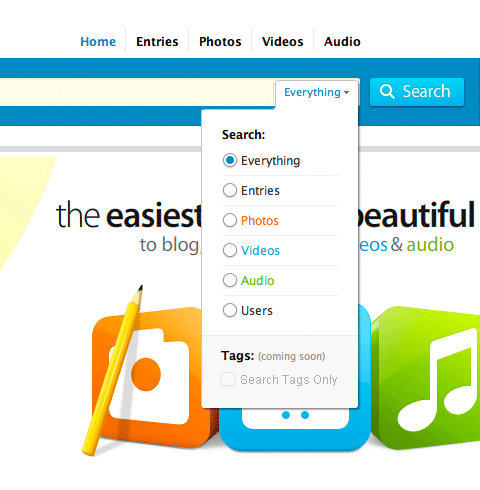
Kontain search
When you click on the search link in Kontain’s search box, a similar drop-down menu appears. So, if you need to narrow your search, you can use the menu to select the sort of content you’re looking for. Tucking these options away simplifies the search box.

One way of making things simpler is to hide or conceal advanced functionality. Find out the most commonly used functions of your interface and tuck away the rest. You can do this with pop-up menus and controls, which are very common on desktop software. For example, if your search bar has advanced filters, put them away in a special drop-down menu at the end. If users need those filters, they can enable them with just a couple of clicks. Deciding what to keep and what to conceal isn’t a simple task, though, and will depend on how important and how frequently used each of the controls is.
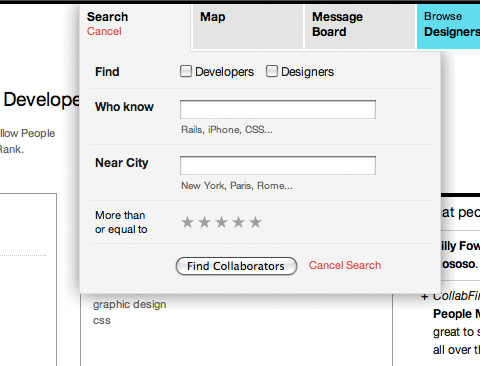
CollabFinder search
When you click on the search link in CollabFinder, you aren’t taken to a different page. Instead, the search box controls drop down, allowing you to begin your search straight away.

2. Specialized controls

It’s important to select the right interface controls for the situation. Different situations can be handled in different ways, and certain controls are better at their intended task than others.
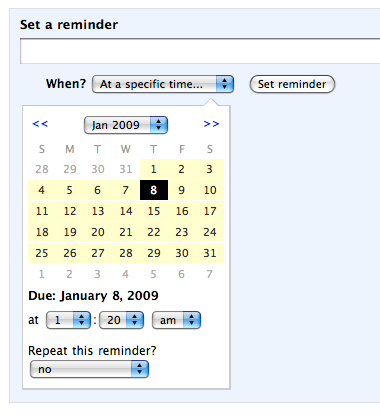
Backpack calendar picker
Backpack has a compact calendar date and time picker for selecting a reminder date.

For example, you can select a date by using drop-down lists for day, month and year. Drop-downs aren’t very efficient, however, when compared to a calendar picker, where you can click directly on a day you want. Calendar pickers also help you see the days, weeks and months (and especially workdays and weekends) more easily and so allow you to make a more informed decision more quickly than you would with a simple drop-down list.
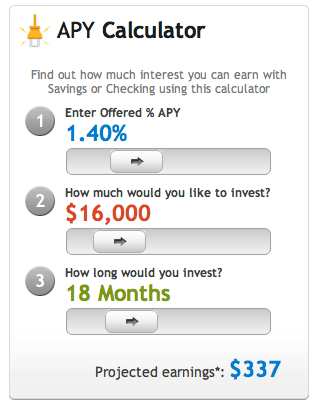
MyBankTracker APY Calculator
MyBankTracker’s APY calculator features easy-to-use slider controls for quickly trying out different projections.

Another good example of this are sliders. Yes, you can always input a number manually, but for certain situations, slider controls do a much better job. Not only are they easy to use — just click and drag — but you can also see how your selection fits between the minimum and maximum of an available range.

3. Disable pressed buttons

One of the problems Web applications encounters with forms is the submission process. With very simple forms, if you click the “Submit” button twice or more very quickly, the form will be submitted two or more times. This is obviously problematic because it will create duplicates of the same item. Preventing duplicate submissions isn’t very hard, and it is essential to do this for most Web apps.

There are two tiers to this safeguard: client-side and server-side. We won’t go through the server-side safeguard here because this will vary depending on the programming language you use and your back-end architecture. What you should essentially do is put in a check to ensure during the processing stage that whatever is being submitted is not a duplicate, and if it is to block it.
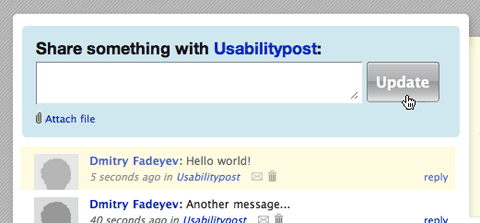
Yammer disabled button
Yammer disables the “Update” button while your new message is being submitted.

The client-side stage is much simpler. All you have to do is disable the “Submit” button the very moment it is clicked. The easiest way to do this is to add a piece of JavaScript to the “Submit” button like this:

<input type="submit" value="Submit" onclick="this.disabled=true" />

Of course, we would advise you to also implement server-side checks to be sure that duplicates don’t get through.

4. Shadows around modal windows

Drop shadows around pop-up menus and windows aren’t just eye candy. They help the menu or window stand out from the background by reinforcing its dimensions. They also block out the noise of the content beneath the window by darkening the area around it with a shadow.

This technique hat its roots in traditional desktop applications and helps the user to focus his/her attention on the appearing window. Since most modal windows aren’t as easy to distinguish from the main content as in desktop applications, shadows help them to appear closer to readers, because the window appears to be three-dimensional and lay above the rest of the page.
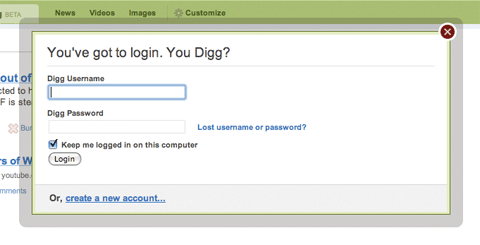
Digg login window
Digg’s log-in window has a thick shadow around it to block out the noise of the page beneath.

To achieve this effect, designers often create a container with a transparent PNG-image as background and place the content inside the container - with equidistant padding on all sides of the box. Another option is to use a background image with transparent borders and position the content box within this box using absolute positioning. This is exactly what Digg does — this is the image they are using (dialog.png). And this is the markup and CSS-style they are using:

(X)HTML:

	<div id="container">
		<div style="display: block; top: 236px; opacity: 1;" class="dialog">
			<div class="body">
        		<div class="content">
        			...
        		</div>
        	</div>
        </div>
      </div>

CSS:

.dialog {
    position: absolute;
    left: 50%;
    margin-left: -315px;
    width: 630px;
    z-index: 100001;

}
.dialog .body {
    background: url(/img/dialog.png) 0 0; /* semi-transparent .png image */
    padding: 40px 13px 10px 40px;
}

Alternatively, you can also use JavaScript-based lightboxes or drop shadows using CSS3-attributes we’ve described earlier, but you need to be aware that Internet Explorer won’t support them.
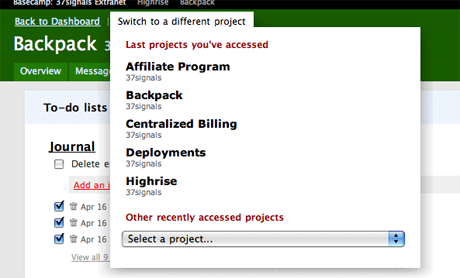
Basecamp project switcher
Basecamp’s project switcher window has a large soft drop shadow that helps the menu area stand out.

5. Empty states that tell you what to do

When you’re designing a Web application, it’s important not only to test it with sample data, but to ensure that it looks good and is helpful when there is nothing there yet. You should design the empty states.

When there is no information for a page or query yet, a helpful message telling the user how to start could go in that empty space. For example, a project management application’s home page may list the user’s projects, but if there are no projects yet, you could provide a link to the project creation page. Even if there is already a button to do that on the page, an extra bit of help doesn’t hurt.
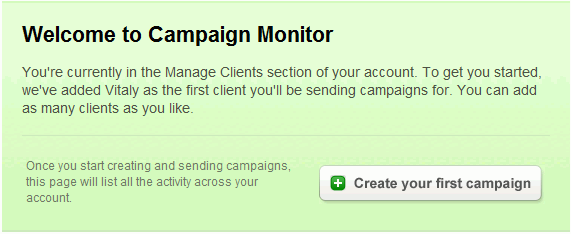
Campaign Monitor empty state
Campaign Monitor points you in the right direction when you start building an email campaign.

This technique encourages users to actually try out the service and proceed directly with using the service after registration. Guiding the user through single steps of the application may help him or her to understand what advantages the application offers and if it’s useful or not. It is also important to present most important options to the users and only them — it doesn’t make sense to overflood them with numerous options. Keep in mind that users usually want to get a more or less concrete idea of what is offered to them, but they don’t want to jump into details — they have neither time nor interest in it.

Using empty states to motivate users and animate actions, you can significantly reduce the amount of “drop-outs” and help your potential clients to gain a better understanding of how the system works.
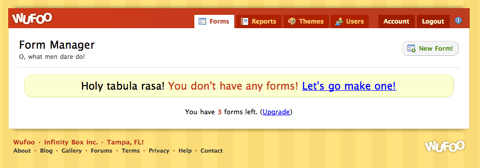
Wufoo empty state
Wufoo’s forms page has a large, friendly message inviting you to create a new form if none yet exist.

6. Pressed button states

Many Web applications have custom-styled buttons. These are anchors or input buttons that have custom images assigned as their backgrounds. The default input buttons may not be suitable in some cases, and the text links are sometimes too subtle. The challenge is, when you make your links look like buttons, they should act like buttons — and this includes having a “pressed” look when the user clicks on them.

This isn’t a purely visual tweak. Giving instant feedback to the user will make the application feel more responsive and bring the experience closer to what the user experiences on desktop applications.

You can add a pressed button state with CSS by styling the active pseudo-class of the link in question. So for example, if your anchor has the class add_task_button, you can style its active class by targeting add_task_button:active.
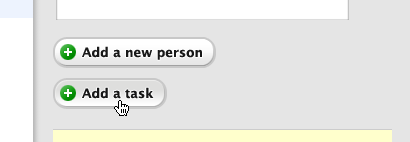
Highrise button pushed
Buttons in Highrise actually show a pressed state when you click on them, providing the user with a satisfying responsive feel.

7. Link to the sign-up page from the log-in page

Some people who haven’t yet signed up to your application will inevitably end up on the log-in page. They likely want to try out your application but can’t find the registration page in a hurry. Perhaps they’ve tried accessing a feature that’s only available to registered users.
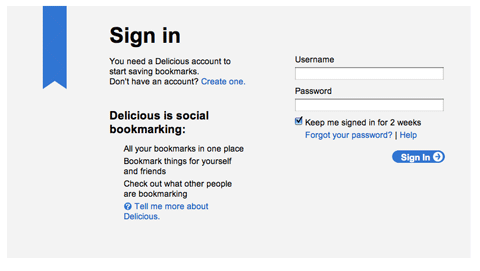
Delicious sign in
Don’t have a Delicious account? No problem; a sign-up link is provided on the Delicious log-in page.
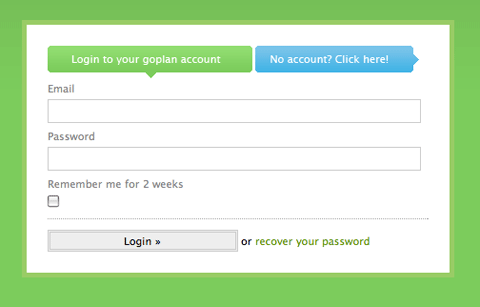
Goplan sign in
Goplan has a nice colored button on the log-in page pointing to the sign-up page.

Make things easy for these folks by placing a registration link on your log-in pages. If they haven’t got an account yet, they shouldn’t have to look for a registration page. Our studies confirm: 18% have a sign-in form or a link to the sign-in form placed next to it (e.g. YouTube, Reddit, Digg, Lulu, Metacafe).

8. Context-sensitive navigation

It’s important to think about what the user expects to see and what they need in every given context. You don’t need to display the same navigation controls everywhere because users simply may not need them in every situation.

One of the best examples of context-sensitive controls is the recent change in the Microsoft Office 2007 interface, in which the default set of toolbars was replaced by ribbon controls. Each tab on the ribbon holds different controls relating to a particular activity, be it editing graphs, proofreading or simply writing. Web applications can also benefit from such context-sensitive controls because these controls help unclutter interfaces by showing only what the user needs, not everything that’s available.

Lighthouse sub-navigation
Lighthouse features a familiar tabbed navigation menu; however, it also has a second level of menus right under the set of tabs. This level displays only the items associated with the active section of the website.

9. More emphasis on key functions

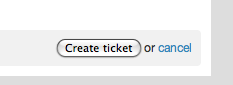
Not all controls hold the same importance. For example, on a screen for creating a new item, you may have two buttons: “Create” and “Cancel.” The “Create” link is more important because that’s what the user will be doing most of the time. Only rarely will they need to cancel the screen. So if these controls are located side by side, you may not want to give both the same emphasis.
Lighthouse create or cancel
The “Create ticket” button in Lighthouse. You can see the “cancel” link next to it, in plain text. The button not only commands more importance but also has a larger clickable area and is easier to spot because of its frame.

To shift emphasis to the “Create” link, we can simply use different styles or types of controls. Some applications use the form input button for the create action, and have the cancel action as a text anchor. This not only gives the create button more clickable area, it also helps to grab the users gaze better when they’re looking for it.

10. Embedded video

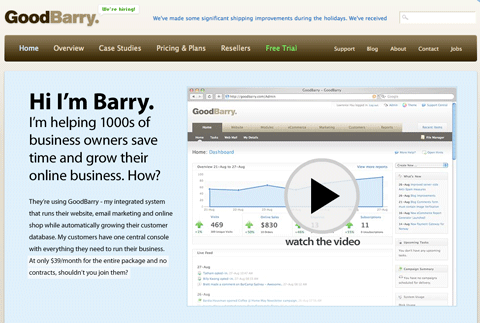
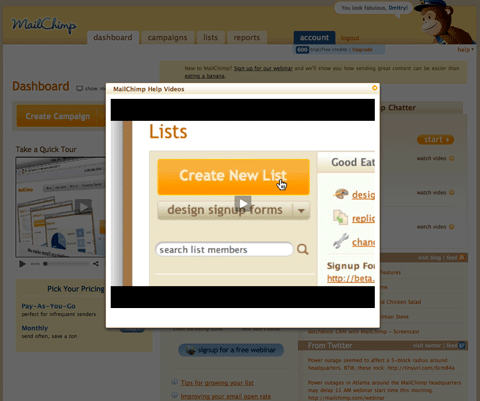
While pictures and text are a great way to communicate and teach your users about your app’s features, video can be an even better alternative if you have the resources to produce it. Video has been gaining popularity on the Web in recent years. For Web apps, videos are generally used on the marketing website as a kind of screencast to show off a product’s features; however, this isn’t the only way to use video.
GoodBarry video
GoodBarry features a video screencast on its front page showing off the product. It also uses screencasts inside the app to teach people on how to get started.
Mailchimp video
MailChimp includes tutorial videos right on the admin panel to help out new users.

Some Web apps use video inside the application itself to teach users how to use certain features. Video is a fantastic way to quickly demonstrate how your product can be used, because it is easier to consume than a page of text, and it is also much clearer because the viewer can see exactly what to do.

Related articles

Please take a look at the following related articles:

Discuss further techniques in comments!

Please feel free to suggest further ideas, approaches and coding solutions in the comments to this post. The second part of our research will be published soon: stay tuned via RSS Subscribe to our RSS-feed and Twitter Follow us on Twitter.

About the author

Dmitry Fadeyev is the founder of the Usability Post blog, where you can read his thoughts on good design and usability.

(al)

Delicious button Stumbleupon Spread the word on Twitter!

Advertisement
  1. 1.

    Trond (January 12th, 2009, 8:24 pm)

    Thanks for the tips !:)

  2. 2.

    Jhay (January 12th, 2009, 8:28 pm)

    Great sutff! Keep up the good work!

  3. 3.

    Mario Zuany (January 12th, 2009, 8:30 pm)

    Great article. The pressed button state is one of that little things that improves the user experience, the feedback for virtual actions.

  4. 4.

    zabogar (January 12th, 2009, 8:36 pm)

    cool,,
    nice articles…

  5. 5.

    Nouman Saleem (January 12th, 2009, 9:01 pm)

    bookmarked for upcoming site reference :}

  6. 6.

    Kyle (January 12th, 2009, 9:24 pm)

    Good article, until you featured Lighthouse as an example of good UI. Lighthouse has got to be one of the hardest-to-use apps I’ve come across recently.

    Other than that, well done. I like the examples of search UIs.

  7. 7.

    gaurav (January 12th, 2009, 9:47 pm)

    ultimate .. disabled submit button tip was very handy

  8. 8.

    Troy Malone (January 12th, 2009, 10:17 pm)

    Great tips. I am always looking for ways to make our application more intuitive. It always surprises me to see 37 Signals products highlighted for good design. They have great “elements” but the complete apps are usually not that great. I guess each to his own!

  9. 9.

    Jennifer Farley (January 12th, 2009, 10:25 pm)

    Very good collection. Interface design for web apps is something I would like to get more involved in and have been reading a few books, but I think this is a very clear overview and very helpful.

  10. 10.

    Shuja Shabandri (January 12th, 2009, 10:30 pm)

    I love sliders, but having a small text field next to it as an alternative would help those using the devices like iPhone. Or at least alternative control should be enabled using browser detection.

  11. 11.

    Noam (January 12th, 2009, 11:05 pm)

    Loved it.

  12. 12.

    Sash (January 12th, 2009, 11:38 pm)

    Great post, always looking for well designed apps for inspiration, bookmarks set accordingly

  13. 13.

    R. Sebastian (January 13th, 2009, 12:13 am)

    Thanks for the tips!

  14. 14.

    PomCompot (January 13th, 2009, 12:29 am)

    Another great one. Thanks guys.

  15. 15.

    DomSparks (January 13th, 2009, 12:35 am)

    Great article. One thing I would add to Item 7 is that Sign Up & Signin Screens should clearly display information about the security used on the site, or should link to page that carries such info. Increasingly often sites (such as facebook, friendfeed, twitter) have unsecured main pages that show no browser padlock. Yes, they have a secure login form, but we are slowly slipping towards forgetting about the padlock because the high profile sites don’t have them. Other sites should really be secure, but there is a proliferation of (particularly startup) sites that are not. Putting info about the security employed on a page is likely to improve the level of trust that end users have in your site; it makes it different from the insecure sites… Link [domsparks.wordpress.com]

  16. 16.

    Bart (January 13th, 2009, 12:37 am)

    Very useful information! Keep up the good work!

  17. 17.

    Shuuun (January 13th, 2009, 12:46 am)

    Oh jeah, i love thoose “insider” or “professionell” tips!

  18. 18.

    Jordan Moore (January 13th, 2009, 12:52 am)

    Awesome article, some very useful stuff here for taking useful web apps even further.

  19. 19.

    Natrium (January 13th, 2009, 1:25 am)

    very interesting and satisfying article! This is the stuff that I visit SM for!

  20. 20.

    mcfee (January 13th, 2009, 2:23 am)

    Superb post!

  21. 21.

    Bilal Ahmed (January 13th, 2009, 2:47 am)

    thats amazing

  22. 22.

    Julian (January 13th, 2009, 3:24 am)

    “Interface elements on demand” is just bad bad bad. How does the user know what’s available? He does not! The user first has to check out everything to know where the functions are. That’s why such flyout things are bad. You can’t glance over a page and see everything.

  23. 23.

    francisco (January 13th, 2009, 3:54 am)

    very instructive post, thanks!

  24. 24.

    Marc (January 13th, 2009, 4:01 am)

    Liked the look of Kontain’s site until I realised the whole site is written using flash. Nice ideas however most of the site could be recreated using JQuery.

  25. 25.

    Mindaugas B. (January 13th, 2009, 4:09 am)

    Very useful post. Thanks, smashing!

  26. 26.

    cnara (January 13th, 2009, 4:10 am)

    WOW! Thank you for the article.

  27. 27.

    WoollyMittens.nl (January 13th, 2009, 4:28 am)

    Please… when you implement all this eye-candy, make sure that your page remains accessible: Link [www.w3.org]

  28. 28.

    Jason West (January 13th, 2009, 4:50 am)

    Wow, well done. Excellent apps dude!

    Link [www.privacy-web.us.tc]

  29. 29.

    Ivy Clark (January 13th, 2009, 5:37 am)

    Nice article suitable for the novice as well as the more experienced. A few possible additions:
    - simple and clear instructions
    - context sensitive help
    - breaking complex tasks into smaller steps

  30. 30.

    Barry Chapman (January 13th, 2009, 5:50 am)

    In response to #3:

    Disabling the submit button in that manner will prevent the form from even being submitted. The best practice would be to call a handler function that will perform the following: (as an example)

    1. var form = document.getElementById(”formname”);
    2. form.submit.disabled=’true’;
    3. form.submit();

    This syntax may not be completely correct, so please do not critique it - I am merely showing best practice!

  31. 31.

    gabriel (January 13th, 2009, 6:12 am)

    fuck on demand interface.

    that just slows down the user. only good hint here that are still not common sense is #5.

  32. 32.

    Timothy (January 13th, 2009, 6:22 am)

    Awesome! Very good collection of information. Thanks

  33. 33.

    Scott deVries (January 13th, 2009, 6:27 am)

    Some good tips here!

  34. 34.

    Dennis Tobar (January 13th, 2009, 7:07 am)

    Good tips… thanks for inspiration :)

  35. 35.

    Won Shim (January 13th, 2009, 7:23 am)

    Excellent article… Thanks!

  36. 36.

    Liza (January 13th, 2009, 7:50 am)

    This article is very informative and interesting. Really good tips!

  37. 37.

    Brenley Dueck (January 13th, 2009, 7:56 am)

    Nice Tips! Interface design is a key part to a website

    -Brenelz

  38. 38.

    jurica (January 13th, 2009, 9:34 am)

    Well I am great fan of smashingmagazin, but this article really suprised me lol.
    Check out this link Link [www.cssclip.com]

  39. 39.

    DavidE (January 13th, 2009, 9:49 am)

    I like having a signup link in the login form. One thing I do not like is sites where the assumption is that if you aren’t logged in, you aren’t signed up. That is, they give you a signup sheet with a link to the login page. This is frustrating for existing users.

  40. 40.

    Ricardo Sousa (January 13th, 2009, 9:55 am)

    Great article as you get us used to :)

  41. 41.

    Navdeep (January 13th, 2009, 9:57 am)

    Very well explained and presented. #4 I have used in one of my designs here Link [sourcen.accept-ideas.com] [do a search for "test"]

  42. 42.

    Morgan Currie (January 13th, 2009, 11:17 am)

    To make the submit button disabling trick work in Safari 3, I had to add ’submit()’ to the onclick, so it looks like this: onclick=’this.disabled=true;submit()’

  43. 43.

    Vasily (January 13th, 2009, 11:27 am)

    Well done! Most informative. Keep ‘em coming!

  44. 44.

    Dmitry (January 13th, 2009, 12:37 pm)

    Thanks for the positive comments everyone, I’m glad you liked the article.

    Thanks for the pointers Barry and Morgan. I must confess, Javascript isn’t one of my strengths :)

    Julian: Regarding hiding elements in point 1. This is tricky because if you don’t hide elements, then you’re at risk of showing too much stuff on the screen at the same time. Putting too many things on the same plate will make it difficult to swallow. The more controls and options you have, the longer people will spend figuring out what to do and finding what they need. If they spend too long, they’ll get frustrated.

    Simplicity is achieved through thoughtful reduction, so if some controls aren’t used very often, it may be worth tucking them away somewhere. Because javascript is used to reveal them, they’re only a click away though, so you’re not going to lose much functionality. At the same time, you’ll get a simpler and cleaner interface. Deciding what to hide and what to keep is your task as the designer :)

  45. 45.

    Jennifer (January 13th, 2009, 12:37 pm)

    Bookmarked! What a good array of techniques!

  46. 46.

    Manuel Bertelli (January 13th, 2009, 12:45 pm)

    Nice tips!!! Tks!!!!

  47. 47.

    aQuib (January 13th, 2009, 1:16 pm)

    Great article. Very useful informaiton.
    Link []Artistic Autonomy

  48. 48.

    Ben Rowe (January 13th, 2009, 3:27 pm)

    It’s posts like these that make smashingmag my all time favourite blog

  49. 49.

    ngocluu (January 13th, 2009, 6:25 pm)

    very useful post!

  50. 50.

    Anoop (January 13th, 2009, 9:36 pm)

    useful post, thnx.

  51. 51.

    PropertyInvestor (January 13th, 2009, 10:17 pm)

    I like the Link [Streetfolio.com] interface. Once in the app, you can flick between properties really easily and the cashflow tool has a ‘view last 20′ entries option! Simple, but v cool!!

  52. 52.

    Erik (January 13th, 2009, 10:50 pm)

    Thanks for the tips!

    Here are some more :
    - no scrollbars within scrollbars (youtube…)
    - don’t scroll your navigation away
    - put the same button at the same place every time
    - put the active button on the left, cancel next to it, then the rest
    - enter submits, esc cancels (onkey event)

  53. 53.

    Ram (January 13th, 2009, 11:03 pm)

    Thanks for this info.
    Simple things that help tremendously… :)

  54. 54.

    otustata (January 14th, 2009, 1:00 am)

    Brilliant article, thank you! Especially loving the kontain search box, good one!

  55. 55.

    Caroline Jarrett (January 14th, 2009, 2:55 am)

    it’s great to see tips that are looking at the details of user experience, particularly for forms.

    I don’t agree with the follow-up comment about putting buttons in a particular order: it’s a bit more complicated than that. See my article: Buttons on forms: what to call them and where to put them Link [www.usabilitynews.com]

  56. 56.

    Antonio Wells (January 14th, 2009, 5:09 am)

    This was awesome, I’ve been looking for a non JavaScript intense way to disable a click button while the page was processing.

  57. 57.

    Alexei (January 14th, 2009, 5:38 am)

    A nice list of some helpful tips, except for disabling buttons using the inline onclick attribute. ;)

    @Antonio- this is a JavaScript solution. You only write your code as the attribute’s value.

  58. 58.

    Farid Hadi (January 14th, 2009, 6:01 am)

    Great article. Love the topic!
    Thank you Dmitry and Smashing Magazine.

  59. 59.

    adwin wijaya (January 14th, 2009, 6:04 am)

    Hi .. I like that backpack date and time picker.

    how do i get that free on for jquery :)
    any idea ? :)

  60. 60.

    Alan8 (January 14th, 2009, 6:56 am)

    The “Empty states that tell you what to do” tip is great, and is also a good idea for traditional apps.

  61. 61.

    ooeygui (January 14th, 2009, 7:07 am)

    very good tips, I would say the admin of this site should pay some attention and look into using less advertising space, more than half of this page has nothing to do with the article!!!!!!

  62. 62.

    Benjamin (January 14th, 2009, 8:52 am)

    WoW! Thanks a lot for all those techniques ! Bookmarked for later!

  63. 63.

    Ashutosh Sharma (January 14th, 2009, 9:06 am)

    great stuff! really good tips! thanks.

  64. 64.

    income secrets (January 14th, 2009, 10:49 am)

    Hi,
    Good post here. Just like others i have gone through.
    I must say you really have something going on here.
    Useful stuff really. Keep up the good work.
    Guess I’m going to come around more frequently.
    Keep the fire burning.
    Link []

  65. 65.

    pfers (January 14th, 2009, 1:07 pm)

    Thnx Smashing… Great and usefull TIPS!

  66. 66.

    Shaun (January 14th, 2009, 2:51 pm)

    Fantastic article. Love you work. :)

  67. 67.

    elevationSnob (January 14th, 2009, 3:56 pm)

    Interface elements on demand? Nooooooo!!! When you hide the features a user uses least frequently, you instantly make it difficult for them to find them — since they are infrequently used, the user often forgets where they are, and then has a nightmarish time finding them. Just say noooooo!

  68. 68.

    Nims (January 14th, 2009, 7:37 pm)

    great stuff! really good tips! thanks.

  69. 69.

    hash (January 14th, 2009, 9:50 pm)

    nice tips.good reasoning.

  70. 70.

    Jim Hanifen (January 15th, 2009, 8:25 am)

    The very simply fix for submit buttons is great, I will be using this all the time now. Thanks SM

  71. 71.

    Simon (January 15th, 2009, 11:01 pm)

    I love these UI articles. THIS is what Smashing should focus on! love you guys.
    I saw quite a cool use of video on a website: Link [www.purple-hk.com]

    thanks again! Simon

  72. 72.

    Kalle (January 16th, 2009, 5:06 am)

    9. More emphasis on key functions - the example with button and link

    It’s not so much importance factor as protocol factor. The button in this example send’s the form by http POST request and cancel-link goes directly to different page by http GET request, and the element to be used is told in HTML specifications

  73. 73.

    andrew (January 16th, 2009, 12:20 pm)

    i love sites that don’t send you to a login page but have the login/register control fly out when clicked. i’m still waiting for dotnetnuke 5 to mature a bit more–we finally get to play with jquery! that’ll go a long way towards being able to build the items on the list.

  74. 74.

    Shaker (January 16th, 2009, 12:48 pm)

    Great! Good education

  75. 75.

    Abdulsalam Alasaadi (January 17th, 2009, 10:37 pm)

    Great article.. we want more

    many thanks

  76. 76.

    Efren Hidalgo (January 19th, 2009, 6:44 am)

    Interesting article. I would recommend taking a look at how the Link [www.ae.com] brand includes a bit of advertising in their dropdown menus.

  77. 77.

    Tobias B (January 20th, 2009, 1:55 am)

    Great article! Thanks for your help :)

  78. 78.

    DrFalk3N (January 20th, 2009, 3:10 am)

    Thanks for the tips !:) VERY USEFULL

  79. 79.

    Mukesh (January 21st, 2009, 12:30 am)

    This is really awesome. Love the way everything is explained.
    Thanks a lot,

  80. 80.

    srinivasan (January 21st, 2009, 1:08 am)

    nice article thanks

  81. 81.

    shabeer m (January 21st, 2009, 10:20 pm)

    thanx a lot

  82. 82.

    sqlgrl (January 28th, 2009, 1:02 pm)

    Well done. Great tips!

  83. 83.

    Theresa (January 29th, 2009, 8:48 pm)

    Excellent set of references this month!

    Bill Scott and I have a series of complimentary articles on our book companion site, with over 200 examples illustrating patterns and principles for RIA design.

    Link [designingwebinterfaces.com]
    Link [designingwebinterfaces.com]
    15 Components for Commonly Requested Features coming in February

  84. 84.

    Andrew Cairns (February 1st, 2009, 4:35 am)

    nice tips. thanks

  85. 85.

    KaiserSoze (March 6th, 2009, 8:01 am)

    Great article with some very usefull tips. Also some nice up-to-date examples! Is it ok for me to post this article on my own blog?? Of course i’ll be naming and linking to original author.

  86. 86.

    Shyju PG (March 12th, 2009, 4:10 am)

    Excellent tips..Thanks a lot. Keep going with good works….

  87. 87.

    the orb (April 13th, 2009, 11:34 pm)

    good article.
    i agree with #9 (More emphasis on key functions), but what do you do when you have two equally important functions?

  88. 88.

    momosj (April 21st, 2009, 10:56 pm)

    学习了!

  89. 89.

    bilgimix.com (May 1st, 2009, 6:46 pm)

    Link [www.bilgimix.com]

  90. 90.

    Jack (May 11th, 2009, 9:11 am)

    One interesting one that just popped up is Link [www.blabngo.com], instant chatroom (they call them workrooms). You can create an instant chat session without the need for a third party app or account anywhere.

    You just have to tell the other party what the chatroom is called like Link [www.blabngo.com] and they can join u, to keep others from getting in by accident you can password protect it.

    Useful for workgroups or also if you want to keep your info private (not disclose your skype id, or any other id).

    For example i often ask for help on forums and have to use the pm option going back and forth, tedious to say the least, i want something instant but i don’t want to tell those people what my msn or whatever id is for using an im. This way i just give them the chatroom address and we can chat pretty much anonymosly right there and then.

    Nice list thanks bud.

  91. 91.

    emenel (May 24th, 2009, 2:07 am)

    Very-very cool!!

  92. 92.

    MyDesign.com.ar (May 28th, 2009, 8:31 am)

    really good tips, thanks a lot

  93. 93.

    Ashley Adams : Postcard Printing (June 29th, 2009, 9:13 pm)

    With Web 2.0 and cloud computing, the Internet has truly come of age finally. These sleek designs and interfaces, along with their smooth lines and subtle effects, offer a good mirror to what the Web has evolved into. They also indicate the future which, I’m sure, will be even more exciting and beautiful.

Leave a Reply

Allowed Tags: <a href="" title=""> <abbr title=""> <acronym title=""> <b> <blockquote cite=""> <cite> <code> <del datetime=""> <em> <i> <q cite=""> <strike> <strong>
Advertisement
 

All Posts

Follow us on Twitter!
Subscribe to our RSS-feed!

Advertisement

Fresh Bookmarks

25 Beautiful Logos with Sequential Concept
Sequential logos maybe is a new trend among logo designers.

Designing a blog with HTML5
Much of HTML 5’s feature set involves JavaScript APIs that make it easier to develop interactive web pages.

20+ CSS Data Visualization Techniques
Get inspired.

CSS3 – a big storm is coming
With CSS3 media queries and multi-column layouts it will be a whole new ballgame.

Woodgrain: A Free Social Media Icon Set
With 18 social networks represented alongside astandard RSS icon in PNG format,

Webdesign: Five Minute Upgrade
Making Your Design Pop.

45 Stylish Typographical Desktop Wallpapers
These beautifully designed wallpapers are not solely about typography.

The Light CMS Trend
A new trend in CMSs I’m calling “light” CMSs.

10 Impressive JavaScript Animation Frameworks
Create stunning and eye-grabbing animation and transition effects.

Linux System Monitoring Tools Every SysAdmin Should Know
Need to monitor Linux server performance?

  • 9Rules Logo
  • Quicksprout Logo


