Designing Drop-Down Menus: Examples and Best Practices

Advertisement

As a general rule, most Web developers, especially usability enthusiasts, say it is bad practice to use drop-down menus because they are confusing, annoying and oftentimes dysfunctional. From a design standpoint, however, drop-down menus are an excellent feature because they help clean up a busy layout. If structured correctly, drop-down menus can be a great navigation tool, while still being a usable and attractive design feature.

Yes, that’s right: drop-down navigation menus can be user-friendly. Just yesterday Jacob Nielsen the results of his recent drop-down menus study, in which he found out that big, two-dimensional drop-down panels that group navigation options help users to avoid scrolling and can precisely explain the user’s choices with effective use of typography, icons, and tooltips.

These panels appear temporarily and disappear on their own when users move the pointer to another top-level option or to a “regular” part of the screen. You can find more information about Nielsen’s study in his article Mega Drop-Down Navigation Menus Work Well.

Screenshot
Huge vertical drop-down panel from foodnetwork.com; notice a close button (the “x” in the upper right corner).

In this article we take a closer look at the nature of drop-down navigation menus, analyze situations in which they should or should not be used, discuss various implementations and finally showcase a couple of bad and good examples of such menus. The article also includes various tips and suggestions to help you work with your drop-down menus.

Where To Use Drop-Down Menus

You will often see many trends in which drop-down menus are used. Here are a few of the most common ones.

Organize Pages in a Section
Most commonly, drop-down menus are used to pull all of the pages in a certain category together in one organized element. This is essentially sub-navigation. Take a look at the design below. A drop-down element contains all of the different categories for a certain section of the website.

Screenshot

Organize Categories in a Blog
You will see many blogs use a drop-down menu to organize categories and tags. Why? Blogs are driven by a large amount of information, so the layout needs to be as clean as possible to hold that content. A drop-down menu ultimately helps pull together links, such as categories, out of layout elements, such as the sidebar.

Screenshot

Show Products on an eCommerce Website
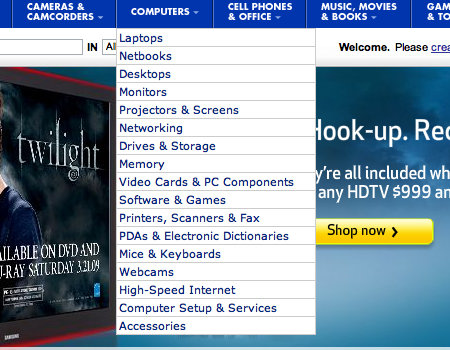
You will see many e-commerce websites use drop-down menus to show products or categories of products. The drop-down menu is a friendly feature that all consumers can easily figure out, so it is a perfect way to organize products. The Best Buy website, shown below, does just this.
Screenshot

Display Modules
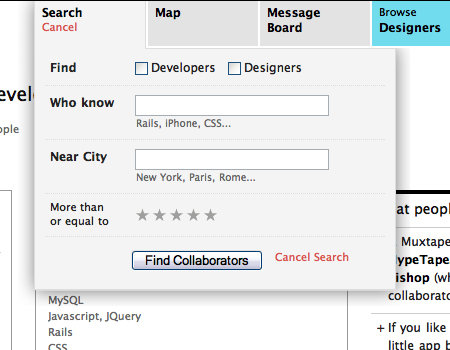
A drop-down can be an excellent way to tuck away an obstructive menu, which the user can click on to reveal. Take the example below, for instance. The sign-in element is part of the navigation, then appears in the form of a drop-down. This is a great way to take this large element out of the layout without negatively impacting usability.
Screenshot

Best Practices

Drop-down menus do in fact organize content into small, uncluttered elements, but if not done correctly, they can be just as bad as a messy layout. Here are some ways to make this controversial element more usable.

Avoid a Drop-Down with More than Two Levels
Overall, this is just about the worst mistake one could make with drop-down menus in terms of usability. If done with a hover menu structure, the user will lose focus of the menu whenever the mouse pointer moves away from it. If done with a clickable structure, it has too many buttons and doesn’t work nicely.

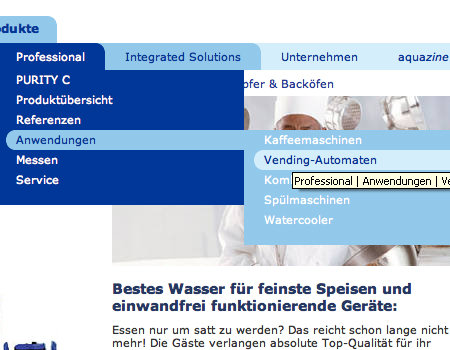
The website shown below makes this mistake. The menus are very difficult to use because if you even slightly lose focus of the menu with the mouse pointer, you have to start from the top. Notice the tooltip, which also gets in the way of the navigation.
Screenshot

Option 1: Hover Menu
Basically, there are two ways to approach the drop-down menu: with either a hover or a click to activate the menu. From a design and convenience standpoint, a hover menu is better.

Option 2: Clickable Menu
On the other hand, many will argue that a clickable menu is better because it is much more usable. Reason? Because of the way a hover menu is constructed, the user has to have the pointer over the menu at all times. If the user loses focus of the hover menu, it closes. Therefore, it is better to go with a drop-down menu that is activated by clicking a button, then deactivated by clicking the button once more.

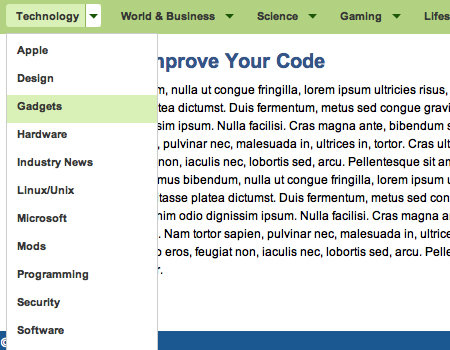
CSS-Tricks has a tutorial showing how to create a layout similar to that of Digg. It is a perfect drop-down menu with a click-to-activate/deactivate feature, so it’s certainly something you should take a look at.
Screenshot

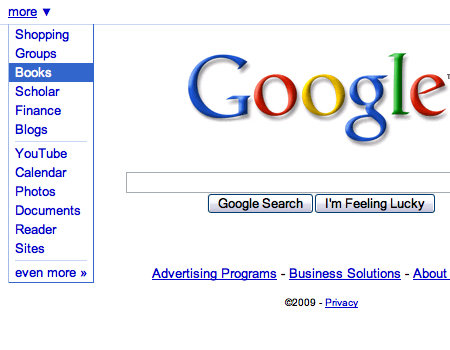
Also, Google features a usable drop-down menu using the click on/off trick.
Screenshot

Delay the Deactivation of a Hover
Avoiding a hover structure and many levels in a drop-down may be too much of a restriction for the navigation you are trying to create. There is a solution, though, that can improve the usability of a hover and multi-level menu. With most menus, the drop-down disappears immediately after the user moves the mouse pointer away from the menu. The solution is to delay its disappearance. Or, have a click function that requires users to click outside the menu area to close the drop-down, similar to how a Lightbox functions.

Take Dell, for example. It uses a multi-level drop-down menu, but it is still somewhat usable. This is the only exception to the use of multi-level drop-down menus.

Screenshot

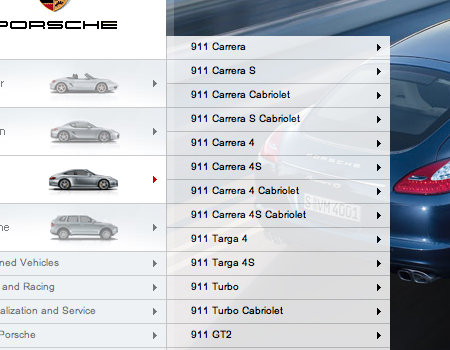
Furthermore, the menu on the Porsche website has multiple levels. However, the menu has a very wide focus range. This means you have to move your pointer a certain distance away from the menu to close it.
Screenshot

Add a Hover Effect to Menu Options
The navigation itself actually affects the usability of the drop-down menu. One way to make the menu work better with the drop-down is to add a hover effect to the menu options. This shows exactly which button in the navigation the menu is extending from, which will certainly help users.

The example below, the MediaTemple home page, shows a strong hover effect on the navigation options, which helps to support the drop-down menu.

Screenshot

Seamless Transitions
When a drop-down menu appears, it should appear seamlessly and without interruption. The menu should load immediately. Many websites make the mistake of making the menu so “heavy” that it takes more than an instant to load upon the hover.

Transition effects are one more detail that can look really cool. Instead of the menu simply appearing, try throwing in a wipe down or fade in. Just be sure to make the transition quick and not disruptive.

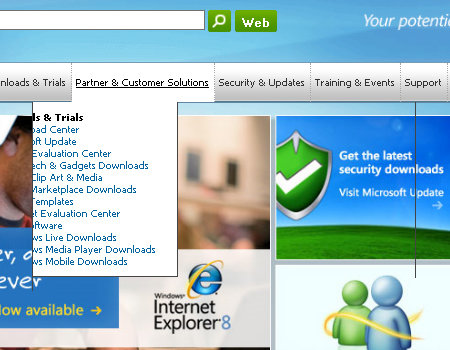
You will notice that Microsoft doesn’t do a very good job of creating a seamless menu. Observe the image below closely. You will notice that outlines from adjacent menus are still visible when the main menu is loading. When you move from button to button in the navigation, the drop-down menus have a slight lag, which looks bad. Of course, this doesn’t occur in all browsers, but it shouldn’t occur in any.
Screenshot

Remove Tooltips
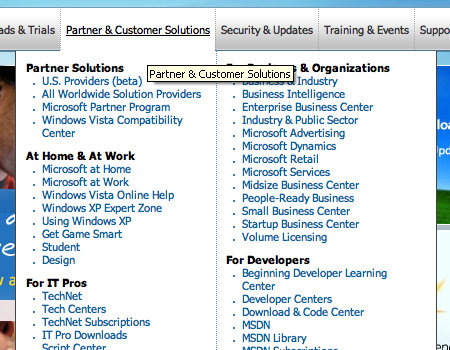
Of course, when designing drop-down menus, there are always little details that impact usability. One important practice you may overlook is the presence of tooltips, or the lack of tooltips. You should always remove tooltips from buttons with drop-down menus. Reason? Tooltips just get in the way and sometimes even block the first list item in the drop-down menu.

Yes, we will be picking on Microsoft once more. Microsoft makes this mistake on its corporate page. Notice how the tooltip blocks many of the list items, which makes navigation that much more difficult.
Screenshot

Styling Techniques

Content backgrounds can be somewhat of a challenge, too. The background has to be subtle, or it will ruin the content. Here are a few ways to liven up content backgrounds without going over the top.

Use a Clean List
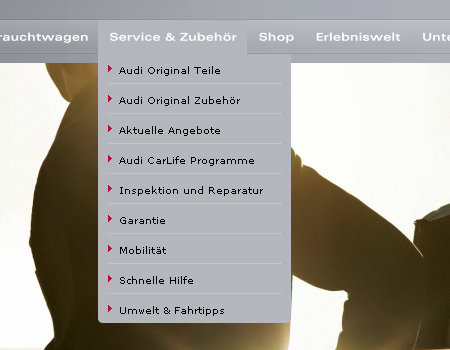
Not only is the element styling important, but the content styling is important, too. Clean typography and a readable list are important. Use smart spacing between elements in the list, and add a border above and below list items.

The example below from Audi shows a very well-organized and readable list. The list items are separated, and there are even list item icons.
Screenshot

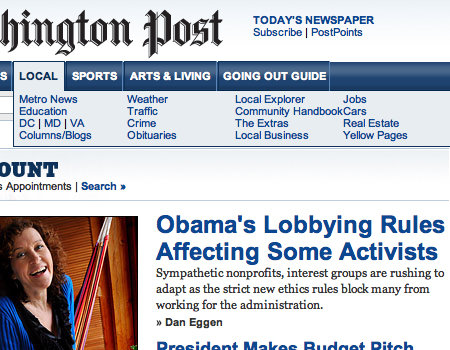
On the other hand, The Washington Post’s website has a very poor list in the drop-down menu. There is not enough spacing between list items, so the menu is very cluttered and difficult to use.
Screenshot

Hover Effects on List Items
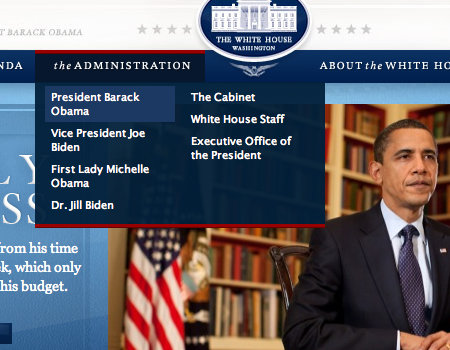
All buttons need some sort of hover effect to be more usable. In drop-down menu lists, apply subtle hover effects, perhaps just a text color or background change. The White House website uses only a background change on list items, but it still helps the user.
Screenshot

Semi-Transparent Background
This won’t work for all designs, but you should consider a semi-transparent background for the menu. The website shown below has a transparency, so the user can still see through to the image background. The key to semi-transparent elements is to keep a strong and readable contrast.

Screenshot

Keep Styling Consistent with Menu
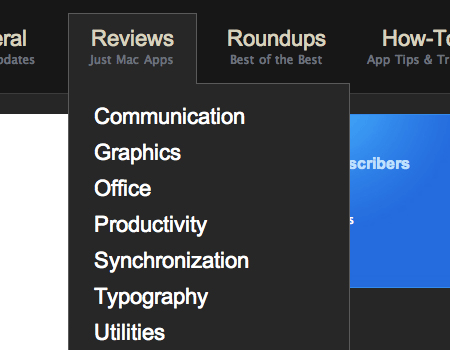
You will hear everywhere that consistency in styling is a must, and it certainly is. For navigation and a drop-down menu to work together as one unit, as they should, the styling needs to be similar. Use the same fonts and a similar background.

In the example below, the drop-down menu looks as it should.
Screenshot

Poorly Constructed Menus

Below are some examples of drop-down menus that fall short somewhere with styling and usability.

Navigant Consulting
This menu is poorly styled and dysfunctional.

Screenshot

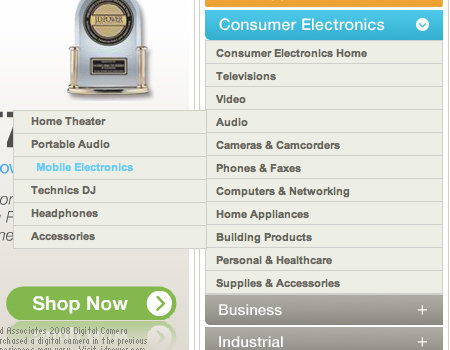
Panasonic
Although this menu is well-styled, it is difficult to use because of a bad hover effect.
Screenshot

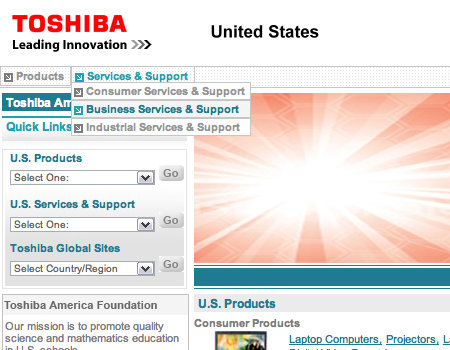
Toshiba
The Toshiba menu is too small and does not follow good styling practices.
Screenshot

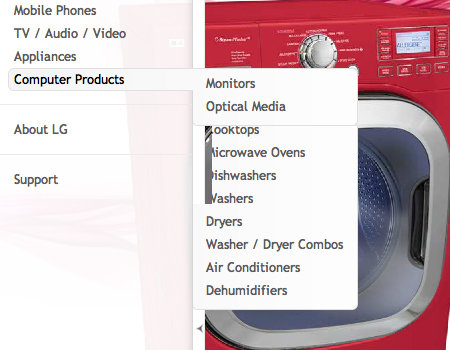
LG
Like the Microsoft menu above, this one has a slight lag, which makes it hard to use.
Screenshot

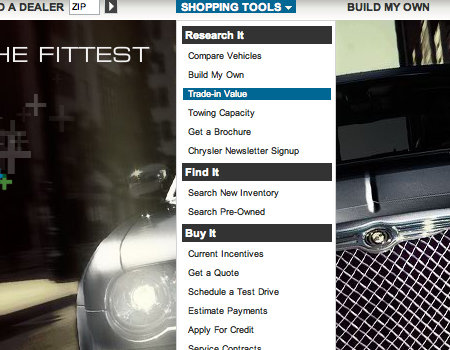
Chrysler
The Chrysler page uses a drop-down menu with very small text, which makes it difficult to read.
Screenshot

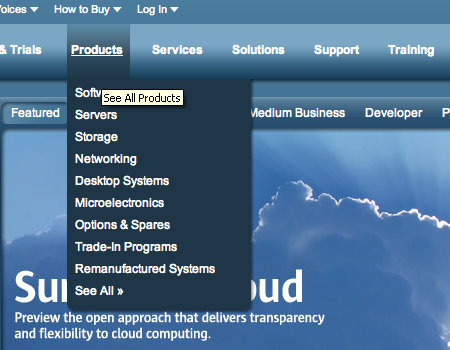
Sun
These drop-down menus are rather fidgety and hard to use. The tooltip gets in the way, too, and directly above the main navigation is another drop-down menu. All of this makes it very difficult to navigate.
Screenshot

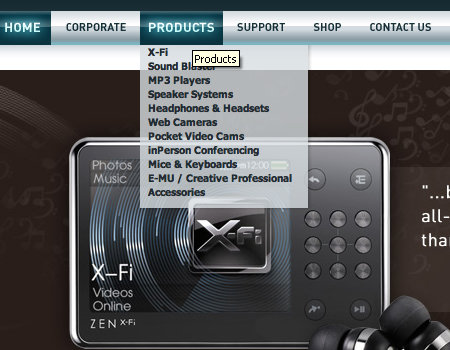
Creative Labs
The menu below is cluttered and does not have a delayed hiding or similar technique, so it is not very usable.
Screenshot

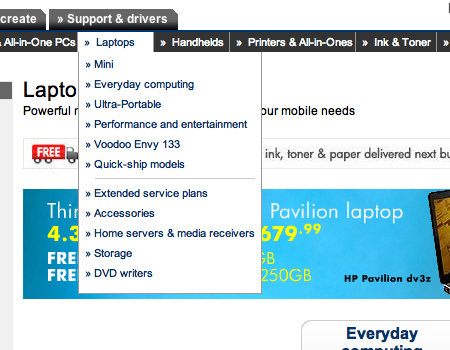
HP
Another hover menu that lacks usable features.
Screenshot

Alienware
The black menu on the black design makes this drop-down difficult to use.

Screenshot

Good Drop-Down Menus

Here are many drop-down menus that have good usability and styling features.

Sony
A well-constructed hover menu with a good list.

Screenshot

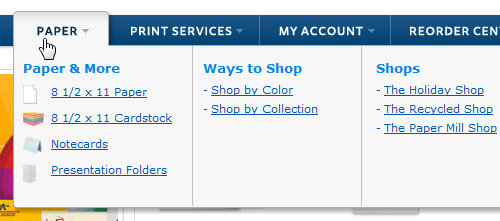
ActionEnvelope
A clean vertical drop-down panel with a lot of padding; notice, how the panel appear to be above other design elements. Simple and beautiful solution.
Screenshot.

Helmy Bern
A beautifully styled menu, with a fade transition.

Screenshot

RedBrick
This menu is cleanly styled and very readable.

Screenshot

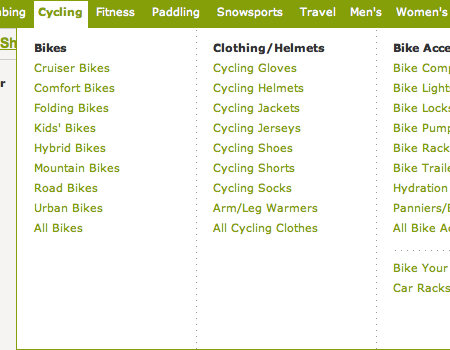
REI
This drop-down is very wide, so it is easy to keep the mouse in focus.
Screenshot

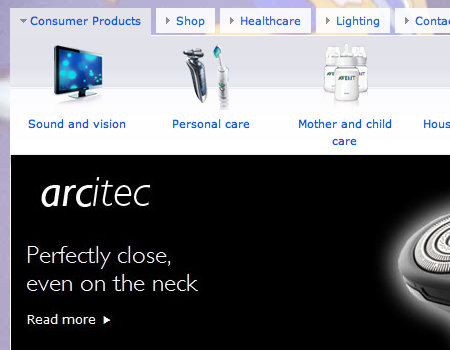
Philips
Philips has a large and usable drop-down module.
Screenshot

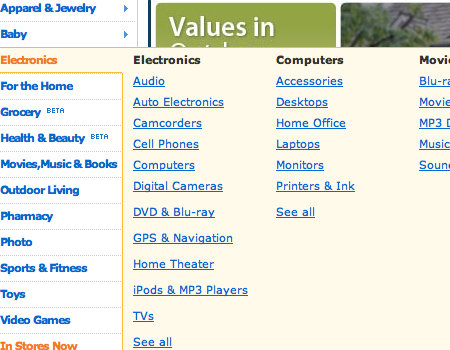
Walmart
On the Walmart site, the user clicks on the area outside the menu to close it.
Screenshot

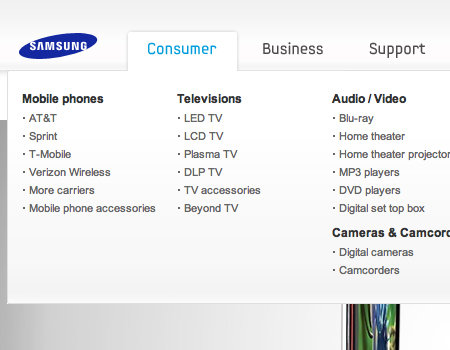
Samsung
The Samsung menu is usable because of its large size and styling.
Screenshot

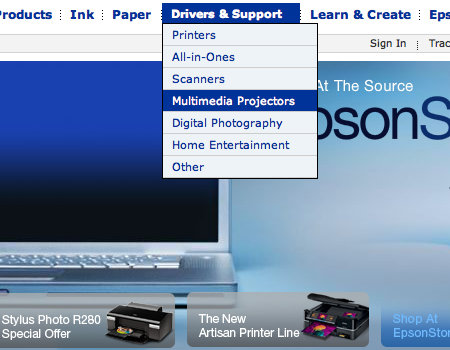
Epson
Epson shows another usable drop-down menu.
Screenshot

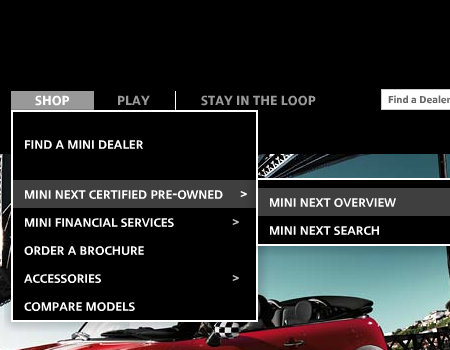
Mini Cooper
This website uses a drop-down menu with delayed closing.
Screenshot

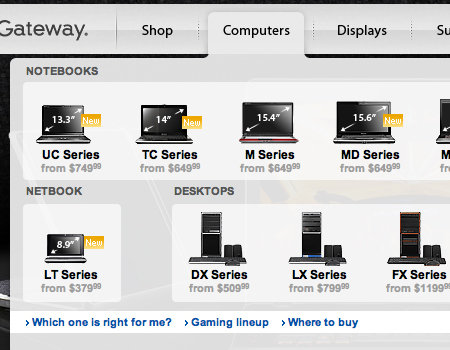
Gateway
Here is another usable drop-down element.
Screenshot

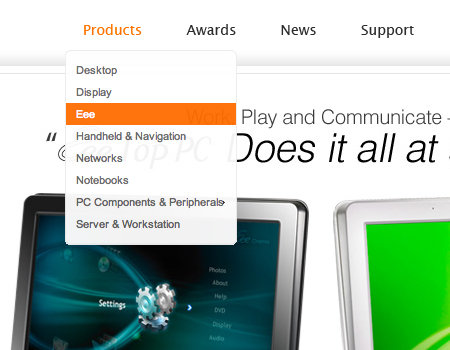
Asus Global
A well-styled menu that has delayed hiding.
Screenshot

Intel
A very clean drop-down menu.

Screenshot

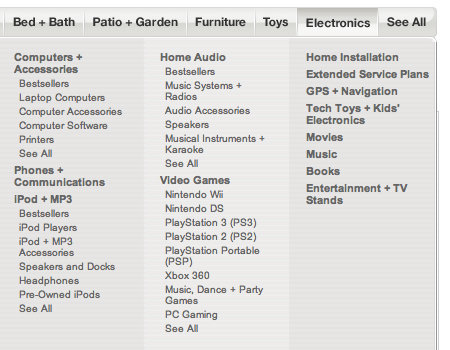
Target
A well-organized menu that has delayed closing.
Screenshot

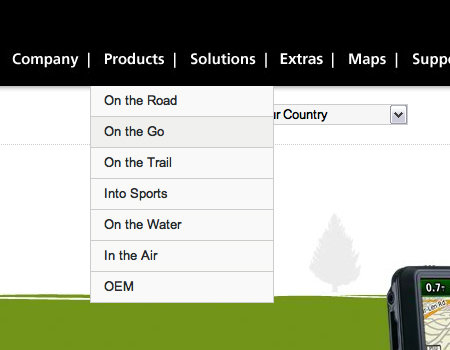
Garmin
This drop-down menu is simple yet functional.
Screenshot

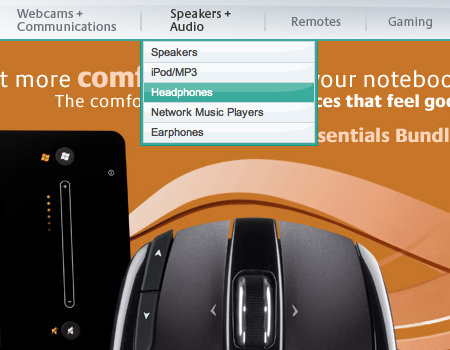
Logitech
A drop-down with very nice styling that matches the menu.
Screenshot

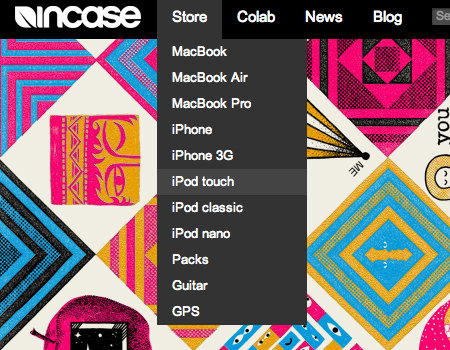
Incase
This menu is very basic but serves its purpose.
Screenshot

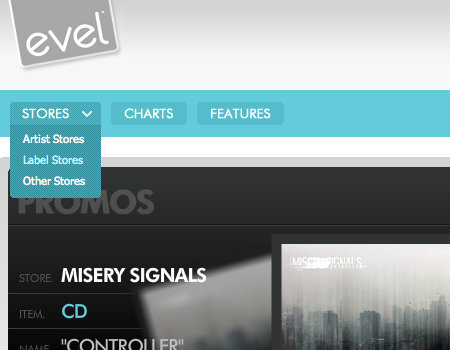
evelMerch
A small yet functional drop-down, with a graphic to show users that the button opens a menu.
Screenshot

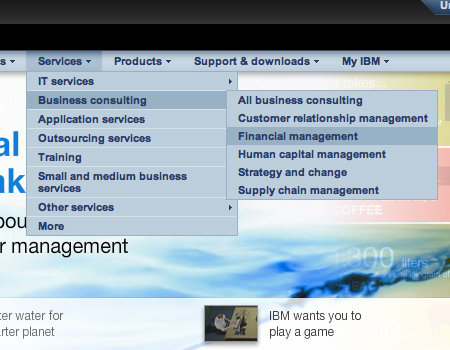
IBM
A multi-level drop-down is used here, but a slight delay makes this one easier to use.
Screenshot

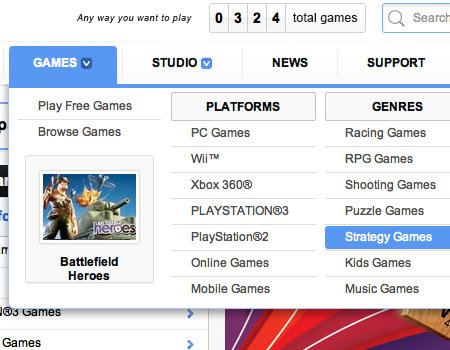
EA
A very clean and well-organized drop-down element.
Screenshot

ACTIVISION
This menu is clean and has delayed hiding to improve usability and functionality.

Screenshot

Yahoo! Finance
The menu on Yahoo! Finance has large buttons and icons to show where menus can be opened.

Screenshot

Related posts

Please consider visiting the following related posts:

(al)

Matt Cronin is an avid graphic designer, web designer/developer, Cocoa programmer, photographer, digital artist, and the like. He also enjoys writing, and does quite a bit of writing for Smashing Magazine. He is currently working on a startup called VAEOU, which will have new services coming soon.

  1. 101

    Oh please. Who disables JS nowadays? Disabling JS while using the internet is like disabling color when watching TV – you miss out on a lot of good stuff.

    A lot of people do. Mainly Firefox users. NoScript is one of the most popular FireFox extensions ever. It disables javascript unless you specifically whitelist a site. A large portion of FireFox users will see your site with JavaScript disabled.

    -5
  2. 103

    Check out the menu at http://www.gigfish.com. Not bad.

    +1
  3. 104

    tht thing with the navigant consulting drop down menu. It just isn’t fair, why didn’t you change it? One of the well-designed sites and you put in #1 bad example. Very POOR! Disappointed…

    -5
  4. 105

    Cartographic mapping

    September 27th, 2009 9:55 pm

    very useful and informative post. thanks for sharing.
    regards
    SBL

    -4
  5. 106

    A nice combination of a simple Drop-Down with Grunge-Design can be found here:

    Moderne Ausbildung – German Education site

    -2
  6. 107

    Anyone have a demo link to do the Philips drop down. That’s one of the best i’ve seen so far.

    0
  7. 108

    Nice stuff !!

    +2
  8. 109

    hey guys does any one know of any other tutorials other than the on on sitepoint?

    +1
  9. 110

    Really good staff ! As I’m moving on in web design and development all those delicate things are very usefull to notice and kep in mind. Thank’s a lot!

    +1
  10. 111

    I found Clinique website menu – http://www.clinique.com/ – very well executed. Looks like put a lot of thought into it.

    0
  11. 112

    Great read!

    Telia Denmark has a beatiful mega drop execution to. Usefull deeplinks and simple CTA elements to the far right.

    -2
  12. 113

    Some really good ones in here.

    This post helped quite a bit in helping me find good examples for the drop down menu I am working on.

    0
  13. 114

    Great information… one question…

    What is your opinion about having the parent menu item click-able to allow you to land on a page (usually the introduction page for the children).

    My friend uses it all the time, but it is new to me. I say, how would I know that I should click it and not just go directly to the children menu items. He says it is usually used for information that is not always needed (sort of intro info only).

    Do you have an opinion?

    0
  14. 115

    Would piss me off to be part of Navigant consulting and getting this unfair ‘Poorly Constructed Menus’ section just because the author didnt try a bit more. Works perfect and should be corrected. Disapointing from SM…

    -3
  15. 116

    Great article, very informative and has given me lots of ideas.
    Many thanks.

    +1
  16. 117

    Brian Stephenson

    July 12th, 2010 12:13 pm

    Those who mention “disabling” javascript for security reasons kind of make me smile. If you are that afraid of the internet that you turn off javascript just in case someone has figured out how to “get” you (which BTW is damn hard in javascript), then maybe you should not be browsing the internet in the first place. Reminds me of the argument I had as a director of network security, with my upper management demanding a more secure network to the point of complete paranoia. I smiled and unplugged the network line from my main server and said “Look, 100% secure! Oh wait, you didn’t tell me you actually wanted to do WORK with this computer, just that you want it totally secure, which it is”. Security and usability are always a balancing act, but IMHO disabling javascript is over the top in terms of protecting yourself on the ‘Net. ActiveX with its many holes you can turn off, but Web 2.0 (coming soon to an internet near you!) REQUIRES javascript, so disabling it will eventually mean you are going to limit yourself to the sites that are not the cutting edge web sites. And PS, javascript isn’t just for cute menus and visual effects, it has MANY useful backend document manipulation functions that can help make a web site much more use friendly.

    +4
  17. 118

    this site looks wayyy messed up in IE6, I can’t even read this article.

    -10
  18. 119

    Great collection….!!!!
    lot of thanks to you guys

    0
  19. 120

    Excellent collection of Drop down menu…….!!!

    +1
  20. 121

    Absolutely Wonderful, good reading before starting a dropdown for a Website. Tutorials for some of these would be Fantastic.

    0
  21. 122

    Excellent article. Guess I am going to drop down menu school for the next month to improve my websites. Just when I thought I could relax and play warcraft :(

    Thanks for creating this article.

    +2
  22. 123

    Mr. John Brown

    March 23rd, 2011 3:39 am

    Very nice post! very usefull as usual !! Absolutely great article. I love this.

    0
  23. 124

    Wow really informative article. Thanks for sharing.

    Korina

    0
  24. 125

    I found Car Covers website menu – http://carcovers4less.com/ – very well executed. Looks like they put a lot of thought into it.

    -4
  25. 126

    How about this Rims website menu – http://www.instockrims.com/ – very well executed. Looks like they put a lot of design into it.

    -3
  26. 127

    Nice stuff:)
    I’ve also just created mega menu using drupal, can be view here victheme.com/demo_product/16
    Any review or comments are welcome, thx.

    0
  27. 128

    sammy perkins

    July 19th, 2011 7:42 pm

    Regarding drop-down menus, I cannot determine which spry menubar.css rule contains the specific element I want to change. For example, if I wish to change the color of a specific submenu element, how can I determine which .css rule controls that when there is so many listed? I have worked with this til’ i am blue in the face but to no avail. Is there a tutorial I can use? Please help me!

    +1
  28. 129

    Another sample for easy learning vertical and horizontal menu (pure css)
    check it out here:
    http://www.webkeet.com/CSS_HorizontalFlyOutMenu.aspx

    0
  29. 130

    Sangram Nandkhile

    October 5th, 2011 5:19 am

    Wow !! Good Observation and great article..loved it.

    Please have a look at this stunning Green Nature Drop Down.

    http://blogshippo.blogspot.com/2011/09/how-to-make-css-drop-down-menu-bar.html

    +2
  30. 131

    What I don’t like in dropdown menus, most designers use hover event to open them. Now look at windows menus. You have to click to open it. How much time I was annoyed by accidentally hovering over menu and then it overlaps link I wanted to click. Even on sites I visit every day, it still bugs me.

    Another issue (if I actially need to use that menu) it closes immediately as I remove my cursor. You move mouse too far, you need to re-open that menu again. Now look at windows menus again. They closes only when you click mouse.

    I do realize this is because you need to write extra code to make it more usable, also all tutorials do not write about such things.

    +1
  31. 132

    Do anyone knows about modern drops down menu? clean and clear menu?

    0
  32. 133

    Arie Putranto

    July 27th, 2012 4:21 pm

    Click-on/Click-off drop-down menu is the best way, IMO. Hover menu is disaster when it comes to touch screens.

    0
  33. 134

    Thanks for this, really useful for a newbie to web design. What alternatives are there to drop down menus which keep the screen nice and clean, but are also simple for a beginner to understand and code something similar?

    0

  1. 1

    Brian Stephenson

    July 12th, 2010 12:13 pm

    Those who mention “disabling” javascript for security reasons kind of make me smile. If you are that afraid of the internet that you turn off javascript just in case someone has figured out how to “get” you (which BTW is damn hard in javascript), then maybe you should not be browsing the internet in the first place. Reminds me of the argument I had as a director of network security, with my upper management demanding a more secure network to the point of complete paranoia. I smiled and unplugged the network line from my main server and said “Look, 100% secure! Oh wait, you didn’t tell me you actually wanted to do WORK with this computer, just that you want it totally secure, which it is”. Security and usability are always a balancing act, but IMHO disabling javascript is over the top in terms of protecting yourself on the ‘Net. ActiveX with its many holes you can turn off, but Web 2.0 (coming soon to an internet near you!) REQUIRES javascript, so disabling it will eventually mean you are going to limit yourself to the sites that are not the cutting edge web sites. And PS, javascript isn’t just for cute menus and visual effects, it has MANY useful backend document manipulation functions that can help make a web site much more use friendly.

    +4
  2. 2

    Tedwick, why don’t you get off your pasty ass and figure it out.

    +3
  3. 3

    @Thinker
    Even with background loaded on the ‘Navigant Consulting’ menu, it’s still to hard to read.

    @Concerned
    Why do you have Javascript disabled? It’s 2009 man, gotta get with the times. As you stated, many major sites require the use of Javascript. If your worried about security, perhaps you should change your browser :)

    +3
  4. 4

    - agreed that they do so,
    but they do so because they are not a very bright bunch

    +3
  5. 5

    CSS drop down menus can be very useful when there are many areas to navigate to for a web site, but you failed to mention that working CSS should never be tied to or dependent on the browser having JavaScript running.

    There are quite a few sites I’ve seen that seem to think CSS navigation should not work unless you have JavaScript turned on, which completely defeats the reason for using CSS navigation in the first place.

    +2
  6. 6

    Nice stuff !!

    +2
  7. 7

    Sangram Nandkhile

    October 5th, 2011 5:19 am

    Wow !! Good Observation and great article..loved it.

    Please have a look at this stunning Green Nature Drop Down.

    http://blogshippo.blogspot.com/2011/09/how-to-make-css-drop-down-menu-bar.html

    +2
  8. 8

    Excellent article. Guess I am going to drop down menu school for the next month to improve my websites. Just when I thought I could relax and play warcraft :(

    Thanks for creating this article.

    +2
  9. 9

    I run a web retail site with 5000 unique item profiles. Dropdowns are the only practical way for customers to find exactly what they want, otherwise they just go away if they have to click more than a couple times to get where they want.

    +1
  10. 10

    The author claims one menu to be poor because of a small text size and in the same size another one is a good example while the text size is the same. I don’t think you have clear judgment there or at least you can’t argument yourself ergo your opinion is useless

    +1
  11. 11

    Ryan says – “Tedwick, why don’t you get off your pasty ass and figure it out.”

    Nice one. :D

    The idea of having a dropdown is really good because it makes things look neat and clean. Thanks for the post!

    +1
  12. 12

    @Concerned
    Oh please. Who disables JS nowadays? Disabling JS while using the internet is like disabling color when watching TV – you miss out on a lot of good stuff.

    +1
  13. 13

    Are there any articles on this website that do not find a way to pick on Microsoft? Geesh!

    +1
  14. 14

    Check out the menu at http://www.gigfish.com. Not bad.

    +1
  15. 15

    If you read Nielsen’s article he specifically cites search boxes as something that should be visible at all times (ie not in dropdown)

    +1
  16. 16

    hey guys does any one know of any other tutorials other than the on on sitepoint?

    +1
  17. 17

    Really good staff ! As I’m moving on in web design and development all those delicate things are very usefull to notice and kep in mind. Thank’s a lot!

    +1
  18. 18

    Great article, very informative and has given me lots of ideas.
    Many thanks.

    +1
  19. 19

    Excellent collection of Drop down menu…….!!!

    +1
  20. 20

    sammy perkins

    July 19th, 2011 7:42 pm

    Regarding drop-down menus, I cannot determine which spry menubar.css rule contains the specific element I want to change. For example, if I wish to change the color of a specific submenu element, how can I determine which .css rule controls that when there is so many listed? I have worked with this til’ i am blue in the face but to no avail. Is there a tutorial I can use? Please help me!

    +1
  21. 21

    dapas,
    This maybe late for your purpose – I just stumbled here – but here is the answer for you: http://www.w3schools.com/css/css_image_transparency.asp
    It applies to more than just images inspite the article name.

    +1
  22. 22

    What I don’t like in dropdown menus, most designers use hover event to open them. Now look at windows menus. You have to click to open it. How much time I was annoyed by accidentally hovering over menu and then it overlaps link I wanted to click. Even on sites I visit every day, it still bugs me.

    Another issue (if I actially need to use that menu) it closes immediately as I remove my cursor. You move mouse too far, you need to re-open that menu again. Now look at windows menus again. They closes only when you click mouse.

    I do realize this is because you need to write extra code to make it more usable, also all tutorials do not write about such things.

    +1

Leave a Comment

Yay! You've decided to leave a comment. That's fantastic! Please keep in mind that comments are moderated and rel="nofollow" is in use. So, please do not use a spammy keyword or a domain as your name, or it will be deleted. Let's have a personal and meaningful conversation instead. Thanks for dropping by!

↑ Back to top