Popular Tags

Smashing Magazine - we smash you with the information that will make your life easier. really.

Clever PNG Optimization Techniques

Advertisement

As a web designer you might be already familiar with the PNG image format which offers a full-featured transparency. It’s a lossless, robust, very good replacement of the elder GIF image format. As a Photoshop (or any other image editor) user you might think that there is not that many options for PNG optimization, especially for truecolor PNG’s (PNG-24 in Photoshop), which doesn’t have any. Some of you may even think that this format is “unoptimizable”. Well, in this post we’ll try to debunk this myth.

This post describes some techniques that may help you optimize your PNG-images. These techniques are derived from laborious hours spent on studying how exactly the PNG encoder saves data. We’ll start with some essentials about the PNG format and will then move to advanced optimization techniques.

You may want to take a look at the following related articles:

The boring part

Before we dive into image optimization techniques, we have to learn some technical details about the PNG format. Each graphic format has its own advantages and weaknesses; knowing them will allow you to modify original image for better visual quality and compression. This is a key concept behind professional image optimization.

PNG was developed as an open-source replacement of the proprietary GIF format. They have some common features (like indexed color palette), but PNG is much better than GIF in every aspect. It introduced some cool features for image packing and compression, but for us – web-designers and developers – the most important one is the scanline filtering (also known as ‘delta filters’).

Scanline filtering

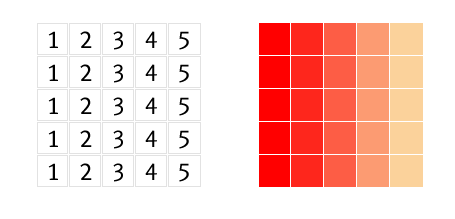
Here is how it works. For example, we have a 5×5 pixels image with horizontal gradient. Here is a schematic view of this image (each number represents a unique color):
Scanline1 in Clever PNG Optimization Techniques

As you can see, all identical colors spread vertically, not horizontally. Such images will have a very poor compression ratio in GIF, because it compresses colors that spread horizontally. Let’s see how this image data can be packed by scanline filtering:
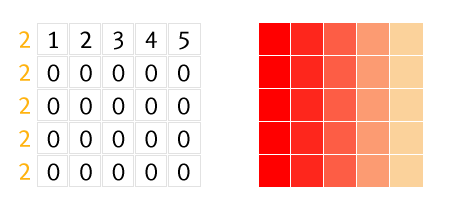
Scanline2 in Clever PNG Optimization Techniques

Number 2 before each line represents applied filter, which is “Up” in this case. The “Up” filter sends the message to the PNG decoder: “For the current pixel take the value of the above pixel and add it to the current value.” We have 0 value for lines 2—5 because all pixels in each vertical line have the same color. And such data would be compressed better if the image was relatively large. For example, 15 pixels of value 0 can be written as 0(15) and this is much shorter than fifteen 0’s—this is how compression works in common.

I wrote “can be packed” because in this ideal test case the “Sub” filter (number 1 before each line) will give much better result:
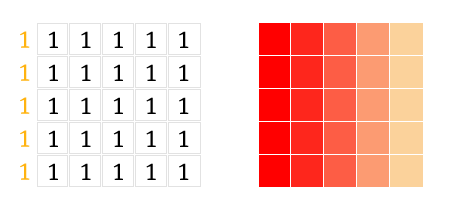
Scanline3 in Clever PNG Optimization Techniques

The filter “Sub” sends the message to the decoder: “Take the value of the left pixel and add it to the current value.” In this case, it’s 1. As you may already have guessed, such data will be compressed very effectively.

Scanline filtering is important for us because we can use them: in particular, we can do some image manipulation to make filtering better. There are five filters: None (no filtering), Sub (subtract the left pixel value from the current value), Up (subtract the above pixel value), Average (subtract the average of the left and the upper pixels) and Paeth (substitute the upper, left or upper left pixel value, named after Alan Paeth).

And here’s how these filters affect the image size in comparison with the good ol’ GIF:

Gradient in Clever PNG Optimization Techniques

GIF, 2568 bytes

Gradient24 in Clever PNG Optimization Techniques

PNG, 372 bytes

As you can see, the GIF image is 7 times larger than the same PNG-image.

Image type

Another important thing to know about PNG is image type, the meta-data stored inside the file. As a Photoshop user, you are familiar with PNG-8 (indexed image) and PNG-24 (truecolor image). As a Fireworks user, you may know PNG-32 (truecolor with transparency), which is quite confusing, because Photoshop’s PNG-24 may also store truecolor with transparency. Well, it’s worth knowing that these names are not official, and you won’t find them in PNG specs. For your convenience we’ll use Photoshop’s naming convention of PNG image types in this article.

There are 5 available image types in PNG: Grayscale, Truecolor, Indexed-color, Grayscale with alpha and Truecolor with alpha. There are also two subtypes of indexed-color type (non-official, too): bit transparency (each pixel can be fully transparent or fully opaque) and palette transparency (each pixel can be semi-transparent). In second case each color is stored in palette with its alpha value. Thus, opaque red and 50%-transparent red are two different colors and they take 2 cells inside palette.

The worst thing is that Photoshop can save PNG with only 3 of these types: Indexed-color with bit transparency, Truecolor and Truecolor with transparency. That’s why you may find a lot of opinions that Adobe Fireworks is the best tool for PNG optimization. Personally, I don’t agree with them: Fireworks doesn’t have enough tools for image manipulation, it’s only have slightly more options for saving PNG image, but it’s a topic for another discussion.

This is where utilities such as OptiPNG or pngcrush come in handy. Essentially, these tools do the following:

  1. Pick up the best image type for an image (for example, truecolor can be converted to indexed-color if there aren’t too many colors in the image).
  2. Pick up best delta filters.
  3. Pick up the best compression strategy and, optionally, reduce the color depth.

All these operations do not affect image quality at all, but do reduce the file size of the PNG-images, so I highly recommend you to use such tools every time you save a PNG image.

Now enough with the boring part, let’s do some magic!

1. Posterization

This is a well-known method of the truecolor image optimization. Open up the example image in Photoshop, press the Adj-layer in Clever PNG Optimization Techniques icon in the Layers palette and choose Posterize:
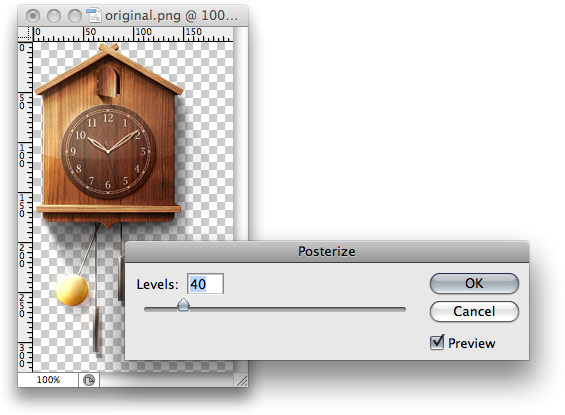
Posterize-example in Clever PNG Optimization Techniques

Pick the smallest possible amount of Levels (usually 40 is enough) and save the image:

Original in Clever PNG Optimization Techniques

Original, 84 KB

Original-posterized in Clever PNG Optimization Techniques

Posterized, 53 KB

Here is how it works: the posterization simply reduces the amount of colors, converting similar colors to the single one, thus creating posterized regions. This helps to perform a better scanline filtering and achieve a better compression. The downside of this method is color alternation, which is especially visible if you are trying to stitch image with a HTML background:
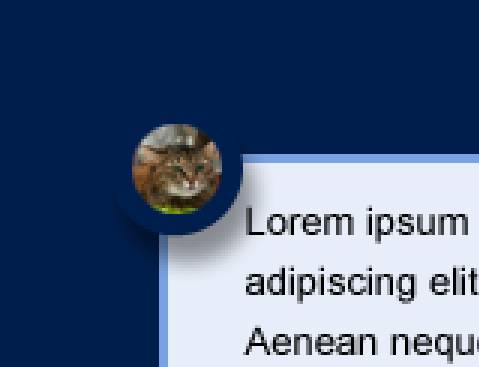
Downside-posterize1 in Clever PNG Optimization Techniques
Original image

Downside-posterize2 in Clever PNG Optimization Techniques
Posterized image

2. Dirty Transparency

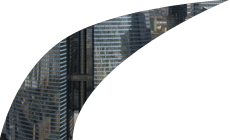
Take a look at the following images:
Dirty-tr-sample1 in Clever PNG Optimization Techniques
75 KB

Dirty-tr-sample2 in Clever PNG Optimization Techniques
30 KB

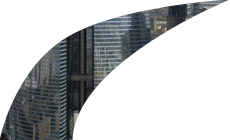
Both of them were saved in Photoshop without any optimization. Even if you do a per-pixel comparison of these images, you won’t notice any difference. But why is the first image 2.5x larger than the second one?

You need a special plugin for Photoshop to see hidden details. It’s called Remove Transparency and available for free download on the PhotoFreebies plugin suite. You have to install it first before proceeding with the next step.

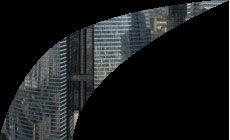
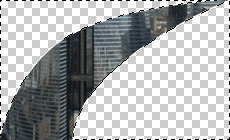
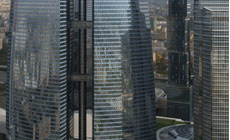
Open both images form the example above in Photoshop and choose Filer ? Photo Wiz ? Remove Transparency. Now you can see the actual pixel data that was saved in the image:
Dirty-tr-sample1-2 in Clever PNG Optimization Techniques

Dirty-tr-sample2-2 in Clever PNG Optimization Techniques

What’s happening? How is it possible to reveal the data from the original image from a single-layered PNG image? Well, it’s quite simple. Each pixel in the truecolor image with alpha is described by four bytes: RGBA. The last one is Alpha, which controls pixel transparency: the value of 0 means fully transparent pixel and 255 means fully opaque. And this means that every pixel (with any RGB value) can be hidden with just Alpha byte set to 0. But this RGB data still exists and, moreover, it prevents PNG encoder from effectively packing and encoding the data stream. Thus, we have to remove this hidden data (fill it with solid black, for example) before saving the image. Here is a quick method how to do this:

  1. Open the first image from the example above in Photoshop.
  2. Ctrl+click (or ?+click on Mac) on image thumbnail in Layers palette to create a selection, then invert it: Select ? Inverse.

    Dirty-qmask1 in Clever PNG Optimization Techniques

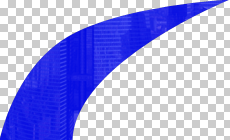
  3. Switch to Quick Mask mode by pressing Q key:
    Dirty-qmask2 in Clever PNG Optimization Techniques

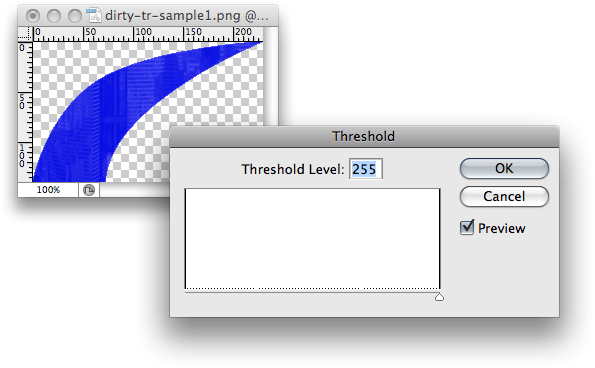
  4. We have created a mask for a semi-transparent image, but we need to leave fully transparent pixels only. Choose Image ? Adjustments ? Threshold and move Threshold Level slider to the right, thus leaving fully transparent pixels of the selection:
    Dirty-qmask3 in Clever PNG Optimization Techniques

  5. Leave Quick Mask mode (press Q key again) and fill the selection with black:

    Dirty-qmask4 in Clever PNG Optimization Techniques

  6. Invert the seleciton again (Select ? Inverse) and click on the Mask-icon in Clever PNG Optimization Techniques icon in the Layers palette to add mask.

That’s it, now you can save this image in PNG-24 and ensure that the 75 KB image is now 30 KB. By the way, all these steps can be easily recorded into Photoshop’s Action (download the Dirty Transparency Photoshop Action) and reused later with a single keystroke.

You might think about “dirty transparency” as some kind of a bug in image editors: if those image regions can’t be seen and take so much space, why can’t they be removed automatically before saving? Well, this “bug” can be easily turned into a “feature”. Take a look at the following pictures:
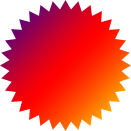
Ex3 1 in Clever PNG Optimization Techniques
5 537 bytes

Ex3 2 in Clever PNG Optimization Techniques
6 449 bytes

If you remove transparency from those images, you’ll see the following:
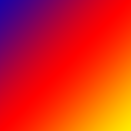
Ex3 1 Color in Clever PNG Optimization Techniques

Ex3 2 Color in Clever PNG Optimization Techniques

Despite the fact that the first image contains more complex image data, it’s 1Kb lighter than the second one, which was optimized as described above. The explanation of this “abnormal” behavior is simple: image data stream in the first example was effectively packed by delta filters, which works better for smooth color transitions (like gradients).

Tech geeks may look at OptiPNG’s output log and ensure that filters were not applied at all for the second image. That’s why I highly recommend you to read The boring part of this article first before using these techniques: if you don’t understand what you’re doing, you can make your image even larger.

The ultimate solution to preserve original image data is to create a mask on the image layer in Photoshop (we’ll come back to this later):
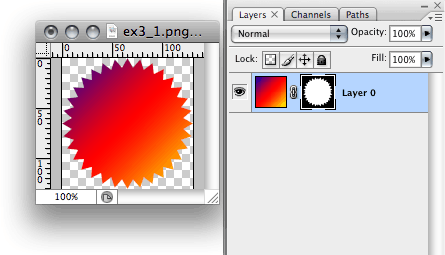
Ex3-mask in Clever PNG Optimization Techniques

As you can see, Dirty transparency is a very powerful yet very delicate technique. You have to know how and why it works before using it. If you are saving PNG-24 images with transparent areas, the first thing you have to do is to check image data in these areas and make the right decision on clearing or leaving them as is.

3. Split by transparency

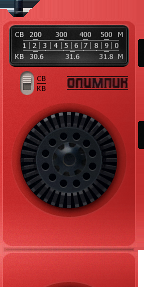
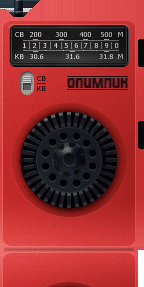
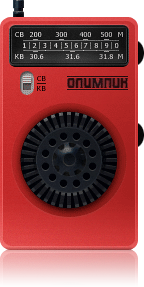
Sometimes you have to save image in the “heavy” PNG-24 because of few semi-transparent pixels. You can save extra Kbs if you split such images in two parts — one with solid pixels, the second one with semi-transparent — and save them in appropriate graphic formats. For example, you can save semi-transparent pixels in PNG-24, and solid pixels in PNG-8 or even JPEG. Here is a quick (and recordable for Actions) solution to do this. For our experiments we’ll use this elder Russian iPod ancestor:
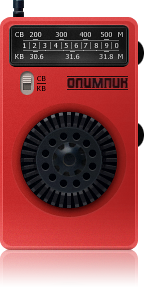
Split-reference in Clever PNG Optimization Techniques
PNG-24, 62 KB

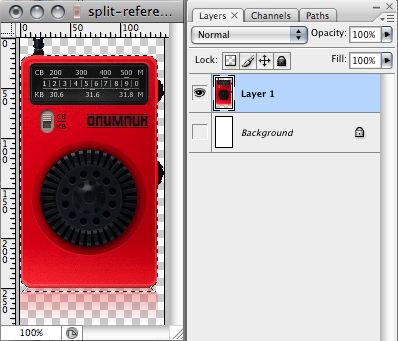
  1. Ctrl+click/?+click on image thumbnail in Layers palette to create a selection:Split1 in Clever PNG Optimization Techniques
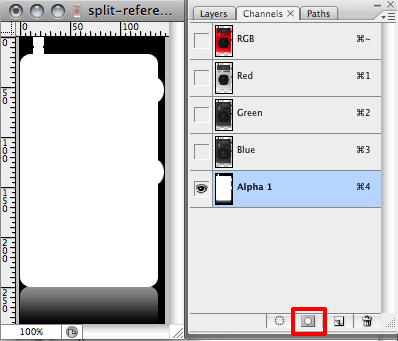
  2. Go to Channels palette and create new channel from selection:Split2 in Clever PNG Optimization Techniques
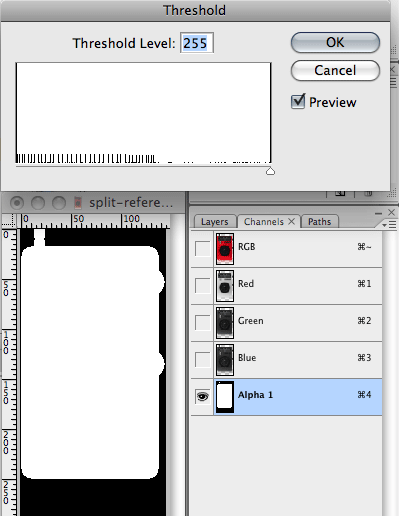
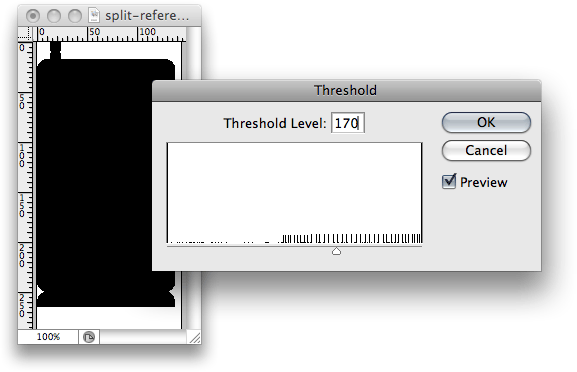
  3. Remove selection (Ctrl+D or ?+D), select the newly created channel and run Threshold (Image ? Adjustments ? Threshold). Move the slider to the very right:Split3 in Clever PNG Optimization Techniques
  4. We’ve made a mask for selecting dead solid pixels. Now we have to split original layer by this mask. Ctrl+click/?+click on Alpha 1 channel, go to Layers palette, select the original layer and run Layer ? New ? Layer via Cut. As a result, there are two layers with separated solid and semi-transparent pixels.

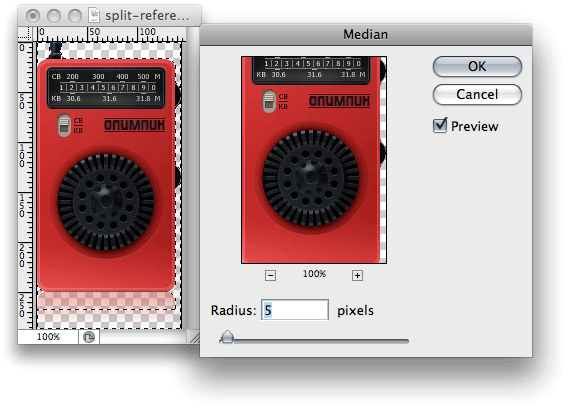
Now you need to save those two images in separate files: solid pixels in PNG-8, semi-transparent ones in PNG-24. You can apply Posterization technique on semi-transparent pixels layer to make image file even smaller.
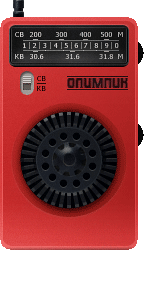
Split4 1 in Clever PNG Optimization Techniques
PNG-8
128 colors + dithering
17 KB

Split4 2 in Clever PNG Optimization Techniques
PNG-24
posterization 35
6 KB

And here is the result for comparison:

Split-reference in Clever PNG Optimization Techniques
Before
63 KB

Split4 1 in Clever PNG Optimization Techniques
After
23 KB

This method has an obvious drawback: you get two images instead of one, which may be not so convenient to use (for instance, when making a product catalog in the CMS).

4. Influence masks

Actually, is is not a PNG-specific optimization technique, but demonstration of rarely-used Save for Web properties: Color reduction influence mask and Dithering influence mask.
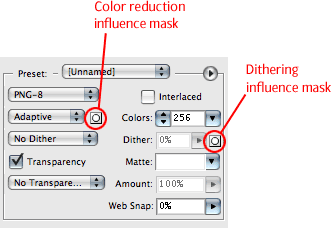
Save-for-web in Clever PNG Optimization Techniques

Sadly, these properties were removed in Photoshop CS4, so you can try this optimization approach only in the pre-CS4 versions (I’m using CS3).

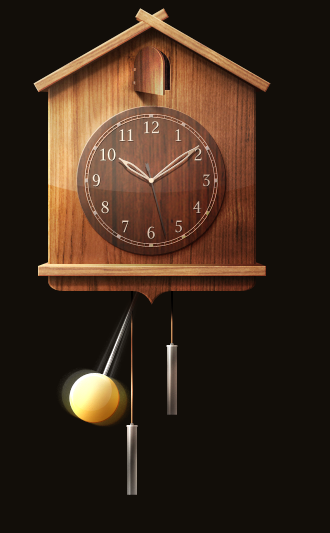
To understand how influence masks works, let’s open this demo image in PS and save it in PNG-8 with the following settings: Color reduction: Adaptive, Dither: No dithering, Colors: 256.
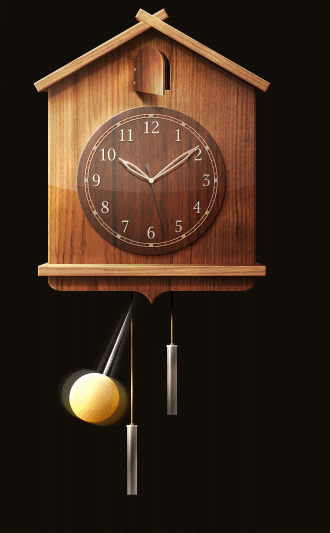
Step1 in Clever PNG Optimization Techniques
42 KB

The first thing I’ve noticed about this image is a very fuzzy pendulum. It is a very bright spot on the image and it attracts way too much attention. Let’s try to smooth pendulum’s color transitions by setting dithering to 100%:

Step2 in Clever PNG Optimization Techniques
46 KB

The pendulum looks better now, but we got another problems: image size increased by 4 KB and solid-color background became very noisy:
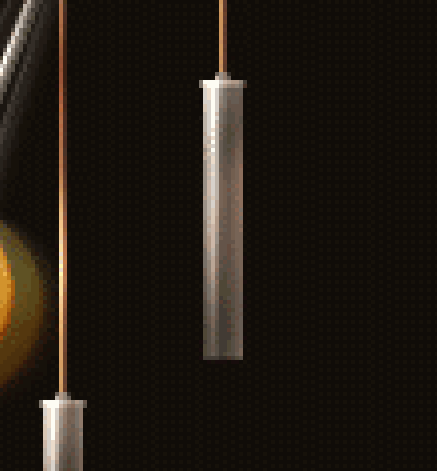
Step2 Noise in Clever PNG Optimization Techniques

We can try to get rid of this noise by lowering dithering value, but the image quality may also be reduced.

Based on these problems, let’s try to do the incredible: increase image quality by lowering the number of colors and image size. Influence masks will help us.

Let’s start with the color. Go to Channels palette, create a new channel and name it color. We’ve already determined that the pendulum is our top priority region to improve image quality, so we need to draw a white circle right on its place (you can enable RGB channel for better precision).
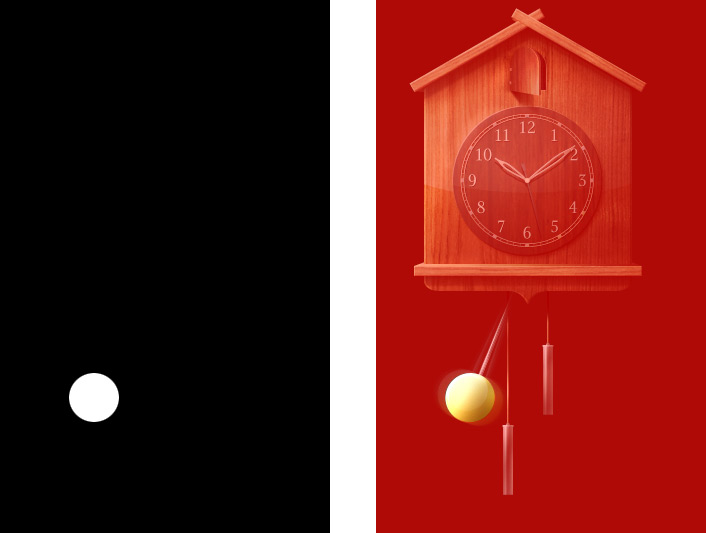
Step3 in Clever PNG Optimization Techniques

Go to Save for Web dialog and set the following properties: Color reduction: Adaptive, Dither: No, Colors: 128 (as you can see, we reduced number of colors from 256 to 128). Now we have to select an influence mask: click on the Mask-icon in Clever PNG Optimization Techniques near Color reduction list and select the color channel from drop-down list: Now our image looks as follows:
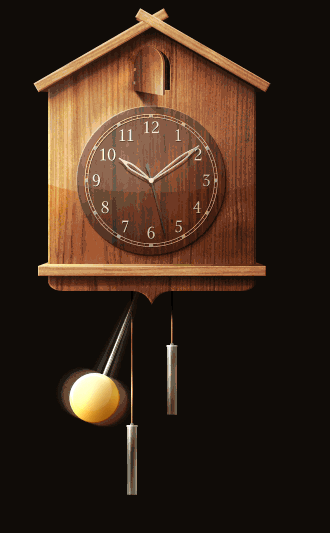
Step4 in Clever PNG Optimization Techniques

You can see the influence mask in action: the pendulum looks perfect, but the other parts of image look really bad. By setting influence mask, we said to Photoshop: “Look, mate, the pendulum is very important part of image so try to preserve as much colors in this area as possible”. Influence mask works exactly the same as regular transparency mask: white color means highest priority in corresponding image region, black color means lowest priority. All intermediate shades of gray affect on image proportionally.

The pendulum now takes the highest color priority, so we have to lower the intensity of white circle to leave more colors for other areas. Close Save for Web dialog, go to Channels palette, select color channel and open Levels dialog (Image ? Adjustments ? Levels). Set the maximum output level to 50 to lower the white color intensity:
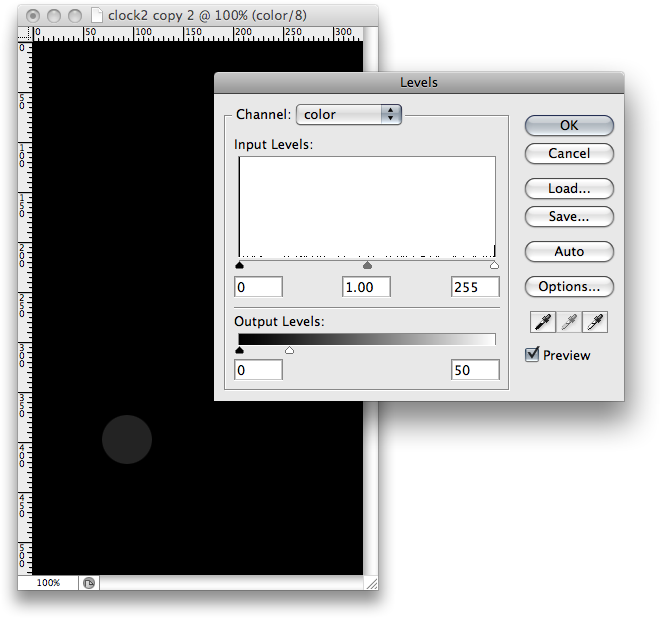
Step5 in Clever PNG Optimization Techniques

Try to save for Web again with the same properties:
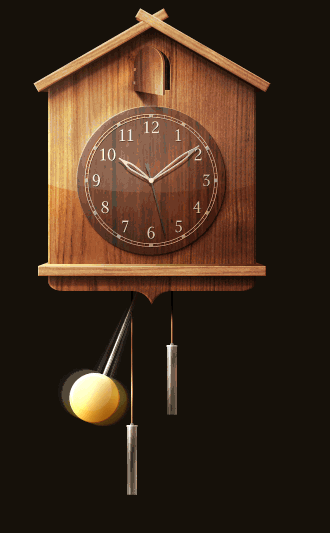
Step6 in Clever PNG Optimization Techniques

Looks better now, but now we’ve got problems in other image areas:
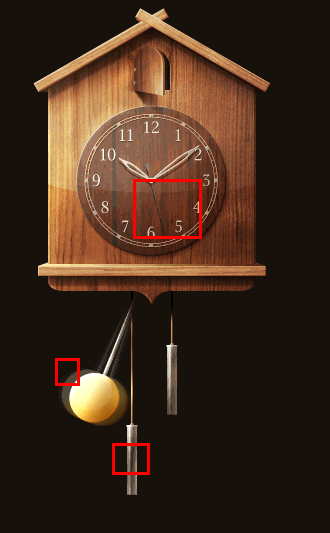
Step7 in Clever PNG Optimization Techniques

I think you already understand how influence masks works: you provide Photoshop with some clues about important image areas with different shades of gray. With trials and errors I’ve got the following color mask (you can copy it and apply to the image):

Step8 in Clever PNG Optimization Techniques

Dithering influence mask works exactly the same, but instead of colors, it affects the dithering amount of different image areas. Lighter color means more dithering. This is a very useful feature, because dithering creates irregular pixel patterns which hinders the PNG compressor to use delta filters. You can determine the exact areas where dithering must be applied while leaving other areas intact, thus gaining better compression of image data.

My dithering channel looks like this:
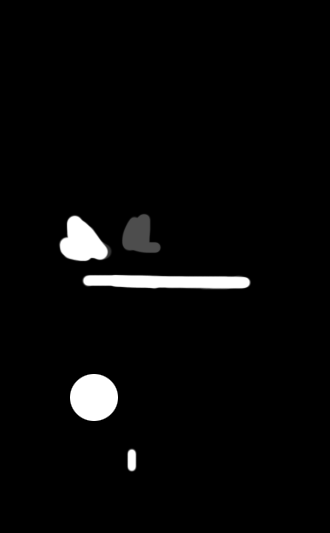
Step9 in Clever PNG Optimization Techniques

Applying both color and dithering influence channels with the same optimization settings (Adaptive, 128 colors):
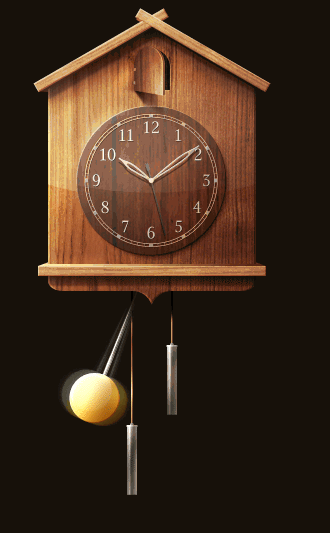
Step10 in Clever PNG Optimization Techniques

Pretty good for 128 colors, isn’t it? Let’s do some finishing touches: set colors to 180 and max dithering to 80%. And here is our final result compared to original, non-optimized version:

Step1 in Clever PNG Optimization Techniques
256 colors, no dithering, non-optimized
42 KB
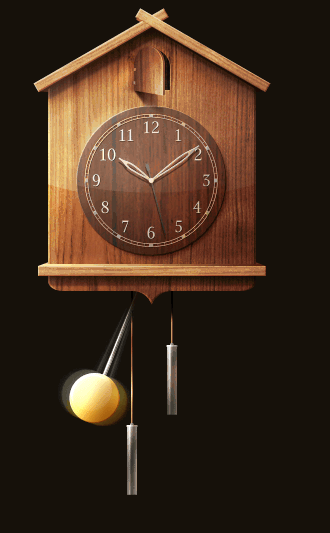
Result in Clever PNG Optimization Techniques
180 colors, optimized
34 KB

Please stay tuned (RSS, Twitter) for the second part of the article where we’ll cover further techniques; we’ll talk about grayscale images, using less colors, lowering details and discuss further tips for PNG usage and optimization as well as the PNG optimization in practice.

Related posts

You may want to take a look at the following related articles:


Sergey Chikuyonok is a Russian front-end web-developer and writer with a big passion on optimization: from images and JavaScript effects to working process and time-savings on coding.

Post Rating
1 Star2 Stars3 Stars4 Stars5 Stars (No votes yet)
Loading ... Loading ...

Tags: ,

Advertising
  1. 1
    Akino
    July 15th, 2009 8:55 am

    Great article… congratulations

  2. 2
    Chris
    July 15th, 2009 8:55 am

    this is cool

  3. 3
    404error
    July 15th, 2009 8:56 am

    sweet!

  4. 4
    Sandeep
    July 15th, 2009 8:59 am

    Very good article. I never knew about these techniques.

  5. 5
    Joshua
    July 15th, 2009 9:00 am

    Excellent article!

  6. 6
    Iaman
    July 15th, 2009 9:03 am

    Great, but the “Russian iPod Ancestor” After demo isn’t showing the transparent part of the image in Firefox 3.5 for me… Using OS X, if that helps.

  7. 7
    KC
    July 15th, 2009 9:05 am

    VERY interesting post. I was just messing up with Photoshop the other day trying to optimize PNG’s… Thanks!

  8. 8
    stoimen
    July 15th, 2009 9:06 am

    great article, keep going!

  9. 9
    Matthew Potter
    July 15th, 2009 9:11 am

    Bravo! Nicely done. I’m constantly using PNG and now this just gives me even more of an excuse.

  10. 10
    Teddy
    July 15th, 2009 9:12 am

    Wow, thanks for this insightful tutorial. I never knew we could use posterization to reduce the image size without causing much reduction in image quality.

    I especially adore the technique you’ve used for the iPod’s ancestor. Amazing one :)

  11. 11
    Aaron
    July 15th, 2009 9:12 am

    I hate using elite speak, but this truly is an “epic” post. I did not know about the dirty png transparency, etc. Thanks so much!

  12. 12
    Mike
    July 15th, 2009 9:16 am

    Excellent article…you guys rock!! thx alot

  13. 13
    osxuser
    July 15th, 2009 9:20 am

    great article!
    this might be interesting for osx users
    http://code.google.com/p/imageoptim/

  14. 14
    Steven
    July 15th, 2009 9:22 am

    Awesome post! All smashing articles should be this good! Share more with us!!

  15. 15
    Pallab
    July 15th, 2009 9:25 am

    I wasnt aware of any of these techniques. Thanks a lot.

  16. 16
    James Schend
    July 15th, 2009 9:26 am

    The “After” image in step 3 is decidedly different than the “Before” image. I assume what I’m supposed to be seeing is the reflection image underneath the opaque one, but it’s not working for me.

    (SM) Sorry, James. There was a mistake in the markup. It is fixed now.

  17. 17
    Tami
    July 15th, 2009 9:27 am

    Wow, this was new to me – love it!!!
    Thanks

  18. 18
    Al Kirby
    July 15th, 2009 9:29 am

    DIZZZAMM! Way sweet article. Thanx!

  19. 19
    Agnes
    July 15th, 2009 9:44 am

    Awesome!
    I was just working on png screenshots with a transparent shadow. Out of all these techniques the most precious appears to be the posterization. The other techniques are too complex to bother if they shave only as much size. I’d use them very infrequently on some gem images.
    Thank you so much, the timing of this article couldn’t be more impeccable.

  20. 20
    THIS GUY?
    July 15th, 2009 9:50 am

    wow… love it !

  21. 21
    Andrew
    July 15th, 2009 9:59 am

    very nice post

  22. 22
    Quakeulf
    July 15th, 2009 10:04 am

    I LOVE YOU MAN <3

  23. 23
    Edward
    July 15th, 2009 10:04 am

    Very informative, cool!

  24. 24
    Kelly
    July 15th, 2009 10:05 am

    Thank you for a GREAT article. I used to think I was stuck with huge PNG-24 files (I use them a lot for flash ads). This will really help a lot! Fantastic!!

  25. 25
    Curious
    July 15th, 2009 10:17 am

    Excellent!

  26. 26
    Matt Hill
    July 15th, 2009 10:26 am

    This is by far the best article Smashing mag have produced this year. I’ve been doing image optimisation for years and thought I knew it all — boy, was I wrong! Some great new techniques to try out here. Many thanks.

  27. 27
    priit
    July 15th, 2009 10:26 am

    Thank you for that article. This information is really appreciated.

  28. 28
    Conrad Chu
    July 15th, 2009 10:34 am

    Gracepoint After Five just recently launched punypng (http://www.gracepointafterfive.com/punypng) which combines a lot of the open-source technologies out there. The Ask.com User Experience team that I’m a part of uses punypng as our weapon of choice as well as the Gracepoint Fellowship Church web team. It’s very competitive to smush.it and pngout, and punypng beats them out most of the time (though don’t my word for it, try it out yourself to see).

    I think the great thing about something like punypng versus the command-line tools is that you can throw a whole folder at punypng and just let punypng do all the work to figure out which tool is best for the job. Sometimes converting a JPEG to PNG and then compressing it down is better … sometimes jpeg-tran or jpegoptim is better. Punypng just works.

    For more info about punypng on the Gracepoint After Five blog:
    http://www.gracepointafterfive.com/punypng-making-the-web-a-more-puny-place

  29. 29
    Stephen
    July 15th, 2009 10:45 am

    I know the author mentioned that he doesn’t agree with using fireworks due to the lack of manipulation options, but for step #3 if you took that image and saved it with fireworks as a PNG 8 you’d get semi transparent pixels for the whole thing, with one image, and a smaller file size and less HTTP requests (if the output is for the web).

    So please don’t drop Fireworks completely just because its not the best in all cases. It is better than Photoshop for saving png 8 images.

  30. 30
    Ben
    July 15th, 2009 10:51 am

    Loved the article, especially the “boring part.”

  31. 31
    Michel
    July 15th, 2009 10:57 am

    Excellent article. Rocks!

  32. 32
    alex
    July 15th, 2009 11:02 am

    really great article, and I learned a lot, but the last technique (influence mask) seems to be a bit too time-consuming, to just save 8kB, nowadays where internet is fast enough.

  33. 33
    Sergey Chikuyonok
    July 15th, 2009 11:14 am

    So please don’t drop Fireworks completely just because its not the best in all cases. It is better than Photoshop for saving png 8 images.

    True. But Fireworks doesn’t have enough tools for image optimization for PNG.

    but the last technique (influence mask) seems to be a bit too time-consuming, to just save 8kB

    This is just a demonstration how influence masks works. It doesn’t mean that you can save 8 KB only, on other images it might save even more KB.

  34. 34
    alex
    July 15th, 2009 11:22 am

    ok, so influence mask can save more KBs on bigger images?

  35. 35
    Sergey Chikuyonok
    July 15th, 2009 11:29 am

    ok, so influence mask can save more KBs on bigger images?

    It depends on image. It can save more, of course. But I use this technique as a good companion to the “Less colors” method (you’ll see it in the next article) to improve image quality and reduce file size.

  36. 36
    r_jake
    July 15th, 2009 11:48 am

    Photoshop really should give us more control over the output of PNGs, it hasn’t changed since ’save for web’ was first introduced in 5.5…

    Am I right in thinking that Photoshop saves PNGs with extraneous metadata too? OptiPNG/PNGcrush seem to strip this out, plus resolve colour inconsistencies between browsers that I have noticed when you save straight from Photoshop. Would like more info on this if poss.

  37. 37
    Sergey Chikuyonok
    July 15th, 2009 11:55 am

    Am I right in thinking that Photoshop saves PNGs with extraneous metadata too?

    No. It saves clean file (if you use Save for Web dialog), but OptiPNG and other tools tries to determine better compression and filtering parameter. OptiPNG also tries to change image type (PNGCrush does not). I’ll give a little more info on this in the next part.

  38. 38
    Conrad Chu
    July 15th, 2009 11:58 am

    Re: dirty transparency

    I recorded the Photoshop action as mentioned in the article and made it available for download if anyone wants it.
    http://www.gracepointafterfive.com/dirty-transparency

    (SM) Conrad, thanks. The link was added to the article.

  39. 39
    Jesse
    July 15th, 2009 12:13 pm

    Wow! Someone buy this guy a beer!

  40. 40
    Bjørn Friese
    July 15th, 2009 12:21 pm

    Thank you for this extremely well written and helpfull article.

    You guys are the best.

  41. 41
    claudio
    July 15th, 2009 12:29 pm

    Really, really interesting, thanks.
    Claudio.

  42. 42
    beernat
    July 15th, 2009 12:40 pm

    Really good article !!! nice job!!!!!

  43. 43
    Ian Storm Taylor
    July 15th, 2009 12:55 pm

    Very interesting article.

    I have a quick question… You describe how PNG encodes vertically while GIF encodes horizontally (sorry if I butchered your information, but you get the point).

    Does this mean that when saving a horizontal gradient we should use GIF? or is PNG more efficient for all gradient directions. (Tried to glean this information from the article, but I couldn’t understand it all.)

    Thanks!

    Please have more articles like this… combined with the JPEG optimization techniques I am now going to completely reoptimize my website and compare load times.

    EDIT: Hmm… after rereading again to try and avoid an unnecessary answer… I think PNG will work just as well for horizontals, because isn’t it the Paeth-type that does this? And it can be used for Up or Left?

    Maybe that’s completely wrong… but let me know.

  44. 44
    icetrix
    July 15th, 2009 1:03 pm

    The Posterize is a very briljant technique. Thanks alot!

  45. 45
    John Shoroxof
    July 15th, 2009 1:03 pm

    Am I right in thinking that Photoshop saves PNGs with extraneous metadata too?

    Yes, it does. Any PNG image saved with Photoshop’s Save for Web… or Save As…> PNG includes a tEXt chunk with Software=Imageready. You can see it by opening the image as text, e.g. in a text editor like Notepad++, the text is right there.

    Earlier versions, like Photoshop CS, always added chunks pHYs and cHRM (chromaticities), the latter responsible for color discrepancies in browsers.

  46. 46
    José Mota
    July 15th, 2009 1:37 pm

    Absolutely brilliant. Bookmarked!

  47. 47
    D Rdla
    July 15th, 2009 1:44 pm

    outstanding

  48. 48
    cancel bubble
    July 15th, 2009 3:09 pm

    Sergey,

    Have you done any side-by-side comparisons of some of these techniques with just running the image through OptiPNG or pngcrush? I’m curious what sort of savings the extra manual work might offer.

  49. 49
    Dels
    July 15th, 2009 5:58 pm

    So now it’s why PNG compress better than GIF

    Btw how about Animated PNG a.k.a A-PNG, any chance to discuss it?

  50. 50
    Karl
    July 15th, 2009 7:16 pm

    Very interesting article — informed me of a lot of things I wasn’t aware of. Not sure I understand it all, but peaked my curiosity anyway. Thanks!

  51. 51
    Conrad Chu
    July 15th, 2009 7:38 pm

    cancel button,

    I ran some tests using Sergey’s techniques through punypng which uses a variety of open-source compression in its toolbox.

    For 8-bit transparent PNGs, with Sergey’s dirty transparency technique, I saved around 25%. Running that through punypng added another 10% of savings. The punypng part really depends on the type of image you’re working with, but basically, the kind of optimization that Sergey describes are ones that work well in tandem with traditional png compression like in pngcrush or optipng.

    The only time dirty transparency produced larger results and actually worked against punypng was when I was using 1-bit transparent PNGs. In these cases, the better choice would be to output an indexed GIF and then convert it using punypng to an indexed PNG.

  52. 52
    Hirvesh
    July 15th, 2009 7:40 pm

    Nice article! You might also want to check my 16 Image Optimization Tips Post: http://codefusionlab.blogspot.com/2009/07/16-impressive-image-optimization-tools.html

  53. 53
    Gtnconcept
    July 15th, 2009 8:02 pm

    One other useful technique for transparent PNGs is to create an 8-bit PNG that contains also contains semi-transparent colours.

    Fireworks supports this rare PNG feature as well as pngquant (+ the manfred pngquant GUI).
    http://www.libpng.org/pub/png/apps/pngquant.html
    http://jedisthlm.com/2006/03/16/manfred-a-pngquant-gui/

    This method also has some benefits, as described in this Sitepoint article:
    http://www.sitepoint.com/blogs/2007/09/18/png8-the-clear-winner/

  54. 54
    Michael
    July 15th, 2009 8:07 pm

    One of the best posts that I have read on Smashing: containing both theoretical information and practical techniques that I’d never heard of, and both explained very clearly. Well done.

  55. 55
    darrick
    July 15th, 2009 8:10 pm

    when using the .png file format within design elements don’t forget to remove the gamma: http://morris-photographics.com/photoshop/articles/png-gamma.html

  56. 56
    JT
    July 15th, 2009 8:39 pm

    That absolutely rocked. Would be very interested in knowing if, of the methods listed in the above article, there are particular techniques that are more or less useful in optimising PNGs (or other image formats) for use in Flash.

    At the moment I tend to save most images as PNG 24 before importing, and Flash looks like it can optionally then do it’s own kind of compression on them (jpeg), while still maintaining transparency/semi-transparency. Any insights as to how Flash is actually interacting with these images, and how to maximise optimisations like those discussed above, would be extremely useful.

    I’ll of course be doing some experimenting with it on my own, in the meanwhile, but don’t think I’ll ever have the level of insight that could be provided by the author of this article!

  57. 57
    carola
    July 15th, 2009 8:47 pm

    Could it be that I can’t see some images of this article either on my Google Reader or Safari or Firefox? Is it just my problem?

  58. 58
    Helen
    July 15th, 2009 8:58 pm

    http://media.smashingmagazine.com/wp-content/uploads/images/png-optimization-guide/gradient.gif and other img’s are missing. I can only see the alt-text.

  59. 59
    gaurav
    July 15th, 2009 9:22 pm

    very very targeted article

  60. 60
    Tim
    July 15th, 2009 9:27 pm

    Carola, no it’s not just you, half the images are missing for me too, I’m using IE8

  61. 61
    hopcat
    July 15th, 2009 9:41 pm

    Some of the images in this article are missing for me as well. Missing in IE and Firefox. Guys, any idea why I can’t see them?

  62. 62
    Bamada
    July 15th, 2009 9:44 pm

    Some screenshot images missing …

  63. 63
    archknight79
    July 15th, 2009 9:54 pm

    very clever technique :D Though some images in comparison are missing, any idea why?

  64. 64
    Feliquin
    July 15th, 2009 10:11 pm

    Very good article!
    But some (comparison) images are missing… :(

  65. 65
    jelumalai
    July 15th, 2009 10:32 pm

    This is very good.

    Can we use this type of PNG in background repeat-x using with css?

    Thanks in advance

  66. 66
    Andrew
    July 15th, 2009 10:42 pm

    iPod ancestor :):)

  67. 67
    Smashing Editorial
    July 15th, 2009 10:58 pm

    Sorry guys, we had some media server issues – we are working to solve the problem!

  68. 68
    kamna
    July 15th, 2009 11:17 pm

    Thank you for that article. This information is really appreciated.

  69. 69
    Rahul D
    July 15th, 2009 11:18 pm

    I used photoshop cs2, and the remove transparency worked same for both the images, the transparent portion was converted to opaque white color and not the entire image as you said.

  70. 70
    Lukasz Bachur
    July 15th, 2009 11:23 pm

    Very helpful, thank you! I’m starting to use .png on the wide range so this article is excellent for me now! Best regards to the Author.

  71. 71
    Andremoda
    July 15th, 2009 11:28 pm

    Totally Amazing ! Very good Artikel ! Thanks a Lot !

  72. 72
    Muhammad Omer
    July 15th, 2009 11:29 pm

    Informative boring part :)

  73. 73
    Chris
    July 15th, 2009 11:56 pm

    Thanks again – I can get back to designing again without having to worry about huge PNG file sizes.

  74. 74
    Salva
    July 16th, 2009 12:07 am

    amazing post

  75. 75
    Sergey Chikuyonok
    July 16th, 2009 12:11 am

    I think PNG will work just as well for horizontals, because isn’t it the Paeth-type that does this?

    PNG is better than GIF in every aspect, is saves both vertical- and horizontal-spread colors very good. The real compression is made by Deflate algorithm, scanline filtering is a helper feature that makes compression even better.

    Have you done any side-by-side comparisons of some of these techniques with just running the image through OptiPNG or pngcrush?

    Yes, I did. That’s why I’m using these techniques :) The main idea of these optimization methods is to prepare image for better PNG compression. Savings are very big, sometimes it’s 50–60% off without noticeable quality degradation. Stay tuned for the next article, I made a screencast that shows how these techniques work in real life and affects on OptiPNG compression.

    Would be very interested in knowing if, of the methods listed in the above article, there are particular techniques that are more or less useful in optimising PNGs (or other image formats) for use in Flash.

    You should try “Dirty transparency” method. Also you may try to extract transparency mask from the image, optimize it with Posterization and apply to the original image. This might save you a few bytes.

    I used photoshop cs2, and the remove transparency worked same for both the images, the transparent portion was converted to opaque white color and not the entire image as you said.

    It depends on how these portions were masked. If you delete them, some portions will be filled with solid color (it also depends on mask shape), if you apply a mask to the image layer, the masked areas will be preserved.

  76. 76
    Knife
    July 16th, 2009 12:19 am

    wow. those influence masks are incredible. but it does take a lot of time to save 8k

  77. 77
    Danny
    July 16th, 2009 12:29 am

    Thanks for a great article, I was always wondering about photoshops lack of PNG compression options, bookmarked for life!

  78. 78
    hans
    July 16th, 2009 12:31 am

    cool. i wish PNG could be animated.

  79. 79
    Jon
    July 16th, 2009 12:33 am

    Incredible article, thanks!

  80. 80
    Graziano
    July 16th, 2009 12:46 am

    Thanks smashingmag for very useful article.

  81. 81
    neolith
    July 16th, 2009 1:11 am

    Great article – and postet exactly on the day that I needed these infos. :)

    Since you mentionend the tools OptiPNG and pngcrush you might want to take a look at PngOptimizer: http://psydk.org/PngOptimizer. It is IMO much easier to use and gets my PNGs compressed a bit more.

  82. 82
    sinai
    July 16th, 2009 1:15 am

    great post !

    is anybody knows the translation for “posterize” in the french photoshop ?
    thx ;-)

  83. 83
    Attila
    July 16th, 2009 1:18 am

    Great article! Thank you

  84. 84
    SiGa
    July 16th, 2009 1:26 am

    Thanks for that detailed tutorial, highly appriciated!

  85. 85
    Tom H
    July 16th, 2009 1:33 am

    This is an amazingly useful article! Show’s a real understanding of the technical knowledge behind design that so many people lack. Thank you.

    Managed to get a set of 14 images from 900KB down to 300KB with the posterization technique and then pngcrush.

  86. 86
    Paratron
    July 16th, 2009 2:01 am

    great, great, great!
    Thanks!

  87. 87
    Craig
    July 16th, 2009 3:40 am

    One of the best articles I’ve seen on Smashing for a LONG time. Well done.

  88. 88
    bryan
    July 16th, 2009 3:51 am

    So IE6 is all happy with PNGs then

  89. 89
    Andy
    July 16th, 2009 3:56 am

    You don’t have to split the image into two as PNG-8 supports alpha transparency just fine.

    Open the image in Fireworks, change from “No Transparency” to “Alpha Transparency” under the Optimize tab and edit in the semi-transparent pixels you want.

    Save the image through File > Export…

    Semi-transparent pixels will become fully transparent in IE6 and below while in the more capable browsers (IE7+, Firefox, Opera, Safari et al.) it’ll have full-blown alpha transparency.

  90. 90
    Denis An
    July 16th, 2009 4:05 am

    Great! it must knew every web designer.
    Thanks!

  91. 91
    Lix
    July 16th, 2009 4:05 am

    Props!

  92. 92
    Quakeulf
    July 16th, 2009 4:33 am

    hans:

    You mean MNG, then: http://en.wikipedia.org/wiki/Mng

    “MNG is closely related to the PNG image format. When PNG development started in early 1995, developers decided not to incorporate support for animation, not least because this feature of GIF was seldom used at the time. However, work soon started on MNG as an animation-supporting version of PNG. Version 1.0 of the MNG specification was released on January 31, 2001.”

  93. 93
    NotAlame
    July 16th, 2009 4:47 am

    Complicated but nice and understandable!!!
    thanks a lot!

  94. 94
    Aljoscha
    July 16th, 2009 4:50 am

    crazy…

  95. 95
    Avinasha
    July 16th, 2009 4:57 am

    Amazing Post… Splendid … Hats off to you Sergey!!!!!!!!!!

  96. 96
    Andy Gongea
    July 16th, 2009 5:13 am

    Two thumbs up. Great work Sergey. Cheers!

  97. 97
    Spandey
    July 16th, 2009 5:13 am

    Awesome… Very informative

  98. 98
    upla dupla
    July 16th, 2009 5:14 am

    Excellent technique, but its very time consuming. Optimising 200+ PNG files in site means a lot of additional time spent on image editing… My clients wont pay for that.

    Anyway Chapeau Bas Monsieur :-) Great Stuff.

  99. 99
    cb1
    July 16th, 2009 5:54 am

    As a png novice – are they safe to use on websites in place of gifs?

    Do all browsers like them?

  100. 100
    Sergey Chikuyonok
    July 16th, 2009 6:09 am

    Quakeulf, APNG is a Mozilla’s fork of animated PNG: http://en.wikipedia.org/wiki/APNG

    Beacuse of two different forks (APNG and MNG) we still don’t have apropriate standard for everyday use.

  101. 101
    Davin
    July 16th, 2009 6:18 am

    As a png novice – are they safe to use on websites in place of gifs?

    Do all browsers like them?

    IE6 hates PNG, but you can get some simple JS work arounds.

  102. 102
    cancel bubble
    July 16th, 2009 6:29 am

    For those concerned with the time involved in manually editing possibly large amounts of images (I’m one of them), check out http://smush.it

    It uses OptiPNG and pngcrush (both mentioned towards the top of this article). It’s also available in the latest YSlow (under Tools).

  103. 103
    Tim Ward
    July 16th, 2009 7:13 am

    Liked the Article. Been using PNG’s and the methods described here for a While.

    I did want to point out one little thing that may be misleading.
    Your small gradient was only 5 steps, sure – but you should not use the .gif format for something like that. Basically Gif works because it records the first bit (color), and how far that color continues until it hits a new color.
    So a Solid Red square, no matter How big, will have the same file size. If you have an image with Many color changes (i.e. a photo, or even a life like illustration or a large gradient), it is best to use a .jpeg format. (I don’t want to get into the compression of .jpeg here, but it samples “clusters” of similar colors). Now, since we are discussing transparency here, Obviously, you want to use a gif, jpegs don’t have an alpha channel. and the rest of the article is great – I just didn’t want readers to straight compare a .png gradient file with a .gif gradient file, as it should have not been used in the first place. Unless it really is a Tiny file.

    Keep up the Great work, and Ill keep up the great reading!

  104. 104
    kocsmy
    July 16th, 2009 7:29 am

    OMFG this is fuckin awesome!

  105. 105
    Listoric
    July 16th, 2009 7:38 am

    Wow, this is an awesome article! I have to go through this several times as this is just incredible and comes so in handy. Thanks for sharing!

  106. 106
    r_jake
    July 16th, 2009 11:29 am

    @bryan

    IE6 will work fine with PNGs, except that it won’t recognise alpha transparency out of the box (the transparent areas show as a weird opaque blue-grey colour).

    There are two solutions:

    1. Use Fireworks to create an 8-bit PNG with indexed alpha transparency – works fine in all browsers and just shows up as GIF-like boolean transparency in IE6. Pros – will work without any hacks or additional scripts. Cons – a bit time consuming to apply to large numbers of images.

    2. Use JavaScript to invoke either the Microsoft proprietary filter effects or VML rendering to force IE6 to recognise the alpha channel. Pros – quick to implement. Cons – using filters can trigger other bugs in IE6, some scripts are incompatible with other JS frameworks (such as JQuery) that you may be using, and if end user has JS turned off they just won’t work.

    Best script for this I have found so far is DD Belated PNG

  107. 107
    JT
    July 16th, 2009 3:25 pm

    You should try “Dirty transparency” method. Also you may try to extract transparency mask from the image, optimize it with Posterization and apply to the original image. This might save you a few bytes.

    Thanks for the tips! Of all the times where I find myself fretting over filesize, flash projects (especially banners) are where optimisation has had the most immediate and practical impact.

  108. 108
    Nick
    July 16th, 2009 5:17 pm

    Another interesting read. This is a great site – really – well done. Please keep it up.

  109. 109
    graphicfood
    July 16th, 2009 9:38 pm

    Great article, some really handy techniques. One caveat I feel should go with the splitting the png image:

    Splitting an image in 2 can become counter productive, particularly for smaller images (sub 20kb) when taking into account connection lag overhead. This is particularly important when considering the increased use of internet connections on cellular networks. By the time you go through a local wireless router to a wireless internet connection to a local exchange then to a remote server you can be looking at a significant lag in connection time in each request.

    I’m not saying this isn’t a valid technique, just saying that latency should be taken into account before deciding to split images. This also depends greatly on your server and it’s something you have to assess on a case by case basis.

  110. 110
    Hieu Vo
    July 16th, 2009 10:27 pm

    nice tut ;)

  111. 111
    Jaik Dean
    July 16th, 2009 11:58 pm

    Superb article; informative, well-written and useful. If there was more of this quality the web would be a much better place!

  112. 112
    Gareth
    July 17th, 2009 1:27 am

    thanks for the tut

  113. 113
    Flak
    July 17th, 2009 4:13 am

    In Fireworks all this is just build in, Fireworks rule png on all ways.

  114. 114
    aleX
    July 17th, 2009 5:52 am

    wow this is just amazing, thx

  115. 115
    oleg
    July 17th, 2009 6:46 am

    If you use PNGOUT on your best result, it compresses it even further – down to 31,957 bytes (compared to yours 34,610).

    http://www.olegkikin.com/result1.png

  116. 116
    Jake
    July 17th, 2009 10:24 am

    This is nice info but the point of PNG is to have lossless compression.

    In all these cases, using JPG would give better results.

  117. 117
    Musam
    July 17th, 2009 6:14 pm

    woahh! great style! :D

  118. 118
    waldo
    July 17th, 2009 7:03 pm

    I don’t understand this very well. I will have to re-read it quite alot

  119. 119
    Yogsototh
    July 18th, 2009 4:21 am

    Gread article!

  120. 120
    Niilo Tippler
    July 18th, 2009 10:04 pm

    Thanks for this superb article! Using the posterization technique here and the Dirty Transparency action I was able to reduce the header PNG on my site from 590K to 404K!!

  121. 121
    Riccardo
    July 20th, 2009 2:06 am

    Sergey, thanks for an excellent post. It’s very informative and well-researched.

  122. 122
    slice2U
    July 20th, 2009 6:04 am

    Thanks for the amazing PNG Tut :)
    Slice2u.com

  123. 123
    Conrad Chu
    July 21st, 2009 9:42 am

    Just wanted to announce that punypng (http://www.punypng.com) now has built-in support for dirty transparency. I’ve been getting some great results with the new technique that I decided to just add it into punypng so I don’t have to even think about it.

    Here’s my write-up on punypng’s implementation of dirty transparency and some side-by-side comparisons:
    http://www.gracepointafterfive.com/punypng-now-supports-dirty-transparency

    I’ve been in contact with Sergey Chikuyonok (the author of this smashing article) regarding the implementation of dirty transparency. He took punypng for a test drive and reported to me that his results with punypng have been very impressive … better than optipng or imageoptim (with all the libraries enabled). Give it a try as well … I’d like to hear what others are getting out of it.

  124. 124
    coolguy
    July 21st, 2009 10:41 am

    In the Split by Transparency technique, how was the final image saved as one file so the file size is 18 Kb?
    Thanks

  125. 125
    Max B.
    July 21st, 2009 10:41 pm

    Nice article!
    Last time i cared about png optimization was in 2003.
    Don’t think it is necessary anymore, since the internet connections keep getting better!
    Just wondering, does anyone know if Photoshop has improved their png compression options? Back then PS was the worst!
    Makes me think about how few the Web has changed since then, 6 years and you still find similar issues discussed!

  126. 126
    coolguy
    July 22nd, 2009 3:12 pm

    Nice article, I’ve learn a lot. Although the last technique didn’t really work for me. When I saved the image as PNG-8 it locked the layer and then I couldn’t draw the white circle in the channel I created. The only way to unlock the layer was to save it in a JPG format and do the changes in JPG format. So I am not sure if the instructions are not quite precise or I am doing something wrong.

  127. 127
    feeling
    July 28th, 2009 12:38 am

    From the article, I learned a lot, it helped me solve a lot of questions.
    I believe that in China there are still a lot of people every day in the search “PNG”, and it troubles. Such a good article I hope to be able to help more of the front-end engineer, so I would like to have your permission to let me use the Chinese translation of this article, thank you!

  128. 128
    pJ
    August 11th, 2009 1:01 am

    Mr. x128 has created the small program for interactive optimising records png.
    This program allows to make png better quality, than that are described here in article.
    http://pj2k.livejournal.com/1728.html

  129. 129
    subcorpus
    August 29th, 2009 8:55 pm

    awesome article …
    thought i dont get whats happening in the PNG conversion part … hehe …
    anyways … thanks …

  130. 130
    Gopal Raju
    September 17th, 2009 9:37 am

    One of the best articles I’ve ever read!

  131. 131
    heaven
    September 29th, 2009 12:03 am

    most wonderful post ! Congratuation!

  1. 00

    There are no trackbacks at this time. If you are interested in leaving a trackback, please use this URL.

Leave a Comment

Make sure you enter the * required information where indicated. Please also rate the article as it will help us decide future content and posts. Comments are moderated – and rel="nofollow" is in use. Please no link dropping, no keywords or domains as names; do not spam, and do not advertise!


Advertisement Advertise with us!
Join in Smashing Forum
Post your job
Advertisement