Smashing Magazine - we smash you with the information that will make your life easier. really.

Mastering Photoshop With Paths

Advertisement

Anomalously residing within the pixel-gridded world of Photoshop are a series of tools waiting to break out of the canvas’ inherent squareness. Mastering these tools opens the stage for a higher level of flexibility, full of clean lines and non-destructive editing. Presented here is a guide to help you build proficiency, increase productivity and demystify the elusive world of Paths.

Title-img in Mastering Photoshop With Paths

Creation

Pen Tool

The Pen tool (P) – simple to use but difficult to master. It provides a precise method for creating paths, but requires an experienced hand to plot naturally flown curves. The power unlocked by mastering this tool is well worth the time needed to do so. While no amount of instruction can make you a Bezier master, below are some tips to keep in mind as you practice.

  • Always use as few points as possible.
  • Place an anchor at every acute or abrupt angle.
  • Mid-curve anchors should be placed to comfortably accommodate curve transitions.
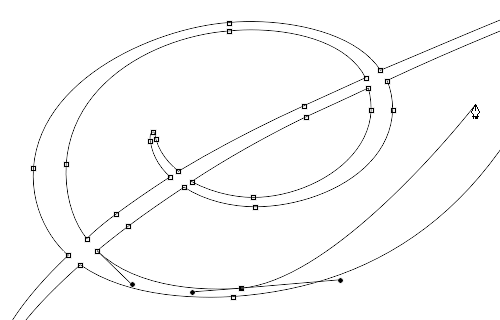
  • To help set anchor points, you can turn on the ‘Rubber Band’ option – located in the drop-down next to the Custom Shape Tool button in the Pen’s property bar. This setting will allow you to see the curve connecting the last anchor point with the mouse’s current position.
Rubber-band in Mastering Photoshop With Paths
Pen Tool with the Rubber Band setting

Shape Tool

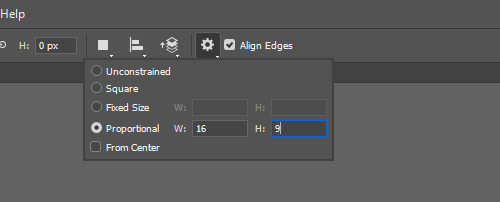
The Shape Tool (U) gives you access to standard geometric shapes as well as more complex presets with the Custom Shape setting. To define your own custom shape, select the shape using the Path Selection Tool (A), right-click inside the canvas, select ‘Define Custom Shape…’, name it and click OK. When using the Shape tool, more advanced settings – involving size, proportion, origin and pixel-snapping – lie hidden inside the drop-down next to the custom shape button in the tool’s property bar.
Shape-options in Mastering Photoshop With Paths
Advanced Shape Tool settings

From Type

Converting type to a shape layer allows you to work directly with the anchors and curves of each letter and might even help improve your typesetting. This technique is most useful when you know the text won’t change as you’ll have to sacrifice the ability to edit it. With the type layer selected, right-click the layer in the Layers palette and choose ‘Convert Type to Shape’. You now have access to the actual paths used to create the type. Thinking of type in this manner – as shapes instead of letters – can dramatically change the way you work. Kerning is now more intuitive; select a letter and move it – no pesky integers to set!
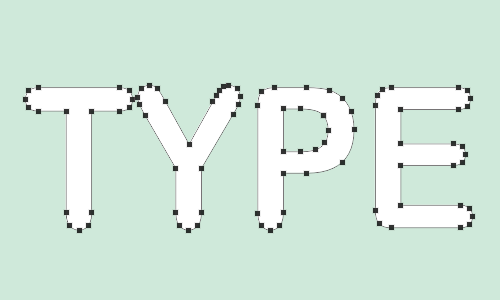
Type-to-path in Mastering Photoshop With Paths
Type to Path conversion

From Selections

The editing of paths is far superior to raster data, especially when it comes to matters of upscaling. If working with a simple enough raster shape, why not convert it to a path? Select your shape. From the flyout menu in the Paths palette, select ‘Make Work Path…’ or Option-click the ‘Make work path from selection’ button at the bottom of the palette. Set the tolerance based on the complexity of your shape – the simpler the shape, the higher the tolerance. Click OK. You’ll notice that pixel to path conversion is not an exact science, but with some manual clean-up you can effectively recreate the original shape.

Selection-to-path in Mastering Photoshop With Paths
Selection to Path conversion

Implementation

Modes

When creating paths via the Pen or Shape tool, three settings – found in the tool’s property bar – are available to define how the path should be used: Shape Layer, Paths and Fill Pixels. The Shape Layer setting will automatically create a new fill layer using the color and layer style set to the right. Paths will create a temporary Work Path accessible in the Paths palette, which makes it available for many different implementations (see below). Fill Pixels will paint raster data on the current layer, leaving no paths behind.
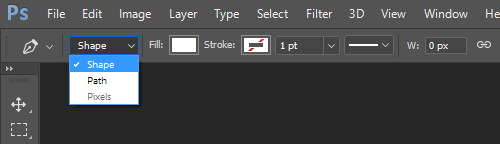
Pen-modes in Mastering Photoshop With Paths
Pen tool set to create a Shape Layer

Shape Layer

A Shape Layer is essentially a Fill layer with a vector mask. They can be created as a solid color, gradient, or pattern, though only the foremost is explicitly available. The easiest way to create a Shape Layer is to use a path drawing tool set to Shape Layer. However, using the tool set to Paths, allows you to specify the type of fill used. First, draw your path. Then, click the ‘Create new fill or adjustment layer’ in the Layer’s palette and choose from Solid…, Gradient…, or Pattern…. Note that you can also create an adjustment layer with a Vector Mask in the same manner.
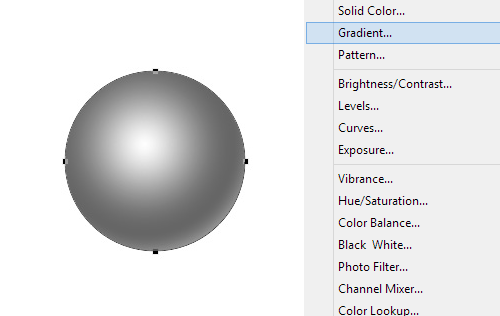
Gradient-fill in Mastering Photoshop With Paths
Creating a Gradient Shape Layer

Vector Mask

Vector Masks are often more preferable than a Raster Mask as they can be easily tweaked or scaled and still produce a crisp edge. With CS4’s introduction of the Masks palette, Vector Masks are more powerful than ever. Now, you can also feather the edges and adjust the density of a Vector Mask. The quickest way to create a Vector Mask is to select the layer you wish to mask. Then, select the path using the Path Selection Tool (A) and Command-click the ‘Add Layer Mask’ button at the bottom of the Layer’s palette.
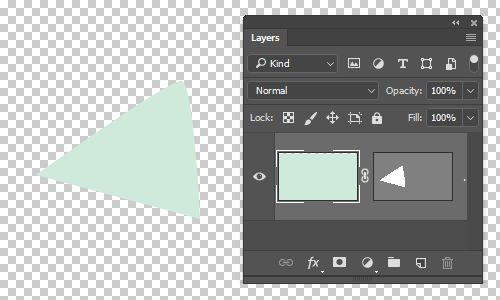
Vector-mask in Mastering Photoshop With Paths
Command-clicking to quickly create a Vector Mask

Type Paths: In and On

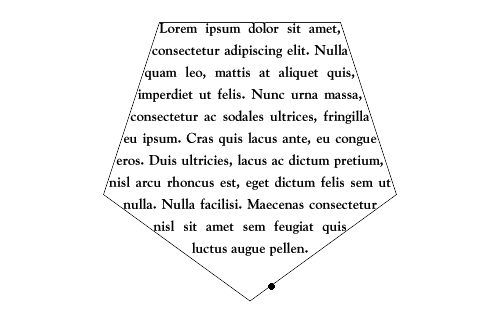
There are two ways paths can be used with the type tool: by defining the baseline and by creating a custom text box shape. Select the Work Path you’d like to use and with the Type tool (T) mouse-over the path. The dotted square on the cursor will change from a square to a curved line. Click on the path and you’ll see that the type flows right along the path. After committing the type (Command + Enter), you can use the Path Selection Tool (A) to move the beginning and end points – indicated with an ‘x’ and a black circle respectively – or to flip the type from the top of the line to the bottom. If using a closed path, you can click inside of it to create a custom-shaped text box.
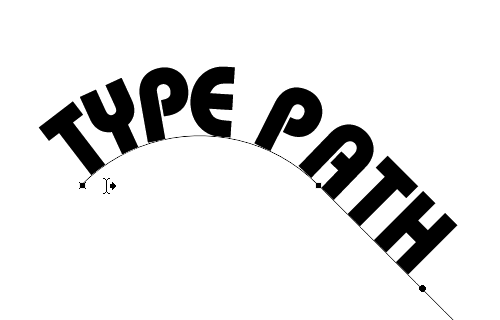
Type-path in Mastering Photoshop With Paths
Type on a path

Type-in-path in Mastering Photoshop With Paths
Type in a path

Fill and Stroke

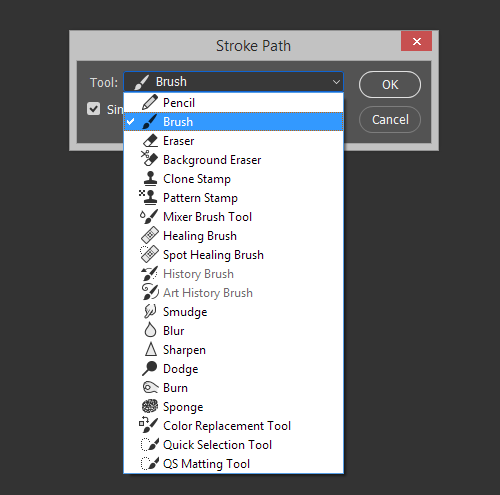
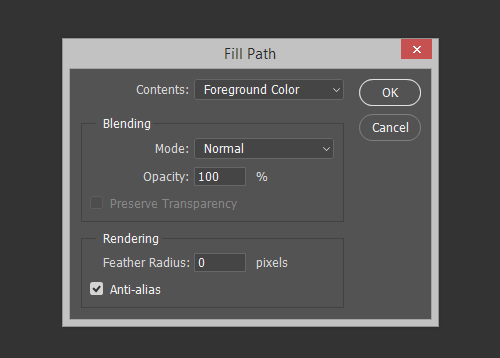
The Paths palette provides an interesting array of options to fill and stroke a Work Path. These options are available only when the current layer is a raster layer; you can quickly create a new raster layer using Command + Option + Shift + N. Then, by Option + clicking on either the ‘Fill path with foreground color’ or ‘Stroke path with brush’ button, you can open the Fill or Stroke dialog boxes. From here you can set the fill type, blending modes, transparency, feathering or stroke tool, which will adopt that tool’s current settings.
Fill-dialog in Mastering Photoshop With Paths
Fill Path dialog box

Stroke-dialog in Mastering Photoshop With Paths
Stroke tools

Boolean Operators

Use

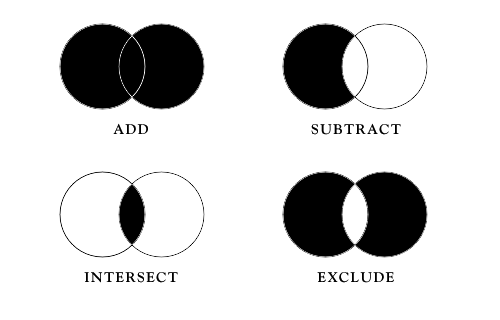
To allow for more complex shapes, multiple paths can be grouped together into a compound path, on which  Boolean operations can be set. These are accessible in the properties bar of the Path Selection Tool (A) and include: Add (+), Subtract (-), Intersect and Exclude. Add specifies a fill area and Subtract defines an area that is not filled; if only one path exists, the entire canvas is considered the fill area from which the shape is subtracted. Intersect sets the fill to areas included in all paths, while Exclude fills all path areas except those that overlap; these modes work only in compound paths.
Boolean-use in Mastering Photoshop With Paths
Boolean Modes

Stacking Order

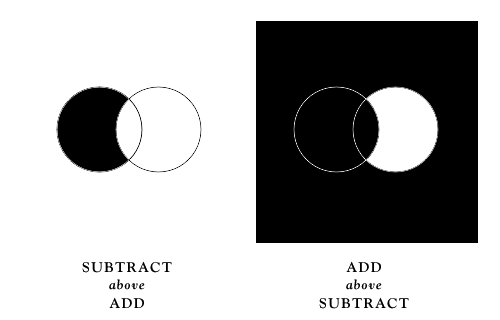
When creating compound paths, it’s important to take note of the paths’ positions in the stacking order.  A compound shape with an Add path on the bottom and a Subtract on top will be completely different with swapped depths. A path’s Boolean operator takes effect on all of the paths below it. Unfortunately, there are no commands or palettes to simply swap depths in Photoshop; you’ll need to use a series of Cut (Command + X) and Paste (Command + V) to rearrange them.
Boolean-stacking in Mastering Photoshop With Paths
Path Stacking Order

Combining

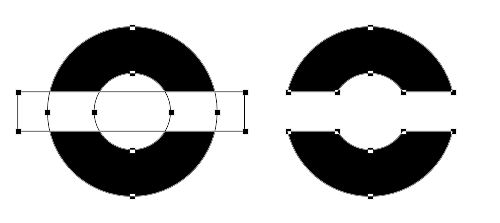
Combining paths can help reduce complexity by creating a single path from the perimeter of a compound path’s fill area. To do so, select the paths to combine using the Path Selection Tool(A) and click the Combine button in the Tool Properties bar.
Boolean-combining in Mastering Photoshop With Paths
Reducing complexity by combining Paths

Importing/Exporting

Importing

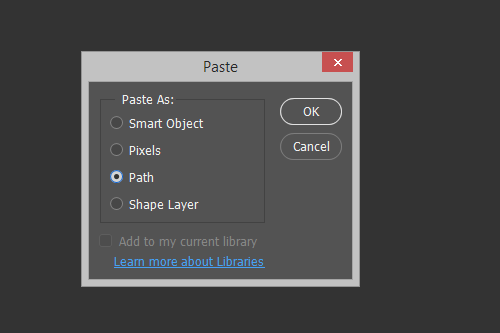
Though Photoshop provides vector tools sufficient for many basic tasks, it in no way compares to the ease and power of Illustrator. Fortunately, Adobe products work in unison. You can create your paths in Illustrator and easily import them by Copying (Command + C) and Pasting (Command + V) in Photoshop. In the Paste dialog box, select either ‘Path’ to import a Work Path or ‘Shape Layer’ to create a fill layer with the foreground color.
Importing-dialog in Mastering Photoshop With Paths
Path Paste dialog box

Exporting

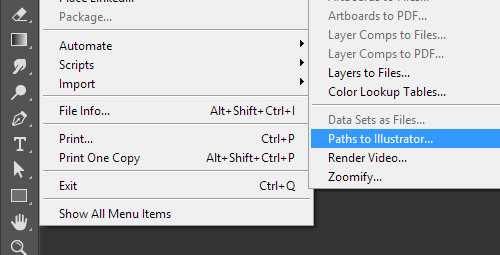
In the occasion that you might need to translate your paths in the opposite direction, copy and paste will work in the same fashion as above or you can use Export → ‘Paths to Illustrator…’ to create a new Illustrator document with the same dimensions and positions as the current Photoshop document.
Export-menu in Mastering Photoshop With Paths
Paths to Illustrator…

Pixel Precision

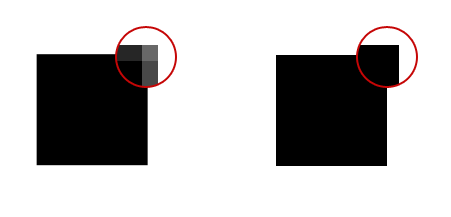
The positions of anchor points and the lines connecting them do not correspond to the pixel grid of the image. This can lead to undesirable anti-aliasing, most noticeable along horizontal and vertical edges. To avoid these unclean edges, you can zoom in (Command + ‘+’) and use the Direct Selection Tool (A) to select and move the anchor points so that they lie on exact pixel coordinates; Pixel Grid (Show → Pixel Grid) can be very handy when doing this.
Pixel-precision in Mastering Photoshop With Paths
On- and Off-Pixel edge comparison

Keyboard Shortcuts

Pen Tool (P)

  • Shift + P – toggle between Pen Tool and Freeform Pen Tool
  • Shift – constrains to 45° angles
  • Option – change to Convert to Point Tool, used to set directional handles
  • Command – change to Direct Selection Tool, used to move anchor points or stretch line segments
  • Command + Shift – select multiple anchor points and segments
  • Command + Option – change to Group Selection Tool, used to select entire paths
  • Command + Option + Shift – select multiple paths
  • + – set Boolean mode to Add
  • - – set Boolean mode to Subtract

Shape Tool (U)

  • Shift + U – rotate through Shape tools
  • Shift – constrain proportions
  • Option (while dragging) – draw from center of shape
  • Option (before clicking, if set to create Shape Layers) – temporarily switch to Eyedropper tool
  • Option (before and while dragging, if set to create Paths) – set Boolean mode to Subtract
  • Option + Shift (before and while dragging, if set to create Paths) – set Boolean mode to Intersect
  • Command – change to Path Selection Tool, used to select and move paths
  • Command + Shift – select multiple paths
  • + – set Boolean mode to Add
  • - – set Boolean mode to Subtract
  • Spacebar (while dragging) – move the shape’s origin

Path Selection Tool (A)

  • Shift + A or Command-click inside document window – toggle between Path Selection Tool and Direct Selection Tool
  • Shift + Click – select multiple
  • Shift + Drag – move and snap to 45° angles
  • Command + Option – Convert to Shape Tool
  • Command + Option + Shift – Convert to Shape Tool (constrained to 45° angles)
  • Option – change to Group Selection Tool
  • Option-Click-Drag – Duplicate selected path
  • Arrow key – Nudge selected path or anchor point 1px
  • Shift + Arrow key – Nudge selected path or anchor point 10px
  • Option + Arrow key – Duplicate selected path or anchor point and move copy 1px
  • Option + Shift + Arrow key – Duplicate selected path or anchor point and move copy 10px

Target Path

  • Enter – Dismiss Target Path
  • Command + Enter – Selection from target path
  • Command + Option + Enter – subtract path area from current selection
  • Command + Option + Shift + Enter – intersect path area from current selection
  • Command + T – Free Transform Path
  • Command + Shift + T – Free Transform Path Again
  • Command + C – Copy path or anchor point with neighboring points
  • Command + X – Cut path or anchor point with

Small-book in Mastering Photoshop With Paths

Want to learn more about CSS coding and web design? Take a look at our upcoming Smashing Book ($23.90 $29.90, available worldwide). Get the book written specifically for YOU!

Tom Giannattasio resides in Bethesda, Maryland, where he works as a Web designer and Flash developer. His personal website, attasi, showcases his most recent work.

Post Rating
1 Star2 Stars3 Stars4 Stars5 Stars (1 votes, average: 5.00 out of 5)
Loading ... Loading ...

Tags: ,

Advertising
  1. 1
    August 18th, 2009 11:52 pm

    Always nice to remind what you able to do with PS…

    Keep up the good work & looking forward the Smashing book !

  2. 2
    Shel
    August 19th, 2009 12:09 am

    Thank you! Quite a few of my students struggle to comprehend paths and hate to use the pen tool. I have e-mailed all of them the link to this article.

  3. 3
    Listoric
    August 19th, 2009 12:14 am

    Very nice, didn’t know that when you click into a closed path, the path behaves like a textbox. Very nice.

    Also, thanks for the shortcuts and the combine feature, I knew it was somewhere but couldn’t find it just yesterday. :)

  4. 4
    igor
    August 19th, 2009 12:15 am

    Paths in PS – great thing. i wonder how long it takes to implement the cool handling things from PS to AI.
    For example: In PS you‘ll get a live preview of fonts if you use the arrow keys.

    And what i like most in PS path handling, is that you can select points and transform them and only the selected will be transformed. – What‘s with you AI? – huh?

  5. 5
    The Dude
    August 19th, 2009 12:22 am

    Nice tut on paths! I learnt to use them myself when creating the carachter at top of page here – LINK.

    Found some new techniques here though, thanks SM!

  6. 6
    Timbronze
    August 19th, 2009 12:25 am

    I love using paths, it is so nice to have a smooth crisp image at the end…

    Everyone should learn to use them, they are really valuable.

    Cheers SM for the nice round up, I have leanrt a couple of new things.

  7. 7
    Bleyder
    August 19th, 2009 12:33 am

    Great article!! But… is there a great post waiting to be published about Adobe Lightroom?

  8. 8
    Adam Cernik
    August 19th, 2009 12:53 am

    Absolute basics!

  9. 9
    Hiba
    August 19th, 2009 1:03 am

    Great article, very well structured. thanks!

  10. 10
    moimemme
    August 19th, 2009 1:07 am

    I would like to make a suggestion. Couldn’t u add a button to print the articles u guys post? Would be much easier, especially with tutorials :)

  11. 11
    Wes
    August 19th, 2009 1:09 am

    Very nice article, i like it that you use “dry” examples :)

  12. 12
    Helen
    August 19th, 2009 1:40 am

    Mastering playing piano like Bach:

    1. You need a piano.
    2. Press the right key.
    3. Press the key at the right time.
    4. Shortcuts: C, D, E, F, G, A, B, C (and so on, there are 88 shortcuts on a piano keyboard)

    Just another helpful tutorial:

    Mastering flying to Mars
    1. Spaceship.
    2. Fuel.
    3. Oxygene.
    4. Shortcuts: Press “Start”

  13. 13
    chaitrax
    August 19th, 2009 2:41 am

    nice tuts..

  14. 14
    Arslonga
    August 19th, 2009 3:55 am

    Well Bach had no pianos. Piano hadn’t been invented at that time. He had Harpsichord :)

  15. 15
    Donna
    August 19th, 2009 4:03 am

    Great article….thanks for the info! Hope this author has more articles on the way.

  16. 16
    ali hong kong
    August 19th, 2009 4:22 am

    I have always preferred PS paths over AI for trace work and quick mockups. Just realised yesterday that opening a PSD in AI is a lot more effective in CS3!!

  17. 17
    Edsgn (Brazil)
    August 19th, 2009 4:37 am

    Helen is brilliant…

  18. 18
    Anrkist
    August 19th, 2009 4:46 am

    Not bad… it’s nice to see some quick keys for the pen tool. I’ve been meaning to look them up for awhile now. You should have given the Windows counterparts though.

    cmd = ctrl, option = alt

  19. 19
    Andi
    August 19th, 2009 4:53 am

    nice summary!

    @ moimemme: ever tried the print function of your browser by hitting ctrl + p ?

  20. 20
    Lauren
    August 19th, 2009 4:53 am

    Step 1. Steal underpants.
    Step 2. …..
    Step 3. Profit.

    Have to agree with Helen (despite Bach mis-reference ~_^ ).
    When I see an article title like, “Mastering _______”, I expect a little more. This was merely a high-level overview.

    @Smashing — maybe you need to edit authors on their article titles?

    Thanks for the shortcuts, though.

  21. 21
    ^_^
    August 19th, 2009 5:19 am

    back to basics hmpf. I thought SM is for professions.

  22. 22
    derf
    August 19th, 2009 5:21 am

    bezier inscription is very nice font, you know similar?

  23. 23
    j
    August 19th, 2009 5:45 am

    patience is the main key in using the pen tool…. take your time and kick ass on whatever youre tracing…

  24. 24
    Jake
    August 19th, 2009 5:47 am

    Good post. I often run into many people that aren’t aware of these capabilities. I’m also usually not believed when I try to explain how Photoshop can make and handle vectors. Thanks for getting this out in the open a little more.

  25. 25
    Chris Hart
    August 19th, 2009 6:18 am

    I like to think I know all these things. But you’ve got me with one thing in this, and I thank you for it.

    I’ve never clicked on the little arrow next to the vector shapes that I can now see allows me to use the ratio and fixed commands that I use so often with marques.

    I would like to add that rather than correct paths that anti-alias because they intersect pixels use a grid with snap to grid to draw it in the first place. Or draw with a marquee and convert to vector (I have this set to an f key via actions). It can be painful to fix this issue after the fact, but getting used to creating them in a specific way will take no time at all.

  26. 26
    Stephen
    August 19th, 2009 7:20 am

    Thanks for this article. It’s easy to underestimate the utility of vectors in Photoshop, and this article did a great job of organizing the techniques.

  27. 27
    Kyle
    August 19th, 2009 7:20 am

    It never seems to fail that when get stuck with something you guys post something about it within the week. Thank you for this and all of your hard work. two thumbs up.

  28. 28
    snnaqvi
    August 19th, 2009 7:46 am

    Thanks for reminding the importance of pen tool.

  29. 29
    anton
    August 19th, 2009 7:51 am

    PS is not there yet with handling paths, imo. I always use AI for vector and PS for pixels, simple as that.

  30. 30
    Jeff
    August 19th, 2009 7:56 am

    Nice summary! And thanks, too, to Helen. As soon as I find the “Start” button, I can finally make my dream trip to Mars.

  31. 31
    Nils Rasmusson
    August 19th, 2009 8:08 am

    I use Photoshop every day and there were several things in here I didn’t know about. Somehow I had missed the dropdown in the shapes menu and had never seen the rubberbanding option. This will make my vector life so much easier.

    Very comprehensive coverage of vector in Photoshop and great post. Thanks!

  32. 32
    Cristina
    August 19th, 2009 8:13 am

    Excellent post!

    On another note – really like the font used for the “Bezier” image used for this post. Could you please share the name of the font used or one that’s similar to it?

  33. 33
    Rodrigo R. Mammano
    August 19th, 2009 8:27 am

    One of the very first resources when I started learning Photoshop… about 98, 99. It was at version 5 or 5.5. Today it’s an indispensable tool, essential to most of my works. Great article!

  34. 34
    thomas giannattasio
    August 19th, 2009 8:35 am

    @Cristina

    The name of the font used in the main image is Bickham Script Pro. I’ve used some of the alternative glyphs found in the Glyphs palette in Illustrator. They were then imported to Photoshop as outlined in the article.

  35. 35
    Cristina
    August 19th, 2009 10:05 am

    Thomas – thanks for the reply! Beautiful and elegant font — I’m gonna have to play with that one …

  36. 36
    Moksha Solutions
    August 19th, 2009 10:19 am

    thanks for the tutorial.

  37. 37
    Davin
    August 19th, 2009 11:29 am

    I hate the pen tool in Photoshop. It is like using the paint brush in paint after using photoshop. Long live adobe illustrator :D.

  38. 38
    Francis
    August 19th, 2009 11:42 am

    …add a Pen Tablet (Check out for Wacom Intuos4) and explode possibilities.

    I use it for everything… You’ll never look your mouse like before.

  39. 39
    J Themes
    August 19th, 2009 1:05 pm

    I wish there were good posts like this but for Fireworks. :-(

  40. 40
    Jourdan
    August 19th, 2009 1:08 pm

    What a great article! I love seeing all the wonderful tools in PS!

  41. 41
    George Egonut
    August 19th, 2009 1:48 pm

    Thanks for putting all of this information in one place! I think that it’s great that your articles so often focus on the fundamentals for those designers who either need a refresher or perhaps never realized how useful some of the basics are.

    I wonder if perhaps in the future we could have an article pertaining more to the geometry behind how the paths behave? This may make the results a little more predictable. I’ve gotten pretty decent at manipulating them through trial and error, but I’d personally like more information on how it works mathematically.

  42. 42
    BigMucho
    August 19th, 2009 3:27 pm

    Good advice, nice article. But. The best tool a PhotoShopper can learn to use for designing vector shapes from scratch would be Adobe Illustrator.

  43. 43
    ZUZ3L
    August 19th, 2009 4:08 pm

    @Listoric #3

    That was the only thing I didn’t already know, too…

  44. 44
    Kyle
    August 19th, 2009 4:28 pm

    Excellent post – very well put together and easy to follow, keep up the good work.

  45. 45
    Facundo Aspitia
    August 19th, 2009 5:30 pm

    I use PS everyday, and this is one of the most used tool on my daily basis. Reading this article its like refreshing my knowledge. Basic articles like this i believe are great. I love this magazine and thank you for this wonderful space.

  46. 46
    pete
    August 19th, 2009 6:42 pm

    Brilliant… mac user…

    It would be a more functional article if it provides details considered for Window counterparts.

  47. 47
    j2eehunter
    August 19th, 2009 7:36 pm

    thanks you so much..

    i was looking for this article from many days.

  48. 48
    sasikumar
    August 19th, 2009 8:19 pm

    very useful to me..as a beginner in photoshop it helps me a lot to increase in productivity…hearty thanks…good work keep it up….

  49. 49
    polishmik
    August 19th, 2009 11:25 pm

    wow thank you very much! i’ve needed something like this for a very long time! paths have always been the most frustrating part of photoshop for me.

    seriously, really appreciate this!

    thanks

  50. 50
    sidd
    August 20th, 2009 12:48 am

    nice and usefull

  51. 51
    Sib
    August 20th, 2009 1:27 am

    I did not understood how to make type on a path? I mean normal text in curved block (not along a path)

  52. 52
    Alecme
    August 20th, 2009 5:58 am

    Great.. That´s the kind of concice, puntual and clear concept that i need for a good instruccion an conprenhension.
    Thank you very much

  53. 53
    Michael
    August 20th, 2009 6:59 am

    Although the tutorial itself was really good – the title is completely misleading. I was under the impression it would be able using the pen tool, not the shape tools, or any of those other bits.

  54. 54
    José Teixidó
    August 20th, 2009 8:42 am

    Way to go man, nice article!

  55. 55
    Max B.
    August 20th, 2009 11:29 am

    I’ve been waiting for this tutorial for years…
    finally it’s here, exactly what i waited for?!

  56. 56
    silverback
    August 20th, 2009 12:02 pm

    great one! thanx – usually use Illustrator for this kind of graphic, but glad to know how to master them in PS too.

  57. 57
    Ricardo
    August 20th, 2009 12:47 pm

    Best tutorial about this, tks

    Great job!
    Tks

  58. 58
    graphicartist2k5
    August 21st, 2009 7:30 am

    “With CS4’s introduction of the Masks palette,”

    the paths palette wasn’t introduced in CS4. it’s been a part of photoshop for quite a long time, actually. i use it quite a bit in cs2.

  59. 59
    Will Haynes
    August 21st, 2009 9:51 am

    Great article. 95% of my photoshop usage revolves around paths. I just wish it was easier to transfer that knowledge right into illustrator!

  60. 60
    Metrodesk Pen Tool Service
    August 22nd, 2009 2:34 pm

    Yes its really nice. We do every day pen tool work and I believe we do best like the article.

    Thanks
    Metrodesk website for more info: http://www.metrodesk.com.bd/pages/clipping-path-service

  61. 61
    *v*
    August 22nd, 2009 10:42 pm

    I use the pen tool all the time and the people I work with all hate it, I love it, mad control son!
    These ruled, and Helen you need to pick up the pace and get up speed, GO PRO or at least act like it.

  62. 62
    Arjun Phlox
    August 24th, 2009 4:15 pm

    Incredibly useful post for starters like me. Thank you so much!! :)

  63. 63
    Fritsie
    August 25th, 2009 2:12 am

    Rubber band, now, why didn’t anyone tell me about that one before?! :)
    Useful post indeed.

  64. 64
    Vin Carrillo
    August 28th, 2009 6:20 pm

    Author needs to brush up on the Path selection (A) tool before giving advice; you cannot Shift – click to select paths. All this does is X out the last selection. Your steps should be select the first shape, copy/paste it into the next shape, and then use the combine function.

  65. 65
    homchef
    September 1st, 2009 8:13 pm

    Can anyone tell how to delete the handle? which is very important in drawing

  66. 66
    Kim
    September 4th, 2009 3:02 pm

    thanks for the steps it really help

  67. 67
    Ankit Agrawal
    September 10th, 2009 11:21 pm

    Thanks for the tutorial.. I learned new things today..

  68. 68
    Blaze Abot
    September 30th, 2009 4:25 am

    ………Very nice tips!! thanks.

  69. 69
    Color Experts International
    October 1st, 2009 3:47 am

    Color Experts International (CEI) is a 24 hour and overnight online Graphic Design and Image Manipulation service provider in USA with a production facility in cheap labor cost country in South Asia (Indian Subcontinent).

  1. 00

    There are no trackbacks at this time. If you are interested in leaving a trackback, please use this URL.

Leave a Comment

Make sure you enter the * required information where indicated. Please also rate the article as it will help us decide future content and posts. Comments are moderated – and rel="nofollow" is in use. Please no link dropping, no keywords or domains as names; do not spam, and do not advertise!


Advertisement Advertise with us!
Join in Smashing Forum
Post your job