Smashing Magazine - we smash you with the information that will make your life easier. really.

5 Useful Coding Solutions For Designers And Developers

Advertisement

This post is the the next installment of posts featuring “Useful Coding Solutions for Designers and Developers“, a series of posts focusing on unique and creative CSS/JavaScript-techniques being implemented by talented professionals in our industry. A key talent that any Web designer must acquire is the ability to observe, understand and build on other people’s designs. This is a great way to develop the skills and techniques necessary to produce effective websites.

With that in mind, let’s look at some clever techniques developed and used by top professionals in the Web design industry. We can use their examples to develop our own alternative solutions.

[Offtopic: by the way, do you know the Smashing Network has its own Smashing Network RSS Feed? Only excerpts are displayed in the feed.]

1. Designing a Slick CSS Timeline

Designing a timeline is one of the tasks that frequently need to be solved when it comes to the design of portfolios. Some designers present the timeline as an image, others use plain text or use a good old table. We found an interesting CSS-based solution of a timeline over at 37Signals.com. While timelines are usually designed horizontally, this one is vertical, zig-zagging down each time slot.
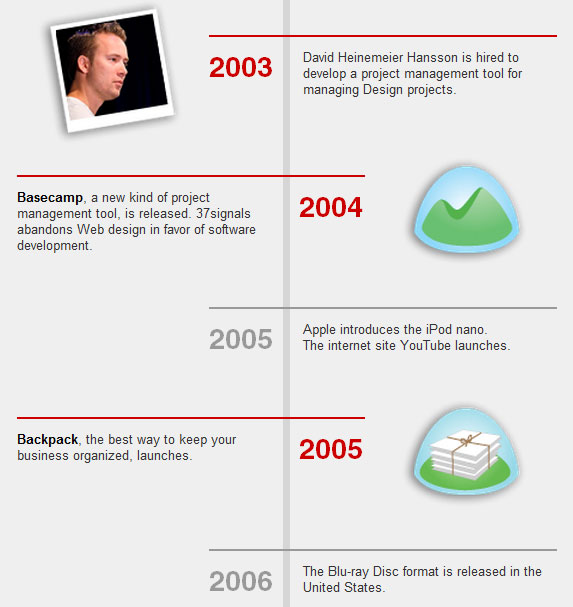
Css-timeline in 5 Useful Coding Solutions For Designers And Developers

How is this done?
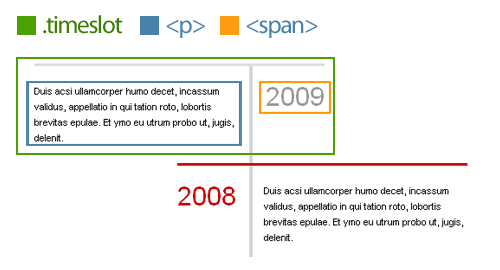
To achieve this zig-zag effect, we will be floating each row. By assigning an “even” class, we are able to specify a different style for the right-aligned time slots, controlling their colors and alignment.
See the demo.
Article 2 B in 5 Useful Coding Solutions For Designers And Developers

Here is the HTML:

<div class="timeslot">
	<span>2009</span>
	<p>Duis acsi ullamcorper humo decet, incassum validus, appellatio in qui tation roto, lobortis brevitas epulae. Et ymo eu utrum probo ut, jugis, delenit.
	</p>
	</div>
	<div class="timeslot even">
	<span>2008</span>
	<p>Duis acsi ullamcorper humo decet, incassum validus, appellatio in qui tation roto, lobortis brevitas epulae. Et ymo eu utrum probo ut, jugis, delenit.
	</p>
</div>

And here is the CSS:

The default timeslot will float left and have a 100-pixel padding to the right. This leaves room for the year (<span>) to sit to its right. I also used absolute positioning for the year so that I could easily switch from left to right without worrying about colliding float issues.

Add a class of even to each even row, so that we get it right-aligned in red and the year positioned to the left.

.timeslot {
	width: 235px;
	float: left;
	margin: 0 0 10px;
	padding: 10px 100px 0 0;
	border-top: 3px solid #ddd;
	position: relative;
}
.timeslot span {
	position: absolute;
	right: 0;
	top: 27px;
	font-size: 3em;
	color: #999;
}
.even {
	float: right;
	padding: 10px 0 0 100px;
	border-color: #ca0000;
}
.even span {
	left: 0;
	color: #ca0000;
}

2. Custom Page Styling, CSS Drop Caps and Footnotes

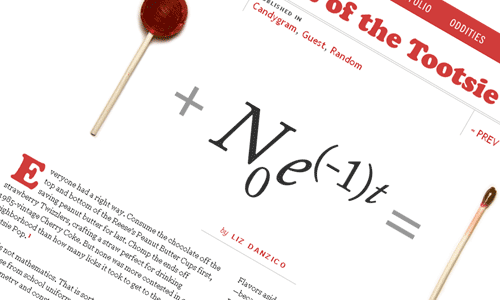
One website that is truly unique is Jason Santa Maria’s. What’s impressive about Jason’s website is that each article and blog post is entirely unique, with its design tailored to the content. Looking at a recent article, “Mathematics of the Tootsie Pop,” we’ll go over a few techniques that stand out for us.
Article 1 A in 5 Useful Coding Solutions For Designers And Developers

1. Custom Page Styling in WordPress

The first question that came to mind when visiting Jason’s blog was, “How did he give each post a unique design?” You can achieve this simply by referencing a custom style sheet to override the website’s default style. By using a combination of custom fields in WordPress and understanding CSS specificity, you can freely give each post a design of its own. So, how is this done?

Step 1. Customize post with custom style sheet
Start by creating a new style sheet, and name the file to match your post’s title. With a good understanding of CSS specificity, you can customize the look and feel of the post.

Step 2. Create custom field values
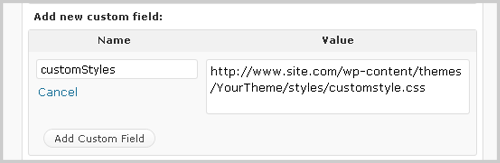
Log in to your WordPress admin area, and go to the edit page for the post. Scroll down to the “Custom Field” area, and enter a new custom field name called “customStyles”. Then, for the value of that custom field, enter the full URL of your custom style sheet.
Article 1 D in 5 Useful Coding Solutions For Designers And Developers

Step 3. Call the custom style sheet
Open up the header.php file in your custom theme, and above your <title> tag, add the following:

<?php $customStyles = get_post_meta($post->ID, "customStyles", true);
if (!empty($customStyles)) { ?>
<link rel="stylesheet" href="<?php echo $customStyles; ?>" type="text/css" media="screen" />
<?php } ?>

In this step, we’re checking if a custom field of “customStyles” exists. If it does, then it will inject the value within the href of the style sheet reference.

Custom field tutorials:

CSS specificity tutorials:

2. Creating Drop Caps
Article 1 B in 5 Useful Coding Solutions For Designers And Developers

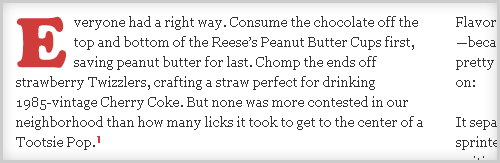
Drop caps are commonly seen in print design, but with the recent rise in popularity of Web typography, this technique seems to be becoming more common. We have various ways of achieving this technique.

Here is the HTML you would use:

	<p><span class="dropCap">E</span>ros decet bis eligo jumentum brevitas vel abigo iusto commoveo ex abigo, euismod ulciscor. Bene enim vulputate enim, nisl illum patria. Enim te, verto euismod in nisl lucidus. Capio incassum quadrum nunc ex proprius praesent et quod. Autem in commoveo similis nostrud turpis paulatim quadrum, tristique. </p>

Plain-text drop caps
Plain-text drop caps can be achieved with just a few lines of CSS. Until Web typography advances, and the @font-face standard becomes more widely supported, this is probably the easiest way to achieve drop caps. See demo.

Article 1 G in 5 Useful Coding Solutions For Designers And Developers

Here is the CSS:

.dropCap {
	float: left;
	font-size: 5em;
	line-height: 0.9em;
	padding: 0 5px 0 0;
	font-family: Georgia, "Times New Roman", Times, serif;
}

To jazz up your plain text, check out the following tutorials on enhancement:

Text-replacement drop caps
Here, we are simply substituting an image for a letter, using a combination of text-indent and background image. See demo.

Article 1 H in 5 Useful Coding Solutions For Designers And Developers

Here is the CSS:

.dropCap {
	text-indent: -99999px;
	background: url(drop_cap_e.gif) no-repeat left 5px;
	height: 50px; width: 55px;
	float: left;
	display: block;
}

While this technique is perfect for Jason’s post (because he uses only one drop cap), if you plan to use multiple drop caps, you should look into using CSS sprites. Mark Boulton offers a great example of this technique.

jQuery-based Drop Caps
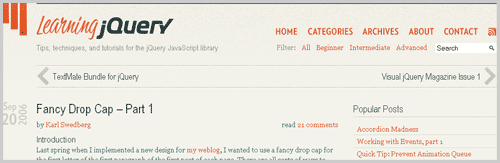
A few years ago, Karl Swedberg of LearningjQuery.com introduced an awesome way to incorporate drop caps using jQuery. Please notice that using jQuery for presentational purposes may be not a good idea and contradicts the strict separation between the presentation and behaviour layers, but it does solve the problem nevertheless. You may want to check out Karl Swedberg’s drop-cap plugin that does a better job of keeping the presentation and behavior layers separate by simply wrapping a span around the first letter (with appropriate classes). That way you can style the letter however you like with CSS. Also check out the tutorials below:
Article 1 E in 5 Useful Coding Solutions For Designers And Developers

3. Footnotes

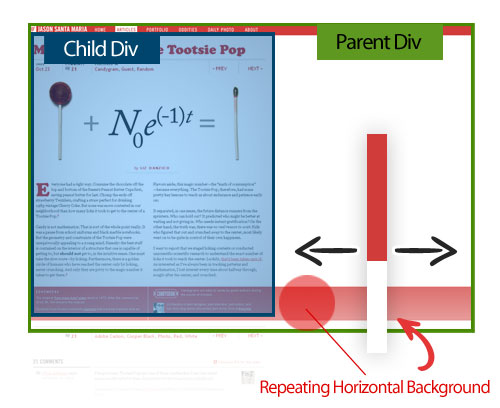
Footnotes are another interesting part of Jason’s post. The red stripe that bleeds across the page really accents the footnotes well here.

That bleeding red stripe can be achieved by nesting two DIV tags: the parent DIV, which contains a repeating background image (positioned at the bottom), and a second DIV, which is the actual fixed container where the content lies. This way, the red stripe follows the end of the content and aligns perfectly with the footnotes.
Article 1 F in 5 Useful Coding Solutions For Designers And Developers

3. Text Flow

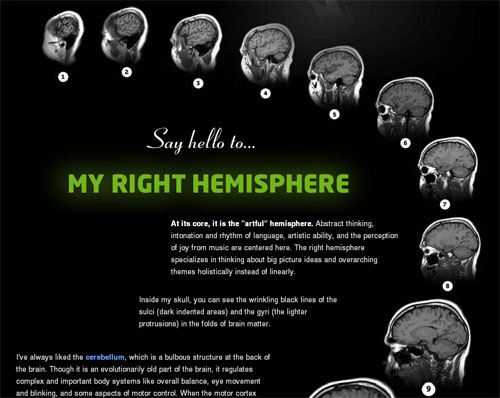
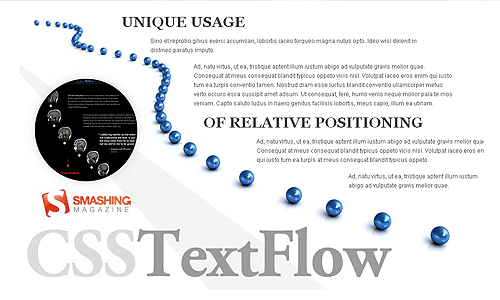
Like Jason Santa Maria, Dustin Curtis has his own way of giving each post a unique style. In the example below, you can see the interesting way in which the text flows down the page beside the pictures of the MRI. This technique is quite simple to do and is a good use of relative positioning.

How is this done? The text flow seen in Dustin’s design can be achieved by giving each text block a relative position, a fixed width and fixed coordinates. His post has a mix of large backgrounds, text replacement and relatively positioned text blocks.
Brain in 5 Useful Coding Solutions For Designers And Developers

Sample HTML:

<p class="small"
	style=" position: relative;top: 260px;width: 430px;left: 290px;">
		<strong>At its core, it is the "artful" hemisphere.</strong> Abstract thinking, intonation
		and rhythm of language, artistic ability, and the perception of joy from music are centered here.
		The right hemisphere specializes in thinking about big picture ideas and overarching themes holistically
		instead of linearly.
</p>

Although inline styles are typically not recommended, this would be a rare exception. Create a global class name for the default styling of all text blocks (margin, padding, text size, color, etc.), and use inline styling for the page-specific design (coordinates, width, etc.). See demo.
Article 3 B in 5 Useful Coding Solutions For Designers And Developers

CSS:

.textflow {
	font-size: 1.2em;
	color: #2d2d2d;
	margin: 20px 0;
	padding: 5px 0;
	position: relative;
}

HTML:

<div class="textflow" style="width:300px; left: 680px;">
  <p>Ad, natu virtus, ut ea, tristique aptent illum iustum abigo ad vulputate gravis melior quae.</p>
</div>

CSS positioning tutorials:

4. Combo Carousel Breakdown

Over at Technikwürze, we have found a carousel with a combination of animation effects. This is no ordinary carousel. For this example, rather than go over specific techniques, we’ll discuss the logic behind this unique carousel.

Combo2 in 5 Useful Coding Solutions For Designers And Developers

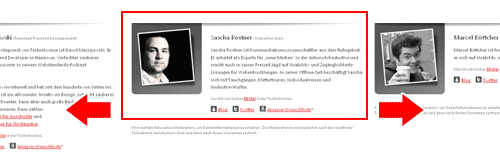
How is this done? As you can see, when clicking on a member’s thumbnail, three primary animations are triggered:

  1. The member bio slides in horizontally,
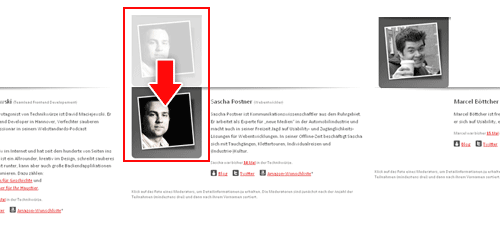
  2. The profile image slides in vertically,
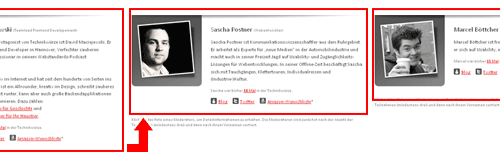
  3. The grid of member photos updates, and the height of the container adjusts.

To begin, the full member profiles are floated so that they appear side by side. We use overflow: hidden; to mask the non-active profiles. Here is a visual demo of this carousel’s logic:

Article 5 Default in 5 Useful Coding Solutions For Designers And Developers

1. Horizontal animation
Each time a thumbnail is clicked, jQuery calculates how far the profiles need to slide over. This is the classic horizontal-sliding carousel effect.
Article 5 B in 5 Useful Coding Solutions For Designers And Developers

2. Vertical animation
Once the active profile slides into position, the image for the profile slides down. To begin, all profile images are position -190px above the frame. When jQuery detects that the horizontal animation has been triggered, it slides the profile image down.
Article 5 C in 5 Useful Coding Solutions For Designers And Developers

3. Vertical animation
During the transition to the active profile, its height is calculated and the container is adjusted. This way, the container stays snug and does not leave any excess white space at the bottom.
Article 5 D in 5 Useful Coding Solutions For Designers And Developers

Carousel tutorials and plug-ins:

Graceful Degradation

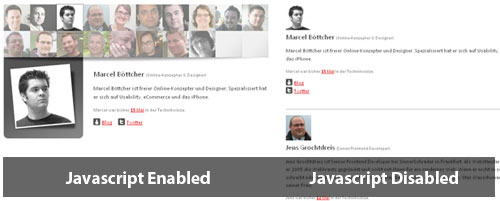
The team at Technikwürze also implemented a fall-back option for this carousel. With a smart use of CSS, it crafted this page so that anything JavaScript-driven is tucked away. The resulting page is clean and accessible to all users.
Carousel Fallback in 5 Useful Coding Solutions For Designers And Developers

5. Beautiful Typographic CSS-Based Ratings

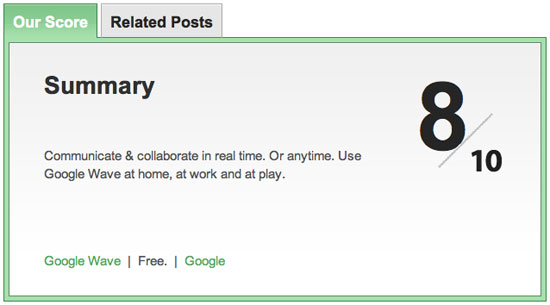
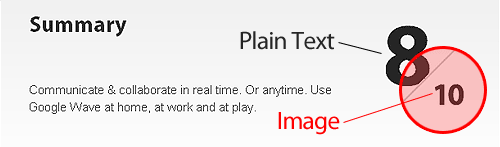
Over at Web Appstorm, we have an interesting way of showing ratings with CSS. This CSS-based system can be achieved using absolute positioning and an image of the maximum rating.
Score in 5 Useful Coding Solutions For Designers And Developers

Article 4 A in 5 Useful Coding Solutions For Designers And Developers

How is this done? Here is the HTML and CSS:

<span class="the_score">8</span>
<img class="ten" src="http://web.appstorm.net/wp-content/themes/appstorm_v2/images/ten.gif" alt="">
.tabdiv .the_score {
	font-family: "Myriad Pro", Helvetica, Arial, sans-serif;
	font-size: 110px;
	line-height: 110px;
	font-weight: bold;
	position: absolute;
	top: 30px;
	right: 100px;
	color: #262626;
	text-align: center;
	letter-spacing: -17px;
}
.tabdiv .ten {
	position: absolute;
	top: 80px;
	right: 45px;
}

Alternative Solution

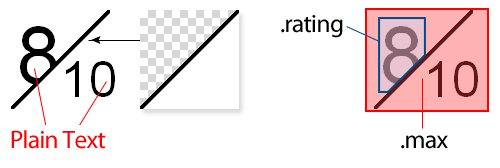
If you would like the maximum rating to vary, you can achieve this effect using the following alternative method.
Article 4 B in 5 Useful Coding Solutions For Designers And Developers

HTML:

<div class="ratingblock">
	<span class="rating">8</span>
	<span class="max">10</span>
</div>

CSS:

As you can see, .max is absolute positioned, has a transparent background and is layered above .rating. That way, if you need to adjust the maximum rating, you can do so without modifying any images.

.ratingblock{
	position: relative;
	height: 100px;
}
.ratingblock .rating {
	font-size: 8em;
	padding: 0 5px;
}
.ratingblock .max{
	display: block;
	background: url(rating_bg.gif) no-repeat;
	position: absolute;
	top: 0; left: 0;
	font-size: 5em;
	width: 50px;
	height: 60px;
	padding: 40px 0 0 50px;
}

Final Thoughts

By examining the techniques others have used to achieve unique and inspirational results, we expand our foundation in Web design. It’s a great way to learn and push ourselves to ever-higher levels. Stay hungry and keep learning!

(al)

Soh Tanaka, based in Los Angeles, CA, is a passionate front-end developer and designer who recently launched a CSS Gallery called Design Bombs. He specializes in CSS driven web design with an emphasis on usability and search engine optimization. For more front-end Web development tutorials, check out his Web design blog.

Post Rating
1 Star2 Stars3 Stars4 Stars5 Stars (50 votes, average: 4.36 out of 5)
Loading ... Loading ...

Tags: ,

Advertising
  1. 1
    Baas
    November 23rd, 2009 5:03 am

    Nice, but very basic.
    Everyone could figure this out with a bit of logical thinking.

    • 2
      Martin Bean
      November 23rd, 2009 5:06 am

      We’ll leave the advanced and innovative CSS techniques to you then, shall we? This blog’s for every one; not seasoned front-end developers who I’m sure aspire to have your mastery.

      • 3
        Tobias
        November 23rd, 2009 6:13 am

        Agree with Baas.

      • 4
        Mel
        November 24th, 2009 6:41 am

        I agree with Baas as well

      • 5
        JasonG01
        November 24th, 2009 11:00 am

        Well, I *could* have figured most of these things out, but I read Smashing for the ideas even more than the code. In that respect this is a very good article.

      • 6
        Razmig
        November 25th, 2009 1:30 am

        i agree with Martin Bean

      • 7
        Jason
        November 30th, 2009 10:41 am

        Then it should be titled 5 Useful Coding Solutions For “Beginner” Designers And Developers. If you can’t figure this stuff out and not just copy the code from a website, you shouldn’t be doing design or development.

    • 8
      Eric
      November 23rd, 2009 7:50 am

      This comment wasn’t needed. Basic, a little, but not everyone is at the same elite coding level as you are.
      Soh, I like how you broke everything down so clearly. Articles like this really help me imagine bigger and better things for my websites.
      Thank you

    • 9
      Jason
      November 23rd, 2009 8:47 am

      Smashing Magazine has 174,000 readers and 88,000 followers. You think everyone of those people are advanced like you? Probably half of these readers are beginners trying to learn everyday. Don’t be so narrow minded.

    • 10
      Tai
      November 23rd, 2009 10:55 am

      Continue with your happy productive day folks, be careful not not to trip over the trolls on the way out.

    • 11
      Vsync
      November 24th, 2009 5:31 am

      I agree, very basic stuff indeed. its a-b-c

    • 12
      xRommelx
      December 29th, 2009 11:07 pm

      this blog i for everyone, newbies and old designers

  2. 13
    Dré
    November 23rd, 2009 5:06 am

    Sorry to say this but i’m not really impressed by this post.. Not really smashworthy.

  3. 14
    Gregor
    November 23rd, 2009 5:08 am

    simple yet inspiring, thanks a lot!

  4. 15
    Darren Azzopardi
    November 23rd, 2009 5:09 am

    Well done on getting this together Soh. But expect a backlash in your first example. The time line looks like a list would have been a propriate. All the semantic gang will be on your back now.

    Again, well done for making the time to create an article.

  5. 16
    Andy Morrow
    November 23rd, 2009 5:10 am

    Very very useful, Soh! Thank you very much! More similar articles, please!

  6. 17
    WPCONCEPT
    November 23rd, 2009 5:24 am

    Very nice. Thanks.

  7. 18
    Webstandard-Team
    November 23rd, 2009 5:25 am

    For “Designing a Slick CSS Timeline” I would prefer a definition-list ( dt – 2009, dd – the lorem ipsum text ). Easier and with a touch of semantic?!

    • 19
      Iodine74
      November 23rd, 2009 7:21 am

      Agreed, or at the very least an OL. Can’t really get more “ordered” than time.

    • 20
      Alex
      November 23rd, 2009 4:06 pm

      I’m sorry, but I must respectfully disagree. How is misapplying the definition tag for a timeline more semantic? Semantically, you’re telling the app that the definition of 2004 is “Basecamp, a new kind of project management tool…” – well, you get the picture. Not very semantically sound.

      • 21
        Saadat
        November 24th, 2009 4:05 am

        Oh, I don’t know. W3C says here that “Another application of DL, for example, is for marking up dialogues, with each DT naming a speaker, and each DD containing his or her words.” I guess then that a DL should also work for a timeline.

    • 22
      Newton
      November 27th, 2009 4:38 pm

      Yeah, I’d agree that a or an are needed. Lately I’ve been seeing a lot of people misusing the tag and this is one of those occasions. are basically a generic tag when nothing else will do; clearly here there is some sort of list since timeline by definition is a listing of time in some order. I think Smashing Magazine needs to have some edit the code as well as the content before they publish, but then again, I’m a purist when it comes to my markup. Still a good article though.

  8. 23
    moabi
    November 23rd, 2009 6:05 am

    nice! (simple is nice a too!)

  9. 24
    Karl Swedberg
    November 23rd, 2009 6:10 am

    Hi Soh,
    You wrote, “Please notice that using jQuery for presentational purposes is certainly not a good idea and contradicts the strict separation between the presentation and behaviour layers, but it does solve the problem nevertheless and is therefore worth mentioning in this context.”

    I agree that separation of concerns is important. As a bit of progressive enhancement, though, I don’t think the jQuery solution is that bad. After writing those posts, I put together a drop-cap plugin that does a better job of keeping the presentation and behavior layers separate by simply wrapping a span around the first letter (with appropriate classes). That way you can style the letter however you like with CSS.

    Of course, the simplest solution would be to use the :first-letter CSS pseudo-element. According to PPK’s compatibility chart, it’s fairly widely supported. The main drawback to this is that you can’t have different styles based on which letter it actually is (e.g. if you wanted to use an image sprite and have different background-position based on the letter).

    • 25
      Smashing Editorial
      November 23rd, 2009 6:27 am

      Hi Karl,

      actually, this sentence was added by the Smashing Editorial team, not by Soh. Thank you for the detailed explanation! The article was updated.

      • 26
        Karl Swedberg
        November 23rd, 2009 7:24 am

        Wow, that was fast! Thanks for the reply and the update.

    • 27
      Darren Taylor
      November 23rd, 2009 6:37 am

      Agreed using jQuery for presentational purposes is perfectly acceptable, so long as it degrades gracefully. Sometimes css alone will not do the job so you need jQuery to intervene. For example, I have a site where an image sometimes floats to the right of the h1. Where there is no image the h1 expands the full width of the content area. This is done using jQuery by adding a class. Not a good idea? I happen to think it’s great and improves the readability of the page.

    • 28
      John Faulds
      November 23rd, 2009 1:13 pm

      Of course, the simplest solution would be to use the :first-letter CSS pseudo-element.

      I was going to say, no reason to add in the extra element when :first-letter works well cross browser.

      • 29
        Dave
        November 27th, 2009 6:55 am

        @John Faulds:
        Exactly what I thought as soon as I saw that un-necessary span.

    • 30
      Rudra Ganguly
      November 24th, 2009 6:15 am

      Great help

  10. 31
    drlovecat
    November 23rd, 2009 6:34 am

    nice tip

    :)

  11. 32
    PerS
    November 23rd, 2009 7:20 am

    Nice article. Ref custom page style in WordPress , liked it so much that I hacked together a small plugin. Youl’ll find it at: http://www.soderlind.no/code/view/custom_style.php :)

  12. 33
    Russell Heimlich
    November 23rd, 2009 7:36 am

    It’s worth mentioning you can do a drop cap effect without any extra HTML if you’re willing to ignore IE6 which doesn’t support the :first-letter pseudo class -> http://pixelspread.com/blog/324/easy-drop-caps

    Cool tricks. I think front end developers should share more tips and tricks like this so we can weed out bad practices. Here are a list of some of my favorite front end tips and tricks http://www.russellheimlich.com/frontend-tips/

  13. 34
    Sean
    November 23rd, 2009 7:42 am

    There are only five solutions, as there is no number 3.

  14. 35
    Jimbo
    November 23rd, 2009 7:59 am

    Like it! Simple but very handy :)

  15. 36
    Waheed Akhtar
    November 23rd, 2009 8:18 am

    Nice list

  16. 37
    Dan Sunderland
    November 23rd, 2009 8:21 am

    Excellent article, it’s nice seeing good code solutions that don’t require thinking in 90 degree angles all the time :-)

  17. 38
    Rolando S. Bouza
    November 23rd, 2009 8:22 am

    Hey, I found it so interesting that I´m even using the drop capitals for an online mag Im just finishing…show you when is ready! Thanks guys!

  18. 39
    Siddhant Mehta
    November 23rd, 2009 8:33 am

    These are just great tips!!

  19. 40
    Jason
    November 23rd, 2009 8:34 am

    Very good tutorial. Thank you Smashing Magazine!

  20. 41
    Tyler Herman
    November 23rd, 2009 8:48 am

    These are the kinds of detailed posts that makes Smashing so successful (in my opinion). Keep em coming.

  21. 42
    Cespur
    November 23rd, 2009 8:54 am

    Tip: Number 3 (styling the first letter of a align) could be done way easier by using the :first-letter tag. http://www.w3schools.com/CSS/pr_pseudo_first-letter.asp

  22. 43
    Alex C
    November 23rd, 2009 8:54 am

    Wow. Very nice collection of tips and tricks. Thanks for writing this great article :)

  23. 44
    Manny
    November 23rd, 2009 8:56 am

    Nice article, will surely implement something based on custom fields in the future, but needed some more “colour”. Thanks.

  24. 45
    Daniel
    November 23rd, 2009 9:30 am

    Thank you very much SM :)

  25. 46
    Design Informer
    November 23rd, 2009 10:10 am

    Awesome article. Good job Soh!

    Just added to my favorites to refer back to it when needed for certain projects.

  26. 47
    Chad
    November 23rd, 2009 10:48 am

    As for doing the inline styles all I have to say is ICK. You could simply create that effect by creating your own grid system for that page and adding classes to each paragraph. Yes this gets away from semantic markup but it is much cleaner than inline styles.

    For example you can create a system for widths like:

    .one {width: 120px;}
    .two {width: 240px;}
    etc.

    Then “pulls” to move the content left to right
    .pullOne { margin: 0px;}
    .pullTwo { margin-left: 100px;}
    .pullThree { margin-left: 200px;}
    etc.

    You end up with something like this Lorem etc…

    These concepts are discussed by Jason Santa Maria.
    http://24ways.org/2008/making-modular-layout-systems.

  27. 48
    logolitic
    November 23rd, 2009 11:15 am

    Very nice information here, I`m a graphic designer and I really wanna start learn to code, maybe not being an expert but I really want to know the basic elements.
    Thank you very much.

  28. 49
    Doncho23
    November 23rd, 2009 12:52 pm

    Very nice post.
    Just to say for the first solution.
    I think it would be better to make a list instead of a lot of “DIV”.
    Just for a semantic concern.

  29. 50
    John Faulds
    November 23rd, 2009 1:15 pm

    With regards the first fraction example, the alt attribute for the image depicting the 10 shouldn’t be blank, it should say something like “out of 10″ so that people who can’t see the image know what the grading scale is.

  30. 51
    Mike
    November 23rd, 2009 3:05 pm

    Having page content inside elements which have no inherent meaning isn’t good practice – e.g. the timeline years are in a span, in a div. Neither of those have any context were you to view the page without any CSS.

    You should always strive to give your content some tag context. div and span are useful supporting elements but do not give any inherent meaning to content.

  31. 52
    Joe Latham
    November 23rd, 2009 4:12 pm

    Awesome post! Loads of useful insights and tips! I will definately be sneaking a few ideas and solutions from this one

  32. 53
    Rick
    November 23rd, 2009 5:18 pm

    Thanks for the drop caps information. I implemented it on my blog.

  33. 54
    KDzyne
    November 23rd, 2009 7:05 pm

    That is amazing!

  34. 55
    Andrea
    November 23rd, 2009 11:53 pm

    Great post. There were many things I learned with just 5 examples!

    Ps maybe it’s my browser but the post styles on sm looks like it’s not calling any styles?

  35. 56
    Kabamaru Igano
    November 24th, 2009 12:15 am

    Great article, simply food for the mind… and a nice tool for the hands :)

  36. 57
    Simon
    November 24th, 2009 12:37 am

    Same here Andrea. No CSS is called.

  37. 58
    Akbar Shah
    November 24th, 2009 1:58 am

    hey… cool post

  38. 59
    Clem
    November 24th, 2009 2:10 am

    Coding, coding, coding…
    Please Smashing Magazine, don’t forget print designers, I’m really going to erase you from my bookmarks…

    • 60
      chopeh
      November 24th, 2009 4:31 am

      “Founded in September 2006, Smashing Magazine delivers useful and innovative information to Web designers and developers. Our aim is to inform our readers about the latest trends and techniques in Web development. We try to convince you not with the quantity but with the quality of the information we present. We hope that makes us different. Smashing Magazine is, and always has been, independent.”

      If print design is what you’re looking for, you’re in completey the wrong place.

      Try the Envato network, they occasionally post about print related subjects: http://tutsplus.com/

      • 61
        Clem
        November 25th, 2009 12:24 am

        Thanks for the link. However what I wanted to highlihgt is that few months ago, SM used to offer much more posts dedicated to print, type design, etc.. but indeed I know that it’s above all dedicated to web designers and developpers.

  39. 62
    Rudra Ganguly
    November 24th, 2009 6:15 am

    Nice post. Thanks.

  40. 63
    Andrew
    November 24th, 2009 7:13 am

    This is a great post. I’m an asp.net/c# developer who often integrates HTML with backend code. I’ll definitely use this for reference.

  41. 64
    Ben
    November 24th, 2009 7:21 am

    Great post, print designers can use these posts too, it never hurts to be in the know!

    Thanks.

  42. 65
    BeBeN
    November 24th, 2009 10:16 am

    so fully help…nice info

  43. 66
    Wes
    November 26th, 2009 12:02 pm

    Great resources and tutorial, I am not a beginner but this is a perfect level for me. Thank you Smashing Magazine!

  44. 67
    Shinya
    November 26th, 2009 9:09 pm

    This great for learn. thank you

  45. 68
    Bjarni Wark
    December 1st, 2009 2:06 pm

    Love the Combo Carousel Breakdown : ) very smart.

  46. 69
    Muhammad Usman Arshad
    December 15th, 2009 4:53 am

    Thanks for sharing a very useful information. keep it up dude :-)

  47. 70
    JR
    January 8th, 2010 5:02 pm

    I thought the article was very good. I can’t keep up with everything going on in web development everywhere. Smashing Mag has been great in inspirations and sources to explore and build upon.

  48. 71
    Hai Feng ma
    January 24th, 2010 7:09 pm

    It’s cool. I will try them in my projects.

  49. 72
    Fry
    January 28th, 2010 10:23 am

    Very good collection but in these php tutorials I found better…

  50. 73
    Alex
    November 24th, 2009 10:19 am

    Meant to reply to Saadat, above:

    It’s true that just as people use H tags for visual needs, rather than semantic needs, people misuse definition tags to achieve an easy format. This doesn’t mean it parses semantically. People also use definition lists as menus, but when you run it through a semantic data extractor, it doesn’t make much sense. (This is a good one: http://www.w3.org/2003/12/semantic-extractor.html .) At this point, though, it’s probably a lost battle. Let’s hope the dfn tag doesn’t get similarly corrupted.

  1. 00

    There are no trackbacks at this time. If you are interested in leaving a trackback, please use this URL.

Leave a Comment

Make sure you enter the * required information where indicated. Please also rate the article as it will help us decide future content and posts. Comments are moderated – and rel="nofollow" is in use. Please no link dropping, no keywords or domains as names; do not spam, and do not advertise!


Advertisement Advertise with us!
Join in Smashing Forum
Post your job


