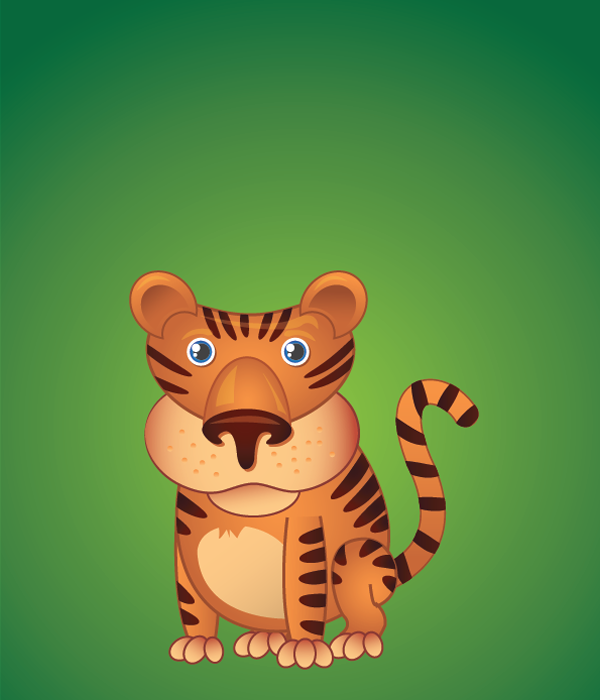
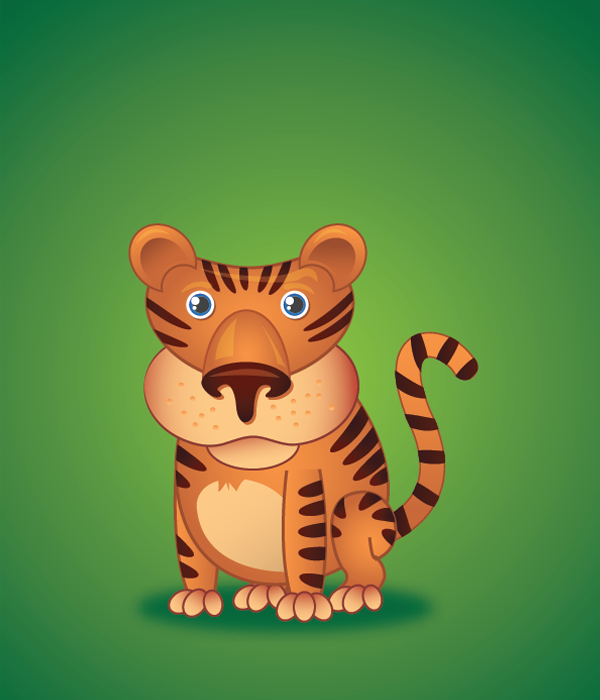
Create a Cute Little Tiger in Illustrator
The tiger is one of the coolest animals in the earth. It’s a very powerful, dangerous, yet fascinating animal. In this tutorial, we will be drawing the tiger, but we will be doing it a little bit different. Instead of portraying the tiger as a savage and mean creature, I will teach you how to draw a cute little tiger that you will be able to use in your projects, as a desktop wallpaper, etc. You will also learn lots of Illustrator techniques as well. This is the perfect tutorial for year 2010, the year of the tiger. So what are we waiting for? Let’s begin, r-r-r-r…
Step 1: Set Up
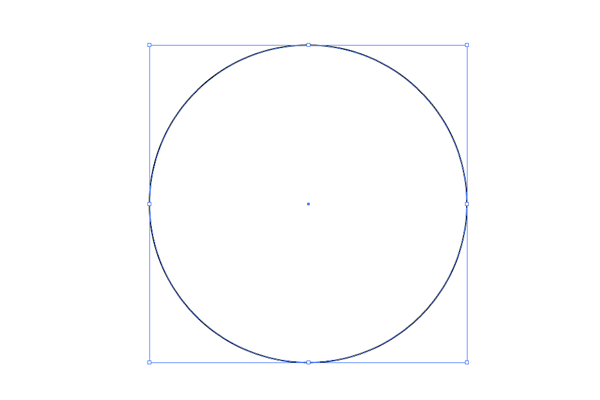
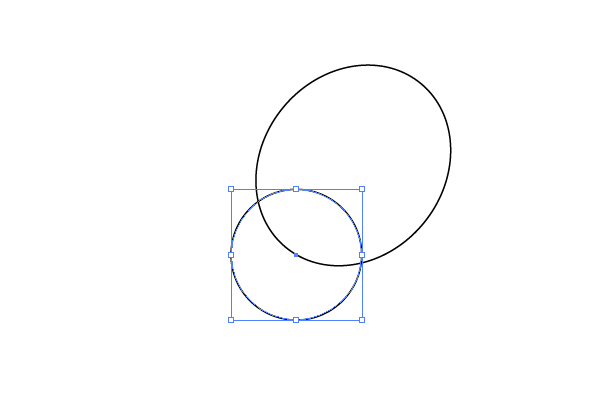
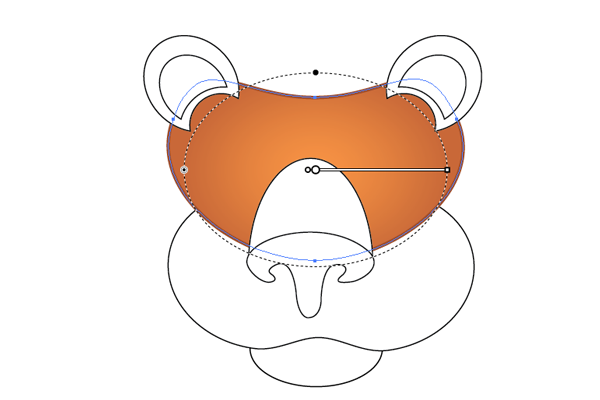
Open Illustrator and set up a new document. Rename “Layer 1” to “Head”. Select the ellipse Tool (L) and draw a circle.

Step 2: Head
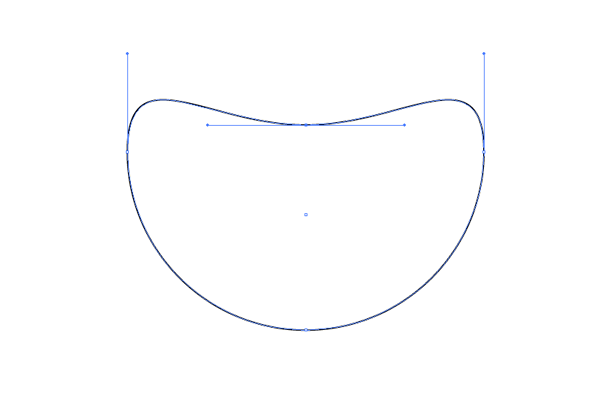
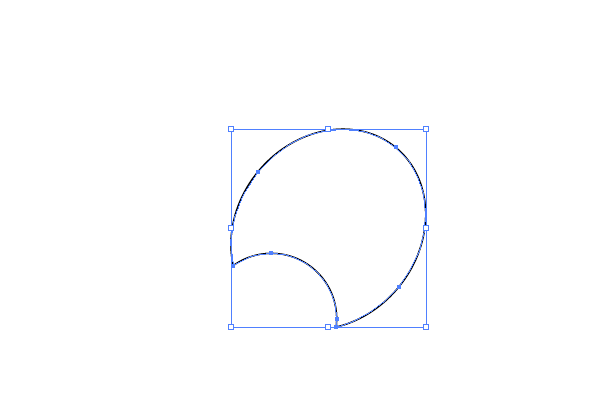
With the Direct Selection Tool (A) click on the top anchor point to select it and drag in down to modify your circle like this.

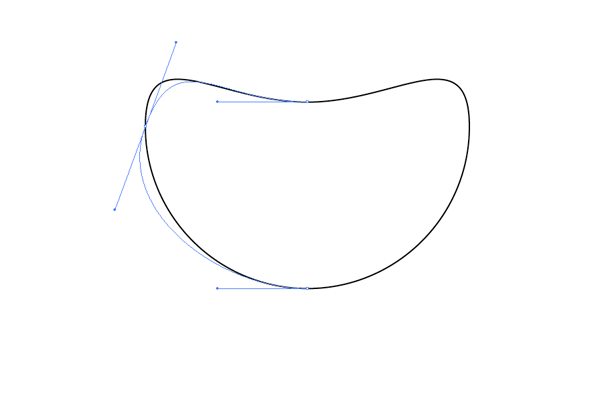
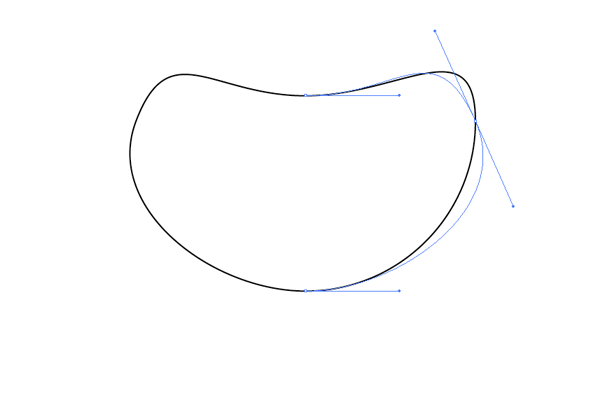
Select the left anchor point and rotate the handles so the path will look more rounded. Do the same thing to the right anchor point.


Step 3: Nose
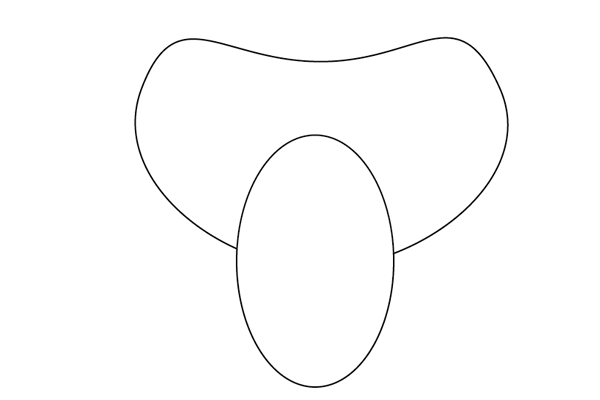
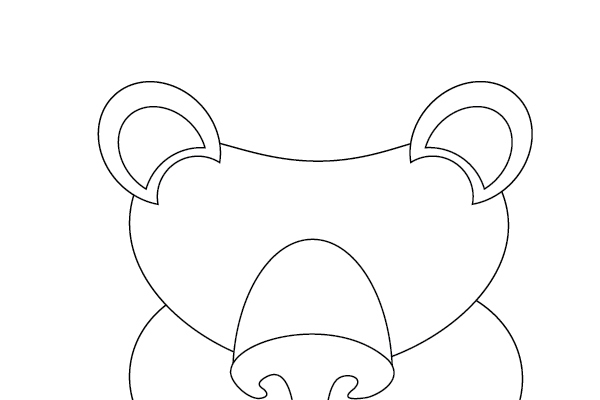
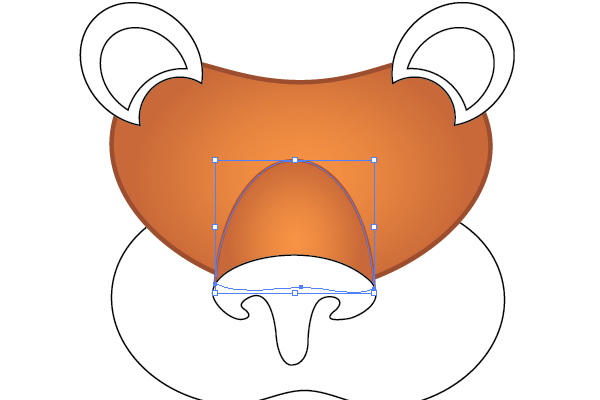
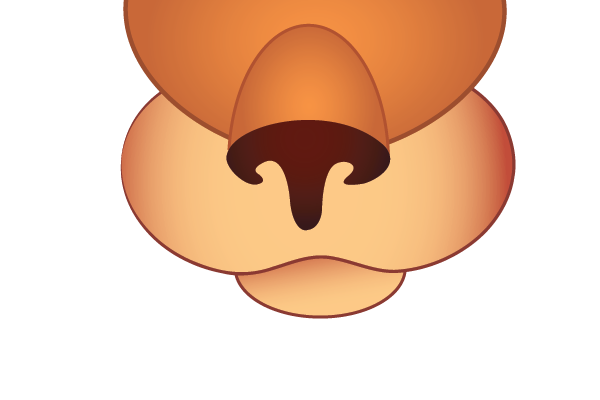
Make a copy of the head path. Select the Ellipse Tool and draw an ellipse on the top of the head shape.

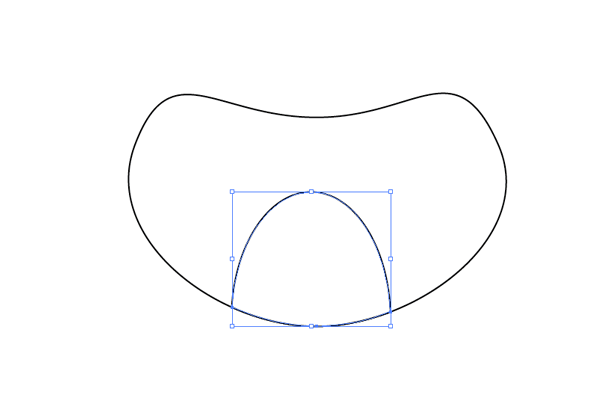
Select this ellipse and the head path copy that we’ve made by shift clicking and pressing the Intersect button in the pathfinder palette.

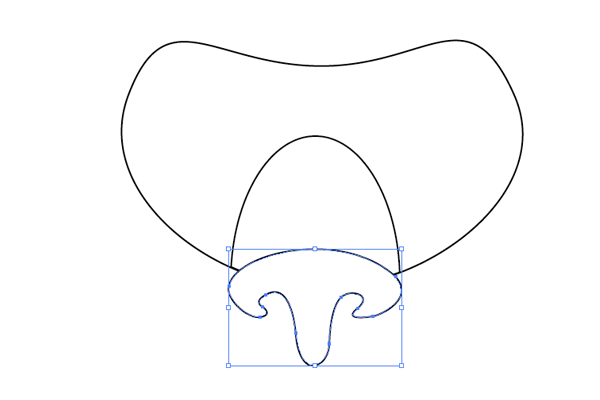
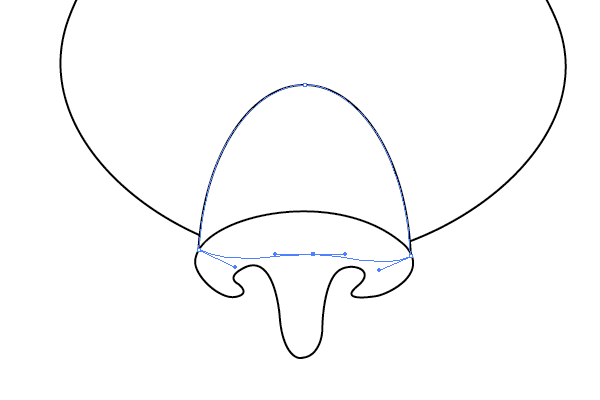
With the Pen Tool (P) try to draw nostrils path as you see below.

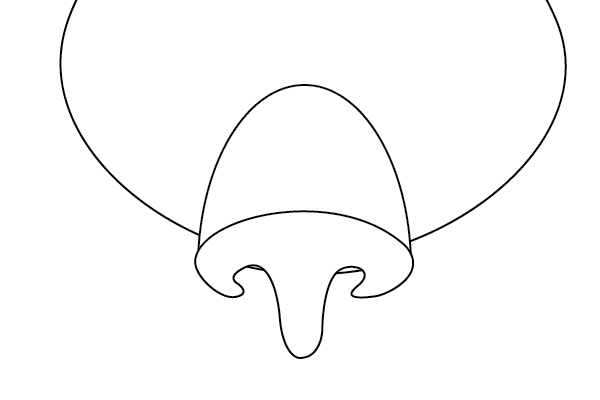
Move the nose path down a little.

Select the lowest anchor point of the nose path and move it up to hide it behind the nostrils path.

Step 4: Cheeks
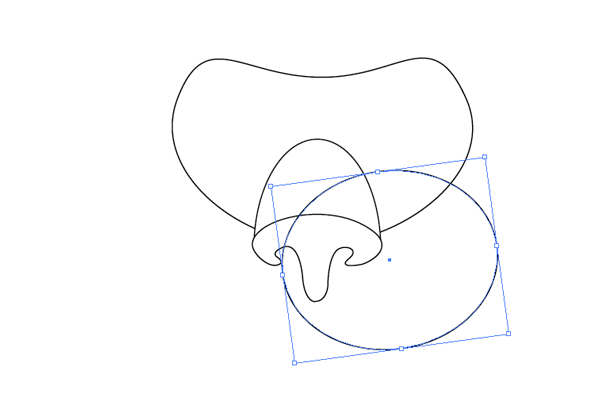
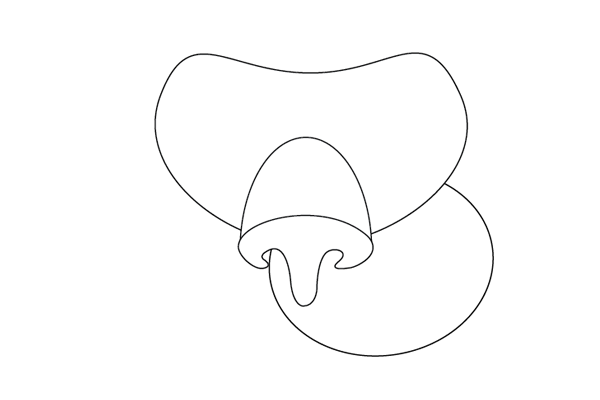
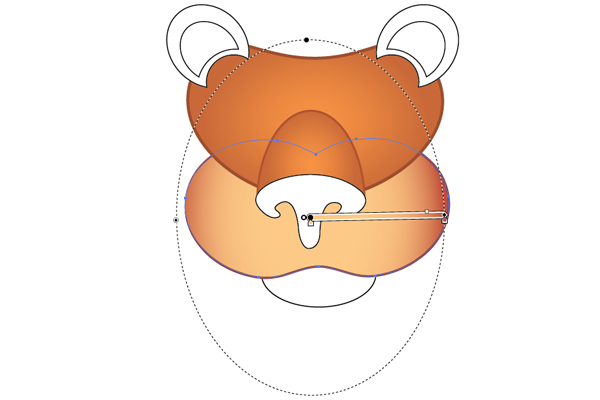
Draw an ellipse and rotate it 8 degrees counterclock-wise.

Press Shift + Ctrl+[ to send it back.

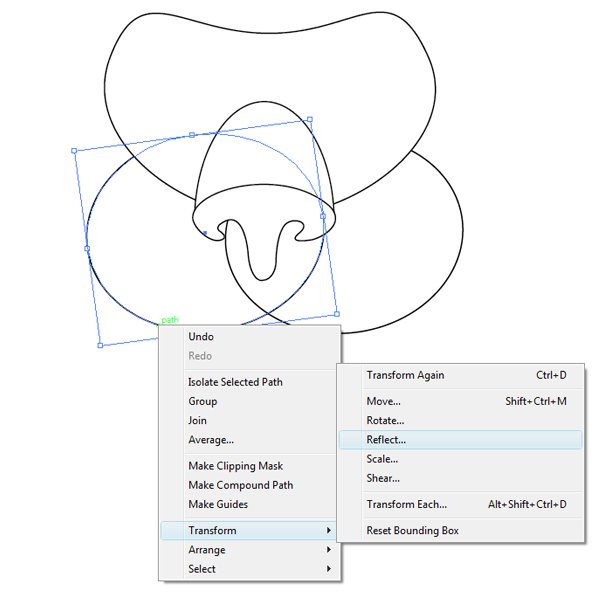
Make a copy of this path, move it to the left and reflect.

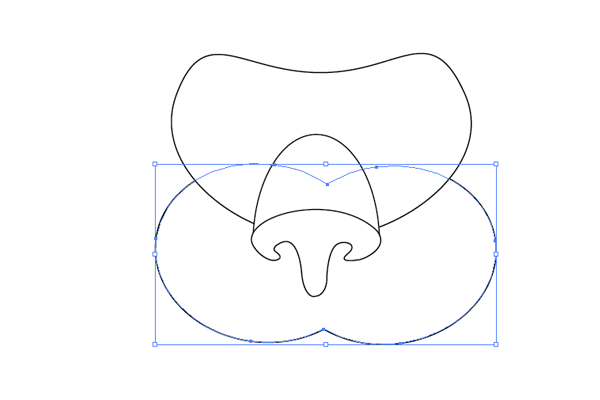
Select both paths and press the Unite button in the Pathfinder palette.

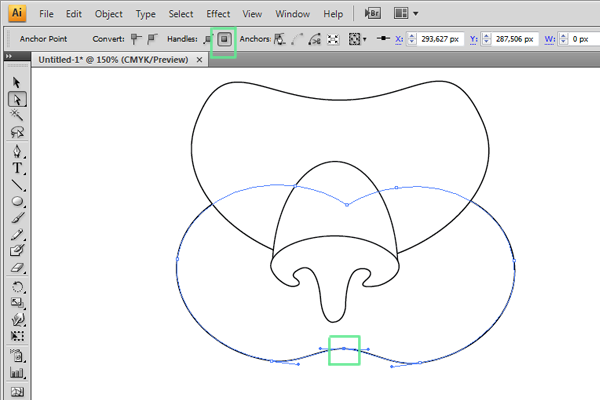
With the Direct Selection Tool (A) select the anchor point that connects the two cheeks path and convert it to a smooth anchor point and then make the path more narrow.

Step 5: Chin
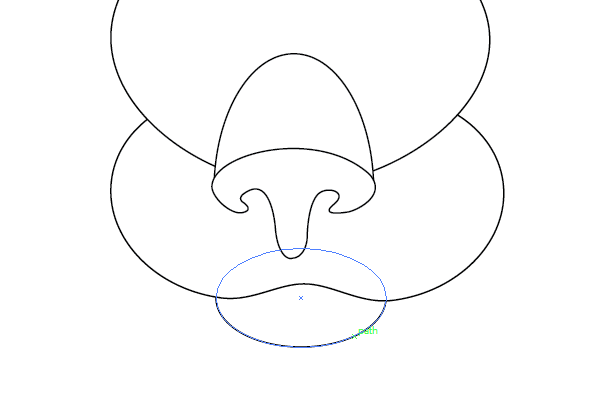
For the chin, draw another small ellipse and press Shift +Ctrl + [ to send it back.

Step 6: Ears
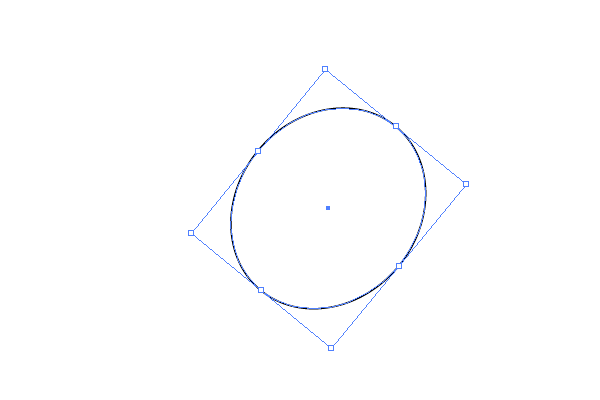
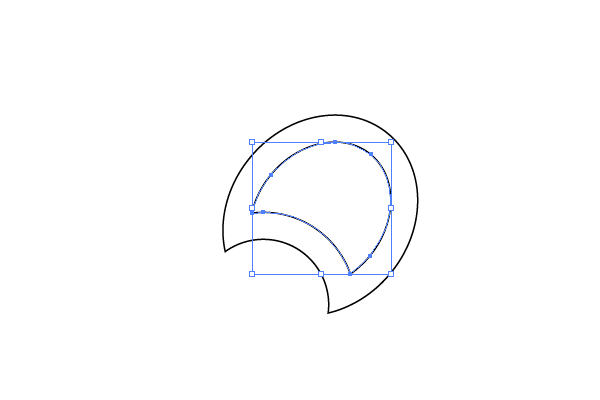
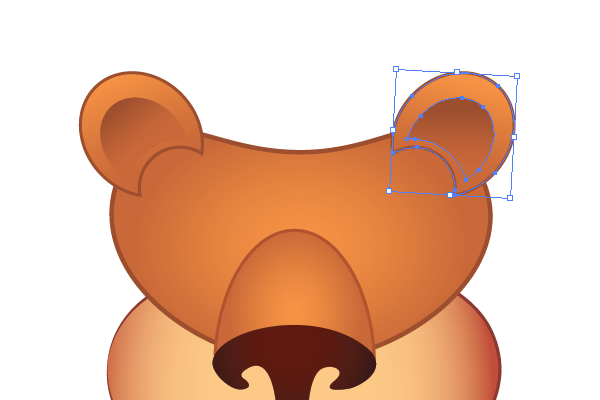
Draw an ellipse and rotate it counter-clock-wise about 50 degrees.

Draw a circle that intersects this ellipse and then press the Minus Front button in the pathfinder to extract this circle from the main ear path.


With the resulting path selected, go to Object > Path > Offset Path and create a smaller copy of this path inside it by entering negative Offset values.

Move the resulting path down and to the left.

Place the ear on the tiger’s head, create a reflection of it and place it on the left side.

Step 7: Adding Color
Select the head path and give it a radial gradient from #F79442 to #C86735 and a 3pt #9E4D2A stroke. Adjust the position and Aspect Ration of the gradient.

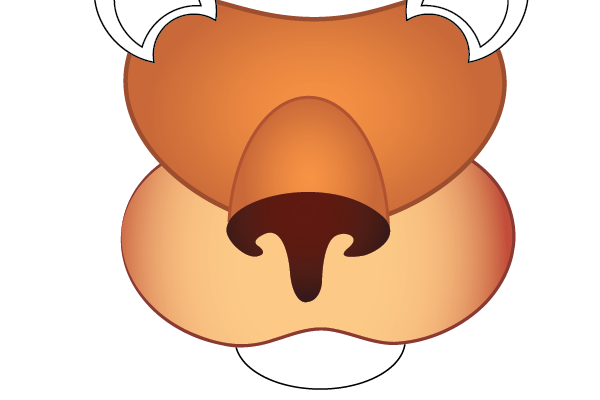
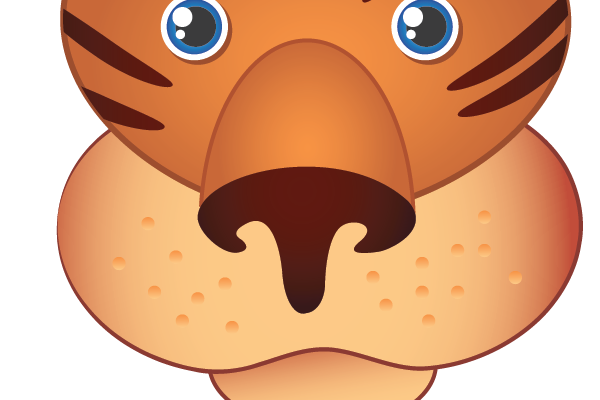
Apply the same gradient to the nose using the eyedropper Tool (I) but give it a 2pt stroke with #B3512B.

On the cheek path apply a radial gradient from #C24B37 to #FCCB88 and a 0.25pt Tapered stroke (#8C372F) .

Select the nostrils path and give it a gradient fill from #341214 to #60180C.

Apply the same gradient and stroke that we used for the cheeks to the chin but make it linear this time.

Select the biggest shape of the ear and Eyedropper tool and then click on the head path to apply the same settings to it. Select the smaller path, make it have no stroke and give it a linear gradient from #9E4D2A to #C86735.

Step 8: Eyes
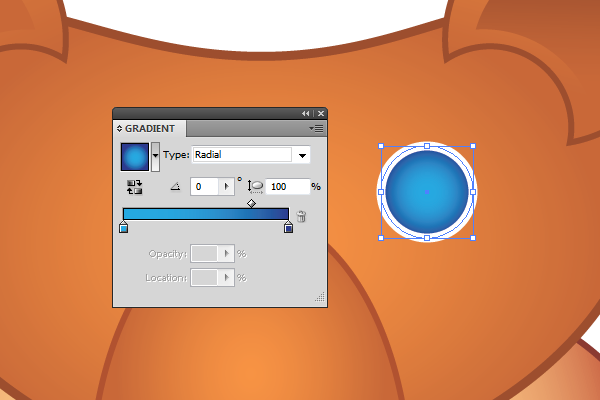
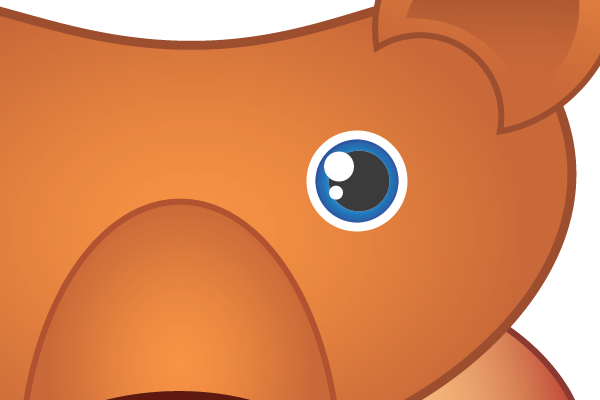
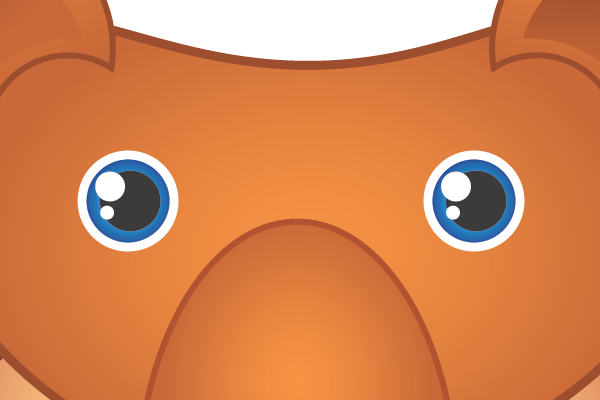
Draw a circle, give it a 2pt white stroke and a radial gradient from #2B3990 to #27AAE1.

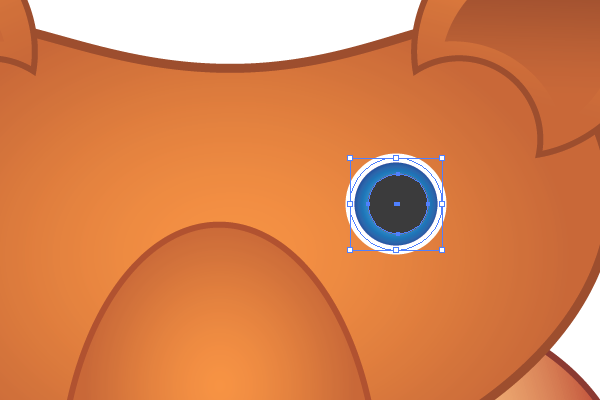
Create another, smaller circle. That way, their centers coincide and then fill it with 90% gray.

Draw two highlights, those will be two white circles, one a little bigger than the first.

Make a copy of this eye.

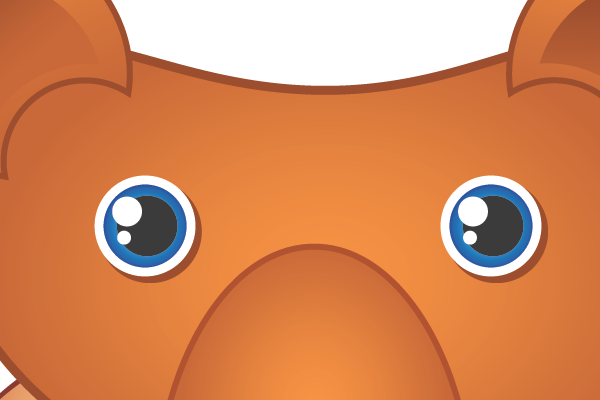
Draw small shadow under the eyes by making copies of the biggest paths and pasting them back.

Step 9: Tiger Pattern
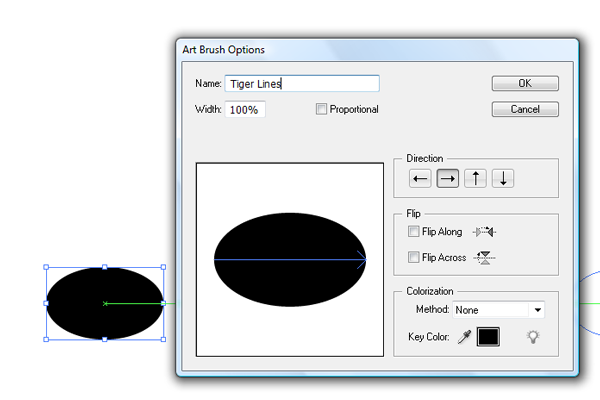
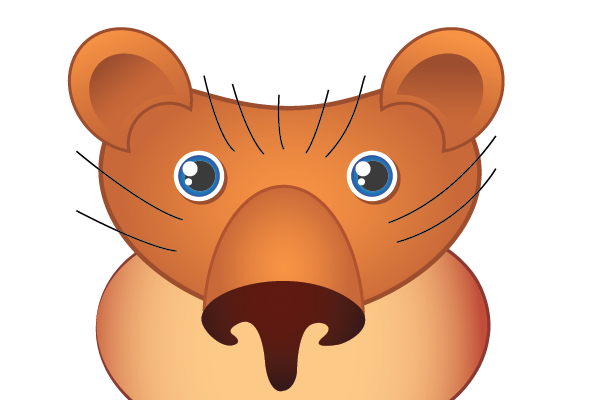
Draw a small black ellipse with no stroke and drag it into brush palette, check the “New Art Brush” and click ok. Name the new brush “Tiger Lines” and leave all setting with their default values.

Now, Select the Pen Tool (P) and draw some lines with no fill, where you want your tiger to have lines.

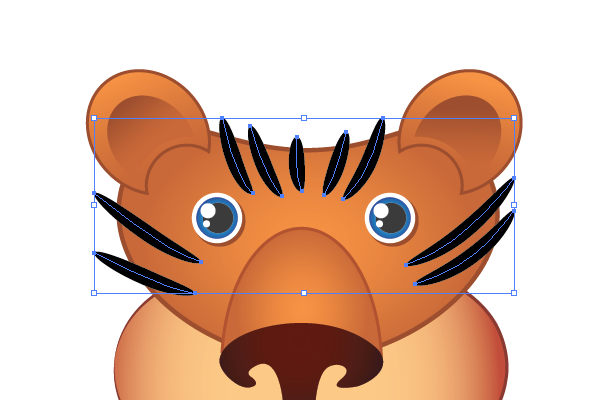
Select all these lines and click on the newly created brush in the brushes palette.

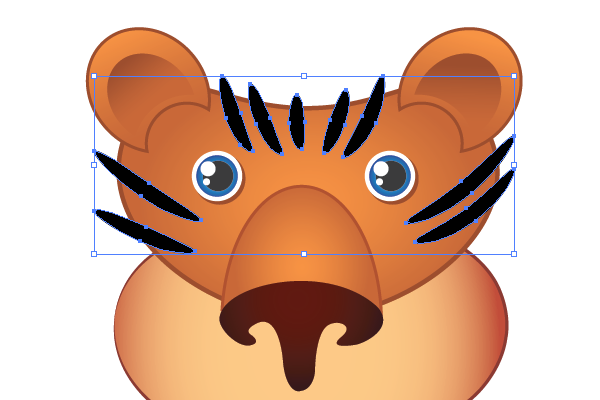
With the lines still selected go to Object > Expand Appearance to expand the lines.

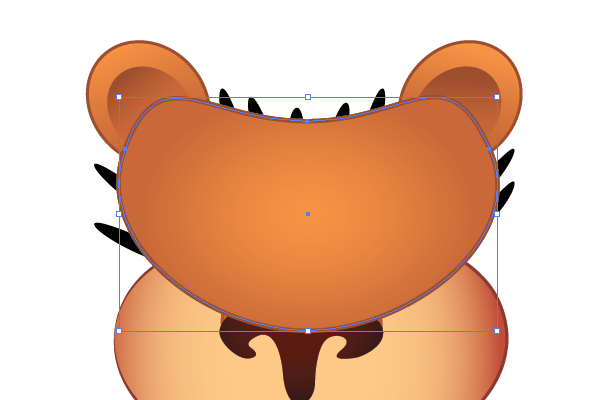
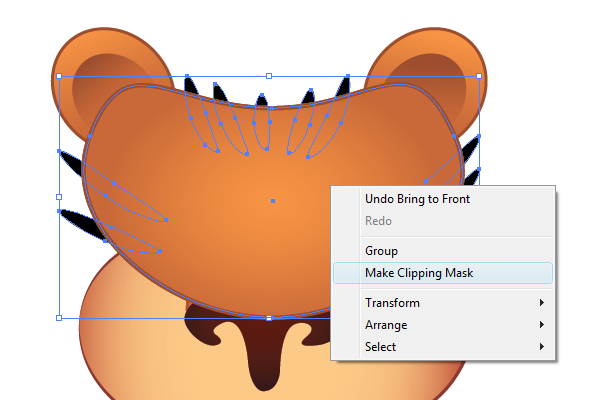
Select the head path, make a copy of it and bring it to front.

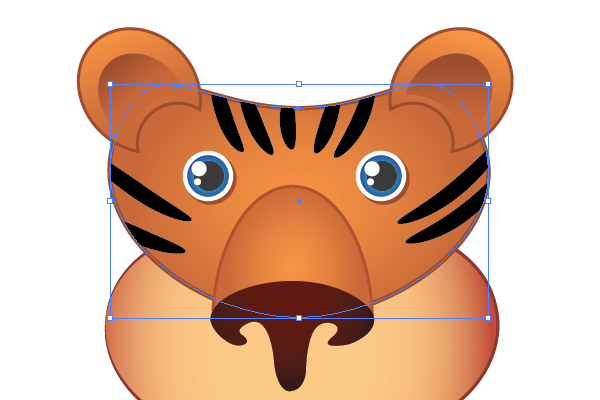
By shift-clicking, select the copy and all expanded lines, right-click on the copy of the head path and select Make Clipping Mask.


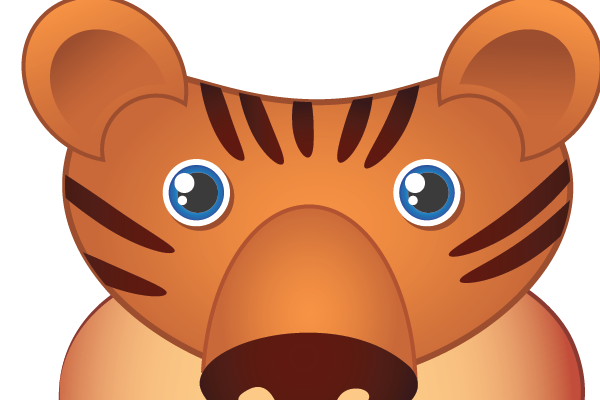
Select all lines and apply a linear gradient from #341214 to #60180C to them.

Step 10: Cheeks Details
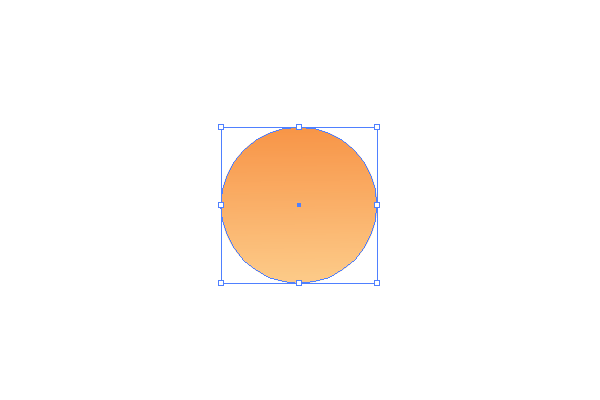
Draw a small circle and give it a vertical, linear gradient from #F79442 to #FCCB88 .

Make lots of copies of this circle and place these copies on the cheeks.

Step 11: Face Shadows and Highlights
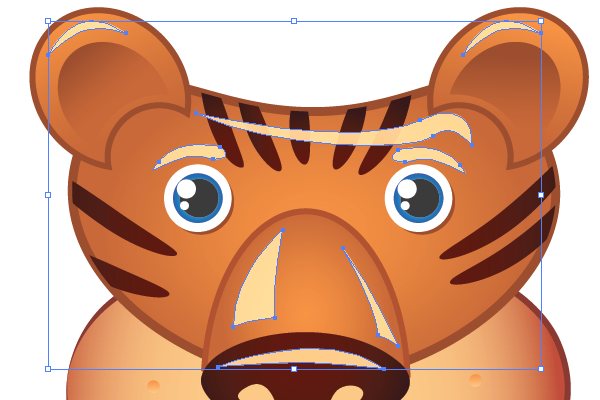
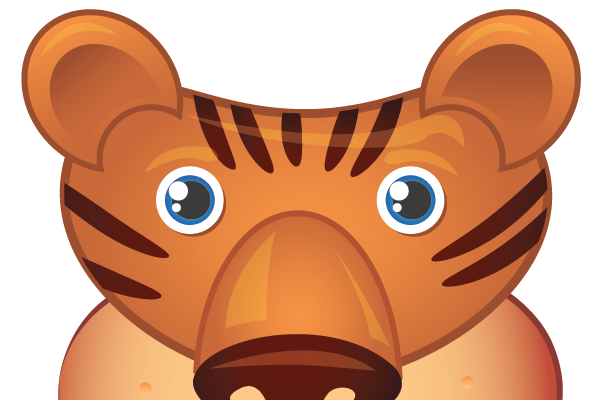
Select the Pen Tool and draw highlights on the tiger’s face, eyebrow, nose and ears. Fill these paths with #FCCB88 .
43
Set the Blending mode to Soft Light.

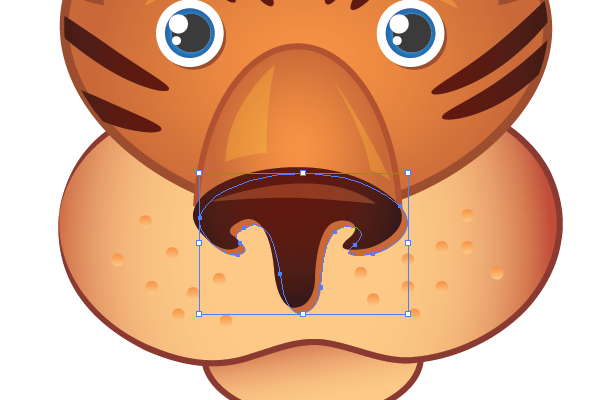
Select the nostrils path, press Ctrl + C and Ctrl + B to create a copy behind it. Move the copy down a little and to right and fill it with #C86735.

Step 11: Body
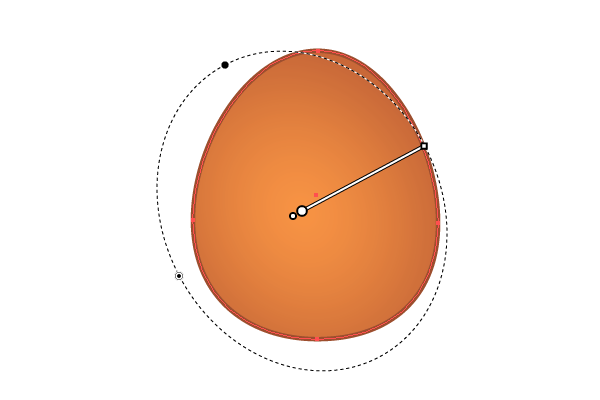
Create a new layer, name it “Body” and drag in under the “Head” layer. Use Pen Tool or Ellipse Tool to create an egg-like path and fill it with the same gradient that we’ve used for the head but adjust its position and angle.

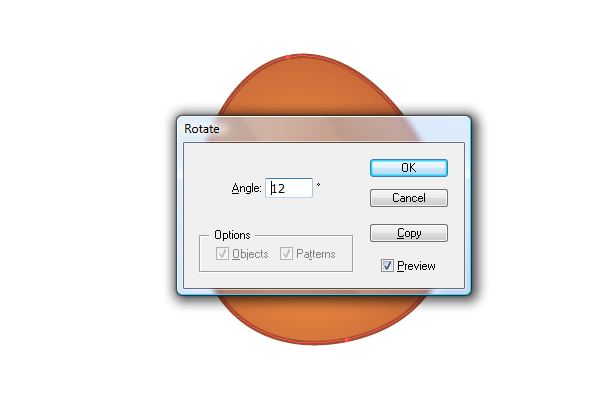
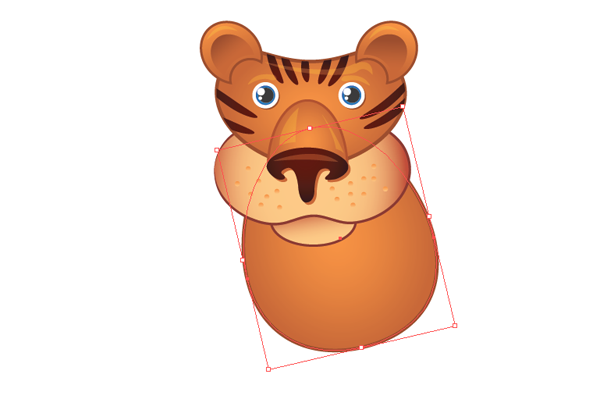
Select the Rotate Tool (R), hold down the Alt key and click on the center of the body shape to bring up the options dialog box. Check preview, set 12 as Angle value and hit ok.

Place this path under the head.

Step 12: Belly
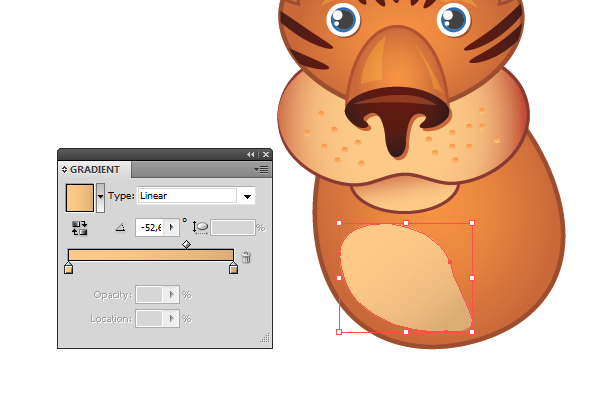
Our tiger has a big bright spot on his belly. Take the Pen Tool and draw it. Pay attention only to the left side of the spot because the right edge will be covered by a hand. Apply a gradient from #FCCB88 to #DBAD75 and no stroke.

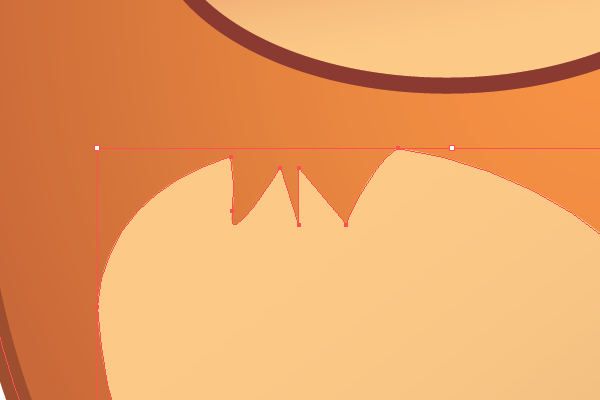
Extract a small part of the top of the belly path to add some detail to it.

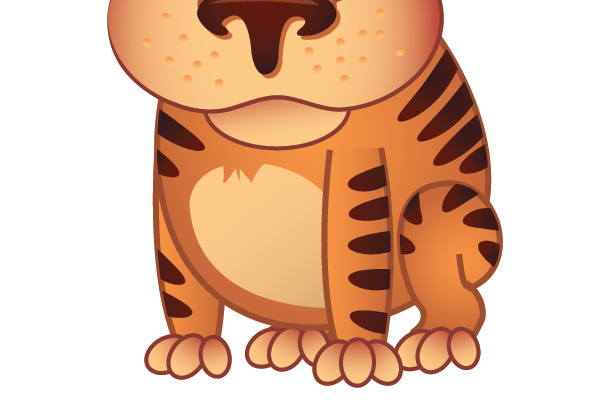
Step 13: Hands
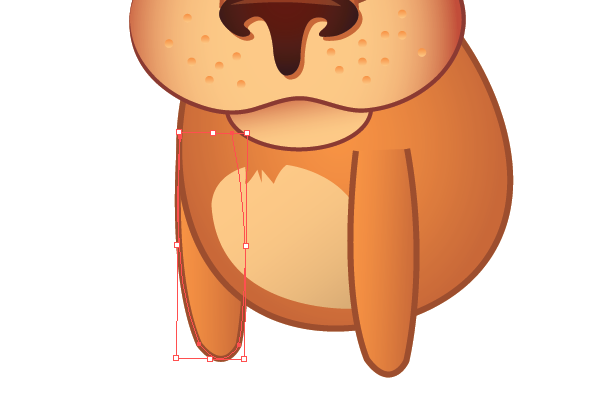
Select the Pen Tool and draw an open path for the hand. Select the Eyedropper Tool and lick on the body path to apply the same setting to the hand, but make the gradient linear this time and adjust the angle.

Drag a copy of this hand to the left and press Shift + Ctrl + [ to send it back under the body path.

Repeat step 9 to draw lines on the tiger’s hands.

For the fingers, draw six ellipses with the same settings as the chin path and arrange them on the hands.

Step 14: Legs
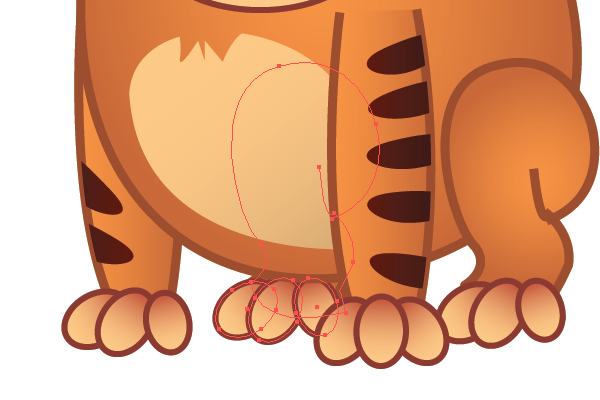
Select the Pen Tool and try to draw a legs path. This will probably take a couple of tries before you get the needed result.

Make a copy of the right hand fingers and place them on the leg.

Make a copy of the whole leg, drag the copy to the left a little and press Shift + Ctrl + [ to send it back.

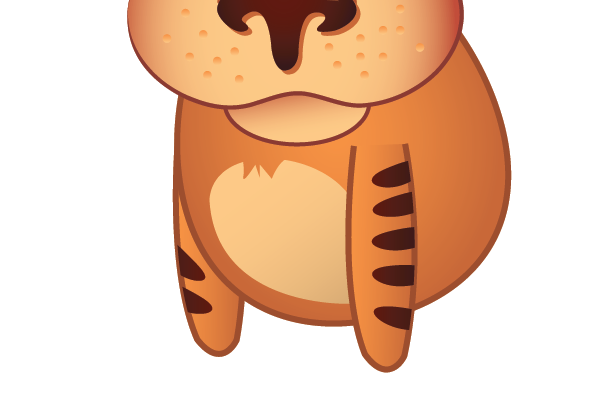
Repeat Step 9 and draw lines on the right leg.

Now, draw some more lines to the body, but make them bigger.

Step15: Tail
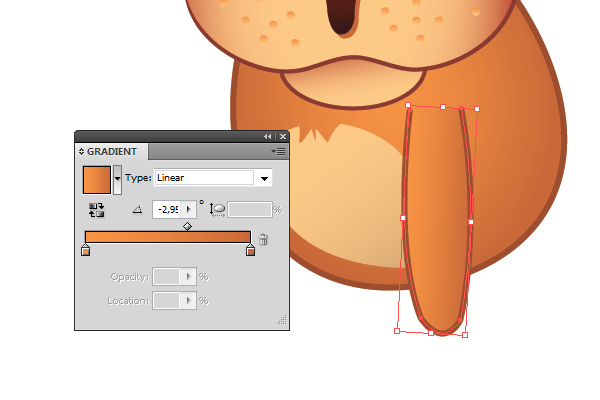
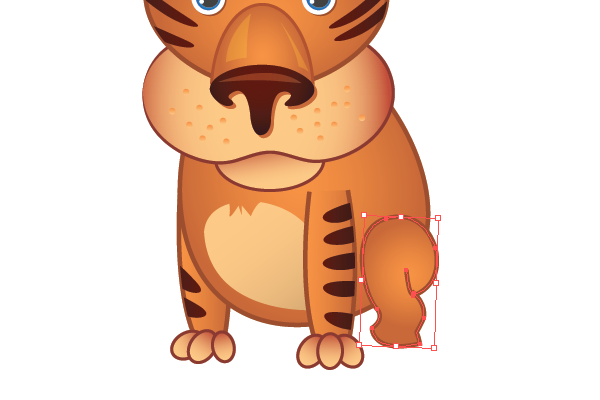
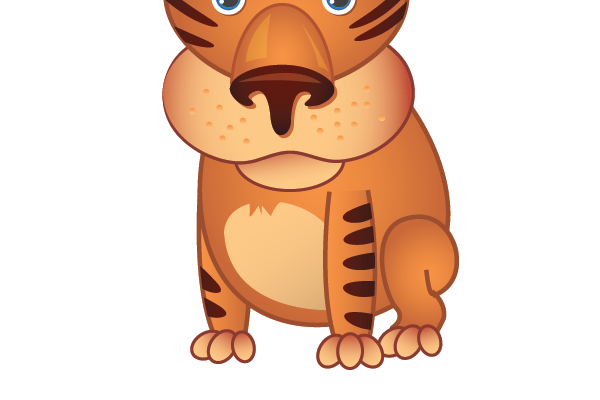
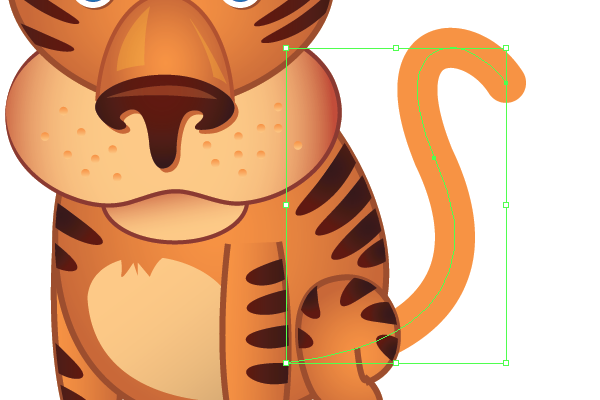
Our tiger looks pretty good already but he won’t be a real tiger without a tail. Create a new layer and name it “Tail”. Drag it under the “Body” layer. Select the Pen Tool and draw the ttail path. Give it a 20pt stroke of any color.

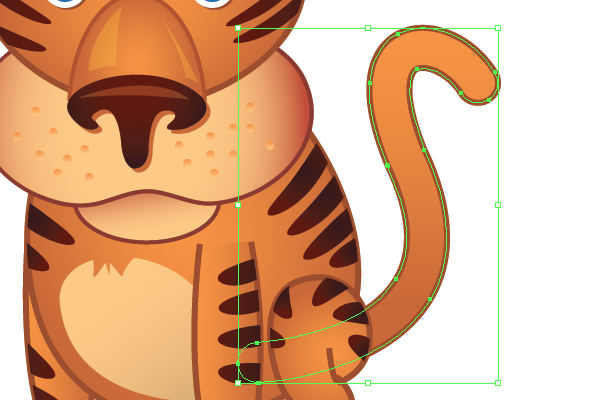
Expand it, (go to Object >Expand), select the Eyedropper Tool and click on the body path. Make it linear and position it vertically.

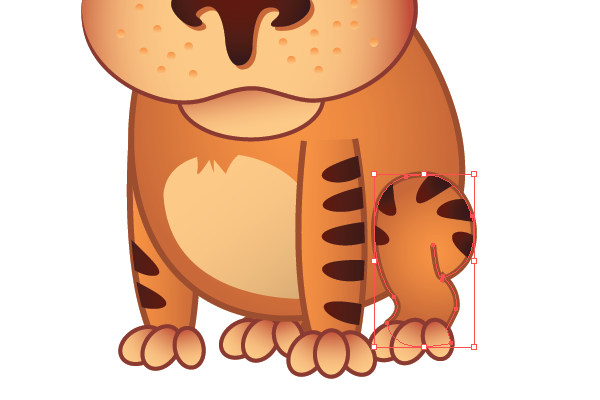
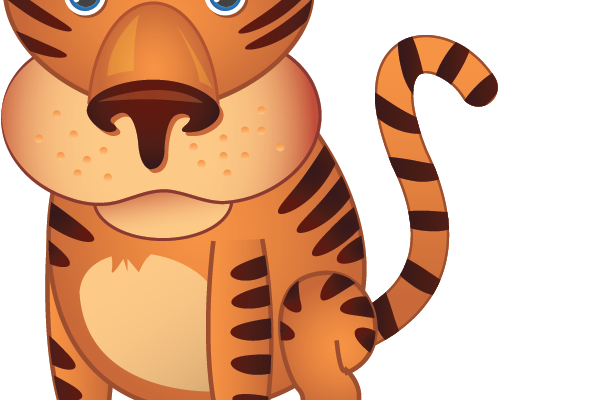
Repeat Step 9 one again and draw lines on the tail.

Step 16: Background
Create a new layer under the “Tail” and name it “background”. Select the Rectangle Tool (M) and draw a rectangle with the same dimensions as your art board and fill it with a radial gradient from #99CA3C to #006838.

Lock this sublayer. Draw an ellipse under the tiger and fill it with #006838. Go to Effect > Blur > Gaussian Blur and set the Radius to 30 pixels.

Step 17: Text
Add some text to your Illustration and we’re done!

Thank you for reading the tutorial. If you have any questions about the tutorial, please leave your comments below.
We’d love to hear your comments about this tutorial. Please leave some feedback about your opinion on this tiger tutorials. You must also follow Design Informer on Twitter.


Designi1
January 20th, 2010 4:12 amreally cute :D nice work!!!
.-= Designi1´s latest Blog Entry – 3# The best readings for this week – designi1 suggestions =-.
Jad Limcaco
January 20th, 2010 1:17 pmGlad you liked the tutorial.
Ahmed
January 20th, 2010 4:24 amAwesome I have to retweet and stumble it
Nice work buddy
.-= Ahmed´s latest Blog Entry – Pulse WordPress Theme =-.
Jad Limcaco
January 20th, 2010 1:19 pmHey Ahmed, I appreciate the retweet and stumble. Thanks a lot! :D
nikhil
January 20th, 2010 4:53 amreally a nice work !!!
Jad Limcaco
January 20th, 2010 1:20 pmYes it is, Ilie did a wonderful job with the tutorial.
nikhil
January 21st, 2010 11:29 ambt…the good work….i want ur more of tutorial.
really helpful for new-comers
love to read more from you….
keep posting such tutorials.
thnx,
nikx
http://designikx.wordpress.com/
.-= nikhil´s latest Blog Entry – Draggable div using javascript =-.
nikhil
January 21st, 2010 11:33 amhey jad ,
can i share it on my blog with ur reff,
http://designikx.wordpress.com/
hope you dont mind.
.-= nikhil´s latest Blog Entry – Draggable div using javascript =-.
Jad Limcaco
January 24th, 2010 12:25 amHey man, sure thing. As long as you give the proper credit to Design Informer, then I don’t see a problem with it.
Indrek
January 20th, 2010 5:27 amExcellent tutorial and a great result!
Definitely sharing it!
.-= Indrek´s latest Blog Entry – Top Commentators Without a Plugin =-.
Jad Limcaco
January 20th, 2010 1:28 pmThanks for the kinds words Indrek. Hopefully, you’ll be back and visit DI again.
Nikhil
January 20th, 2010 5:31 amHey Jad,
Nice start in Illustrator. Really cool Tiger!
Keep it up, cheers.
Nikhil
January 20th, 2010 5:34 amoops, its Ilie!
Thanks to both of you,
:)
Jad Limcaco
January 20th, 2010 1:32 pmYou’re welcome Nikhil. Yes, it’s definitely a great start for an Illustrator tutorial here on Design Informer.
Antonio
January 20th, 2010 7:11 amVery nice tutorial! thanks for sharing.
.-= Antonio´s latest Blog Entry – Optimize your wordpress blog for search engines =-.
Jad Limcaco
January 20th, 2010 1:32 pmYou’re very welcome Antonio. Glad you liked the tutorial. I’m sure it took Ilie a long time do finish it.
Cath
January 20th, 2010 7:45 amIt says “ILLUSTATOR” in the finished picture on top of the page :-)
Which makes it even cuter ;-)
Jad Limcaco
January 20th, 2010 1:33 pmLOL! Thanks for pointing that out. I changed it now. :D
Kuswanto
January 20th, 2010 8:06 amCute Tiger :-) Love the head. His pose is a bit looks like he is going to poop :-p
Anyway, love your explanation.
.-= Kuswanto´s latest Blog Entry – 20 Best Music Album Illustration =-.
Jad Limcaco
January 20th, 2010 1:34 pmHaha, that’s kinda true.
Like you said, the explanation and step-by-step breakdown by Ilie really makes the tutorial very easy to follow.
Melody
January 20th, 2010 9:15 amhaha..that’s so cute, it kinda looks like it has little monkey hands lol..but the way you scribbled the “r”s for the roar are another cute touch…nice job.
.-= Melody´s latest Blog Entry – Artist Showcase: Dominique Regnier =-.
Jad Limcaco
January 20th, 2010 1:35 pmMonkey hands? Now that you mention it, it does seem like it.
I also like the way Ilie scribbled the text. Very nice touch to the entire design.
Waasys
January 20th, 2010 3:25 pmThank you very much everyone :)
Jad Limcaco
January 20th, 2010 7:57 pmThank you! Great job with the tutorial mate!
Mindezigns
January 20th, 2010 4:00 pmThis is really cute, these are the kind of illustrations that I love to work with in Illustrator, great job!
Jad Limcaco
January 20th, 2010 7:58 pmCool! Glad you like this illustration. Look out for more awesome tutorials in the future. ;)
Don Rogers @creativelydone
January 20th, 2010 9:45 pmNice job on the Tiger and the tutorial, very complete.
Jad Limcaco
January 23rd, 2010 12:51 pmThanks for the compliment Don. Very complete indeed.
sriganesh
January 21st, 2010 4:34 amnice work buddy , i tried it and i tried it here for my http://digg.com/d31GJ96?t project365 design, check out , it really comes good,
Jad Limcaco
January 23rd, 2010 12:56 pmThat’s great mate! Thanks for trying out. Glad you were able to follow along with it.
PhotoshopCandy - Web Design Inspiration
January 21st, 2010 5:10 amGo get’em tiger…show’em what you can do….. Nice
Jad Limcaco
January 23rd, 2010 12:56 pmThanks for the witty comment. :)
BebopDesigner
January 21st, 2010 9:51 amAmazing tut! so complete and so well explained. Love the result. Thanks for sharing so much.
Jad Limcaco
January 23rd, 2010 4:50 pmGlad you liked Ilie’s tutorial. I’m sure he’s stoked right now that so many people love his work.
Ibrahim
January 21st, 2010 2:19 pmTesekkürler … (Thank You)
.-= Ibrahim´s latest Blog Entry – Finallerim gün itibarı ile BİTER =-.
Jad Limcaco
January 23rd, 2010 4:51 pmYou’re welcome, Ibrahim!
michelle
January 21st, 2010 3:06 pmaww that is sooooo cute :)
.-= michelle´s latest Blog Entry – My Guest Post on Fuel Your Blogging =-.
Jad Limcaco
January 23rd, 2010 11:59 pmHahaha, thanks Michelle!
Marcell Purham
January 21st, 2010 4:38 pmAmazing tutorial! The outcome was very good and very detail. Nice :)
.-= Marcell Purham´s latest Blog Entry – Create a awsesome images gallery using css3 and jquery =-.
zanzu
January 21st, 2010 6:00 pmVERRRRY cute! Loved the outcome of the illustrations. Thanks Illie and thanks to you Jad.
Jad Limcaco
January 24th, 2010 12:01 amYou’re welcome Zanzu. Thanks for keeping up with all of the articles here at DI.
Jad Limcaco
January 24th, 2010 12:00 amMarcell, glad you thought it was good. Thank you! :D
Jenn
January 21st, 2010 10:36 pmsweet! :) that’s too cute, thanks for the nice tutorial.
Jad Limcaco
January 24th, 2010 12:04 amYou’re welcome. BTW, nice blog. Let us know when you launch your site. ;)
Jacob Ras
January 24th, 2010 3:34 pmGreat tutorial! I’ve just started working with Illustrator (made a cartoon already: http://www.jacobras.nl/cartoons/alien-head/ :), I’m gonna try this tutorial as soon as I have some time!
Jad Limcaco
January 24th, 2010 10:42 pmDefinitely give it a try. Nice start with Illustrator, btw.
Jacob Ras
January 26th, 2010 6:11 amThanks! :)
Jad Limcaco
January 31st, 2010 3:22 amYou’re very welcome Jacob. :)
Veronica
January 24th, 2010 5:11 pmGreat tutorial! Just in time for my Chinese New Year’s card – it’s the year of the tiger!
Jad Limcaco
January 24th, 2010 10:43 pmYes, it is perfect timing for your card. Make sure to send us a link when you finish it.
Jonath Lee
January 24th, 2010 7:45 pmRight tutorial in the right time. Wondering why? The upcoming Chinese New Year (Feb 14, 2010) celebrates the year of tiger. Great tutorial indeed.
Jad Limcaco
January 24th, 2010 10:56 pmThanks Jonath. Nice blog, btw. Very nice photography.
Webdesign Rosenheim
January 24th, 2010 11:03 pmHey nice tutorial!
but I don’t think that’s really a CUTE tiger, looks more like one with an accident to me ;-)
Jad Limcaco
January 24th, 2010 11:37 pmLOL! You’re not the first person to tell me that. :)
Manuel
January 29th, 2010 11:56 pmhey! thanks for the tutorial! very nice and sweet tiger!!
.-= Manuel´s latest Blog Entry – Inspiración: Viernes Flash – 10 sorprendentes sitios creados en Flash =-.
Jad Limcaco
January 31st, 2010 3:22 amNo problem Manuel. It is sweet! Glad you liked it.
Tutorial Lounge
January 31st, 2010 10:27 pmreally professional training for create tiger using Adobe Illustrator, this is really easy and helping tutorial. thanks
.-= Tutorial Lounge´s latest Blog Entry – Rainbow Colorful Glowing Text Effect Using Adobe Photoshop =-.
Jad Limcaco
February 1st, 2010 5:45 pmGreat. Glad you like it. I agree, it’s an easy tutorial, but a superb result. :)
nikhil
February 3rd, 2010 11:28 amhey JAD thnx, I hv posted it on my blog. Have a look at http://designikx.wordpress.com/2010/02/03/create-a-cute-little-tiger-in-illustrator/
And plz let me know if it is ok with you.
thnx again…
Have a nice day !!!
.-= nikhil´s latest Blog Entry – Create a Cute Little Tiger in Illustrator =-.

Jad Limcaco
February 6th, 2010 4:51 pmCool! Thanks for doing so. :)
Vincent Talbot
February 13th, 2010 7:06 pmAwesome tutorial
Rawr~
Nice technique in there.
But, why is he standing like a Monkey? Hehe :P
nene
March 4th, 2010 10:09 amEither your comments are fixed or I’m the only one having an issue with this tut.
There is no “Unite” button in the pathfinder in Illustrator. What seemed like a “simple” tut has turned into “not-so-simple”
Also, this tut isn’t detailed either, there were a lot of things you failed to mention that I needed to do.
Cute Tiger, very poorly written tutorial.
logolitic
April 8th, 2010 3:09 amyes, great tutorial :) you can also see mine on my blog.
.-= logolitic´s latest Blog Entry – Twitter weekly follow recommendations #4 =-.
Paul van der Heyde
August 21st, 2010 4:58 amGreat tutorial,man!
Very nice step-by-step explaining… just finished the tut and I love the result!
Thanks!
Denise
September 26th, 2010 11:34 amI really liked this tutorial :D
Here’s my version: http://picasaweb.google.com/nemesispictures/CuteTiger?authkey=Gv1sRgCJnq2Ynpx-GItwE#5521090888397200882
^_^
Venkatesh Bashetty
May 26th, 2011 2:06 pmThere is no words to describe about this tutorial… Wonderful post… I love DESIGNER INFORMER website from today…