Productive Web Design With… Adobe Illustrator?

Advertisement

Admittedly, Adobe Illustrator is often most certainly not the first choice that comes to mind when it comes to Web design. Fireworks and Photoshop are used much more often, and there are some good reasons for that. Still, although Illustrator has traditionally been used for drawing illustrations and logos, you can use it to design layouts and user interfaces, too.

In fact, in my opinion, you can utilize Illustrator to solve some regular design tasks better and more easily than you would do with other tools. With the techniques and tips I’d like to present in this article, I am certain that you will be able to build modular, flexible websites in less time and with less work.

Reasons To Use Illustrator For Web Design

Design Faster

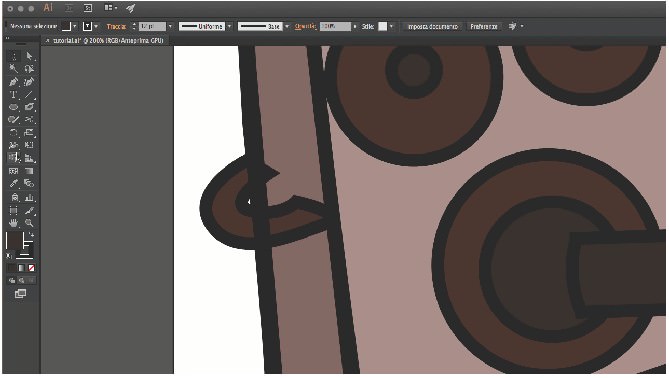
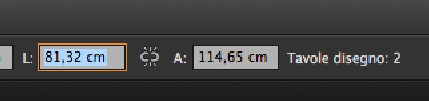
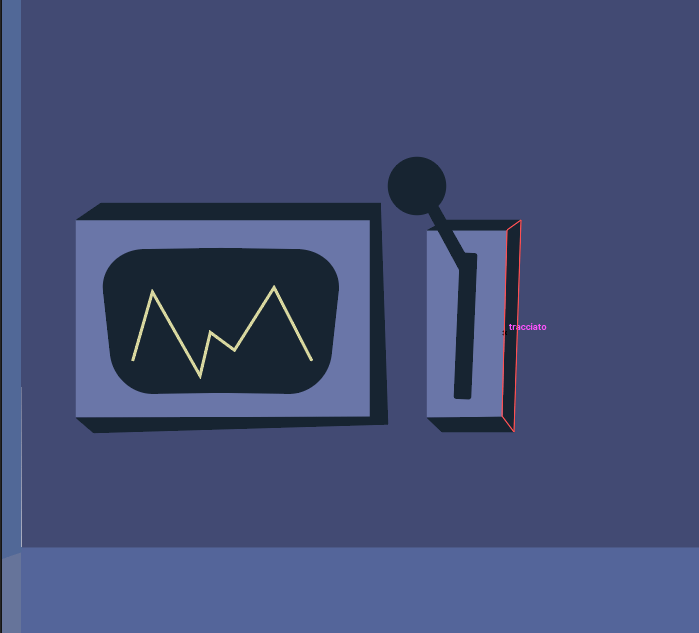
Unlike the layers paradigm in Photoshop (i.e. first select the layer, and then work on it), Illustrator employs an “artboard” paradigm: every object is selectable directly on the canvas. With just one click, you can manipulate any object on the artboard (by resizing, moving, rescaling, etc.) and make it pixel-precise with the Transform panel (available only in Illustrator CS5). It’s more intuitive and requires fewer mouse clicks, making your work more fluid.

You will also save time with two helpful functions that are unique in Illustrator:

  • Create modular Web designs with the Symbols panel and
  • Quickly format text with the Paragraph and Text Style panels.

Precise edition & dimensions in Illustrator

Think Modular

Using the Symbols panel, you can create reusable components that will save you time when updating your designs or starting from scratch. This technique is especially useful for recurring elements, such as buttons, navigation bars, pagination elements, footers, etc.

How to create reusable components?:

  1. Create a master component (a button, navigation bar, etc), and save it as a ‘Symbol’ in the Symbols panel.
  2. Drag your newly created component from the Symbols panel and drop it into your design.
  3. Now, when you modify your master button in the Symbols library, every linked occurrence of the symbol will update as well.

Screenshot

Quick Tool for Creating Wireframes

Illustrator is useful for wireframing, enabling you to quickly show the basic layout and navigation to clients. I usually begin by drawing a mock-up in black and white, using simple boxes, lines and typography. After I presented the wireframe to the client for approval, I create a more sophisticated design, with colors and effects based on the wireframe (we will cover this part in more detail later in the article).

Here are the advantages of preparing the wireframe in Illustrator:

  • Illustrator is fast for drawing wireframes because of its vector nature. You can create boxes, lines and text quickly and easily.
  • You can use libraries of commons elements, such as buttons and icons, and drop them easily into the wireframe.
  • Once the basic wireframe has been approved, you will save time creating the final design because the layout and content are already in place. Sometimes getting the final design is as easy as formatting text with style sheets and applying some graphic styles.

Screenshot

Format Text Quickly and Easily

If you use CSS or InDesign, then you will already be familiar with “Character” and “Paragraph” styles and how powerful they are for quickly modifying and controlling the layout of text. You can do the same with Illustrator. The good thing is that Illustrator shares a lot of InDesign’s advanced typographic functionality.

For example, use a paragraph style for all of the body text on your website that you wish to style. Then, when you make a modification (say, change the font from Arial to Verdana), the body text on every page of your design will adjust right away.

In addition to Paragraph styles, you can use the Eyedropper tool to quickly apply text styles to various bits of text:

  1. Select the text whose style you want to replicate and
  2. Click on the text you want to style, and …Voila! The style is instantly applied.

Screenshot

Become an Agile Designer

Being able to quickly change your layout without a lot of effort is the key to designing in today’s rapidly evolving profession. After years of using Adobe’s Photoshop for Web design, I began to feel like a “pixel tailor,” using dull scissors and chalk.

I feel that the bitmap nature of the application is not optimized for performing basic Web design processes. For example, suppose I want to round a shape. I would need to follow these steps: select the area, use the “Round the selection” function, invert the selection and then cut the selected area so that the preserved area will appear rounded.

With Illustrator, I just apply a rounded effect to my selection. Additionally, I can save this graphic style and apply it to other elements. In this way Illustrator helps you respond quickly to your customer’s needs.

Screenshot

Focus on Simple, Clean Design

Illustrator offers simpler graphic options than Photoshop, which can help you to focus on sound design principles and stop wasting time on unnecessary effects and filters. Photoshop remains indisputably the best option if you want complex interfaces with a lot of graphic effects, such as textured backgrounds and complex lighting effects. But if your designs are simple and clean, then I am confident that you would complete your work faster and more efficiently with Illustrator. And if you really do need complex and texturized graphics, you can accomplish this with Illustrator, too, but it takes some know-how. Later on, we will discuss how to improve your designs by avoiding the overly clean “vector” look, as seen in the textured buttons below.

Screenshot

Work Lighter and Faster

Vector images are smaller than rasterized images. Thus, Illustrator will help you create designs that are lighter and less CPU-intensive than those made with Photoshop. This enables you to group a lot of interface screens into the same Illustrator file, avoiding the inconvenience of having to open multiple files when designing.

Over my career, I have designed up to 30 screens all within the same Illustrator file while keeping the size under 5 MB (excluding bitmap images). Because Illustrator is not as demanding on your CPU and requires less memory, you can keep several applications open at the same time without slowing down your computer. You also don’t need the most powerful (and thus more expensive) machine to create, adjust and export your designs.

How To Create Modular Designs

To make the discussion more interesting in terms of how exactly one can use Illustrator for regular design tasks, let’s look at the ultimate Illustrator technique for Web designers: creating a modular design with vector symbols.

Save Time With Symbols Libraries

The Symbols library enables you to reuse and modify elements across an entire website. Not only does it save you time, but it helps you build a library of items that can be used over and over again.

Illustrator previews all of your symbols in the Symbols panel, and you can create as many panels as you need. You can organize your work by creating panels specific to each kind of common GUI element: arrows, icons, buttons, etc. In this way, you simply browse through your symbols, select the one you want, and drop it into the design on your artboard.

Screenshot

Keep Your Design Consistent

Symbol components help you maintain the look of a design throughout the entire website. By centralizing component design with master symbols, you are able to view all of your elements at once and make sure that the style you are working towards is consistent. No more will you need to check every screen to see whether you have forgotten to update one element.

Screenshot

Build Up a Components Library for Future Projects

Because the components reside in the Symbols panel, they are separate from the design layout. By continually adding components to your library, you will build up a collection of items that can be reused or modified in other projects. The increase in efficiency quickly becomes exponential. This is the first step to building your own interface framework.

My humble advice to help you organize your work is to also use different panels for each group of GUI elements. Over the years, I found out that it’s better to have one panel for arrows, one for icons and one for basic GUI elements (buttons, forms elements, etc.). You can see an example of a GUI components library by downloading my free GUI design framework.

To create your own Symbols panel, first, add a vector shape to the Symbol panel by dropping it inside. Next, save this symbol library as an AI file by selecting “Save symbol library” in the Symbol panel options:

Screenshot

You can add as many Symbol panels to the artboard as you want by going to Window → Symbols Libraries.

Screenshot

Modular Design Limitations With Photoshop

Photoshop has the option “Customs shapes,” which are similar to the “Symbols” in Illustrator but has three major limitations:

  1. You can’t define a precise size for the elements you create. Let’s say you draw an area for a custom shape without knowing the exact size you want. There is no editable field that allows you to adjust the dimensions to the exact size you require.
  2. You cannot change the dimensions of the “custom shape” once it’s been created. This makes your designs inflexible and labor-intensive. These custom shapes behave more like a vector brush than reusable components for Web design.
  3. There isn’t a specific panel to manage your custom shapes. Adding a custom shape to the repository requires many clicks every single time: click the custom shape icon, activate the drop-down panel to see the customs shapes, click to select the shape. Then finally, click on the layout and define the size of the shape by dragging it to the desired dimensions. That’s a tedious process. Illustrator’s definable Symbols panels is far easier to use and is the main reason why I sincerely believe Illustrator is the superior Web design tool.

Create Professional Designs

You can design professional, sophisticated interfaces with Illustrator. Look at the buttons below. Notice that they have a textured appearance and various visual effects (drop-shadow, inner glow, etc). With a little practice and a good eye, you can achieve the same graphic designs that you would with Photoshop. The clear advantage, however, is that these elements will be completely editable, resizable and reusable.

Add Visual Effects

Although it has fewer built-in graphic effects filters than Photoshop, Illustrator includes the most useful ones: drop-shadow, textures, noise, rounded corners, and inner and outer glow. By focusing your creativity on fewer effects, you will work more efficiently and spend less time playing around with effects.

All the filter settings are located in the Appearance panel and you can save every combination of effects as a graphic style, making it easy to reuse or to modify your designs. Remember, with Illustrator you have the power of modular design: when you update a graphic style, every occurrence of the element using that style gets updated as well.

Another powerful feature of Illustrator is the infinite number of outlines that can be placed around vector elements and the unlimited number of background fills that can be added to any object. Experiment with these, and you can create some complex layered styles.

Screenshot

Texturize Your Design

It’s usually better to avoid the sterile “vector” look in your designs by adding some texture to the elements in the layout.

Here are three main methods of texturizing in Illustrator:

  • Use seamless and repetitive bitmaps. For large backgrounds, import a texture by selecting File → Place, and then add it as a swatch in the Swatch panel. Then, you can use it to fill any shape.
  • Use the Stylize filters (Effects → Stylize) to add some noise or texture to a background.
  • Use the texture swatches included with Illustrator, and put them on top of a background fill. Change the texture fill to an Opacity mode such as Multiply, and adjust the opacity to somewhere between 15 and 20% to give it a subtle fused affect.

Again, you can save all of these texturing and noise effects as a graphic style and reuse or modify them later.

Screenshot

Screenshot

Create Perfect Gradients

The latest version of Illustrator (CS5) is packed with some sophisticated gradients, including opacity settings for each color point and elliptical gradients. You can click directly on a object to customize the filling gradient with different preferences: angle, location, colors sliders, focal point, origin, etc. The process is very efficient and is a bit superior to that of Photoshop, in which the workflow is hindered by an intermediate gradient editing window.

Currently, Illustrator still lacks some gradient dithering options (found in other applications such as Fireworks), which can sometimes lead to the “band effect.” An effective workaround is to add some texture and/or noise to your gradients, as explained in the previous section.

Notice that Fireworks offers more type of gradients. All versions (including CS3, CS4, CS5) have Linear, Radial, Rectangle, Cone, Contour, Ellipse, Bars, Ripples and some more gradient types. Fireworks has many more types of gradients, and those gradients are also “live editable” on the canvas, just like in the latest version of Illustrator.

Screenshot

Rounding Effects

Adding rounded corners to any shape, including typography, is very simple in Illustrator. Simply click any object on the artboard to select it. Then, choose Effect → Stylize → Rounded Corners from the main menu, and define the radius for the curve. Later on, you can modify the radius using the Appearance panel. Photoshop, on the other hand, allows you to add only rounded corners to rectangles, and once the radius is set, it cannot be altered.

Screenshot

Smart Resizing With “9 Slices” Scaling Tools

With Illustrator CS5, you can resize an object without distorting it. You define some zones to extend and some zones to preserve (rounded corners, for example). Save this object as a symbol, and you now have a reusable GUI component.

The 9-slice scaling feature is not new to the Adobe line of products. It first appeared in Adobe Fireworks CS3 (it applied to Symbols only in version CS3). In Fireworks CS4, the feature became a new “9-slice Scaling” tool, and now it can be used on any object on the canvas. Photoshop does not have this option at all.

Screenshot

Advanced Options for Text

In Illustrator, you can wrap text around images — the text will automatically adjust to changes in image size — and define outside margins, just as you would in full-strength text-layout programs such as InDesign and QuarkXPress.

Screenshot

Inserting Bitmap Pictures

Using photos in your layout, such as photos of products, illustrations or artwork, is as easy as dragging and dropping the image files onto the canvas. This works with PNG, GIF and JPG files. You can also paste directly from the clipboard.

If you need images that are transparent, use the “Place image” function to insert the image and then link to the source file (File → Place). As an bonus, every time you update the original file in another image editing program, the image in Illustrator will reflect these changes. This will increase your efficiency and save you the headache of having to re-import images.

You can also use a clipping mask with gradients for fading opacity, although Photoshop might win out on this one for ease of use. You can learn all these techniques with this useful tutorial by VectorTuts.

Screenshot

Gradients for Typography and Stroke

You can use gradients on editable text and strokes of all elements. You might want to check this tutorial for these gradients strokes to learn more about it. With a little practice, you will master this technique and be able to combine textures and effects.

What’s more, no matter how complex the typography and text in your designs become, they will always be editable in Illustrator. One thing to keep in mind, though, is that this method can be processor-intensive and should be reserved for titles and important elements.

Screenshot

Creating a Grid in Illustrator

In my opinion, it’s always a good idea to start your project by designing the grid and defining foundational design settings first. This will save time later and help you create a structured and consistent design.

How to create a grid in Illustrator?

  1. Create an artboard that is either 950 or 960 pixels wide. These are the common grid sizes I use for building websites that fit the 1024-pixel–wide displays. Note: the artboard area is used for the layout of content. Feel free to design larger backgrounds if necessary.
  2. Set the grid based on your artboard size. For example, with a 950-pixel artboard, you will have 19 blocks of 50 pixels each. Each of these blocks can be further sub-divided into 5 blocks, resulting in blocks that are 10 × 10 pixels in size. Or you could use the de facto standard 960 Grid System. Choose the grid size that you are most comfortable or familiar with.
  3. From the main menu, select View → Snap to Grid. This makes the grid act like a magnet, forcing each element to lock precisely to one of the grid lines.
  4. From the main menu, select Units → Preferences, and set the units to “Pixels” and the keyboard increment to 0.5 pixels (yes, 0.5 pixels, that’s a pixel-precise tip — please read the details below).

Screenshot

Adjust Illustrator to Fit Your Needs

Since you are using Illustrator for Web design, a few adjustments are required to keep your designs optimized for your workflow. You can change the default font setting from Myriad to the font used in your current project. Learn how to do it with this complete tutorial on changing the default font settings in Illustrator.

You can also define a few other preferences, such as text style sheets, default artboard size (950 pixels), graphic styles, and symbols to optimize your Illustrator environment for Web design.

12-default-settings in Productive Web Design With... Adobe Illustrator?

Don’t Start From Scratch: Customize Your Templates

You don’t have to redo this process every time you start a new design. By creating and re-using templates you can increase your efficiency without much effort. You can create your own template by going to File → Save as Template. Set it up with a standard 950-pixel artboard width, your grid settings, customized preferences and your favorite symbols and graphic styles.

Create a Pixel-Precise Web Design

One of my pet peeves with previous versions of Illustrator was the “blurry effect” present in some line strokes or texts, as well as the absence of pixel-precise tools. You can avoid these problems with some of the new tools introduced in Illustrator CS5.

Property Inspector

Use the “Property Inspector” to quickly check and edit the exact position and dimension of objects right down to the pixel. This will help you reduce the time you spend positioning elements. In addition, by giving precise values to pixel dimensions, you avoid the blurry effect because the strokes will be aligned to the pixel grid.

Other useful tools in Illustrator CS5 are “Align to Pixel Grid” and “Pixel Preview” (View → Pixel Preview), which helps to avoid the blurry effect.

There are two options to align to the pixel grid (only in Illustrator CS5):

  • When you create a new document, check the “Align to Pixel Grid” option at the bottom of the window.
  • In the Transform panel, check “Align to the Pixel Grid” at the bottom of the panel.

Screenshot

Clean Outlines

The article Illustrator Trick: How to avoid blurred Pixel Fonts & Shapes shows you how to eliminate the blurry effect for outlines. I suggest that you read it carefully, but for those who want to jump right in, here is a quick summary:

  1. Use the Outline and Inside stroke default option, instead of the Center stroke.
  2. Position elements with whole values, and give them whole dimensions. Avoid fractions (2 instead of 1.9, for example).
  3. Move lines and strokes in 0.5-pixel increments when they are blurry.

Also turn on the “Snap to grid” or “Snap to pixel“ option under the View menu, because it keeps the strokes locked to the nearest pixel and avoids the blurry anti-aliasing. The “Snap to pixel” option appears only if you are in the Pixel Preview mode: View → Pixel Preview.

Screenshot

Two last tips:

  • To quickly position lines, set a 0.5-pixel keyboard increment in the Preferences (Preferences → General). This way, when lines are blurry, you can simply use the keyboard arrow keys to move them by 0.5-pixel increments until the blur disappears.
  • If you have tried everything and the element is still blurry, use a 0.999-pixel size for the stroke (hack courtesy of Benjamin McDonnell).

Why Not Fireworks?

Fireworks is supposed to be the Adobe CS suite’s dedicated application for Web design. It offers some powerful functions: Symbols library, Pages panel (I would love to have this in Illustrator), pixel-precise rendering, vector and bitmap editing, gradient dithering, etc. All the tools that any Web designer would want in a single package.

So, why don’t I use it? Well, I have tried Fireworks every time a new version is released. I still prefer Illustrator, and here are some reasons why:

  • First and foremost, it’s a question of taste. I find the Fireworks interface not as easy to use as Illustrator’s. Fireworks was originally developed by Macromedia (the same folks who brought Flash to the Web world), and its look and feel retain some of those roots.
  • Secondly, the modular design is not as well developed in Fireworks as it is in Illustrator. For example, the Fireworks’s Symbols panel allows you to preview only one item, making it difficult and time-consuming to find the symbol you want and to browse the symbols in your library.
  • In CS3 and earlier versions, I experienced a lot of bugs and crashes. CS4 was much improved but is still prone to some bugs. Admittedly, now these problems seem to be addressed: CS5 is one of the most stable versions of Fireworks to date, as Michel Bozgounov explains in “Adobe Fireworks: Is It Worth Switching to CS5?.” But if you are using an older version, you may still experience some crash problems.
  • Fireworks does not provide a way to format text by applying styles to paragraphs, which is a serious deficiency because Web design is to a large extent about typography.

UPDATE (24.01.2011): As some readers have taken notice of the Text Styles in Adobe Fireworks, they can indeed be edited/created, re-applied globally, and much more. You can use the relevant sections in the Properties panel or directly within the Styles panel. See the illustrations below for more details. A big ‘Thank You’ to Michel, our Fireworks expert,  who has prepared these explantory screenshots!

Conclusion

The perfect tool for Web design does not yet exist. In my opinion, little has been done over the past few years to really meet the needs of Web designers. Still, I have developed a good working relationship with Illustrator. Over the years I have had developed some effective methods and tricks to optimize Illustrator for Web design. It’s the application that I find myself often recommending for modular design. I have developed my own User Interface Design Framework for Illustrator, resulting in improved productivity and consistency (via the Symbols libraries and vector GUI elements).

After more than 10 years of working as a Web designer, I’m no longer interested in producing the fanciest design. Experience has taught me to focus on productivity and flexibility. Work faster, and deliver the work on time: that is my priority. And Illustrator is a solid option for that. The next generation of Fireworks may wind up being closer to what I’m looking for in a Web design suite. Until then, I’m sticking with Illustrator.

Further Reading

Resources for Web design and wireframing in Illustrator:

  • User Interface Design framework
    My free Illustrator GUI framework, loaded with a ton of GUI elements (buttons, tabs, navigation elements, etc.), vector icons, graphic styles and swatches for Web designers.
  • Free Sketching and Wireframing Kit, by Janko
    A free set of elements for sketching and wireframing with form elements, icons, indicators, feedback messages, tooltips, navigation elements and more.
  • Sketchy Illustrator Wireframes, by Matthew Rea
    “In the past, I’ve dabbled with various tools to create screen mockups and designs; however, I keep coming back to Illustrator; partly because it’s what I’m most comfortable with, but it also fits well into my workflow.”
  • iPhone Sketch Elements AI, by Teehan + Lax
    A collection of common iPhone elements in a sketch–like style, allowing you to easily and quickly mock up custom wireframe screen flows. For their wireframing needs, they switched from Photoshop to Illustrator: the PSD version “proved a little too high-fidelity. For rapid prototyping we found we needed a more malleable approach. This is when we turned to the iPhone Sketch Elements AI.”
  • iPhone UI Vector Elements, by Rusty Mitchell
    A complete and well-crafted library of iPhone GUI elements.
  • iPad Vector GUI Elements, by Iconshock
    This set contains almost all of the iPad’s UI elements, including buttons, tabs, menus, keyboard and more.

Recommended websites for Illustrator tips and tutorials:

  • Vectips
    I learned a lot from the insights of Ryan Putnam.
  • Vector Tuts +
    Fresh tutorials and tips to improve your Illustrator skills.
  • BitBox
    Some interesting tutorials… unfortunately, just four new articles in 2010.

Why you might also use Fireworks instead of Photoshop for Web design:

What applications do you use primarily for Web design (for the visual part)?

(al) (ik) (vf)

Web Designer + Digital Entrepreneur. Expert in application Interface design and usability. He published a free User Interface Design Framework for Illustrator, a Minimal Vector Icons Pack for Wireframes and Web Design, with 1500 icons , and a monumental Vintage Vector Pack for Designers.

  1. 101

    Wow.

    My first Adobe product was Illustrator, makes me really want to revisit why I have been spending so much time in Photoshop lately.

    Thank you!

    +8
  2. 102

    I like this article very much! Thank you for good tips. I was used to make mock-ups in Photoshop and I had a lot of problems changing something in difficult shapes. I think it’s time to leave Ps for photo editing and making complex artwork.

    0
  3. 103

    I’m not pro, i just do my ideas for my pro graphics and I use paint shop pro (as for me i know almost everything what 10× more expensive photoshop and is far easier to use), and balsamiq for creating mockups.

    -1
  4. 104

    I use AI CS5 in the company to develop all layouts, be it apps, custom documents or web interfaces. It takes practice to use AI effectively for web layouts but if you get past that, the modularity and flexibility are awesome :)

    +4
  5. 105

    I use Adobe Illustrator most of the time and this article gives me hope that with the right knowledge, effective website design can also be achieved using Illustrator.

    Can’t wait to see upcoming articles.

    0
  6. 106

    Brilliant post!

    +1
  7. 107

    Thanks for reminding me why I use Illustrator and not Photoshop – I sometimes feel like a bit of a freak in the design world because most designers think that you need to use Photoshop. But I agree 100% with you, Illustrator is a far superior tool when it comes to web design.

    Just one question, are you sure the Transform panel is only in CS5? I’ve been using it for years! Maybe there is some particular feature in it in CS5 that you were referring too that I missed when reading?

    Thanks for the article – I loved it =D

    +8
  8. 108

    I definitly love Illustrator to design webinterfaces :)
    Thanks for the usefull overview !

    +1
  9. 109

    I’m sorry but until Adobe fixes the pixel ruler to display like every other sane pixel ruler (in increments of 10, NOT 36(WTF!)) Illustrator is not going to be an option for pixel dependent layout and graphics.

    -4
  10. 110

    Everyone at Poccuo uses AI for wireframing/web layout (for several of the reasons mentioned above). At the end of the day you can always export .psd’s, etc. if that’s what the devs are requesting. As for the rule issue, you can use 1px tall/wide rectangles instead – if you set up a 1px grid + snap it’s completely painless.

    +3
  11. 111

    We’ve been using Illustrator for years at my firm. It promotes a clean, modern aesthetic, but it doesn’t have too.

    I’ve found that the use of slices, layers, and transforming objects is more mature in Illustrator than in Photoshop.

    I suggest designing w/o Pixel Preview and then slice with Pixel Preview turned on.

    0
  12. 112

    Good post. I’ve been using Illustrator for years, I think the biggest downside is slicing.

    In CS3 I enjoyed using the crop tool to slice although I’m sure Adobe intended the slice tool to be used. In CS5 the crop tool has become the Artboard tool which takes a bit to get used to.
    As the slice tool creates a load of junk I don’t know why they don’t use the export crop area tool that has been part of Fireworks for a long time. This is a fantastic tool that really makes it fast and easy to export a refined selection.

    +1
  13. 113

    IMHO
    Photoshop is more “artistic”
    Illustrator is more “pixel perfect”
    I personally switched back from Illustrator to PS again in order to design my websites.
    But sometimes I use smart Object to include in Photoshop object designed in Illustrator.
    To me using ONLY Illustrator is a bit rigid , i feel more free under PS especially if you are designing highly graphic websites.
    Illustrator is great for fast wireframing, though.

    I also think that designing mockup now is too little, we should be able to preview behaviour, animations (jQuery), mobile or tablet layout.
    With the arrival of HTML5 , CSS3 and other cool stuff , a static mockup could not be enough

    -3
  14. 114

    Christopher Bailey

    January 19th, 2011 11:40 am

    Very nice post! It’s full of useful tidbits that I didn’t know. Thank you for sharing!

    0
  15. 115

    WHY ARE You people slicing??!!!!! What age of webdesign are you in?!! Masks and full jpg/png layers. Don’t slice. lol 10 randomly placed images to create one image. You still use tables for layout as well??? Or is your css all inline….

    -11
  16. 116

    Could not agree with you more. I started designing in Illustrator and never looked back. For today’s preferred simple site design, it is simply more efficient, and I love how easily editable the whole thing is. How many times has a client said “I love everything but this one, tiny detail here.” And with Illustrator I can pop in and change it in about 5 minutes. Not great for beefing up my hourly pay rates, I suppose, (ha!) but my clients LOVE my flexibility.

    +2
  17. 117

    The Master pages in Fireworks is a feature that neither PS or AI have. This is THE MOST IMPORTANT TOOL for productivity!!
    Much more than paragraphs

    +5
  18. 118

    Ask a dozen people, and you’ll get a dozen opinions… BUT, InDesign CS5 (and I stress CS5), is HANDS DOWN the best app ever for site design. Cassiano is right, in that Master pages are important, but wrong about paragraph styles and productivity. Productivity extends beyond merely designing a layout. It also includes wireframing, layout, asset management, outputting for review, outputting for production, multiple users, and the ability for developers to see exactly what the hell you did, in order to replicate it with CSS and HTML. On that last note, InDesign is probably the closest you can get to replicating HTML and CSS in a design app.

    I’ve heard people say “Indesign… isn’t that for print?” Yes. Originally. Quark and Indesign were used for laying out large, multiple page layouts for years before the internet was making us all rich… Photoshop was used for Photos and illustrator was used for, well illustrations. Somewhere along the way, that all changed, but inDesign was never part of the mix for web designers, (I have my theories on that). But there is a reason print designers don’t use Illustrator or Photoshop to design catalogs and magazines. If you apply the same reasons to web PAGES, it becomes a no brainer.

    +1
    • 119

      Jeremy Douglas Hoover

      January 21st, 2011 6:58 am

      I can see how indesign would be good for mockups and wireframes, but how do you hand off an .indd to a developer?

      +6
  19. 120

    Great Article ! lots of learning but at the end, no one want to (completely) switch to illustrator including my self.
    What about those client who insist you for PSD’s and the developers who are used to PSD’s. Although Vincent have anticipated for a tutorial on converting Illustrator to HTML but I don’t think every developer would like to show his interest in that like the designers from the Photoshop clan.
    Concluding my debate, I suggest we should design parallel in both tools Photoshop and Illustrator, as now photoshop have the Smart Object option available which is far more flexible than shape objects in photoshop.

    P.S. Thanks ‘Vincent’ for a nice and very informative article !

    -2
    • 121

      Jeremy Douglas Hoover

      January 21st, 2011 6:51 am

      You can Export to PSD at hand-off.

      +3
      • 122

        This is what I do every day. Design in Illustrator and export to psd. Unfortunately items that are grouped or buried more than one layer deep have issues with “flattened containers”. So I break sections apart ungroup, export, then regroup and name in Photoshop. Pain in the arse but it’s still quicker than designing from scratch in PS.

        Should also mention that Photoshop “Layer Comps” is critical for me when handing off to a developer… something Illustrator doesn’t offer. Layer comps help the developer from having to search endlessly through a million layers, to understand how a single screen should look.

        Unfortunate, but both programs are needed in my work flow.

        0
  20. 123

    Thank you for this tips, saved me time a lot! :)

    0
  21. 124

    Thanks for the article, good to see so many people uses illustrator. Many people in my part of the world don’t quite understand how to use it to make pixel perfect web designs. There’s so much misconceptions about illustrator as a web design tool. This article sheds some light and clarify things to those ignorant bunch. Thanks.

    +2
  22. 125

    Illustrator is an all round great tool. Primarily, it is great to begin a website design with Illy. The speed of creating elements and layout is second to none. The key for me though is knowing when to switch from Illustrator to Photoshop using the Export to PSD function. This way, you can have the best of both worlds. I certainly would not use Illustrator for slicing as Photoshop is more robust in this regard.

    0
  23. 126

    Jeremy Douglas Hoover

    January 21st, 2011 6:49 am

    If you are placing images in Illustrator, a good tip is to disable PDF compatibility when you first save the file (or just do a ‘Save As’ to get the dialog box again). This will keep your file size down and make saving much faster.

    0
  24. 127

    I am surprise to see that photoshop is still more popular for web design.
    Illustrator reaches far beyond in possibilities to quickly mock up.

    I always start with illustrator first and jump to Photoshop if I can’t do something with Illustrator.

    +4
  25. 128

    Thanks for this very interesting article !
    Working as creative director in a 360 communication agency I definitely think that pixeloriented web design comes slowely but shurely to an end!
    Today there are just two ways to adapt to different screensizes:
    1. creating fluid layouts, anticipating large enough background images, reposition text or functional areas that means that each screen-resolution has its proper “design”.
    2. just don’t adapt and optimize on a 1024 screen-width using more or less vertical scrollable layouts.

    I am sure that scalability is the future, there are just too many platforms and screen sizes out there.
    Just look at apples new ipad coming out in just a few weeks. It will most likely have a screen resolution of 1600*1200.
    On my 27′ imac almost any e-commerce website looks like a business card.

    I think as on future screens the pixel density will be high enough that you actually don’t see the pixel anymore, we will head against the end of pixeloriented webdesign, that’s why I will slightly drive art directors towards scalability in their workflow.

    0
  26. 129

    Great tips for designing in Illustrator! It should’ve been just that though, and not compare everything to Photoshop, because most (if not all) of the things mentioned can be achieved in Photoshop equally good and fast (including object select). And Photoshop does so much more when you design for the web.

    But whatever tool that works for you is the best tool for you!

    0
  27. 130

    it’s work dream yet
    for me

    -1
  28. 131

    I am new to web design but have wondering which tool (Illustrator/Photoshop) to pick up for a while.

    Your article is exactly what I am looking for.

    Thanks a bunch!

    0
  29. 132

    Thanks for the good article. I love Adobe Illustrator and i always use this to create mockup. But most of the client wants mockup as layerd PSD file. They didn’t anything know about Adobe Illustrator. I try export Ai to PSD, sometime i get good result, Sometime Illustrator rasterize everything (including text, its bit of pain).

    Also i have CS5, if i save the same as older CS4, CS3, CS2 Formats, it breaks/change text layout. These are the issue i’m facing while using Adobe Illustrator to create mockup…

    0
  30. 133

    Honestly you can create anything using anything. I’ve seen some works created in Microsoft Paint that are simply amazing – so the person behind the tool matters.
    Interesting article.

    +1
  31. 134

    Good post. The Photoshop method of designing then slicing belongs to the era of tables based layouts. AI avoids all this by getting you to focus on simple grid based layouts first. PS designed sites can be over-designed and over laden with effects. I’ve been designing sites with AI for the last ten years and would recommend it.

    +5
  32. 135

    I’m new to web design/development and have been having some troubles with the updated version of Dreamweaver. I am much more comfortable in Illustrator, so I would prefer to design there… but how do you get from Illustrator to the web?

    +3
  33. 136

    I use illustrator for web design!!! One thing not mentioned here is the ability to make artboards the specific size of your icons so that you can export them really easily as pngs… use that all the time!

    +2
  34. 137

    Abdullah Bin Laique

    January 25th, 2011 12:23 am

    Thanks for this awesome post…

    0
  35. 138

    Inkscape for Vector and Gimp for Design —- Open Source

    +2
  36. 139

    we’re having lot’s of issues here at PSDgator.com when clients come with AI files for slicing and coding in HTML/CSS. I don’t say it can’t be done but it’s a lot harder to slice and code an AI file instead of a PSD file or a layered PNG Fireworks file.

    My 0.02: Use Illustrator for the Vectors/Cartoons/Buttons/whatever, then import it to Ps or Fw and build your page :)

    cheers.-

    +1
  37. 140

    Thanks for the tips. I’m sure some will come in handy. Personally, your overall method is way off my own workflow, and most of AI’s advantages over Photoshop are handled at least as well or better by Fireworks.

    I find parts of the discussion pretty much beside the point for me. As in, typography. I never export text from my graphic program other than special design elements – not body copy – so whatever supposed limitations of FW’s handling of text don’t bother me. I guess I just don’t get putting all the text in the graphics software. I just put it into the HTML, where the browsers’ interpretation of text handling is gonna be different than AI’s or Photoshop’s or any other graphics app.

    For the rest, I do appreciate Illustrator for logo creation, and I do also accept layouts from clients that were created in AI (although I’d certainly prefer Fireworks). Photoshop is reserved for image handling and certain effects that I can’t do in Fireworks. But on the whole Fireworks carries the load for me, and does it well. It’s far easier to be pixel perfect in FW than any other tool, and that’s always been the case… in fact, I’m still using FW8.

    But I’m not an Adobe traditionalist… I find Fireworks’ interface far more intuitive than most of the Adobe apps, so….

    +3
  38. 141

    thanks vincent! these are great tips. i survive on illustrator and found these real useful.

    0
  39. 142

    I agree; it have some drawbacks, however, so you have to use both Photoshop and Illustrator both, and also final result is better to export to Photoshop, not to Illustraror. Because Ps has easier tools to measure pixel sizes. And some others trick.

    Ah, and I also with InDesign could be able to export text as Smart Objects to Photoshop.

    0
  40. 143

    I start with illustrator all the time.

    0
  41. 144

    Good Article Vincent,

    You seem to work in pretty much the same way as me. Since the launch of CS5 and the align to pixel grid feature, I think Illustrator has become a better option for most web design tasks. Before this it could be a little fiddly, checking designs for partial pixel measurements and so on.

    Now I tend to use it 80% of the time. It’s a must when I want to produce a clean modular type based layouts.

    I’d like to expand on your use of symbols. Symbols don’t need to be limited to small elements and they can be nested. I tend to use symbols for whole repeating elements within a design; a footer or navigation instance. This allows continuity of space and juxtoposition across a design which would be time consuming using other methods.

    0
  42. 145

    Awesome article! Always used Illustrator myself since 1999.

    One Question: How do you add a bitmap image to the Swatches palette?

    I tried drag-and-drop and bitmaps simply can’t be added to the swatches palette.

    +1
  43. 146

    Great article. One other big plus you didn’t mention is the Artboards feature in Illustrator. This allows you to create layouts for different pages for a web design all in one file.

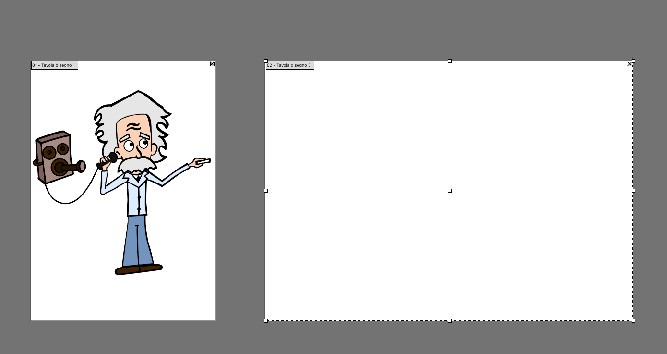
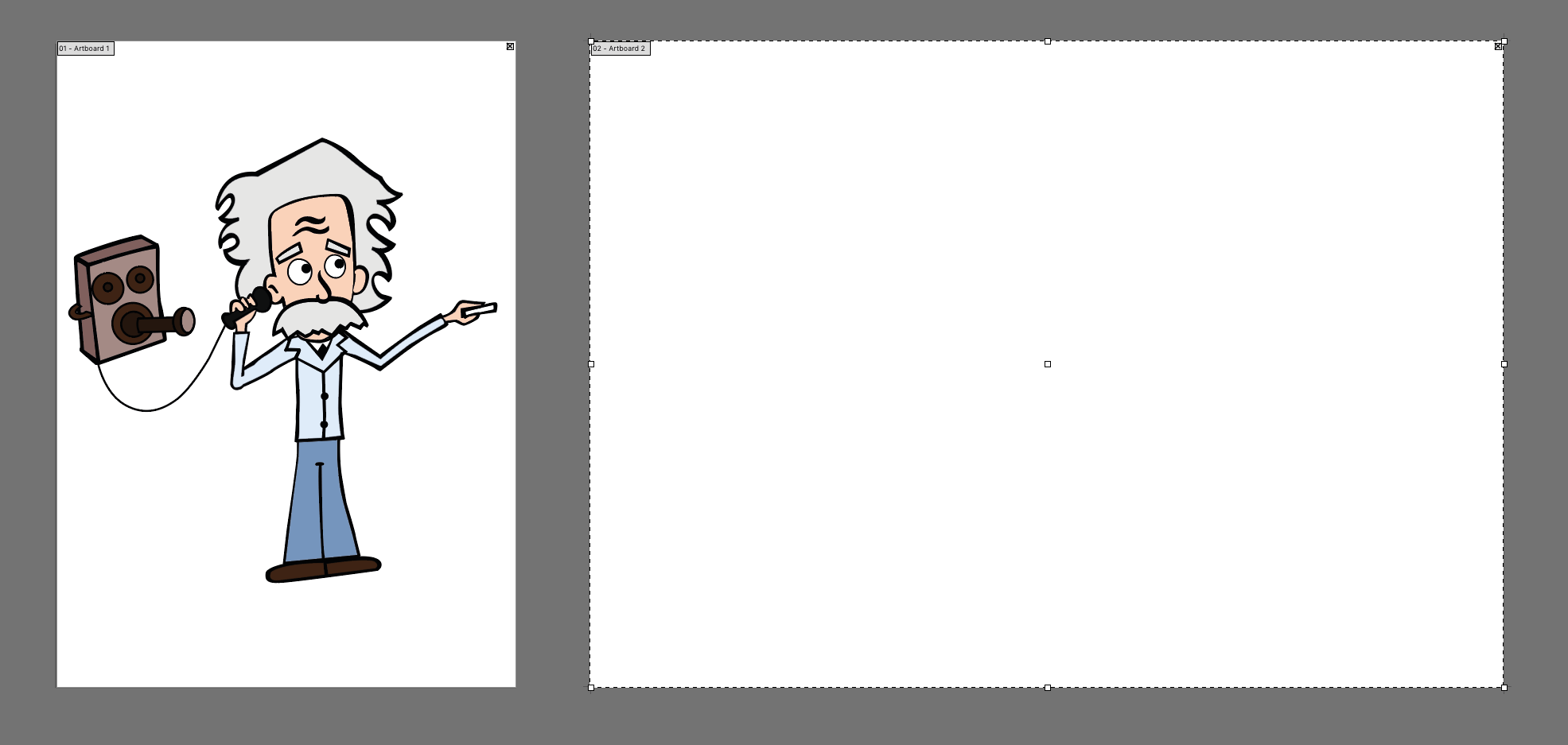
    Others always look at you a bit weird when you say you don’t use Photoshop for web design. I have just never found it very easy, for many of the reasons you give here. I used Inkscape over GIMP too, even before being able to afford the Adobe kit.

    0
  44. 147

    Either way Photoshop & Illustrator are both Adobe products so they work together beautifully why not use them both.

    +5
  45. 148

    Artistic Trepr

    March 8th, 2011 12:26 pm

    I find Illustrator is more precise for overall layout, but I like working between both Illustrator and Photoshop.

    +3
  46. 149

    I do agree I have trouble managing to save for web and devices in Illustrator BUT when it comes to speed!!! Illustrator is so much faster and easy to use!!! I am starting to use Photoshop so I get better at it but so much of it’s workflow when it comes to simple things is way to complicated… I will always stick to Illustrator for simplicity reasons as the article says but also I’m working hard towards new effects I can achieve in Photoshop.
    Great article Vincent!
    Thanks!

    +1
  47. 150

    I can’t wait to start my next site. laying out shapes and editing them is so tedious and can be frustrating. I will be crushing sites now.

    +2
  48. 151

    This was a nice overview tutorial. Thank you!

    0
  49. 152

    Once a site is designed in illustrator and sliced, isn’t it possible to export straight to XHTML/CSS + images via save for web and devices? I believe you can export it into an absolute position div layout and then do the finishing touches on the final coding in Dreamweaver??

    0
  50. 153

    Abbas January 17th, 2011 9:45 am
    I use Illustrator to design my sites. The attention to detail you can achieve is far higher than using Photoshop.

    I love illustrator than Photoshop to say its more than 200% use ur energy for Illustrator u will get more perfection in ur work..

    Abbas is Right …

    0
  51. 154

    We`v just a long conversation about using InDesign at the beginning of design, at the stage of idea. Is It usefull ? I have always worked with AI and using ID in this case is something new for me instead I work with ID very offen. I`m agree about wireframes, but all graphic objects from buttons and patterns to more difficult images may become a seriously problem, isn`t it?
    Are there some articles about it?
    I would be very grateful if you will show me some examples of such design.

    0
  52. 155

    based on the survey responses, it actually seems like significantly more people (like myself) use Illy more than Fw. Fireworks is indeed a good program in concept –because it can create functional prototypes out of a design specs file– but I could never get over its learning curve.

    Learning all Illustrator’s techniques though, is the gift that keeps on giving. Every time you learn something new in it, it can be repurposed for various design tasks.

    0
  53. 157

    I am very much a Photoshop girl but if I was ever going to be tempted by another piece of software then it would be Illustrator, especially after reading this great post.

    0
  54. 158

    You article was very readable and very precise.

    Thank you for sharing.

    0
  55. 159

    Abinash Mohanty

    October 13th, 2011 12:19 am

    Dear Vincent,

    I like the approach of creating the entire Interface in illustrator. This is absolute a good learning for others. However it can not replace photoshop when it comes to a Website with a lot of photographs treatment. illustrator has some good points for which photoshop is not and vise-versa since I am the user for Both. For creating high end digital banner design on the web design, someone has to depends on photoshop (or such photo editing/retouching/manipulating softwares). This is going to be another process by creating the image based design in photoshop and then place the graphics as linked file in illustrator, again you are depending on Photoshop. I think this is quite convenient for web-designers/graphic designers to work everything starting from interface elements to promotional banners in ONE Application, which is also good for sharing one file with the team members or even deliver to client.

    +1
  56. 160

    Thank you for writing this. Ive been using Adobe illustrator for about 3 years know. And i would’ve saved so much time if id had this earlier. xd

    Thank you :D

    +1
  57. 161

    Hallo,
    Thank you for your nice article. There are many useful information.
    Thanks

    +1
  58. 162

    Illustrator’s pixel precision still lacks a lot of polish, it doesn’t work 100% perfectly, which results in a lot of real life frustration. It also lacks states and pages, which help a lot to layout flows. Its symbol, library and text capabilities are better than with Fireworks, the visual styles are worse, as you lack basic styles like for example the extremely useful Inner Shadow.

    What I want to say is that Adobe doesn’t provide an ultimate solution to web and interface design. You have to know your tools and use the right one for the right scale of projects. I have wasted a lot of time in Illustrator with trying to get pixel precision working (even though the numbers were even) and Fireworks does crash and has a lot of bugs, especially in the style department, making larger scale projects a pain in the …

    I am using Photoshop only for complex GUIs (skins) for applications as it allows easy masking, lighting effects and texturing, abilities both Illustrator and Fireworks lack due to bad interfaces. However vectors can prove very valuable in those scenarios so you might want to spend the considerably higher amount of time they need to create even then. (Thats all about the Airbrush vs Vector issue)

    0
  59. 164

    Though this is old, I completely agree. Just having the precision path control in Illustrator is the key. However, I do have to disagree w/ you in one area. You said shapes don’t have editable dimensions or something to that effect in Photoshop. Sure they do! Shapes are created w/ paths which can certainly be resized and once you enable “free transform” you can specify the size.

    0
  60. 165

    Hello! awesome tut. one thing i’ve noticed though is I can use the transform panel in Ai CS4 and can resize to exact dimensions as i’d like…. not sure what the diff is in CS5 with this pixel-precise thing?

    0
  61. 166

    Woah, tons of useful web design tips here. I design with Photoshop but have been annoyed that at different zoom levels, the text loses quality. It sounds like Adobe Illustrator may be able to help me out here though, we’ll see. Thanks for the helpful tips, going to bookmark and return later.

    0
  62. 167

    I would really love to use Fireworks as my go-to app for building mock-ups but unfortunately it just isn’t up to par. The software feels and operates like it’s straight from 2002. Right now the Fireworks team is building “Mobile Pack extensions”. I feel that their time would be better served updating this app into the year 2012 by focusing on the core functionality of what sets it apart from Photoshop and Illustrator. Fix the UI, most of the bugs, and THEN start thinking about creating strong extension sets.

    +2
  63. 168

    A year ago I considered myself an advanced html and css coder. But then I quit a job and months later took a temp project creating an html email for a large company. They gave me a psd file, fully layered, and I had never used photoshop extensively. Expecting the user friendlyness of Illustrator and Fireworks, I was in for a total shock. I have since learned that for some reason web designers use photoshop for designing websites and emails. I find that ludicrous. As you accurately observed, photoshop makes things more complicated than they need to be. The fact that you have to click back and forth in order to simply make a change? That’s ridiculous. If you have 100 layers and aren’t sure exactly which element it is, you’ll waste tons of time clicking on the various layers. And the fact that photoshop isn’t vector based for its graphics is beyond unacceptable. Illustrator is much easier and user friendly. So, now that I’ve spent many days learning how to design w/ photoshop, I’ll spend some time learning web design in Illustrator (as opposed to just logos). Adobe has to kick itself and design photoshop to be more like Illustrator (for objects to be selectable directly on canvas). Well done article!

    +1
  64. 169

    hello guys i would like to share my opinion after i read all the opinions on comments!.. some said photoshop is more artistic and illustrator more ‘pixel sure’..well both are artistic i believe – as a graphic dsigner-..but when it comes for Web design i use adobe illustrator.. because its a vector program off course and everything you see even in this web site is vector !!! offcourse you can mix and match photoshop with it:)

    thanks

    +3
  65. 170

    Abigail Bradshaw

    March 1st, 2012 11:31 pm

    I just took a class where they had us design the website in Photoshop – the entire time, I was thinking “this would be so much easier in Illustrator!” I guess the only disadvantage would be that Photoshop treats photos much better. But when you’re saving so much time with the overall design, I think that’s not too big of a deal.

    +2
  66. 171

    I’ve been using Illustrator for web design for quite a long time. I’m glad to read this article where you pointed out some of your best practice in using AI.

    Anyway I also switch from AI to PS from time to time. Its a really good article and I enjoying it!

    0
  67. 172

    Go ahead and design using whatever tool you like, Photoshop, Illustrator, Fireworks, Indesign it’s your choice.
    Hand me as a developer an .ai file to work with though, and I’ll smack you in the mouth. (figuratively of course…)

    +1
  68. 173

    Illustrator takes a lot more time to learn than photoshop, but a lot more fulfilling in the process!

    0
  69. 174

    Sandra Calder

    August 7th, 2012 9:48 pm

    I LOVE this article! I have been a designer for over 10 years. I remember rule number 1 was to always design in Photoshop. I never really understood why. I suppose back when websites were first introduced Photoshop was more superior than illustrator. HOWEVER, with modern technology, there is no reason to ignore Illustrator for website design. I find my time is focused on creativity instead of dealing with multiple steps to complete a simple task in Photoshop. In my opinion, Photoshop is for photos. I prepare all images for a website in Photoshop, and place them into illustrator for the visual. I have been using Illustrator for about 5 years to design websites and I always felt that I was doing what other’s thought to be an industry no-no…but yet I’m more productive. Glad to see I’m, not the only one!

    +2
  70. 175

    After reading this article, I can say that I understand why designers use Illustrator over Photoshop. As a developer though, I absolutely hate working with illustrator files. Partially because I barely know how to use the program and know Photoshop much better (half the time I just take a screenshot of the element I want and crop it in Photoshop) and partially because of the “linked files” issue. Sometimes, when I get the file, half of the images don’t load because of a “linked file” error. I acknowledge that maybe I should learn Illustrator better, but I really don’t have the time to do so.

    0
  71. 176

    Awesome article. Great in-depth and really useful. Thanks!

    0

  1. 1

    Vincent Le Moign

    January 17th, 2011 6:51 pm

    We have a lot of negative feedbacks in the comments about the ability to convert from Illustrator to HTML, even if some other testimonies prove the opposite.

    I think problems come mainly from 2 reasons :

    • Some designers don’t know enough the hard process of converting to HTML, create some unrealistic designs or don’t prepare properly the files.
    • Some developers are used to PSD, but don’t know how to use Illustrator.

    No time to make it now, but I think I will write soon :

    • A recommandation document for designers : How to prepare Illustrator layout for HTML conversion
    • A tutorial for developers to explain how to convert Illustrator files to HTML

    Some tips for slicing/exporting (please feel free to add more tips and insights !) :

    • For exporting images, you can use the slice tool in the “Tool” panel, or the slice menu menu in “Object > Slice” with a lot of options (create slices from guides, from selection, merging or delete guides, etc.)
    • You can also rescaling the “Artboard ” around the elements you want to export. Note that when you have the “Artboard” tool selected, if you click on one vector element or group of elements, it will create automatically an artboard around the elements. So you just have to export it by using “File > Save for web”.
    • A lot of problems come from the misunderstood “Artboard” concept in Illustrator. It’s different from the PSD “Canvas”. In photoshop everything you see can be exported. In Illustrator it have to be defined by the “Artboard”.The slices won’t work outside this “Artboard”, so be sure to have a large enough “Artboard” canvas to slice your design. Use “View>Show Artboards” to show Artboards. Rescale them by selecting the “Artboard” tool in the Tools panel.

    Some tips for preparing the files for conversion :

    • Be sure that every external image you use is embedded in the Illustrator file. When you save a file, check this option in the “Save as” window : “Include linked file”
    • Check the fonts used in your layout by using “Type > Find font”. You have the list of fonts used in the document ; you can automatically replace the ones you don’t want. If you tried different fonts during the design process, there is some chance you forgot a small piece of text with this font somewhere (it could be even a text zone without any text, so it’s invisible…). If a font is missing because you didn’t send it to the developer, he will see an error message while opening the Illustrator file.
    • Organize and name your layers : one layer for “header”, one for “menu”, etc. Inside these zone layers create one layer for the background, and one for the content. So it’s easier for the developer to hide the background when he want to export transparent elements.
    • Use RGB of course. I also desactivate the color management as it bring a color switch between my layout in Illustrator and the exported pictures in the browsers. Go to “Edit > Assign profile” and select “No color manage this document”
    (Maybe you know better solutions ?)
    • I also use the guides and group them on a layer to show the structure and proportion to the developer.

    If you know more tips and good practices, fell free to share.

    +23
  2. 2

    Everybody has his or her personal preferences, and it’s always useful to see how other designers are working, what their workflow, techniques and tools are. I actually liked a lot that the author doesn’t try to push his opinion, but is rather humble and presents his opinion by arguing the advantages of Illustrator. More articles like these would be great for Smashing Magazine IMHO.

    +20
  3. 3

    Mmmm… I agree and disagree at the same time… I use both AI and PS to design in combination. I find easier to chop a bitmap than an AI. Things get blurry even when you use snap to pixel functions.
    Great article to save for future reference.

    +17
  4. 4

    I disagree. As a front-end developer, I would contest that using Illustrator’s artboards to export images is superior to slicing in Photoshop. You can set up many artboards in different areas, and easily export that area later on if an aspect of the design has changed.

    +13
  5. 5

    I use Illustrator to design my sites. The attention to detail you can achieve is far higher than using Photoshop.

    +12
  6. 6

    Vincent Le Moign

    January 17th, 2011 8:27 pm

    Ah ah, you’re right : let’s avoid apocalypse, and some stress for developers ;-)

    But the problems you point to here are more bad practices than a software problem (yes CMJN settings for Web Design is a shame..)

    This could be solved by better practices as I propose in a comment above. I’m thinking of writing :
    • A recommandation document for designers : How to prepare Illustrator layout for HTML conversion
    • A tutorial for developers to explain how to convert Illustrator files to HTML

    +11
  7. 7

    Agree… it was well-written and not ‘preachy’ LOL

    I enjoyed reading how he uses AI to speed up his design process.

    +9
  8. 8

    Thanks for reminding me why I use Illustrator and not Photoshop – I sometimes feel like a bit of a freak in the design world because most designers think that you need to use Photoshop. But I agree 100% with you, Illustrator is a far superior tool when it comes to web design.

    Just one question, are you sure the Transform panel is only in CS5? I’ve been using it for years! Maybe there is some particular feature in it in CS5 that you were referring too that I missed when reading?

    Thanks for the article – I loved it =D

    +8
  9. 9

    Really great article.
    I have to say I am one of the few graphic/web designer who really hates Photoshop and the way it works… I keep it for pictures-related work and that’s it.
    I switch between Illustrator and InDesign. I find them more related to the content-driven works.

    +8
  10. 10

    I use only Illustrator to design sites. It’s a lot faster and a lot more flexible than Photoshop.

    +8
  11. 11

    Wow.

    My first Adobe product was Illustrator, makes me really want to revisit why I have been spending so much time in Photoshop lately.

    Thank you!

    +8
  12. 12

    wow i totally disagree – i’d say it depends on your own knowledge of illustrator. I don’t care if someone gives me a photoshop file or an illy file – you gotta learn the program. Just like anything else.

    +6
  13. 13

    sorry but i have to disagree – i work for one of the biggest software giants in the world – and the vast majority of developers have no problem working with illustrator. In fact, my current team uses Illustrator more than any other program. I think it comes down to your own personal level of knowledge of the program. Your comment comes across as quite biased.

    +6
  14. 14

    Totally agree. This is exactly how I work. – I use Illustrator to wireframe and create my block elements – I use Photoshop for styling and texturing and I use Fireworks to export/slice out all of my assets.

    I believe this is the way that the Adobe suite was intended to be used for web design.

    Also, I must say, after reading a lot of comments from developers who are complaining about the complexity of slicing elements out of Illustrator; Where I work, it is the responsibility of the DESIGNER to provide all assets pre-sliced and ready to be used by the developer, this way the designer already knows how to use the software and the developers can focus on what they do best; writing beautiful code.

    +6
  15. 15

    Jeremy Douglas Hoover

    January 21st, 2011 6:58 am

    I can see how indesign would be good for mockups and wireframes, but how do you hand off an .indd to a developer?

    +6
  16. 16

    illustrator sometimes has problems rendering the pixel-correct shape of strokes, even if the coordinates are locked on .5-pixels. really annoying.

    +5
  17. 17

    Fan-friggin-tastic. I’m a huge Illustrator fan and have gotten beat up on here for posting an article suggesting that you could use it for other tasks like page layout. It’s an incredibly powerful app and functions perfectly for web design. I’m very interested in Fireworks, but have definitely had the same trouble as you switching because of my preference for the rock-solid Illustrator interface and workflow.

    +5
  18. 18

    Michel Bozgounov

    January 24th, 2011 3:41 am

    @Vincent:

    Text Styles in Fireworks :)))

    +5
  19. 19

    Vincent Le Moign

    January 17th, 2011 5:54 pm

    I agree, vector graphics directly embedded in the browser will be an exciting new playground :-)

    With HTML 5 and vector support in latest web browser releases (via the SVG format), we can now export some parts of the design directly in vectors format.

    I didn’t have time to dig it, but Adobe released a HTML5 pack for Illustrator : http://labs.adobe.com/technologies/illustrator_html5

    Here is an interesting testing of this pack by Astute Graphics : http://www.astutegraphics.com/blog/adobe-illustrator-cs5-html5-pack-testing/

    Undoubtedly a promising way to follow, but we have to wait a better support of HTML5 with all browsers.

    Anyone tried this kind of SVG/HTML5 export from Illustrator ?

    +5
  20. 20

    I agree with Andrew – As long as your layers and artboards are set up right, “slicing” can be done pretty easily. But a messy AI file is a nightmare.

    Here’s my workflow that I like, and it’s been made even easier with CS5′s multiple artboard management:
    * Set up all artboards
    * open .ai file in Photoshop
    * import all artboards at once, align to Crop Box and set to 72 px/in
    * Save for Web

    I use Photoshop because Illustrator’s Save for Web is NEVER accurate. And sometimes I’ll use an invisible box to align the artboards, so the export is exactly 100×100 or whatever.

    +5
  21. 21

    Good post. The Photoshop method of designing then slicing belongs to the era of tables based layouts. AI avoids all this by getting you to focus on simple grid based layouts first. PS designed sites can be over-designed and over laden with effects. I’ve been designing sites with AI for the last ten years and would recommend it.

    +5
  22. 22

    The Master pages in Fireworks is a feature that neither PS or AI have. This is THE MOST IMPORTANT TOOL for productivity!!
    Much more than paragraphs

    +5
  23. 23

    Either way Photoshop & Illustrator are both Adobe products so they work together beautifully why not use them both.

    +5
  24. 24

    Illustrator should be every designers “go to” program, and I have been in this industry since 1988. I can tell you 90% of our projects start in Illustrator. That’s over 4400 projects since 2002. This includes print and web projects. If you are serious about design, you need to have the modular ability Illustrator is based on. Never do we do a web project, that sure enough, require a print project to support it. It may be a display, a package, a billboard, a name tag, or what ever. If you can’t turn that brilliant web design into branding objects for other projects… you are wasting your time. We only use Photoshop for photos. :-)

    +4
  25. 25

    Vincent Le Moign

    January 17th, 2011 7:44 pm

    “It’s be great if someone could make a slicing workflow tutorial for AI.”

    Actually, i’m thinking of doing it :-)
    Like I said in my comment above :
    • A recommandation document for designers : How to prepare Illustrator layout for HTML conversion
    • A tutorial for developers to explain how to convert Illustrator files to HTML

    +4
  26. 26

    Actually if I had the choice of receiving a design file that was the wrong size, I’d rather get it in Illustrator than Photoshop, way easier to resize in Illustrator and not lose resolution.

    +4
  27. 27

    Very nice article. I have to say that I’m relieved to see that’s I’m not the only designer using illustrator to create full websites. I usually prefer illustrator when it comes to websites that tend to be web-application for instance, when you have lots of gui elements that you repeat, the symbols are a great tool. I also use it a lot for mobile applications. Illustrator is also awsome for creating great buttons.
    You make a good point about cpu ressources. The main reason why I first used Illustrator to create a website (actually a wireframe which became a website afterwards with some modifications) was because photoshop was too slow on my aged computer.

    +4
  28. 28

    Vincent Says”…Fireworks does not provide a way to format text by applying styles to paragraphs…”
    Um…Yes it does I use it every day. Paragraph styles were i think implemented in CS4 and improved in CS5.
    I would also have to say as a long time user of both apps.. I think the FW interface is really fast. Illustrator would probably be my second choice to FW currently though.
    Its totally beyond me why anyone would use Photoshop for web design…or any design for that matter that wasn’t 99% image.

    +4
  29. 29

    There is nothing more frustrating than coding a website that was designed in illustrator. It’s incredibly difficult to slice graphics and designers will often times not realize the scale of what they are building since they are working in vector (it can often result in things that are too small or too big at actual size).

    +4
  30. 30

    I use AI CS5 in the company to develop all layouts, be it apps, custom documents or web interfaces. It takes practice to use AI effectively for web layouts but if you get past that, the modularity and flexibility are awesome :)

    +4

Leave a Comment

Yay! You've decided to leave a comment. That's fantastic! Please keep in mind that comments are moderated and rel="nofollow" is in use. So, please do not use a spammy keyword or a domain as your name, or it will be deleted. Let's have a personal and meaningful conversation instead. Thanks for dropping by!

↑ Back to top